Preparing your learning space...
100% through Database Backup & Restore tutorials
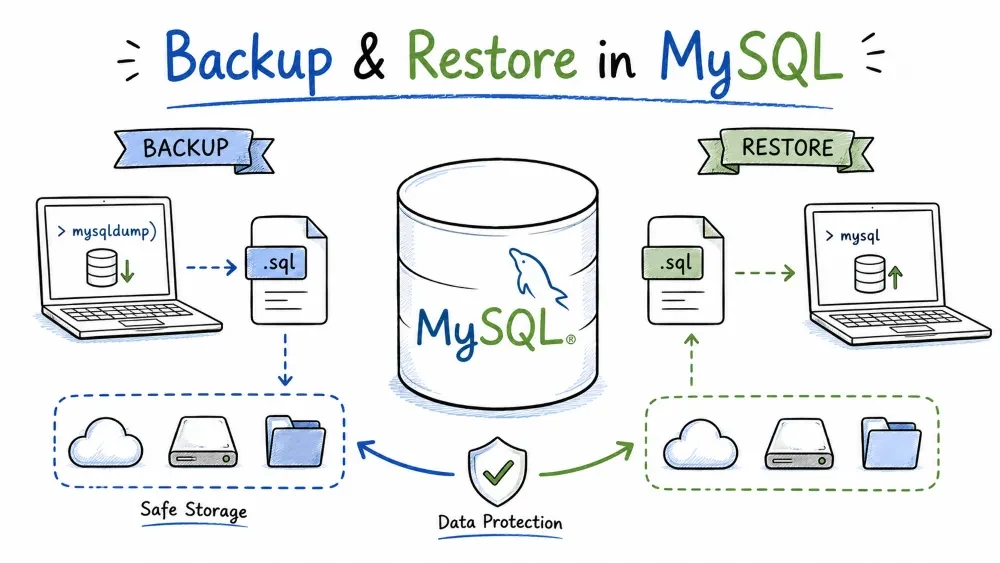
A database is only as safe as its backups. A dropped table, a bad UPDATE, or a dead hard drive is fixed in minutes if you have a recent dump — and not at all if you don't. This tutorial covers the two main backup tools, restoring from a dump, and moving data in and out as CSV.
All examples assume MySQL 8 and a terminal in the folder where you want the backup file.
mysqldump is a client program that copies databases and tables into a file of SQL statements — CREATE TABLE, INSERT, and so on. Replaying that file rebuilds the data from scratch, so the file is a portable snapshot you can move to any MySQL server.
Run it from your system terminal (Command Prompt, PowerShell, bash), not from inside the mysql client.
Syntax:
mysqldump -u user -p database > backup.sql
-p makes it prompt for the password. The dump is written to standard output, so the > redirects it into a file.
Example:
# One database
mysqldump -u root -p shop > shop_backup.sql

# Several databases
mysqldump -u root -p shop blog > site_backup.sql
A dump file is plain readable SQL. Open shop_backup.sql and you'll see a CREATE TABLE for each table followed by INSERT INTO statements carrying the rows:
-- shop_backup.sql (excerpt)
CREATE TABLE `customers` (
  `id` int NOT NULL AUTO_INCREMENT,
  `name` varchar(100) DEFAULT NULL,
  PRIMARY KEY (`id`)
);
INSERT INTO `customers` VALUES (1,'Ada'),(2,'Grace');
By default the dump contains only the data and table structure. Stored procedures, triggers, and events are left out unless you ask for them (see Backing Up a Database).
mysqlpump is the newer sibling of mysqldump. It splits the work across multiple threads and dumps several tables or schemas in parallel, which makes it noticeably faster on large databases.
Syntax:
mysqlpump -u user -p database > backup.sql
Example:
# Dump two schemas at once, four threads each
mysqlpump -u root -p --parallel-schemas=4:shop --parallel-schemas=4:blog > site_backup.sql

# Skip the huge log table
mysqlpump -u root -p shop --exclude-tables=shop.access_log > shop_backup.sql
One honest warning: MySQL deprecated mysqlpump in version 8.0.34 and dropped it from 8.4. It still works on 8.0 servers, but do not build new backups on it — mysqldump is the standard tool and everything below uses it.
A few flags turn a basic mysqldump into a proper backup. The two that matter most: --single-transaction for a consistent snapshot, and the --databases family for knowing which database you're about to restore.
--single-transaction takes the backup in one read-only transaction (InnoDB only), so every table is copied at the same point in time without locking anyone else out. Leave it on.
The difference between database and --databases database: the plain form dumps the data but does not recreate the database itself. Adding --databases (or --all-databases) prepends CREATE DATABASE and USE statements, which makes the file self-contained.
Example:
# Consistent backup of one database
mysqldump -u root -p --single-transaction shop > shop_backup.sql

# Self-contained: recreates the database too
mysqldump -u root -p --single-transaction --databases shop > shop_full.sql

# Everything on the server
mysqldump -u root -p --all-databases > all_backup.sql
Routines, triggers, and events are skipped by default. Add these flags if the database uses them:
mysqldump -u root -p --single-transaction --routines --triggers --events shop > shop_backup.sql
Structure-only and data-only backups are useful for testing:
# Just the schema
mysqldump -u root -p --no-data shop > shop_schema.sql

# Just specific tables
mysqldump -u root -p shop customers orders > shop_core.sql
Dump files are plain text and compress well. On systems with gzip:
mysqldump -u root -p --single-transaction shop | gzip > shop_backup.sql.gz
Whatever you use, a backup you make once is not a backup. Schedule it (a cron job, a Windows Task Scheduler entry, a MySQL event) and test the restore now and then — an untested backup is a guess. Put the date in the filename so scheduled runs don't overwrite yesterday's copy:
# bash/Linux: $(date +%F) becomes 2026-07-31
mysqldump -u root -p --single-transaction shop > shop_$(date +%F).sql
Restoring is the reverse of dumping: feed the file back into the mysql client. The mysql program reads the file and executes every statement in it.
Syntax:
mysql -u user -p database < backup.sql
The < redirects the file into mysql, exactly the opposite direction of the dump.
Example:
# Restore a single-database dump (database must already exist)
mysql -u root -p shop < shop_backup.sql

# Restore a --databases dump (creates the database itself, so no name needed)
mysql -u root -p < shop_full.sql

# Restore a compressed backup
gunzip < shop_backup.sql.gz | mysql -u root -p shop
Remember which kind of dump you're restoring. A plain shop > shop_backup.sql dump has no CREATE DATABASE in it — if the shop database doesn't exist yet, the restore fails with Unknown database. Create it first:
CREATE DATABASE shop;
Restoring a --all-databases dump as root also rewrites the mysql system database, which contains accounts and privileges. If your server has a root password stored, resetting it to what the dump holds is a side effect to be aware of, not a surprise.
Backups are for restoring whole databases. CSV is for handing a single table to other tools — Excel, Python, another application. MySQL writes CSV files with SELECT ... INTO OUTFILE.
Before this works, find the folder the server is allowed to write to:
SHOW VARIABLES LIKE 'secure_file_priv';
This returns a single path (for example C:/ProgramData/MySQL/MySQL Server 8.0/Uploads/ on Windows). The server refuses to write anywhere else — that restriction exists so a hacked query can't drop files around your operating system. The file is created on the server machine, not your laptop.
Syntax:
SELECT column_list
INTO OUTFILE 'server_path/file.csv'
FIELDS TERMINATED BY ',' ENCLOSED BY '"'
LINES TERMINATED BY '\n'
FROM table_name;
Example:
SELECT id, name, email
INTO OUTFILE 'C:/ProgramData/MySQL/MySQL Server 8.0/Uploads/customers.csv'
FIELDS TERMINATED BY ',' ENCLOSED BY '"'
LINES TERMINATED BY '\n'
FROM customers;
The ENCLOSED BY '"' wraps every value in quotes, so a customer named Doe, John stays one column. MySQL writes NULL values as the two characters \N, which matters again when you import.
Use COALESCE if you want empty strings instead of \N:
SELECT id, COALESCE(name, ''), COALESCE(email, '')
INTO OUTFILE 'C:/ProgramData/MySQL/MySQL Server 8.0/Uploads/customers.csv'
FIELDS TERMINATED BY ',' ENCLOSED BY '"'
LINES TERMINATED BY '\n'
FROM customers;
If you prefer pointing and clicking, MySQL Workbench has a Table Data Export Wizard (right-click a table → Table Data Export Wizard) that writes the CSV to a folder you choose.
LOAD DATA INFILE reads a CSV back into a table. It is the fastest way to move a lot of rows into MySQL, far quicker than thousands of individual INSERTs.
The same secure_file_priv rule applies, mirrored: the file must live in that one upload folder, and it is read from the server machine. To read a file from your own computer instead, add the LOCAL keyword — that requires local_infile to be enabled on both the client and the server.
Syntax:
LOAD DATA INFILE 'server_path/file.csv'
INTO TABLE table_name
FIELDS TERMINATED BY ',' ENCLOSED BY '"'
LINES TERMINATED BY '\n'
IGNORE 1 ROWS;
Example:
LOAD DATA INFILE 'C:/ProgramData/MySQL/MySQL Server 8.0/Uploads/customers.csv'
INTO TABLE customers
FIELDS TERMINATED BY ',' ENCLOSED BY '"'
LINES TERMINATED BY '\n'
IGNORE 1 ROWS;
IGNORE 1 ROWS skips the header line. The column list matters: by default MySQL maps CSV columns to table columns in order. If the file doesn't match the table's column order, name them explicitly:
LOAD DATA INFILE 'C:/ProgramData/MySQL/MySQL Server 8.0/Uploads/customers.csv'
INTO TABLE customers (name, email)
FIELDS TERMINATED BY ',' ENCLOSED BY '"'
LINES TERMINATED BY '\n';
The \N that MySQL exported as NULL is recognized again on the way in — the round trip works without extra work. If the CSV uses empty strings for missing values and the column is NOT NULL or should be NULL, convert them while loading:
LOAD DATA INFILE 'C:/ProgramData/MySQL/MySQL Server 8.0/Uploads/customers.csv'
INTO TABLE customers
FIELDS TERMINATED BY ',' ENCLOSED BY '"'
LINES TERMINATED BY '\n'
IGNORE 1 ROWS
SET email = NULLIF(email, '');
For the same job straight from the terminal, mysqlimport wraps LOAD DATA INFILE and saves you the SQL. It reads the target table from the file name, so customers.csv loads into customers:
mysqlimport -u root -p --ignore-lines=1 \
  --fields-terminated-by=',' --fields-enclosed-by='"' \
  shop customers.csv
A duplicate-row problem is worth planning for: a plain LOAD DATA appends rows. Re-importing the same file doubles the data. Add REPLACE or IGNORE before INTO TABLE to overwrite on a duplicate primary key or to silently skip the offending row.
Workbench again offers the GUI path: Table Data Import Wizard does the same job with a few dialogs.
Save your progress and earn XP for completing tutorials.
Keep learning
Technology
MySQL
Lesson group
Database Backup & Restore
Progress
100% complete

