Preparing your learning space...
100% through Email Security tutorials
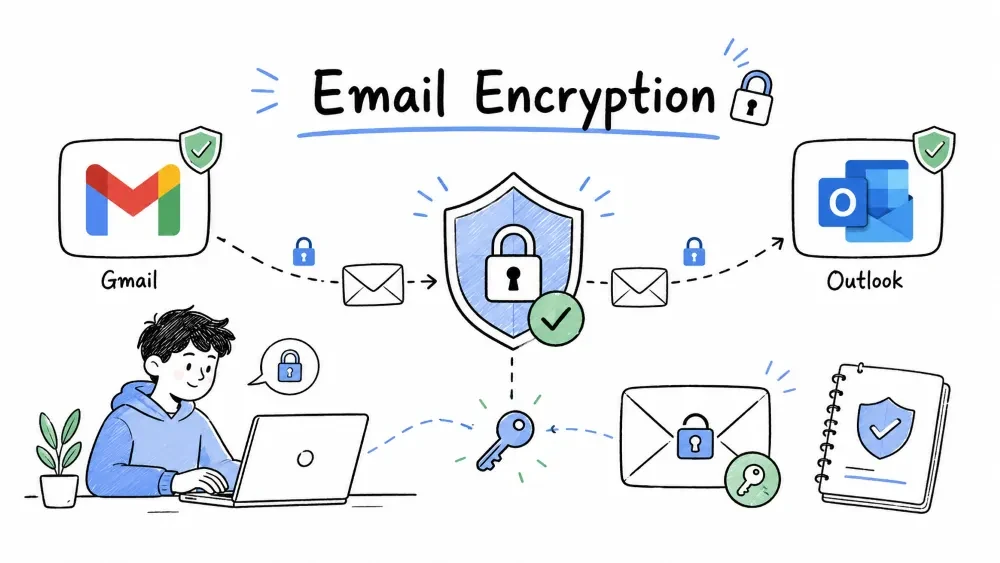
Most people use either Gmail or Outlook (or both) for their email. Each platform has built-in security features that, when properly configured, dramatically reduce the risk of compromise. However, the default settings are not always optimal — users need to actively configure security settings for maximum protection. This tutorial also covers Email Encryption — how to protect email content so only the intended recipient can read it, ensuring privacy even if the email is intercepted.
Gmail has some of the most advanced email security features in the world, powered by Google's AI and machine learning infrastructure. Google processes billions of emails daily and uses this massive dataset to train its security models.
| Feature | Description | How It Protects You |
|---|---|---|
| Spam Filtering | 99.9%+ spam detection rate using AI | Automatically moves spam to Spam folder; 10M+ spam emails blocked per minute |
| Phishing Protection | Real-time link scanning and malware detection | Warns about suspicious links BEFORE you click; blocks known phishing domains |
| Safe Browsing | Warns about dangerous links even after clicking | If you click a link that turns out malicious, Google shows an interstitial warning |
| Attachment Scanning | Automatic virus scanning of all attachments | Every attachment is scanned with Google's antivirus; infected files blocked |
| Confidential Mode | Set expiration dates, revoke access, prevent forwarding | Sensitive emails auto-delete; recipient can't forward, copy, or print |
| 2-Step Verification | Extra layer of security beyond password | Even if password is stolen, attacker needs the second factor |
| Security Checkup | Guided security review of your account | One-click review of devices, recent activity, and third-party access |
| Password Alert | Chrome extension that warns if you enter Google password on a fake site | Prevents credential theft via phishing |
| Advanced Protection Program | Highest security for journalists, activists, politicians | Requires hardware security keys; restricts third-party app access |
| Setting | Where to Find | Recommendation | Why |
|---|---|---|---|
| Strong Password | myaccount.google.com → Security | 12+ chars, unique, use password manager | Most account takeovers start with weak/reused passwords |
| 2-Step Verification (2FA) | Security → 2-Step Verification | ✅ ENABLE — most important setting | Blocks 99.9% of automated attacks (Google research) |
| Google Prompt | Security → 2-Step Verification → Google Prompt | Use this instead of SMS | SMS can be intercepted via SIM swapping; Google Prompt is more secure |
| Passkeys | Security → Passkeys | ✅ Enable — passwordless login | Even more secure than passwords — uses device biometrics |
| Recovery Email | Security → Recovery options | ✅ Set a recovery email | Only way to regain access if you forget password or get locked out |
| Recovery Phone | Security → Recovery options | ✅ Set a recovery phone | Backup for account recovery; ensure it's different from 2FA phone |
| App Passwords | Security → App passwords | Only use for legitimate apps | App passwords bypass 2FA — only generate for apps that need them |
| Setting | Where to Find | Recommendation |
|---|---|---|
| Block Suspicious Senders | Settings → See all settings → Filters → Block | ✅ Enable — restricts unknown senders |
| Default Image Loading | Settings → General → Images | Set to "Ask before displaying external images" |
| Smart Compose | Settings → General | Optional — convenience feature |
| Smart Reply | Settings → General | Optional — convenience feature |
| Custom Filters | Settings → Filters and Blocked Addresses | Create rules to auto-label, archive, or delete based on sender/subject |
| Inbox Type | Settings → Inbox | Customize how email is organized (default: Default) |
| Import & Forwarding | Settings → Forwarding | Disable unless you need it |
| Canned Responses | Settings → Advanced → Canned Responses | Disable if not using |
Step-by-Step Security Checkup:

Step 1: Go to myaccount.google.com
         ↓
Step 2: Click "Security" in the left sidebar
         ↓
Step 3: Top section: "Security Checkup"
         ↓
Step 4: Click "Start Security Checkup"
         ↓
         ╔══════════════════════════════════════════╗
         ║          SECURITY CHECKUP FLOW           ║
         ╠══════════════════════════════════════════╣
         ║                                          ║
         ║  1. 📱 DEVICES REVIEWED                  ║
         ║     • List of all signed-in devices      ║
         ║     • Remove any device you don't        ║
         ║       recognize                          ║
         ║     • Click "Don't recognize?" to        ║
         ║       revoke access immediately          ║
         ║                                          ║
         ║  2. 🔐 RECENT SECURITY EVENTS            ║
         ║     • Review all recent sign-ins          ║
         ║     • Check for unrecognized locations/  ║
         ║       devices/IPs                        ║
         ║     • If you see "New device signed in"   ║
         ║       that wasn't you → Change password   ║
         ║       immediately                         ║
         ║                                          ║
         ║  3. 🔗 THIRD-PARTY ACCESS               ║
         ║     • List of apps with access to your   ║
         ║       Google account                      ║
         ║     • Remove any app you don't use or    ║
         ║       don't recognize                     ║
         ║     • Pay attention to apps that request  ║
         ║       "Read, compose, send, and delete    ║
         ║       all your email from Gmail"          ║
         ║     • Revoke access for suspicious apps   ║
         ║                                          ║
         ║  4. 📧 RECOVERY SETTINGS                 ║
         ║     • Recovery email: ✅ set              ║
         ║     • Recovery phone: ✅ set              ║
         ║     • Both should be up to date           ║
         ║                                          ║
         ║  5. 🔑 2-STEP VERIFICATION               ║
         ║     • Status: ON (if not, ENABLE NOW)     ║
         ║     • Method: Google Prompt (preferred)   ║
         ║     • Backup codes: ✅ printed/stored     ║
         ║                                          ║
         ╚══════════════════════════════════════════╝
         ↓
Step 5: Review and fix any warnings ⚠️
Step 6: Schedule recurring checkup → Set reminder for 1 month
Do a Security Checkup at least once a month! This is the single best habit for maintaining Gmail security.
Confidential Mode lets you send sensitive emails that self-destruct and cannot be forwarded, copied, or printed by the recipient.
| Feature | Description |
|---|---|
| ⏳ Expiration | Set email to auto-delete between 1 day and 5 years |
| 🔒 Anti-Forwarding | Recipient cannot forward, copy, paste, download, or print the email |
| 📱 SMS Passcode | Optional: recipient enters a passcode sent via SMS to view the email |
| ↩️ Revoke | You can revoke access anytime before expiration |
How to Use Confidential Mode:
1. Click "Compose" to start a new email
2. Click the lock + clock icon at the bottom of the compose window
     ┌─────────────────────────────────────────────────┐
     │  Send                                          │
     │  📎 🔗 😊 🔒🕐 ← Click this icon                  │
     └─────────────────────────────────────────────────┘
3. A settings panel opens:
     ┌────────────────────────────────┐
     │   Confidential Mode            │
     │                                 │
     │   Set expiration: [1 Day ▼]    │
     │                                 │
     │   SMS passcode: [ ]            │
     │   □ Require SMS passcode       │
     │                                 │
     │             [Save] [Cancel]     │
     └────────────────────────────────┘
4. Choose expiration period (1 day, 1 week, 1 month, 2 years, 5 years)
5. Optionally: Check "Require SMS passcode" — enter recipient's phone number
6. Click "Save"
7. Send the email normally

To Revoke Access:
  → Open the sent email
  → Click "Remove access" in the top-right of the Confidential Mode banner
  → Recipient can no longer open the email

Limitations:
  ❌ Recipient screenshot can still capture content (though not notified)
  ❌ SMS passcode sends the code — ensure recipient's phone number is correct
  ❌ Recipients using other email clients (not Gmail) may have degraded experience
Gmail automatically detects suspicious emails and shows warning banners. These warnings must NEVER be ignored.
Warning Type 1: Phishing Detection
┌──────────────────────────────────────────────────────────────────┐
│ ⚠ This message seems dangerous.                                   │
│   Similar messages were used to steal people's personal           │
│   information. Avoid clicking links or downloading attachments.   │
│   Unless you're sure the sender is trustworthy, don't interact    │
│   with this message.                                              │
│                    [Report as phishing]          [Ignore]         │
└──────────────────────────────────────────────────────────────────┘

Warning Type 2: Sender Not Verified
┌──────────────────────────────────────────────────────────────────┐
│ ❓ The sender of this email could not be verified. It may be     │
│    a spoofed email. Learn more.                                  │
└──────────────────────────────────────────────────────────────────┘

Warning Type 3: External Email Warning
┌──────────────────────────────────────────────────────────────────┐
│ 🏢 This email originated from outside your organization.         │
│    Don't click links or open attachments unless you recognize    │
│    the sender and know the content is safe.                      │
└──────────────────────────────────────────────────────────────────┘

Warning Type 4: Dangerous Link Warning (after clicking)
┌──────────────────────────────────────────────────────────────────┐
│ ⛔ Deceptive site ahead                                          │
│    Attackers on [domain] may trick you into doing something      │
│    dangerous like installing software or revealing personal      │
│    information (for example, passwords, phone numbers, or        │
│    credit cards).                                                │
│                    [Go back]           [Visit this unsafe site]  │
└──────────────────────────────────────────────────────────────────┘
Never ignore these warnings! Google's AI detects 99.9% of spam and phishing. If Google flags an email, there is an extremely high probability it is malicious.
| # | Best Practice | Implementation |
|---|---|---|
| 1 | ✅ Enable 2-Step Verification | myaccount.google.com → Security → 2-Step Verification |
| 2 | ✅ Use a unique, strong password | Use Bitwarden, 1Password, or LastPass to generate and store a 16+ char password |
| 3 | ✅ Set up passkeys | myaccount.google.com → Security → Passkeys → Create a passkey |
| 4 | ✅ Review third-party app access | Security → Third-party apps with account access → Revoke unused apps |
| 5 | ✅ Check Recent Security Events monthly | Security → Recent security events → Review all activity |
| 6 | ✅ Use Confidential Mode for sensitive emails | Click the lock+clock icon when composing |
| 7 | ✅ Report phishing emails | Click ⋮ → Report phishing (don't just delete — reporting helps train the AI) |
| 8 | ✅ Keep recovery options updated | Security → Recovery → Phone + Email both set |
| 9 | ✅ Never install suspicious Chrome extensions | Extensions that request "read your email" access can steal your data |
| 10 | ✅ Review Gmail forwarding rules | Settings → Forwarding → Check for unauthorized forwarding |
| 11 | ✅ Disable image auto-loading | Settings → General → Images → Ask before displaying external images |
| 12 | ✅ Use Gmail offline access with caution | Settings → Offline → Only enable if you trust the device |
| 13 | ✅ Check Gmail's "Show original" for headers | Open suspicious email → ⋮ → Show original — verify SPF/DKIM/DMARC |
| 14 | ✅ Review blocked addresses list | Settings → Filters → Blocked Addresses → Review |
| 15 | ✅ Sign out of unused sessions | Scroll to bottom of Gmail → Details → Sign out all other sessions |
Microsoft Outlook (both Outlook.com and Office 365) includes enterprise-grade security features. The ecosystem includes Exchange Online Protection (EOP) for all customers and Microsoft Defender for Office 365 for premium protection.
| Feature | Edition | Description |
|---|---|---|
| Exchange Online Protection (EOP) | All M365 | Enterprise-level spam & malware filtering, connection filtering, IP allow/block lists |
| Microsoft Defender for Office 365 | Premium | Advanced threat protection including Safe Links, Safe Attachments, anti-phishing, impersonation protection |
| Safe Links | Defender | Real-time link scanning at click-time — rewrites URLs to go through Microsoft's proxy |
| Safe Attachments | Defender | Opens attachments in isolated sandbox before delivery — detects unknown malware |
| Anti-Phishing | Defender | ML-based impersonation detection for executives, domains, and brands |
| Quarantine | All | Suspicious emails held for admin or user review; time-limited retention |
| Mail Flow Rules | All | Custom rules to flag, block, or redirect emails based on content, sender, or recipient |
| Bulk Email Detection | All | Filters and provides user controls for subscription/unsubscribe management |
| Setting | Where to Find | Recommendation |
|---|---|---|
| Strong Password | account.microsoft.com/security | 12+ characters, unique, managed by password manager |
| Two-Factor Verification | Security → Advanced Security | ✅ ENABLE — this is the MOST IMPORTANT setting |
| Microsoft Authenticator | Security → Advanced Security → App | Use Microsoft Authenticator app (more secure than SMS) |
| Windows Hello / Passkeys | Security → Windows Hello | Use biometric login (fingerprint, face) — convenient and secure |
| Security Info | Security → Security info | Keep phone number and alternate email updated |
| App Passwords | Security → App passwords | Only for legacy apps that don't support 2FA |
| Passwordless Account | Security → Advanced Security | Switch to passwordless — removes password as attack vector |
| Recovery Code | Security → Recovery code | Save the 25-digit code in a secure place |
| Setting | Where to Find | Recommendation |
|---|---|---|
| Junk Email Filter | Settings → Mail → Junk email | Set to "High" or "Safe Lists Only" (most aggressive) |
| Safe Senders/Recipients | Settings → Junk email → Safe senders | Add trusted contacts to ensure they're never marked as spam |
| Blocked Senders | Settings → Junk email → Blocked senders | Add known spam domains |
| Forwarding | Settings → Mail → Forwarding | Disable unless needed — attackers enable forwarding to exfiltrate emails |
| External Images | Settings → Mail → External images | Block all external images (prevents tracking pixels) |
| Automatic Processing Rules | Settings → Mail → Automatic processing | Review regularly — attackers create hidden forwarding rules |
| Clutter / Focus Inbox | Settings → Mail → Clutter | Enable — separates important mail from the rest |
| Message Preview | Settings → Mail → Message preview | Disable or set to 1 line for privacy |
| Read Receipts | Settings → Mail → Read receipts | Never send read receipts to unknown senders |
Safe Links is Microsoft's advanced protection feature that scans URLs at the moment a user clicks them, providing real-time protection against zero-hour threats.
How Safe Links Works:

  ┌─────────────────────────────────────────────────────────────────────┐
  │                                                                     │
  │  Step 1: User receives an email with a link in Outlook              │
  │          Link: "Click here to download"                             │
  │          Real URL: https://malicious.com/download.exe               │
  │                                                                     │
  │  Step 2: Safe Links automatically rewrites the URL to go through    │
  │          Microsoft's safe link proxy:                               │
  │          https://nam01.safelinks.protection.outlook.com/            │
  │          ?url=https://malicious.com/download.exe&data=...           │
  │                                                                     │
  │  Step 3: When the user clicks the link:                             │
  │          ┌────────────────────────────────────────────────┐         │
  │          │  Request goes to Microsoft's Safe Links proxy   │         │
  │          │                                                │         │
  │          │  Microsoft checks:                             │         │
  │          │  ┌──────────────────────────────────────┐      │         │
  │          │  │ 1. Is URL in known malicious list?    │      │         │
  │          │  │ 2. Is URL in known safe list?         │      │         │
  │          │  │ 3. Real-time reputation check:        │      │         │
  │          │  │   • Scan destination for malware      │      │         │
  │          │  │   • Check domain age/reputation       │      │         │
  │          │  │   • Check for phishing content        │      │         │
  │          │  │ 4. Verdict: Safe? → Redirect to URL   │      │         │
  │          │  │            Malicious? → Block page    │      │         │
  │          │  └──────────────────────────────────────┘      │         │
  │          └────────────────────────────────────────────────┘         │
  │                                                                     │
  │  Step 4: User sees result:                                         │
  │          ┌────────────────────────┐   ┌──────────────────────────┐  │
  │          │ ✅ SAFE — link opens   │   │ ⚠ MALICIOUS — warning    │  │
  │          │   normally             │   │   page displayed          │  │
  │          └────────────────────────┘   └──────────────────────────┘  │
  │                                                                     │
  │  Step 5: Microsoft logs the click event for security team review    │
  │          Admin can see: Who clicked? When? On which device?         │
  └─────────────────────────────────────────────────────────────────────┘

How to Check Safe Links Status:
  If a URL is rewritten, the email will have:
  X-MS-Exchange-Organization-SafeLinks: processed
Safe Attachments opens email attachments in a virtual sandbox before they reach the user's inbox, analyzing behavior for malicious activity.
How Safe Attachments Works:

  ┌─────────────────────────────────────────────────────────────────┐
  │                                                                 │
  │  Email with attachment arrives at Exchange Online               │
  │  Attachment: Invoice_2024.pdf (actually contains malware)       │
  │                                                                 │
  │  ┌─────────────────────────────────────────────────────────────┐│
  │  │ Attachment is extracted and sent to a virtual sandbox       ││
  │  │ The sandbox is a full Windows environment                   ││
  │  │                                                             ││
  │  │ Sandbox Actions:                                            ││
  │  │ 1. Opens the PDF with various readers (Adobe, Edge, etc.)   ││
  │  │ 2. Monitors all processes spawned                          ││
  │  │ 3. Checks for:                                             ││
  │  │    • Files created/modified/deleted                        ││
  │  │    • Registry changes                                      ││
  │  │    • Network connections to C2 servers                     ││
  │  │    • Process injection attempts                            ││
  │  │    • New executables written to disk                       ││
  │  │ 4. Generates behavioral report                             ││
  │  └─────────────────────────────────────────────────────────────┘│
  │                               ↓                                 │
  │  ┌─────────────────────────────────────────────────────────────┐│
  │  │ Results:                                                     ││
  │  │                                                              ││
  │  │  ╔═══════════════════════════════════════════════╗          ││
  │  │  ║ VERDICT           │ ACTION                    ║          ││
  │  │  ╠═══════════════════════════════════════════════╣          ││
  │  │  ║ ✅ Clean          │ → Deliver to Inbox        ║          ││
  │  │  ║ 🟠 Unknown        │ → Deliver with warning    ║          ││
  │  │  ║ 🔴 Malware        │ → Remove attachment,      ║          ││
  │  │  ║                   │   notify admin            ║          ││
  │  │  ║ 🔴 High Risk      │ → Quarantine entire email ║          ││
  │  │  ╚═══════════════════════════════════════════════╝          ││
  │  └─────────────────────────────────────────────────────────────┘│
  │                    ↓                                            │
  │      User receives email with attachment (or alert)             │
  │                                                                 │
  └─────────────────────────────────────────────────────────────────┘
| # | Best Practice | Implementation |
|---|---|---|
| 1 | ✅ Enable Two-Factor Verification | account.microsoft.com → Security → Advanced Security |
| 2 | ✅ Use Microsoft Authenticator | Download from app store → Add work/school account |
| 3 | ✅ Use Outlook's "Report Message" add-in | Settings → Get add-ins → Install "Report Message" or "Phish Alert" button |
| 4 | ✅ Never allow macros in email attachments | If an email asks you to enable macros, it's almost certainly malware |
| 5 | ✅ Check Forwarding rules regularly | Settings → Mail → Forwarding → Review all forwarding rules |
| 6 | ✅ Block external images by default | Settings → Mail → External images → Don't load automatically |
| 7 | ✅ Use Focus Inbox | Separates important emails from bulk and newsletters automatically |
| 8 | ✅ Review sign-ins monthly | account.microsoft.com/security → Recent activity |
| 9 | ✅ Enable Safe Links | Requires Defender for Office 365 — check if enabled |
| 10 | ✅ Enable Safe Attachments | Requires Defender for Office 365 — check if enabled |
| 11 | ✅ Review mailbox auditing rules | Exchange admin → Mail flow → Rules → Review for hidden forwarding rules |
| 12 | ✅ Use passwordless account | Removes password as an attack vector — uses app/security key instead |
| 13 | ✅ Never click "Unsubscribe" in suspicious emails | Legitimate unsubscribe only for services you actually signed up for |
| 14 | ✅ Use OWA (Outlook Web App) for sensitive emails | Often has more security features than desktop client (ATP) |
| 15 | ✅ Set quarantine policies | Admins can set how long quarantine holds emails and user access |
| Feature | Gmail | Outlook | Winner |
|---|---|---|---|
| Spam Filtering | ⭐⭐⭐⭐⭐ AI-powered — 99.9%+ detection | ⭐⭐⭐⭐ ML + community rules | 🏆 Gmail (slightly better for spam) |
| Phishing Protection | ⭐⭐⭐⭐⭐ Real-time link scanning; Safe Browsing | ⭐⭐⭐⭐⭐ ATP Safe Links; Defender for Office 365 | 🤝 Tie |
| 2FA/MFA | Google Prompt, Passkeys, Security Key, TOTP, SMS | MS Authenticator, Windows Hello, Passkey, TOTP, SMS | 🤝 Tie |
| Passwordless | Passkeys | Passwordless Account + Windows Hello + Passkeys | 🏆 Outlook (remove password completely) |
| Encryption (Free) | TLS + Confidential Mode | TLS + M365 OME (free with M365) | 🏆 Outlook (OME in M365 subscriptions) |
| Encryption (Premium) | Workspace Client-side encryption | S/MIME + OME + Purview Message Encryption | 🏆 Outlook (more enterprise options) |
| Enterprise Security | Google Workspace — Data Loss Prevention, Vault | Office 365 — Defender, Compliance Center, Purview | 🏆 Outlook (more mature enterprise tools) |
| Free Tier Storage | 15 GB | 15 GB | 🤝 Tie |
| Privacy (Free) | Scans emails for ad targeting | Minimal scanning, no ads | 🏆 Outlook (better privacy for free users) |
| Advanced Protection | Advanced Protection Program (hardware keys) | Passwordless + Conditional Access | 🏆 Outlook (more granular) |
| Incident Response | Google Workspace alerts + Investigation Tool | Defender 365 + Microsoft Sentinel | 🏆 Outlook (richer SOC tools) |
Email encryption scrambles the content of an email so that only the intended recipient can read it. Even if the email is intercepted in transit, accessed by a mail server, or stolen from a database, the attacker sees only unreadable ciphertext.
Plaintext: "Please find attached the Q3 financial report: Revenue $2.5M"
               ↓
Encrypted (AES-256): "7G3hK9dJ2nL5pQ8rT1wY4eR6tU9iOp2sD5fG8hJ1kL4"
               ↓
Only the recipient with the correct decryption key can read it
| Aspect | Details |
|---|---|
| What it protects | Email while traveling between mail servers |
| How it works | TLS encrypts the SMTP connection between servers (opportunistic or forced) |
| Who can read it | Sender, recipient, and THEIR MAIL SERVERS (server stores decrypted) |
| Setup | Automatic between major providers (Gmail, Outlook, Yahoo) |
| Strength | ⭐⭐⭐ Adequate for everyday email, NOT for secrets |
TLS Encryption Model:

  Sender → [🔒 TLS 🔒] → Sender's Mail Server → [🔒 TLS 🔒] → Recipient's Mail Server → Recipient
                           └────────┬─────────┘      └──────────┬──────────┘
                              Can read email!               Can read email!
                              (Stored unencrypted)         (Stored unencrypted)

  PROBLEM: Your email provider (Google, Microsoft) can see all your
           emails in plain text. They store them on disk unencrypted
           (or encrypted with THEIR key, which they control).
| Aspect | Details |
|---|---|
| What it protects | Email from sender to recipient — no one else can read it |
| How it works | Email encrypted on sender's device; only recipient can decrypt on their device |
| Who can read it | ONLY the sender and recipient — NOT even the mail servers |
| Setup | Manual — requires key exchange (PGP) or certificate infrastructure (S/MIME) |
| Strength | ⭐⭐⭐⭐⭐ Maximum protection |
End-to-End Encryption Model:

  Sender → [🔒 E2E 🔒] → Sender's Mail Server → [🔒 E2E 🔒] → Recipient's Mail Server → [🔒 E2E 🔒] → Recipient
                           └────────┬─────────┘      └──────────┬──────────┘
                           Cannot read (encrypted)    Cannot read (encrypted)
                            Only sees ciphertext        Only sees ciphertext

  BENEFIT: Even if Google or Microsoft are compromised, your email
           content remains private. Only you and the recipient
           have the keys to decrypt.
| Aspect | Details |
|---|---|
| What it protects | Email stored on mail servers |
| How it works | Server encrypts the database that stores emails (using server's key) |
| Who can read it | The mail provider CAN still read it — they have the decryption key |
| Setup | Automatic — transparent to users |
| Strength | ⭐⭐ Protects against physical theft of servers, but NOT against provider access |
TLS is the foundation of email security on the modern internet. It encrypts the connection between mail servers during transit.
How TLS Works for Email:

  1. Sender's server (smtp.gmail.com) wants to send to
     Recipient's server (mx.outlook.com)

  2. Sender asks: "Do you support TLS?"
     Recipient:   "Yes, I support TLS 1.3 with these ciphers..."

  3. If both support TLS → Encrypted connection is established
     If recipient does NOT support TLS → Email sent in PLAINTEXT

  4. Email is transmitted encrypted → No one in the middle can read it

  5. BUT: Once delivered, the recipient's server decrypts and stores
     the email in plain text on disk

Checking TLS Status:
  In Gmail:
    → Open email → Three dots → Show original
    → Look for: "Received: from ... with ESMTPS id ..."
      (ESMTPS = SMTP over TLS)
    → If you see: "version=TLS1_3" → Connection was encrypted

  In Outlook:
    → Open email → View message details
    → Look for: "TLS: Yes" in the authentication results

TLS Limitations:
  ❌ Not all servers support TLS (email sent in plain text)
  ❌ Only encrypts in transit — NOT at rest
  ❌ Server admins can still read your email
  ❌ Does not verify sender identity (need DKIM for that)
PGP is a public-key encryption system that provides true end-to-end encryption for email. It was created by Phil Zimmermann in 1991 and was even classified as a "munition" by the US government due to its strength.
┌─────────────────────────────────────────────────────────────────────┐
│                    PGP ENCRYPTION PROCESS                           │
│                                                                     │
│  Key Generation (One-Time Setup):                                   │
│  ┌─────────────────────────────────────────────────────────────────┐│
│  │ User generates TWO mathematically linked keys:                  ││
│  │                                                                  ││
│  │  🔑 PUBLIC KEY  →  Share with EVERYONE                          ││
│  │     (Can encrypt messages, verify signatures)                    ││
│  │                                                                  ││
│  │  🔐 PRIVATE KEY →  Keep SECRET, never share                     ││
│  │     (Can decrypt messages, create signatures)                    ││
│  │     Protected by a passphrase                                    ││
│  └─────────────────────────────────────────────────────────────────┘│
│                                                                     │
│  Sending an Encrypted Email:                                        │
│  ┌─────────────────────────────────────────────────────────────────┐│
│  │ 1. Alice wants to send an encrypted email to Bob                 ││
│  │ 2. Alice gets Bob's PUBLIC KEY (from keyserver, email, website)  ││
│  │ 3. Alice composes email and encrypts it with Bob's PUBLIC KEY    ││
│  │ 4. Alice also signs it with her PRIVATE KEY (proves it's from   ││
│  │    Alice, not an impersonator)                                   ││
│  │ 5. Only Bob's PRIVATE KEY can decrypt this email                 ││
│  └─────────────────────────────────────────────────────────────────┘│
│                                                                     │
│  Receiving an Encrypted Email:                                      │
│  ┌─────────────────────────────────────────────────────────────────┐│
│  │ 1. Bob receives encrypted email                                 ││
│  │ 2. Bob's PGP software uses Bob's PRIVATE KEY to decrypt         ││
│  │ 3. Bob verifies Alice's signature using Alice's PUBLIC KEY      ││
│  │ 4. Bob can now read the email                                   ││
│  └─────────────────────────────────────────────────────────────────┘│
└─────────────────────────────────────────────────────────────────────┘
Step 1: Install GnuPG (GPG)
  Windows: Download from gpg4win.org
  Mac:     brew install gnupg
  Linux:   sudo apt install gnupg

Step 2: Generate a Key Pair
  $ gpg --full-generate-key

  Follow prompts:
    - Kind of key: (1) RSA and RSA (default)
    - Keysize: 4096 (most secure)
    - Expiration: 0 = never expires (or set e.g., 2y)
    - Real name: Alice Johnson
    - Email: alice@example.com
    - Comment: (optional)
    - Passphrase: [Enter a strong passphrase]

Step 3: Export Your Public Key
  $ gpg --armor --export alice@example.com > alice-public-key.asc
  [Share this with anyone who wants to email you securely]

Step 4: Import Someone's Public Key
  $ gpg --import bob-public-key.asc
  OR from keyserver:
  $ gpg --keyserver keyserver.ubuntu.com --recv-key [key-id]

Step 5: Encrypt an Email
  $ gpg --encrypt --armor --recipient bob@example.com message.txt
  This creates: message.txt.asc
  [Copy the .asc content into your email and send]

Step 6: Decrypt an Email
  $ gpg --decrypt encrypted-message.asc
  [Enter your passphrase]
| Tool | Platform | Ease of Use | Features |
|---|---|---|---|
| GPG (GnuPG) | Windows/Mac/Linux | ⭐⭐ Command-line | Full control, scripting, integration |
| Mailvelope | Browser extension (Chrome, Firefox, Edge) | ⭐⭐⭐⭐ Very easy | Integrates with Gmail, Outlook.com, Yahoo webmail |
| Thunderbird + Enigmail | Desktop client (Windows/Mac/Linux) | ⭐⭐⭐⭐ Easy | Full integration with Thunderbird email client |
| ProtonMail | Web + Mobile apps | ⭐⭐⭐⭐⭐ Easiest | Built-in PGP — zero setup required |
| K-9 Mail + OpenKeychain | Android | ⭐⭐⭐ Medium | Mobile PGP for Android |
| Canary Mail | iOS/Mac | ⭐⭐⭐⭐ Easy | Built-in PGP for Apple ecosystem |
Where to publish/find public keys:
  keyserver.ubuntu.com
  keys.openpgp.org
  pgp.mit.edu
  keyring.debian.org

Web-based lookups:
  https://keyserver.ubuntu.com/
  https://keys.openpgp.org/

⚠️ IMPORTANT: When using PGP, you MUST verify the key fingerprint
   through an OUT-OF-BAND channel (phone call, in person).
   Otherwise, an attacker could replace the key with their own
   (Man-in-the-Middle attack on key exchange).
S/MIME is an alternative end-to-end encryption standard that uses digital certificates issued by trusted Certificate Authorities (CAs). It is built into many enterprise email systems including Outlook and Exchange.
| Feature | PGP | S/MIME |
|---|---|---|
| Key Management | Self-managed (Web of Trust model) | Managed by Certificate Authorities (CA hierarchy) |
| Key Distribution | Keyservers / Direct exchange / Email | Automatic via CA — certificate included in email |
| Ease of Use | Moderate — manual key exchange | Easy — auto-configures in Exchange/Outlook environments |
| Enterprise Support | Limited — requires technical users | Widely supported — built into Exchange, Outlook, iOS Mail, macOS Mail |
| Cost | Free (GPG) | Certificate purchase required for individuals ($20-100/year) |
| Trust Model | Web of Trust (you validate keys manually) | Hierarchical (CA vouches for identity) |
| Revocation | Certificate Revocation List (CRL) | Online Certificate Status Protocol (OCSP) — real-time |
| Algorithm | RSA, DSA, ElGamal | RSA, ECC (Elliptic Curve Cryptography) |
| Encryption Standard | OpenPGP (RFC 4880) | CMS/PKCS#7 (RFC 5652) |
Setup:
  1. User requests an S/MIME certificate from a CA (DigiCert, GlobalSign, Entrust)
  2. CA verifies the user's identity (email ownership)
  3. CA issues a digital certificate containing the public key
  4. Certificate is installed in email client (Outlook, Apple Mail)

Sending:
  1. User composes email in Outlook
  2. Clicks "Encrypt" button (if recipient's certificate is available)
  3. Clicks "Sign" button (adds digital signature)
  4. Email is encrypted with recipient's PUBLIC KEY
  5. Email is signed with sender's PRIVATE KEY

Receiving:
  1. Recipient opens email
  2. Recipient's PRIVATE KEY decrypts the message automatically
  3. Sender's digital signature is verified with sender's certificate
  4. If signature is valid → Green checkmark: "Signed and verified"
  5. If signature is invalid → Red warning: "Digital signature invalid"
| Solution | Type | Description | Best For |
|---|---|---|---|
| ProtonMail | Zero-Access Encryption | Built-in PGP; you never hold the decryption key for user emails | Privacy-conscious users; journalists |
| Tutanota | End-to-End | Built-in encryption; encrypted subject lines and contacts | Privacy-focused alternative to ProtonMail |
| Outlook OME (Office 365 Message Encryption) | End-to-End | Encrypted emails via Azure Information Protection; can encrypt to ANY email address using a one-time passcode | Organizations with M365 E3+ licenses |
| Gmail Confidential Mode | Access Control | Not true E2E — but provides expiration, revocation, and anti-forwarding | Casual use within Gmail ecosystem |
| StartMail | PGP-based | Built-in PGP with easy key management | Users who want PGP without technical complexity |
1. Sign up: proton.me (Free tier includes 500 MB storage)
2. Compose an email normally
3. Before sending, click the lock icon to enable encryption
4. If recipient is also on ProtonMail:
     → Email is automatically E2E encrypted
     → Green lock icon indicates encryption
5. If recipient is NOT on ProtonMail:
     → Set a password (communicate password via phone or other channel)
     → Recipient clicks link in notification email, enters password
     → Reads encrypted email in browser
     ✅ No software installation required
1. Install Mailvelope browser extension (Chrome/Firefox/Edge)
2. Open Mailvelope → Key Management → Generate Key
3. Fill in: Name, Email, Passphrase (strong one!)
4. Wait for key generation (may take a few minutes)
5. Export your public key → Share with contacts
6. Import contacts' public keys
7. Compose email in Gmail/Outlook web
8. Click Mailvelope icon → Opens encrypted compose window
9. Write email → Select recipient's public key → Encrypt
10. Encrypted text block appears in Gmail compose → Send

Receiving:
  - Open the email
  - Click Mailvelope icon → Decrypt
  - Enter your passphrase → Read the decrypted message
1. Organization issues S/MIME certificates via Active Directory Certificate Services
2. Certificate auto-installs on user's machine via Group Policy
3. In Outlook:
     → File → Options → Trust Center → Trust Center Settings
     → Email Security → Encrypted email
     → Check "Encrypt contents and attachments for outgoing messages"
     → Check "Add digital signature to outgoing messages"
4. When composing, click:
     → "Options" tab → "Permission" → "Encrypt" button
     → "Sign" button (recommended)
5. If recipient doesn't have your certificate, they can't decrypt
   → They need to send you a signed email first (so you get their cert)
| You Are... | Recommendation | Why |
|---|---|---|
| Casual user | TLS is enough for most daily email | Conversations about dinner plans don't need E2E encryption |
| Privacy-conscious individual | ProtonMail or Mailvelope | Easy setup, strong protection against surveillance |
| Business user | S/MIME (if Org provides) or Office 365 OME | Auto-configures in enterprise, legally recognized digital signatures |
| Journalist/Activist | PGP + ProtonMail + Tails OS | Need maximum security — combine multiple tools |
| Enterprise | S/MIME + TLS + Defender for Office 365 | Defense in depth — multiple layers of protection |
| Healthcare (HIPAA) | TLS + S/MIME or OME | Regulatory compliance required |
| Legal (attorney-client) | S/MIME or PGP | Ethical obligation to protect client communications |
□ ACCOUNT PROTECTION
  □ Strong, unique password (16+ characters, managed by password manager)
  □ 2-Step Verification / MFA enabled
  □ Passkeys or biometric login set up
  □ Recovery email address set and verified
  □ Recovery phone number set and verified
  □ Backup codes stored securely (safe/locker/password manager)

□ RECENT ACTIVITY REVIEW
  □ Recent sign-in activity reviewed (no unauthorized access)
  □ All signed-in devices recognized
  □ All third-party app access reviewed and unused apps removed
  □ Email forwarding rules checked — no unauthorized forwarding
  □ Mail filter rules checked — no unusual rules

□ PRIVACY SETTINGS
  □ Automatic image loading disabled (prevents tracking pixels)
  □ Read receipts set to "Never send"
  □ Email signature does NOT contain sensitive info
  □ Public-facing email address minimized (use contact forms)
  □ Disposable email used for one-time signups

□ REGULAR MAINTENANCE
  □ Security checkup completed (monthly)
  □ Password changed in last 6 months (if no password manager)
  □ Old/unused accounts deleted or data exported
  □ Archived or deleted old sensitive emails
  □ Software/OS updated to latest version
□ DOMAIN AUTHENTICATION
  □ SPF record published with -all (hard fail)
  □ DKIM signing enabled for all outgoing mail
  □ DMARC policy published (p=quarantine or p=reject)
  □ DMARC reporting configured to monitor unauthorized use
  □ BIMI (Brand Indicators for Message Identification) configured

□ THREAT PROTECTION
  □ Anti-spam / anti-phishing filters enabled
  □ Malware scanning for all incoming attachments
  □ Dangerous file types blocked at gateway (.exe, .vbs, .js, .iso, etc.)
  □ Password-protected archives blocked or sandboxed
  □ URL rewriting / Safe Links for all incoming email
  □ Attachment sandboxing / Safe Attachments enabled
  □ Internal email monitoring to detect lateral phishing
  □ Quarantine policy configured with user release option

□ ACCESS CONTROL
  □ MFA enforced for ALL users (no exceptions)
  □ Conditional Access policies configured (location, device compliance)
  □ Legacy authentication protocols disabled (POP3, IMAP, SMTP auth)
  □ App passwords restricted or disabled
  □ Admin accounts secured with Privileged Identity Management

□ USER TRAINING
  □ Security awareness training program (quarterly minimum)
  □ Phishing simulation campaigns (at least quarterly)
  □ Clear reporting process for suspicious emails
  □ New hire security onboarding
  □ No-blame culture around reporting mistakes

□ INCIDENT RESPONSE
  □ Documented incident response plan for email attacks
  □ Out-of-band verification required for ALL payment requests
  □ Dual approval required for wire transfers over threshold
  □ Email security contact: security@company.com (staffed 24/7)
  □ Regular tabletop exercises for BEC scenarios
  □ Forensic investigation capability (email header analysis, logs)
| Resource | URL |
|---|---|
| Google Account Security Checkup | https://myaccount.google.com/security-checkup |
| Microsoft Account Security | https://account.microsoft.com/security |
| Have I Been Pwned (check breach status) | https://haveibeenpwned.com |
| APWG (Phishing reporting) | https://apwg.org |
| FBI IC3 (BEC reporting) | https://ic3.gov |
| GPG Tools | https://gpg4win.org |
| Mailvelope (PGP for browsers) | https://mailvelope.com |
| ProtonMail | https://proton.me/mail |
| SPF/DKIM/DMARC Checker | https://mxtoolbox.com |
| PhishTool (email investigation) | https://phishtool.com |
| KnowBe4 Security Awareness Training | https://knowbe4.com |
Save your progress and earn XP for completing tutorials.
Technology
Cyber Security & Networking
Lesson group
Email Security
Progress
100% complete

