Preparing your learning space...
75% through Email Security tutorials
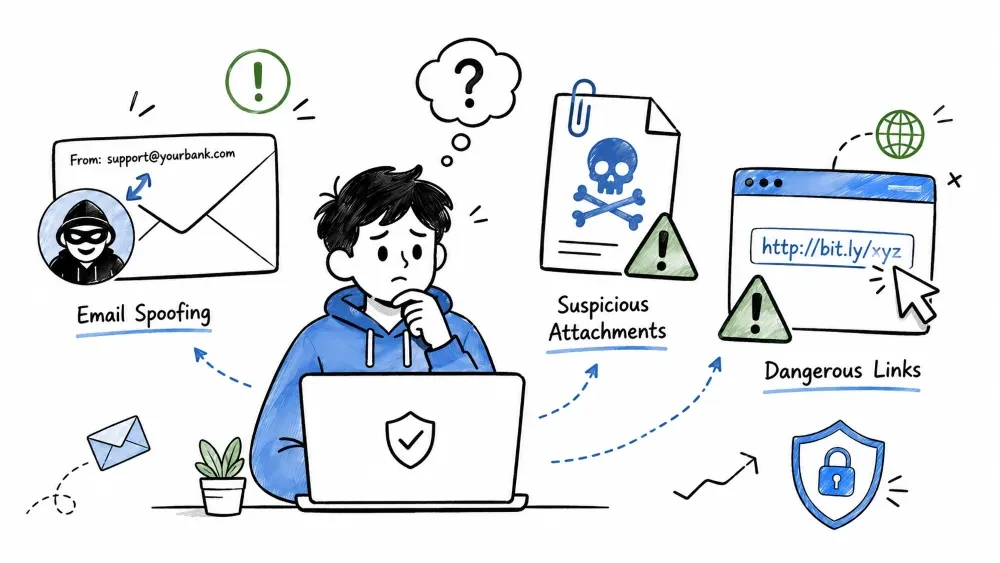
Attackers use a variety of technical tricks to make emails appear legitimate. Email spoofing forges sender details to impersonate trusted individuals or organizations. Suspicious attachments are the #1 delivery method for ransomware and other malware. Dangerous links lead to phishing pages, drive-by downloads, or exploit kits. This tutorial provides an in-depth technical examination of these attack vectors and how to defend against them.
Email spoofing is the forgery of an email header's "From" address to make the message appear as if it came from someone other than the actual sender. It is a core technique used in virtually all phishing, spam, and BEC attacks. The spoofed sender is typically someone the recipient trusts — a boss, colleague, bank, or well-known company.
The root cause is historical: the SMTP protocol (defined in RFC 821, 1982) was designed in an era when the internet was a small network of trusted academic and military institutions. Security was not a consideration.
SMTP's Original Design Flaw:

  RFC 821 (1982): The SMTP protocol specifies that the "From" address
  is simply a text field in the email envelope. There is NO built-in
  mechanism to verify that the sender is who they claim to be.

  Analogy: It's like sending a letter through the postal system where
  anyone can write any return address on the envelope — the postal
  service never checks if the return address actually belongs to the
  sender.

  Result: An attacker can set the "From" field to ANY value they want.
Step 1: Attacker crafts an email using their own SMTP server or
        a compromised mail server (open relay)

Step 2: The raw SMTP transaction looks like this:

  EHLO attacker-server.com
  MAIL FROM: <ceo@company.com>          ← Forged envelope sender
  RCPT TO: <finance@company.com>        ← Real recipient
  DATA
  From: "CEO Name" <ceo@company.com>    ← Forged header From
  Reply-To: <attacker@evil.com>         ← Real Reply-To
  Return-Path: <attacker@evil.com>      ← Real Return-Path
  Subject: Urgent: Wire Transfer

  Hi, I need you to wire $50,000...
  .
  QUIT

Step 3: Receiving server checks:
  - Is the sender IP in the SPF record for company.com?
    → If NO SPF or SPF=fail → Email may still be delivered
  - Is the DKIM signature valid?
    → If no DKIM → Email delivered anyway
  - What does the DMARC policy say?
    → If no DMARC → Email delivered to Inbox

Step 4: If authentication checks fail AND there's no DMARC policy
        (p=none), the email goes straight to the Inbox
        appearing to come from the CEO.
| Type | Description | Example | Difficulty to Detect |
|---|---|---|---|
| Display Name Spoofing | Fake display name, real email in angle brackets | "CEO Name" <attacker@xyz.com> | 🟡 Easy to miss if only looking at the display name |
| Look-Alike Domain | Domain that visually resembles legitimate one | @rnicrosoft.com vs @microsoft.com (rn → m) | 🟠 Medium |
| Homograph Attack | Using look-alike Unicode characters from different scripts | @g00gle.com (zeros), @pàypal.com | 🔴 Hard (browsers show punycode) |
| Subdomain Spoofing | Legitimate domain but different subdomain | auth.company.attacker.com | 🟠 Medium |
| Reply-To Spoofing | Forged From, but Reply-To goes to attacker | From: boss@co.com, Reply-To: scam@evil.com | 🟡 Easy to miss |
| Email Spoofing (Full) | Entire email address forged in the From header | ceo@company.com (actual IP is a known spambot) | 🟢 Easy if SPF/DMARC configured |
| Domain Spoofing with Subdomain | Using legitimate subdomain of a free service | company.wordpress.com, company.blogspot.com | 🟠 Medium |
| Friendly From Spoofing | Display name shows trusted contact name | "John Smith" <john.smith@gmail.com> where John is a real contact | 🔴 Hard |
Attackers use internationalized domain names (IDN) — characters from different scripts (Cyrillic, Greek, etc.) that look identical to Latin letters.
| Confusable Character | Looks Like | Unicode | Script |
|---|---|---|---|
а (Cyrillic small a) | a (Latin a) | U+0430 | Cyrillic |
е (Cyrillic small ie) | e (Latin e) | U+0435 | Cyrillic |
о (Cyrillic small o) | o (Latin o) | U+043E | Cyrillic |
с (Cyrillic small es) | c (Latin c) | U+0441 | Cyrillic |
р (Cyrillic small er) | p (Latin p) | U+0440 | Cyrillic |
х (Cyrillic small kha) | x (Latin x) | U+0445 | Cyrillic |
і (Cyrillic small bi) | i (Latin i) | U+0456 | Cyrillic |
ɑ (Latin small alpha) | a (Latin a) | U+0251 | Latin Extended |
е (Cyrillic) in facebook.com | facebook.com | — | Homograph |
Example: The domain
fаcebook.com(with Cyrillic 'а', U+0430) looks EXACTLY likefacebook.comin most browsers and fonts. The user cannot tell the difference visually.
In 2017, security researchers discovered that the domain "vlc."
(Cyrillic 'с' at the end) looked exactly like "vlc." and had
an SSL certificate. This could be used to phish users of the
VLC media player.

Browsers have since implemented "Punycode" display — showing
xn--... instead of the fake Unicode characters — but not all
mail clients do this.
SPF allows domain owners to publish which IP addresses are authorized to send email on behalf of their domain.
How SPF Works:

1. Domain owner publishes an SPF record as a TXT record in DNS:
   example.com TXT "v=spf1 ip4:192.168.1.0/24 include:_spf.google.com ~all"

2. Receiving server gets email from IP 203.0.113.5 claiming to be from @example.com

3. Receiving server looks up SPF record for example.com

4. Server checks: Is 203.0.113.5 in the allowed list?
   - 192.168.1.0/24 → No
   - _spf.google.com → No (203.0.113.5 is not Google's IP)
   - Result: SPF FAIL

SPF Mechanisms:
  ┌──────────┬─────────────────────────────────────┐
  │ ip4      │ Allow specific IPv4 or range          │
  │ ip6      │ Allow specific IPv6 or range          │
  │ include  │ Include another domain's SPF record   │
  │ a        │ Allow domain's A record IP            │
  │ mx       │ Allow domain's MX record IPs          │
  │ exists   │ Check if a domain exists              │
  │ all      │ Match all (catch-all)                 │
  └──────────┴─────────────────────────────────────┘

SPF Qualifiers:
  + (pass)  → IP is authorized (default, can be omitted)
  - (fail)  → IP is NOT authorized (hard fail)
  ~ (softfail) → Probably not authorized (soft fail)
  ? (neutral) → No claim either way

Example: v=spf1 mx -all
  → Only the domain's mail servers can send email
  → Everything else is a hard fail
DKIM adds a digital signature to each email that verifies:
DKIM Signing Process:

                       ┌─────────────────┐
                       │ Private Key     │
                       │ (Keep secret!)  │
                       └────────┬────────┘
                                ↓
  ┌─────────────────────────────────────────────┐
  │ DKIM Signer creates a hash of the email     │
  │ body + selected headers                     │
  │ Encrypts the hash with the PRIVATE KEY      │
  │ Adds DKIM-Signature header to the email     │
  └─────────────────────────────────────────────┘
                                ↓
                    Email sent to recipient
                                ↓
  ┌─────────────────────────────────────────────┐
  │ DKIM Verifier looks up the PUBLIC KEY in DNS │
  │ Selector: google._domainkey.example.com      │
  │ Decrypts the signature using PUBLIC KEY      │
  │ Recomputes the hash from the email           │
  │ If hashes match → DKIM PASS ✓               │
  │ If hashes differ → DKIM FAIL ✗              │
  └─────────────────────────────────────────────┘

DKIM-Signature Header Example:
  DKIM-Signature: v=1; a=rsa-sha256; c=relaxed/relaxed;
                  d=example.com; s=google;
                  h=from:to:subject:date;
                  bh=47DEQpj8HBSa+/TImW+5JCeuQeRkm5NMpJWZG3hSuFU=;
                  b=GwBkf4jK...

Key Fields:
  v=       DKIM version (always 1)
  a=       Signing algorithm (rsa-sha256 most common)
  c=       Canonicalization method (simple/relaxed)
  d=       Domain (the signer's domain)
  s=       Selector (points to DNS record for public key)
  h=       Signed headers (comma-separated list)
  bh=      Body hash (base64-encoded)
  b=       Signature (base64-encoded)
DMARC tells receiving mail servers what to do if SPF or DKIM fails. It also provides reporting so domain owners can see who is sending email on their behalf.
DMARC DNS Record:
  _dmarc.example.com TXT "v=DMARC1; p=quarantine; rua=mailto:dmarc@example.com; ruf=mailto:forensic@example.com; pct=100; sp=reject"

DMARC Tags:
  ┌──────────┬──────────────────────────────────────────┐
  │ v=       │ DMARC version (always DMARC1)             │
  │ p=       │ Policy for the domain:                    │
  │          │   none → No action (monitor only)         │
  │          │   quarantine → Send to spam/junk folder  │
  │          │   reject → Reject the email entirely     │
  │ sp=      │ Policy for subdomains (optional)          │
  │ rua=     │ Reporting URI for aggregate reports       │
  │ ruf=     │ Reporting URI for forensic reports        │
  │ pct=     │ Percentage of emails to apply policy to   │
  │ fo=      │ Forensic reporting options                │
  │ adkim=   │ DKIM alignment mode (s=strict, r=relaxed) │
  │ aspf=    │ SPF alignment mode (s=strict, r=relaxed)  │
  └──────────┴──────────────────────────────────────────┘

DMARC Alignment:
  SPF Alignment:
    - The domain in the Envelope From (Return-Path) must match
      the domain in the Header From (visible From address)
    - relaxed (r): subdomain matches (e.g., mail.example.com alignes with example.com)
    - strict (s): exact match required

  DKIM Alignment:
    - The domain in the DKIM signature (d=) must match
      the domain in the Header From address
    - Same relaxed/strict options as SPF

DMARC Processing Logic:
  ┌─────────────────────────────────────────────────────────────┐
  │                                                             │
  │  Email received claiming to be From: user@example.com       │
  │                                                             │
  │  ┌──────────┐    ┌───────────┐                              │
  │  │ SPF Check│    │ DKIM Check│                              │
  │  └────┬─────┘    └─────┬─────┘                              │
  │       │                │                                    │
  │       ▼                ▼                                    │
  │  ┌──────────────────────────────────┐                       │
  │  │         DMARC Evaluation         │                       │
  │  │                                  │                       │
  │  │  SPF passes AND aligns?    OR     │                       │
  │  │  DKIM passes AND aligns?         │                       │
  │  │                                  │                       │
  │  │  YES → DMARC pass ✓              │                       │
  │  │  NO  → Apply policy (p=)         │                       │
  │  │        none    → Deliver         │                       │
  │  │        quarantine → Spam folder  │                       │
  │  │        reject  → Bounce/Delete   │                       │
  └─────────────────────────────────────────────────────────────┘
┌────────────┐    ┌───────────────────────────────────────────────┐
│   Sender   │    │   Email Headers Added by Sender's Server     │
│  Server    │    │                                               │
│  IP: X     │───→│  From: user@example.com                      │
└────────────┘    │  DKIM-Signature: d=example.com; s=selector;  │
                  │                   b=[signature]               │
                  │  Return-Path: user@example.com               │
                  └──────────────────────┬────────────────────────┘
                                         ↓
                  ┌───────────────────────────────────────────────┐
                  │           Recipient's Mail Server             │
                  │                                               │
                  │  1. DNS Lookup: SPF record for example.com    │
                  │     Query: example.com TXT                    │
                  │     Result: v=spf1 include:_spf.google.com    │
                  │              ip4:209.85.128.0/17 -all         │
                  │     Check: Is sender IP X in allowed list?    │
                  │     Result: ✅ PASS / ❌ FAIL                 │
                  │                                               │
                  │  2. DNS Lookup: DKIM public key               │
                  │     Query: selector._domainkey.example.com TXT │
                  │     Result: v=DKIM1; k=rsa; p=[public key]    │
                  │     Verify: Decrypt signature, check hash     │
                  │     Result: ✅ PASS / ❌ FAIL                 │
                  │                                               │
                  │  3. DNS Lookup: DMARC policy                  │
                  │     Query: _dmarc.example.com TXT             │
                  │     Result: v=DMARC1; p=reject; rua=...       │
                  │     Evaluate: SPF+align OR DKIM+align?        │
                  │     Result: ✅ DMARC pass → Deliver           │
                  │              ❌ DMARC fail → Apply p=reject   │
                  └───────────────────────────────────────────────┘
In Gmail:
  1. Open the email
  2. Click the three dots (⋮) next to Reply
  3. Click "Show original"
  4. Look for:
     spf=pass (or fail)
     dkim=pass (or fail)
     dmarc=pass (or fail)

In Outlook (Web):
  1. Open the email
  2. Click the three dots (⋮) in the top-right
  3. Click "View message details"
  4. Look for Authentication-Results header

Example of good authentication:
  Authentication-Results: mx.google.com;
     spf=pass (google.com: domain of user@example.com designates 209.85.220.41 as permitted sender)
     dkim=pass header.i=@example.com header.s=google header.b=GwBkf4jK;
     dmarc=pass (p=REJECT, sp=REJECT, dis=NONE)
     arc=pass (i=1)

Example of failed authentication (spoofed):
  Authentication-Results: mx.google.com;
     spf=softfail (google.com: domain of transitioning user@spoofed.com does not designate 198.51.100.45 as permitted sender)
     dkim=fail header.i=@spoofed.com header.s=bad header.b=XYZ;
     dmarc=fail (p=QUARANTINE, sp=REJECT, dis=QUARANTINE)
| ✅ | Action | Priority |
|---|---|---|
| ✅ | Publish SPF record with -all (hard fail) | High |
| ✅ | Implement DKIM signing for all outgoing mail | High |
| ✅ | Publish DMARC policy — start with p=none → p=quarantine → p=reject | High |
| ✅ | Set up DMARC reporting (rua=) to monitor spoofing attempts | Medium |
| ✅ | Enable BIMI (Brand Indicators for Message Identification) | Medium |
| ✅ | Monitor DMARC reports for unauthorized senders | Medium |
| ✅ | Train users to check the actual email address, not just display name | High |
| ✅ | Use email filtering that checks SPF/DKIM/DMARC | High |
Email attachments are one of the most common ways to deliver malware because they exploit human trust and curiosity. A well-named file can bypass technical defenses because someone has to intentionally open it.
Once an attachment is opened, it can:
  • Install ransomware — Encrypt all files, demand payment in crypto
  • Install spyware — Monitor keystrokes, capture passwords, record screens
  • Install RAT — Give attacker remote control of your computer
  • Execute macros — Download additional malware from the internet
  • Exploit vulnerabilities — Use a bug in the reader app (PDF, Word, etc.)
  • Create backdoors — Allow persistent access for future attacks
  • Steal credentials — Extract saved passwords from browsers
  • Join botnet — Make your computer part of a spam/malware network
| File Extension | Type | Risk Level | Why It's Dangerous |
|---|---|---|---|
.exe, .msi, .bat, .cmd | Executables | 🔴 Critical | Direct code execution — can run anything |
.vbs, .ps1, .js, .jse | Scripts | 🔴 Critical | Script engines execute system commands |
.docm, .xlsm, .pptm | Office Macros | 🟠 High | Macros can download and run malware |
.zip, .rar, .7z, .tar | Archives | 🟠 High | Can contain any type of hidden malware |
.iso, .vhd, .vhdx | Disk Images | 🟠 High | Mount as drives, bypassing attachment filters |
.pdf | PDF Document | 🟡 Medium | Can contain embedded JavaScript, exploits |
.docx, .xlsx, .pptx | Office (no macros) | 🟡 Medium | Safe without macros, but can have OLE exploits |
.htm, .html | Web Page | 🟡 Medium | Can contain redirects, phishing forms |
.jpg, .png, .gif | Images | 🟢 Low | Usually safe, but can hide steganographic data |
.mp3, .mp4, .wav | Media Files | 🟢 Low | Rarely used for attacks |
.txt, .csv | Text/Data | 🟢 Low | Usually safe (but can have CSV injection in Excel) |
| Technique | Description | Example | How to Defend |
|---|---|---|---|
| Macro Malware | Word/Excel macros that execute malicious code when "Enable Content" is clicked | Invoice.docm with embedded PowerShell downloader | Disable macros by default; don't click "Enable Content" unless absolutely sure |
| Double Extension | Windows hides known file extensions by default, showing only the first one | invoice.pdf.exe shows as invoice.pdf in Windows Explorer | Enable "Show file extensions" in Windows settings |
| Password-Protected ZIP | Password given in email body to bypass email gateway scanning | "Password: 1234" in email body; ZIP contains malware | Block all password-protected archives from external senders |
| OLE/Object Linking | Embedded objects in Office files that fetch content from remote servers | Word doc with embedded OLE object pointing to attacker URL | Disable OLE in group policy; use Protected View |
| Polyglot Files | File valid as two formats simultaneously (e.g., valid PDF + valid JS) | A file that opens as a PDF but also executes as JavaScript | Sandbox scanning; content-type verification |
| ISO/VHD Files | Virtual disk images that bypass many email attachment filters | invoice.iso containing a malicious .exe | Block ISO/VHD files from external senders |
| LNK Shortcuts | Windows shortcut files that point to malicious executables | Invoice.pdf.lnk disguised as PDF | Block .lnk files from email; use Group Policy |
| HTML Application (HTA) | Standalone HTML application that runs with full trust | invoice.hta executes arbitrary code | Block HTA files; they are never legitimate in email |
| Control Panel Items (.cpl) | Control Panel executables | invoice.cpl — actually runs attacker code | Block .cpl files from email |
| SettingContent-ms | Windows settings files that can execute commands | invoice.settingcontent-ms | Block these files; block OLE from Office |
Email Arrives:
  From:    accounts.payable@supplier-company.com
  Subject: Payment Overdue — Invoice INV-2024-8934
  Body:    "Dear Accounts Payable,
            Our records show that invoice INV-2024-8934 dated
            June 15, 2024 for $12,847.50 is now overdue.
            Please find the updated invoice attached.

            Regards,
            Sarah Chen, Accounts Receivable"
  Attachment: Invoice_2024.docm (85 KB)

What Happens When Opened:
  ┌──────────────────────────────────────────────────────┐
  │                                                      │
  │  Step 1: User double-clicks the attachment           │
  │          Microsoft Word opens in Protected View      │
  │          (Read-only mode, macros disabled)           │
  │                                                      │
  │  Step 2: User sees blurred/grayed-out document with  │
  │          yellow bar: "This document contains macros.  │
  │          Enable Content to view the document."       │
  │                                                      │
  │  Step 3: User thinks: "I need to see the invoice"    │
  │          → Clicks "Enable Content"                    │
  │                                                      │
  │  Step 4: The macro executes:                         │
  │          • PowerShell commands injected in macro      │
  │          • Connects to C2 server at 203.0.113.50     │
  │          • Downloads BlackByte ransomware payload     │
  │          • Ransomware encrypts entire C: drive        │
  │          • Displays ransom note:                     │
  │            "Your files are encrypted. Send 3 BTC to   │
  │             this wallet: bc1q... to restore access."  │
  │                                                      │
  │  Result: Entire company network infected             │
  │          Downtime: 2+ weeks                          │
  │          Ransom demand: $500,000                     │
  │          Recovery cost: $2.3 million (IBM 2023)      │
  └──────────────────────────────────────────────────────┘
| Practice | Implementation | Why It Matters |
|---|---|---|
| ✅ Scan all attachments | Use antivirus with email integration (or email gateway scanner) | Catches known malware before delivery |
| ✅ Disable macros by default | Group Policy → Disable VBA for Office; or use GPO to only allow signed macros | 90%+ of Office-based malware relies on macros |
| ✅ Show file extensions | Windows: File Explorer → View → File name extensions | See invoice.pdf.exe for what it really is |
| ✅ Use sandboxing | Microsoft Defender for Office 365 Safe Attachments; FireEye; Proofpoint | Opens files in isolated environment to check behavior |
| ✅ Preview in browser | Gmail/Outlook preview renders safely — don't download and open | Preview engine is sandboxed and safer than local apps |
| ✅ Verify with sender | Call the sender using a KNOWN phone number to confirm they sent it | Social engineering can fake anything in an email |
| ✅ Block dangerous file types | Configure email gateway to block .exe, .vbs, .ps1, .js, .iso, .lnk, .hta | Reduce attack surface at the gateway |
| ✅ Use Protected View | Office by default opens files from internet in Protected View (read-only) | Macros can't run until user clicks Enable |
| ✅ Use ASR Rules | Attack Surface Reduction rules in Windows Defender can block Office apps from creating child processes | Blocks macro-based attacks even if user clicks Enable Content |
| Link Type | Description | How It Works | Example |
|---|---|---|---|
| Phishing URL | Fake login page to steal credentials | User clicks link → Fake Gmail login → Attacker captures username/password | accounts-google.com.secure-login.tk |
| Drive-By Download | Website that automatically downloads malware | User visits page → Browser exploit downloads malware silently | Legitimate-looking site with hidden exploit kit |
| Malvertising | Malicious ads that redirect to exploit kits | Legitimate ad network serves malicious ad → Redirects to exploit page | Pop-up ad on a news site |
| URL Shortener Abuse | Shortened URLs hide the real destination | bit.ly/xyz → Redirects to phishing site after several redirects | bit.ly/3xK9m2P → actually goes to phishing.com |
| Typosquatting | Misspelled domain names that catch typos | goggle.com instead of google.com | youtube.com vs youtubo.com |
| Combosquatting | Adding brand name to a legitimate word | google-login.com, paypal-verify.com | amazon-order-2024.com |
| Open Redirect | Legitimate site redirects to malicious URL | google.com/url?q=evil.com uses Google's trusted domain to redirect | linkedin.com/redirect?url=evil.com |
| Deep Link Exploit | Mobile app deep links that open malicious apps | URL opens mobile app in unexpected ways, bypassing browser | whatsapp://send?text=... phishing attempts |
| Unicode Domain | IDN homograph attack in URL | Cyrillic characters that look like Latin letters | fаcebook.com (Cyrillic 'а') |
URL Anatomy:

  🔗 https://accounts-google.com.secure-login.tk/login?redirect=https://evil.com

  Scheme:  https://
           └── Encrypted connection (but doesn't guarantee safety!)

  Subdomain: accounts-google.com
              └──────────┬──────────┘
                    This is a SUBDOMAIN of secure-login.tk
                    NOT a subdomain of google.com!

  Domain:   secure-login.tk
              └──────┬─────┘
                 The ACTUAL domain is "secure-login.tk"
                 .tk is a free TLD commonly used by phishers

  TLD:      .tk
              └─ Tokelau TLD — often free and abused by attackers

  Path:     /login
              └─ Tries to look like a legitimate login page

  Query:    ?redirect=https://evil.com
              └─ After "login", redirects the victim to a malicious site

✅ LEGITIMATE:  https://accounts.google.com/login
                    └──────┬──────┘ └┬┘ └──┬──┘
                    Subdomain   Domain  Path
                    (Google's)  (Google) (Legit)

❌ PHISHING:    https://accounts-google.com.secure-login.tk/login
                    └──────────────┬──────────────┘
                    This is ALL a subdomain of secure-login.tk!
Method 1: Hover with Mouse
  ┌─────────────────────────────────────────────────────┐
  │ 1. Move your mouse cursor OVER the link              │
  │    (DO NOT click!)                                   │
  │ 2. Look at the bottom-left corner of your browser    │
  │    The REAL URL will appear there                    │
  │ 3. Compare the displayed text with the actual URL    │
  └─────────────────────────────────────────────────────┘

Method 2: Right-Copy + Paste
  ┌─────────────────────────────────────────────────────┐
  │ 1. RIGHT-CLICK the link (not left-click!)            │
  │ 2. Select "Copy link address" or "Copy link location"│
  │ 3. Open Notepad or text editor                       │
  │ 4. Paste the URL and inspect it carefully            │
  └─────────────────────────────────────────────────────┘

Method 3: Browser Developer Tools
  ┌─────────────────────────────────────────────────────┐
  │ 1. RIGHT-CLICK the link                             │
  │ 2. Select "Inspect" or "Inspect Element"             │
  │ 3. Look at the href="" attribute in the HTML         │
  │ 4. The actual destination is in the href value       │
  └─────────────────────────────────────────────────────┘

Checklist for Desktop Link Inspection:
  □ Domain name spelled correctly?
  □ Unexpected TLD? (not .com, .org, etc.)
  □ Subdomain tricks? (google.com.phishing.com)
  □ URL encoding? (%3F, %2F, @ symbol)
  □ Hyphens in domain? (google-login.com)
  □ Look-alike characters? (g00gle, rnicrosoft)
Method 1: Long Press
  ┌─────────────────────────────────────────────────────┐
  │ 1. PRESS AND HOLD (long press) the link              │
  │ 2. Wait for the popup menu                          │
  │ 3. Look at the URL shown in the popup               │
  │ 4. Tap "Copy link address" or "Copy URL"            │
  │ 5. Open Notes app → Paste → Inspect                  │
  │ 6. DO NOT tap "Open" or "Go"                       │
  └─────────────────────────────────────────────────────┘

Method 2: Share Link
  ┌─────────────────────────────────────────────────────┐
  │ 1. Long press the link                             │
  │ 2. Tap "Share" or "Copy"                         │
  │ 3. Send to a note-taking app or yourself           │
  │ 4. Inspect the pasted URL carefully                │
  └─────────────────────────────────────────────────────┘
| Shortener | How Attackers Abuse It | Detection Difficulty |
|---|---|---|
| bit.ly | Most abused — 2,000+ new phishing URLs daily | 🔴 Hard — no preview without tool |
| tinyurl.com | Custom aliases like tinyurl.com/paypal-login | 🟠 Medium — custom aliases can include brand names |
| ow.ly | HootSuite's shortener — can be used to cloak | 🟡 Medium |
| t.co | Twitter/X shortener — still redirects to malicious sites | 🟢 Easier — less abused, but still dangerous if you trust blindly |
| rb.gy | Redirects through multiple hops | 🔴 Hard — multi-hop redirects evade scanners |
| shorturl.at | Minimal UI, easy for attackers to use | 🔴 Hard |
⚠️ Never click shortened URLs without inspecting them first! Always use a URL expansion/preview service:
- checkshorturl.com — Preview where a shortened URL goes
- unshorten.me — Show the full destination URL
- urlscan.io — Scan the destination for malicious content
- virustotal.com — Check if the URL is known malicious
A brand new domain (registered in the last 30-90 days) is more likely
malicious. Use WHOIS lookup tools:

  whois.domaintools.com   → Check domain creation date
  whois.icann.org          → Official ICANN lookup
  who.is                   → Quick WHOIS check

Red Flags:
  • Domain created < 30 days ago → 🔴 Very suspicious
  • Domain created 30-90 days ago → 🟠 Moderately suspicious
  • Domain created > 1 year ago   → 🟢 More likely legitimate
  • Privacy WHOIS + new domain    → 🔴 Highly suspicious
Use URL scanning services to check if a URL is malicious:

  virustotal.com          → Scans URL with 70+ antivirus engines
  urlscan.io              → Takes a screenshot + analyzes all resources
  google.com/safebrowsing → Google's Safe Browsing check
  ipqualityscore.com      → Fraud detection and risk scoring
  abuseipdb.com           → Check if the IP is known for abuse

Example VirusTotal Result:
  URL: https://bit.ly/3xK9m2P
  Detections: 12/70 (17%)
  Categories:
    - Phishing: 8 engines
    - Malware: 3 engines
    - Spam: 1 engine
  Verdict: ⚠ MALICIOUS
  ❌ Myth: "HTTPS = Safe"
  ✅ Truth: HTTPS only means the connection is encrypted.
               93% of phishing sites now use HTTPS!

  What to check in the certificate:
    • Issued to: Does the company name match the expected site?
    • Valid from: Was it issued recently (possible sign of phishing)?
    • Certificate Authority: Is it a trusted CA?

  Tool: Click the padlock icon in the address bar → View certificate
| Feature | Chrome (Safe Browsing) | Edge (SmartScreen) |
|---|---|---|
| URL Checking | Checks URLs against known malicious database | Checks URLs against Microsoft's reputation database |
| Download Scanning | Scans downloaded files | Scans downloaded files with Defender AV |
| Real-Time Protection | Enhanced Protection mode checks URLs in real-time | SmartScreen uses cloud-based reputation |
| Password Protection | Warns if you reuse passwords on phishing sites | Password Monitor feature |
| Extension Scanning | Warns about malicious extensions | — |
How to enable:
| Extension | Purpose | Rating |
|---|---|---|
| uBlock Origin | Blocks ads, trackers, and known malicious domains | ⭐⭐⭐⭐⭐ |
| Netcraft Extension | Anti-phishing toolbar that blocks known phishing sites | ⭐⭐⭐⭐ |
| HTTPS Everywhere | Forces HTTPS connections where available | ⭐⭐⭐⭐⭐ |
| Avast Online Security | Website reputation ratings in search results | ⭐⭐⭐ |
| Bitdefender TrafficLight | Real-time link scanning and anti-phishing | ⭐⭐⭐⭐ |
| NoScript | Blocks all scripts by default (advanced users) | ⭐⭐⭐⭐⭐ |
□ DOMAIN AUTHENTICATION:
  □ SPF record published with -all (hard fail)
  □ DKIM signing implemented for all outgoing mail
  □ DMARC policy published (p=reject preferred)
  □ DMARC reporting configured to monitor abuse

□ EMAIL GATEWAY:
  □ Advanced spam/phishing filters enabled
  □ Attachment scanning enabled
  □ Malicious file types blocked (.exe, .vbs, .js, .iso, etc.)
  □ Password-protected archives blocked
  □ Suspicious link rewriting (Safe Links or equivalent)
  □ Sandboxing for unknown attachments

□ ENDPOINT PROTECTION:
  □ Macros disabled by default in Office
  □ File extensions set to "Always show"
  □ Protected View enabled for Office documents
  □ ASR (Attack Surface Reduction) rules configured
  □ Antivirus with real-time protection

□ USER TRAINING:
  □ Regular security awareness training (quarterly)
  □ Phishing simulation campaigns (monthly)
  □ Clear policy for reporting suspicious emails
  □ No-blame culture around reporting

□ INCIDENT RESPONSE:
  □ Documented incident response plan for email attacks
  □ Designated contact for reporting (security@company.com)
  □ Out-of-band verification process for payment requests
  □ Dual approval for wire transfers over threshold
| Tool | Purpose | URL | Free? |
|---|---|---|---|
| VirusTotal | Scan files and URLs with 70+ AV engines | virustotal.com | ✅ Free |
| URLScan.io | Analyze websites — screenshot, resources, connections | urlscan.io | ✅ Free (limited) |
| MXToolbox | Check SPF/DKIM/DMARC configuration, blacklist status | mxtoolbox.com | ✅ Free |
| Have I Been Pwned | Check if your email was in a data breach | haveibeenpwned.com | ✅ Free |
| PhishTool | Investigate phishing emails — analyze headers, links, attachments | phishtool.com | ✅ Free tier |
| Google Safe Browsing | Check if a site is known for malware/phishing | transparencyreport.google.com | ✅ Free |
| Spamhaus | Check IP/domain against DNSBL lists | check.spamhaus.org | ✅ Free |
| AbuseIPDB | Report and check IP addresses for abuse | abuseipdb.com | ✅ Free |
| Whois Domain Tools | Check domain registration and age | whois.domaintools.com | ✅ Free |
| Unshorten.Me | Expand shortened URLs to see real destination | unshorten.me | ✅ Free |
| CheckShortURL | Preview shortened URL destination safely | checkshorturl.com | ✅ Free |
| Browser | Setting | How to Configure |
|---|---|---|
| Chrome | Enhanced Safe Browsing | Settings → Privacy and security → Security → Enhanced protection |
| Chrome | Never save passwords | Settings → Autofill → Passwords → Offer to save passwords → OFF |
| Chrome | Use password manager instead | Recommend Bitwarden, 1Password, or LastPass |
| Edge | Microsoft Defender SmartScreen | Settings → Privacy, search, and services → SmartScreen → ON |
| Edge | Windows Defender Application Guard | Open enterprise sites in isolated Hyper-V container |
| Firefox | Enhanced Tracking Protection | Privacy & Security → Enhanced Tracking Protection → Strict |
| Firefox | DNS over HTTPS | Network Settings → Enable DNS over HTTPS → Cloudflare |
| All | Disable third-party cookies | Blocks tracking and some redirect attacks |
| All | Enable pop-up blocker | Prevents malvertising pop-ups |
Save your progress and earn XP for completing tutorials.
Technology
Cyber Security & Networking
Lesson group
Email Security
Progress
75% complete

