Preparing your learning space...
100% through Malware tutorials
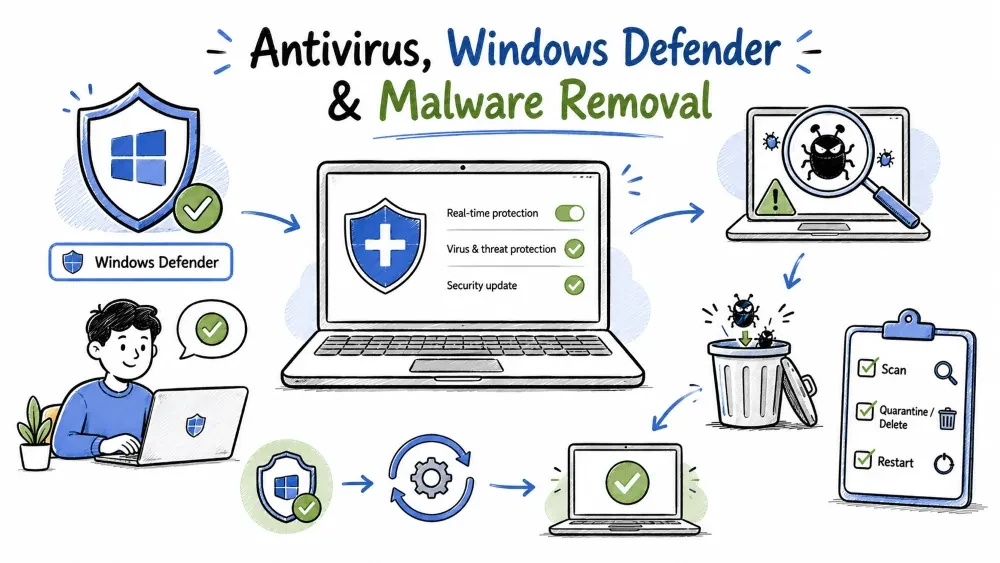
Antivirus detects, prevents, and removes malware using signatures, heuristics, and behavior monitoring.
AV is the first layer of security that detects both known and unknown malware.
Antivirus (AV) is software designed to detect, prevent, and remove malware. Modern AV has evolved into EDR (Endpoint Detection and Response) — behavior-based protection, not just signature matching.
AV detects malware in 6 ways — signature, heuristic, behavior, cloud, sandbox, and ML.
| Method | How It Works | Example |
|---|---|---|
| 🔍 Signature-Based | Compares files against a database of known malware hashes | MD5/SHA1 hash match |
| 🧠 Heuristic Analysis | Looks for suspicious code patterns (even unknown malware) | "This .exe tries to access 1000 files in 2 seconds" |
| 📊 Behavior Monitoring | Watches program actions in real-time | "This process is trying to encrypt all your files" |
| ☁️ Cloud-Based | Queries cloud database for latest threat intel | Windows Defender Cloud Protection |
| 🧪 Sandbox Detection | Runs suspicious code in isolated environment first | Some enterprise AV solutions |
| 🤖 Machine Learning | AI models trained to detect hidden malware | Modern AV (Defender, CrowdStrike) |
Compares file hash against a known malware database — old method, fails on new malware.
File being scanned
        │
        ▼
Compute hash (MD5/SHA256)
        │
        ▼
Compare against Signature Database
   ┌──────────────────┐
   │ Is hash in AV     │
   │ database?         │
   └──────┬───────┬───┘
          │       │
         YES      NO
          │       │
          ▼       ▼
    🛑 BLOCKED   ✅ CLEAN / Send to heuristic
Limitation: Only catches KNOWN malware — new/modified malware evades signature detection.
Scores file behavior and code patterns — catches unknown malware too.
File/Program being analyzed
        │
        ▼
Analyze code structure + behavior + patterns
        │
        ▼
Score based on suspicious indicators:
  ┌─────────────────────────────────────┐
  │ • Tries to modify system files ──── +3  │
  │ • Uses encryption APIs ──────────── +2  │
  │ • Accesses registry startup keys ── +2  │
  │ • Creates network connections ───── +1  │
  │ • Self-modifying code ───────────── +4  │
  │ • Digitally signed? ─────────────── -3  │
  └─────────────────────────────────────┘
        │
        ▼
   If score > threshold → 🛑 BLOCKED (even if hash unknown)
Basic AV terms — OTS, RTP, Quarantine, False Positive/Negative, Heuristics.
| Term | Meaning |
|---|---|
| OTS (On-Time Scan) | Manual scan on demand |
| RTP (Real-Time Protection) | Continuously monitors files as they're accessed |
| Quarantine | Isolates infected files (safe storage, not deleted) |
| False Positive | Legitimate file flagged as malware |
| False Negative | Malware NOT detected (dangerous) |
| AV Engine | Core detection component |
| Virus Definitions | Signature database (updated daily) |
| Heuristics | Behavioral detection logic |
Top AV comparison — Defender (free), Bitdefender (best protection), Malwarebytes (removal), CrowdStrike (enterprise).
| AV Software | Detection Rate (Avg) | System Impact | Best For |
|---|---|---|---|
| Windows Defender | 98-99% | Low | General users (free, built-in) |
| Bitdefender | 99-100% | Low-Medium | Best overall protection |
| Kaspersky | 99-100% | Medium | Strongest detection |
| Malwarebytes | 97-99% | Low | Secondary scanner (good for removal) |
| Norton | 98-99% | Medium | Good all-rounder |
| ESET | 98-99% | Low | Lightweight, good for older PCs |
| CrowdStrike (EDR) | 99%+ | Low | Enterprise (behavior-based) |
| Sophos (Intercept X) | 99% | Medium | Enterprise + Anti-Ransomware |
| Avast / AVG | 95-97% | Medium | Free version (privacy concerns) |
Note: Detection rates vary by year/test lab (AV-Test, AV-Comparatives). Always check latest results.
Built-in AV in Windows 10/11 — free, 98-99% detection rate, enterprise-grade protection.
Microsoft's built-in AV providing real-time protection, cloud-delivered intelligence, and tamper protection.
Windows Defender (now called Microsoft Defender Antivirus) is the built-in antivirus solution in Windows 10 and Windows 11. It provides enterprise-grade protection for free — no third-party AV needed for most users.
✅ Fact: Windows Defender consistently scores 98-99% in independent AV tests. It's one of the BEST free antivirus solutions available.
8 key features — Real-time Protection, Cloud-Delivered, Controlled Folder Access, Tamper Protection, and more.
| Feature | Description |
|---|---|
| Real-Time Protection | Monitors all file activity continuously |
| Cloud-Delivered Protection | Queries Microsoft's cloud for instant threat intelligence |
| Automatic Sample Submission | Sends suspicious files to Microsoft for analysis |
| Controlled Folder Access | Blocks unauthorized apps from changing your files (ransomware protection) |
| Exploit Guard | Protects against exploit techniques (buffer overflow, etc.) |
| Network Protection | Blocks connections to malicious IPs/domains |
| Tamper Protection | Prevents malware from disabling Defender |
| Offline Scan | Boots into Windows PE to scan without loading Windows |
The main Windows Security interface — Virus protection, Firewall, App control, Device security.
Windows Security
┌─────────────────────────────────────────────────┐
│ 🛡️ Virus & threat protection │
│ ┌──────────────────────────────────────┐ │
│ │ Current threats: No actions needed. │ │
│ │ Last scan: Today, 3:00 AM │ │
│ │ 7 quick scans, 2 full scans this week │ │
│ │ ✅ Real-time protection: ON │ │
│ │ ✅ Cloud-delivered protection: ON │ │
│ │ ✅ Tamper Protection: ON │ │
│ └──────────────────────────────────────┘ │
│ │
│ 🔥 Firewall & network protection │
│ 💻 App & browser control │
│ 🔐 Device security │
│ 📊 Device performance & health │
│ 👨👩👧👦 Family options │
└─────────────────────────────────────────────────┘
7 settings that should be ON — Real-time, Cloud, Tamper Protection, and Controlled Folder Access.
| Setting | Path | Recommendation |
|---|---|---|
| Real-time protection | Virus & threat protection → Manage settings | ON (essential) |
| Cloud-delivered protection | Same page | ON (dramatically improves detection) |
| Automatic sample submission | Same page | ON (helps Microsoft improve) |
| Tamper Protection | Same page | ON (prevents malware disabling Defender) |
| Controlled folder access | Ransomware protection | ON (protects Documents, Pictures, etc.) |
| Network protection | App & browser control → Reputation-based protection | ON |
| Exploit protection | App & browser control → Exploit protection | ON (default settings) |
4 scan types — Quick (daily), Full (monthly), Offline (rootkits), Custom (specific folders).
Settings → Privacy & Security → Windows Security → Virus & threat protection
                                          → Quick Scan
Scans the entire system — use monthly or after an infection.
Same path → Scan options → Full Scan
Scans before Windows boots — for rootkits and deep malware.
Same path → Scan options → Microsoft Defender Offline Scan → Scan Now │ ▼ Windows reboots, scans from boot (catches rootkits)
### Custom Scan (Specific folders)

>Scan only specific folders or drives — for targeted checks.
Same path → Scan options → Custom Scan → Choose folders
### Command-Line Defender Scan (Run as Admin)

>Run Defender scans from the command prompt using MpCmdRun.exe commands.

```cmd
# Quick Scan
MpCmdRun.exe -Scan -ScanType 1

# Full Scan
MpCmdRun.exe -Scan -ScanType 2

# Custom Scan (folder)
MpCmdRun.exe -Scan -ScanType 3 -File "C:\Path\To\Scan"

# Boot Sector Scan
MpCmdRun.exe -Scan -ScanType 1 -BootSectorScan
When Defender alone is enough and when to use Malwarebytes or enterprise AV.
| Scenario | Recommendation |
|---|---|
| Normal home user | Defender only (sufficient) |
| IT Professional | Defender + Malwarebytes (second opinion) |
| Enterprise | Defender for Endpoint OR CrowdStrike/SentinelOne |
| Suspected infection | Malwarebytes (run alongside Defender) |
| Ransomware protection | Defender + Enable Controlled Folder Access |
⚠️ Note: Most third-party AV will DISABLE Windows Defender automatically when installed. Only one real-time AV should run at a time.
Complete malware removal process — from disconnect to system restore and verification.
7 steps to follow in sequence — Disconnect → Safe Mode → Scan → Tools → Manual → Verify → Restore.
If you suspect malware infection, follow these steps IN ORDER:
STEP 1: DISCONNECT FROM NETWORK
STEP 2: ENTER SAFE MODE
STEP 3: RUN ANTIVIRUS SCAN
STEP 4: USE ANTI-MALWARE TOOLS
STEP 5: MANUAL CLEANUP
STEP 6: VERIFY REMOVAL
STEP 7: RESTORE & RECOVER
First and most important step — cut the network to prevent data leakage.
Why: Prevents data exfiltration, stops worm/botnet communication, blocks remote control.
• Pull Ethernet cable
• Disable WiFi (Airplane Mode)
• Disable Bluetooth
Only essential drivers load in Safe Mode — malware doesn't load, making cleanup easier.
Safe Mode loads only essential drivers/services — many malware types don't load in Safe Mode.
How to enter Safe Mode (Windows 10/11):
Settings → Recovery → Advanced Startup → Restart Now
                              → Troubleshoot → Advanced Options
                              → Startup Settings → Restart
                              → Press 4 or F4 for Safe Mode
Alternative method:
1. Hold Shift key → Click Restart
2. Or: msconfig → Boot → Safe Boot → Minimal
Run Defender Full Scan and Malwarebytes in Safe Mode for maximum detection.
In Safe Mode, run:
Advanced tools for specific malware types — AdwCleaner (adware), RogueKiller (rootkits), GMER (deep scan).
| Tool | Type | Best For |
|---|---|---|
| Malwarebytes | Anti-malware | General malware removal |
| AdwCleaner | PUP/Adware removal | Adware, browser hijackers |
| HitmanPro | Second opinion scanner | Detects what others miss |
| KVRT (Kaspersky) | Virus removal tool | Stubborn infections |
| RogueKiller | Anti-rootkit | Rootkits, bootkits |
| GMER | Rootkit scanner | Deep rootkit detection |
| Process Explorer | Process viewer | Manual inspection |
| Autoruns | Startup manager | Finding persistence |
| Sysinternals Suite | Complete toolkit | Professional malware analysis |
If AV fails, manual cleanup — check processes, startup, browser, network, and hosts file.
If AV fails to remove everything, manual cleanup may be needed:
Check Running Processes (Task Manager):
Ctrl + Shift + Esc → Details tab
Look for: Suspicious names, high CPU/memory usage,
          no digital signature, unknown publishers
Check Startup Programs:
Task Manager → Startup tab
or: msconfig → Startup
or: Autoruns (Sysinternals) — most comprehensive
Check Browser Extensions:
Chrome:  chrome://extensions
Edge:    edge://extensions
Firefox: about:addons
Remove anything you didn't install
Check Network Connections:
netstat -ano
# Look for suspicious connections to unknown IPs
# Note PID for suspicious connections
tasklist | findstr [PID]
Check Hosts File:
Location: C:\Windows\System32\drivers\etc\hosts
Should contain only comments (#) and 127.0.0.1 localhost
Malware often redirects legitimate sites to malicious IPs here
Common Malware Locations to Check:
%TEMP%                          — C:\Users\[User]\AppData\Local\Temp
%APPDATA%                       — C:\Users\[User]\AppData\Roaming
%LOCALAPPDATA%                  — C:\Users\[User]\AppData\Local
%PROGRAMFILES%                  — C:\Program Files
%WINDIR%\System32\Tasks         — Scheduled tasks
%WINDIR%\Temp                   — System temp
Confirm whether the malware is gone — check AV scan, behavior, network traffic, browser settings.
| Check | How |
|---|---|
| Full AV scan | Run Defender + Malwarebytes full scan |
| Strange behavior gone? | No more popups, redirects, slowdowns |
| Network traffic normal? | Check with netstat / Resource Monitor |
| Browser settings restored? | Homepage, search engine back to normal |
| No unknown processes? | Task Manager verified clean |
Restore from backup or use nuclear option (clean reinstall) — formatting is the only fix for rootkits.
If data was damaged:
If everything fails (last resort):
⚠️  NUCLEAR OPTIONS:

1. System Restore
   If you have a restore point before the infection

2. Windows Reset (Keep Files)
   Settings → Update & Security → Recovery → Reset this PC
   ⚠️ Some malware survives this!

3. Clean Reinstall (Format & Reinstall Windows)
   ✅ 100% removes ALL malware
   ❌ You lose everything (backup first!)
   This is the ONLY guaranteed removal for rootkits
Decision tree — which removal approach to use for working PC vs BSOD scenarios.
Is the computer working?
        │
    ┌───┴───┐
    YES      NO (BSOD, won't boot)
    │        │
    ▼        ▼
Run Defender   Try Windows Recovery Environment (WinRE)
Full Scan     → Safe Mode
    │         → System Restore
    ▼         → Reset this PC
Found malware? → Clean install
    │
  YES│  NO
    │  │
    ▼  ▼
In Safe Mode:  Still suspicious?
Run Malwarebytes → Yes → Try second opinion AV (HitmanPro)
+ AdwCleaner     → No → Likely clean
    │                   (monitor for a few days)
    ▼
Run Defender Full Scan again (verify removal)
    │
    ▼
If malware persists → Manual Cleanup (Autoruns, Process Explorer)
    │
    ▼
If still not removed → Clean Windows Reinstall
8 common mistakes — paying ransom, running one scan, not changing passwords, not finding root cause.
| ❌ Wrong Move | ✅ Correct Move |
|---|---|
| Paying ransom (no guarantee) | Restore from backup |
| Deleting files from quarantine | Quarantine is safe — let AV manage it |
| Only running one scan | Use 2+ scanners (different engines) |
| Not disconnecting from network | Always disconnect first! |
| Believing "first scan came clean" | Run offline scan + second opinion |
| Not verifying removal | Scan again after removal |
| Reusing the same passwords | Change all passwords after infection |
| Not finding the root cause | How did malware get in? Fix the gap! |
What to do after removal — change passwords, enable MFA, check financial accounts.
After removing malware:
✅ Change ALL passwords (use a password manager)
✅ Enable MFA on all accounts
✅ Update ALL software (patch exploited vulnerabilities)
✅ Review financial accounts for fraud
✅ Monitor credit reports (if identity theft risk)
✅ Review what data was compromised
✅ Update backup strategy (improve it)
✅ Learn from the incident — how did it happen?
Save your progress and earn XP for completing tutorials.
Technology
Cyber Security & Networking
Lesson group
Malware
Progress
100% complete

