Preparing your learning space...
100% through Networking Commands tutorials
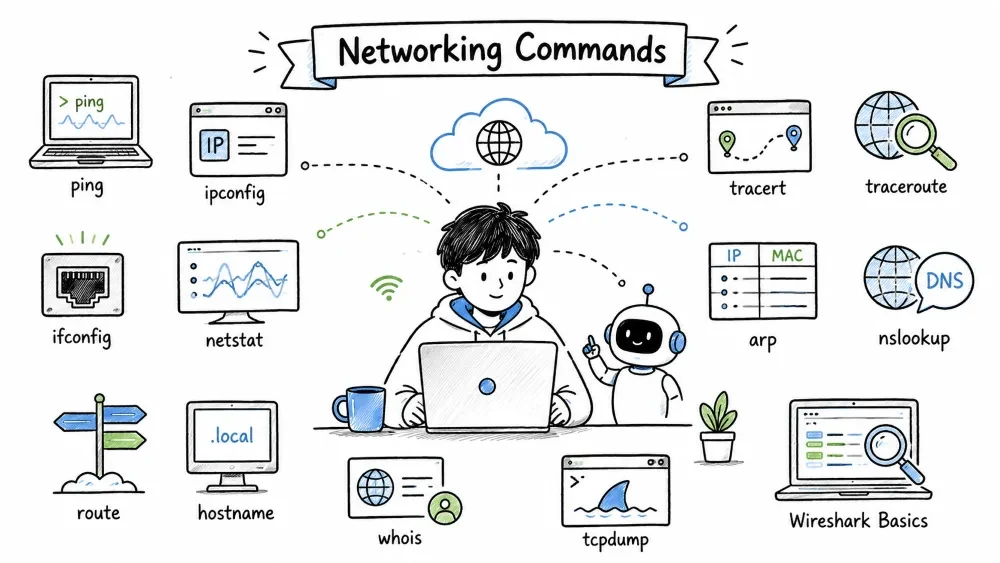
A networking command is a text-based instruction you type in a terminal (Command Prompt, PowerShell, Bash, etc.) to interact with, diagnose, configure, or monitor computer networks.
| Purpose | Description |
|---|---|
| Troubleshoot | Find why a website isn't loading or a device is unreachable |
| Configure | Set IP addresses, routes, and network interfaces |
| Monitor | Watch traffic, check who's connected, measure performance |
| Secure | Detect unauthorized access, suspicious connections, or attacks |
| Analyze | Capture and inspect packets, resolve domain names, map routes |
| Type | Examples | What They Do |
|---|---|---|
| Diagnostic | ping, tracert, traceroute | Test connectivity and path |
| Configuration | ipconfig, ifconfig, route | Show/set network settings |
| Monitoring | netstat, tcpdump | Watch connections and traffic |
| Resolution | nslookup, whois, arp | Map names/IPs to other data |
| Identity | hostname | Show system name |
No. While professionals use them daily, beginners can learn the basics quickly:
ping google.com        ← Can I reach the internet?
ipconfig              ← What's my IP address?
nslookup google.com   ← What IP does google.com have?
These three commands alone solve 80% of common network problems.
💡 Tip: Many networking commands require administrator/root privileges to show full information or make changes. If a command gives an error, try running it as Administrator (Windows) or with
sudo(Linux/macOS).
ping is a command that sends ICMP Echo Request packets to a target host and waits for Echo Reply packets. It checks if a remote device is reachable and how fast the connection is.
Named after: The sound sonar makes — just like a submarine "pings" to detect objects.
ping [options] <destination>
:: Basic ping (4 packets by default)
ping google.com

:: Ping with continuous output (stop with Ctrl+C)
ping -t google.com

:: Ping with custom count
ping -n 10 google.com

:: Ping with custom packet size (bytes)
ping -l 1500 google.com

:: Set timeout per reply (ms)
ping -w 5000 google.com
# Continuous ping by default (stop with Ctrl+C)
ping google.com

# Ping with specific count
ping -c 5 google.com

# Ping with custom packet size (bytes)
ping -s 1500 google.com

# Ping faster (0.5 second intervals)
ping -i 0.5 google.com

# Flood ping (root only) — sends packets as fast as possible
sudo ping -f google.com
Pinging google.com [142.250.80.46] with 32 bytes of data:
Reply from 142.250.80.46: bytes=32 time=14ms TTL=115
Reply from 142.250.80.46: bytes=32 time=15ms TTL=115
Reply from 142.250.80.46: bytes=32 time=13ms TTL=115
Reply from 142.250.80.46: bytes=32 time=14ms TTL=115

Ping statistics for 142.250.80.46:
    Packets: Sent = 4, Received = 4, Lost = 0 (0% loss),
Approximate round trip times in milli-seconds:
    Minimum = 13ms, Maximum = 15ms, Average = 14ms
| Output Field | Meaning |
|---|---|
Reply from | The destination responded |
time=14ms | Round-trip time in milliseconds |
TTL=115 | Time To Live — how many hops the packet survived |
Lost = 0 (0% loss) | All packets reached the destination |
Average = 14ms | Average latency across all packets |
| Result | Meaning |
|---|---|
Reply from ... | Host is reachable |
Request timed out | No reply received — host may be down, firewalled, or unreachable |
Destination Host Unreachable | Your computer has no route to the target |
TTL expired in transit | Packet hit the hop limit — routing loop or too many hops |
| Packet loss > 5% | Unreliable connection — likely a network problem |
| Flag | Windows | Linux/macOS |
|---|---|---|
| Count | -n | -c |
| Continuous | -t | (default) |
| Packet size | -l | -s |
| Timeout | -w | -W |
| Interval | (1 sec fixed) | -i |
ipconfig is a Windows command that displays your computer's IP address, subnet mask, default gateway, and DNS server information. It also lets you release and renew DHCP leases and flush the DNS cache.
:: Quick check — your IP, subnet mask, and default gateway
ipconfig

:: Detailed info for all network adapters
ipconfig /all

:: Show only IPv4 addresses
ipconfig | findstr IPv4
Ethernet adapter Ethernet0:

   Connection-specific DNS Suffix  . : localdomain
   IPv4 Address. . . . . . . . . . . : 192.168.1.10
   Subnet Mask . . . . . . . . . . . : 255.255.255.0
   Default Gateway . . . . . . . . . : 192.168.1.1
:: Release DHCP lease (drops your current IP)
ipconfig /release

:: Renew DHCP lease (gets a new IP from router)
ipconfig /renew

:: Flush DNS resolver cache (fixes stale DNS issues)
ipconfig /flushdns

:: Display the current DNS cache contents
ipconfig /displaydns

:: Register DNS with DHCP server
ipconfig /registerdns
| Command | When to Use |
|---|---|
ipconfig | Quick check — "What's my IP?" |
ipconfig /all | Need MAC address, DHCP server, full DNS details |
ipconfig /flushdns | After changing DNS servers or "website not found" errors |
ipconfig /renew | DHCP failed or you need a new IP address |
ipconfig /release | Before renewing, or disconnecting from network cleanly |
** Tip:** On Linux/macOS, use
ifconfigorip addr showinstead.
ifconfig is the Linux and macOS command to display and configure network interfaces. It shows IP addresses, MAC addresses, packet statistics, and lets you enable/disable interfaces.
# Show all active interfaces
ifconfig

# Show all interfaces (including disabled ones)
ifconfig -a

# Show a specific interface (e.g., eth0, wlan0, en0)
ifconfig eth0
eth0: flags=4163<UP,BROADCAST,RUNNING,MULTICAST>  mtu 1500
        inet 192.168.1.10  netmask 255.255.255.0  broadcast 192.168.1.255
        inet6 fe80::215:5dff:fe01:2a  prefixlen 64  scopeid 0x20<link>
        ether 00:15:5d:01:00:2a  txqueuelen 1000  (Ethernet)
        RX packets 15234  bytes 18520342 (17.6 MiB)
        TX packets 9876  bytes 1234567 (1.1 MiB)
| Field | Description |
|---|---|
UP | Interface is active and working |
inet 192.168.1.10 | IPv4 address |
netmask 255.255.255.0 | Subnet mask |
broadcast 192.168.1.255 | Broadcast address |
inet6 fe80::... | IPv6 link-local address |
ether 00:15:5d:01:00:2a | MAC address |
RX packets 15234 | Total received packets (incoming traffic) |
TX packets 9876 | Total transmitted packets (outgoing traffic) |
# Bring an interface up/down (root required)
sudo ifconfig eth0 up
sudo ifconfig eth0 down

# Assign a temporary IP address
sudo ifconfig eth0 192.168.1.100 netmask 255.255.255.0

# Change MTU (Maximum Transmission Unit)
sudo ifconfig eth0 mtu 1400

# Enable promiscuous mode (for packet sniffing)
sudo ifconfig eth0 promisc
ip Commandifconfig is old and being replaced. Learn the modern equivalent:
# Show all interfaces
ip addr show
# Shortcut:
ip a

# Show routing table
ip route show
ip r

# Bring interface up/down
sudo ip link set eth0 up
sudo ip link set eth0 down

# Add IP address
sudo ip addr add 192.168.1.100/24 dev eth0
tracert is a Windows command that traces the path your packets take to reach a destination. It shows every router (hop) along the way with latency for each hop.
tracert [options] <destination>
:: Basic trace
tracert google.com

:: Trace without DNS resolution (faster — shows only IPs)
tracert -d google.com

:: Set maximum number of hops (default is 30)
tracert -h 15 google.com

:: Set timeout per reply (ms)
tracert -w 2000 google.com
Tracing route to google.com [142.250.80.46]
over a maximum of 30 hops:

  1     1 ms     1 ms     1 ms  192.168.1.1
  2    10 ms    11 ms    10 ms  10.0.0.1
  3    12 ms    14 ms    12 ms  72.14.xx.xx
  4    14 ms    14 ms    15 ms  108.170.xx.xx
  5    14 ms    14 ms    14 ms  google.com [142.250.80.46]

Trace complete.
| Symbol | Meaning |
|---|---|
1 ms | Time for each of 3 probe packets |
192.168.1.1 | Router at that hop (usually your home router) |
* * * | No response — router may block ICMP (common) |
| Hop count (1, 2, 3...) | Each number is one router along the path |
Request timed out | Router didn't reply within timeout period |
** Tip:** Use
tracert -dto skip DNS lookups — it runs much faster.
traceroute is the Linux/macOS equivalent of tracert. It traces the path packets take to a destination, but uses UDP packets by default (unlike Windows which uses ICMP).
Same use cases as tracert — but you're on Linux or macOS.
traceroute [options] <destination>
# Basic trace
traceroute google.com

# Use ICMP instead of UDP (more like Windows tracert)
traceroute -I google.com

# Skip DNS resolution (faster)
traceroute -n google.com

# Set max hops
traceroute -m 15 google.com

# Set custom port for UDP probes
traceroute -p 80 google.com
traceroute to google.com (142.250.80.46), 30 hops max, 60 byte packets
 1  192.168.1.1 (192.168.1.1)  0.523 ms  0.491 ms  0.678 ms
 2  10.0.0.1 (10.0.0.1)  2.345 ms  2.212 ms  2.456 ms
 3  * * *
 4  google.com (142.250.80.46)  14.234 ms  14.123 ms  14.567 ms
| Aspect | tracert (Windows) | traceroute (Linux) |
|---|---|---|
| Protocol | ICMP Echo | UDP (default), ICMP (-I) |
| Stop | Ctrl+C | Ctrl+C |
| Quick mode | -d | -n |
| Max hops | -h | -m |
| Port option | ❌ | ✅ -p |
netstat displays active network connections, listening ports, routing tables, and network interface statistics on your machine. It's one of the most powerful tools for monitoring who's connecting to your computer.
:: Show all active TCP/UDP connections (no DNS resolution)
netstat -an

:: Show connections with process IDs (find which app owns each connection)
netstat -ano

:: Show only listening ports (services running on your machine)
netstat -an | findstr LISTENING

:: Show which executable owns each connection (admin required)
netstat -b

:: Show routing table
netstat -r

:: Show network statistics by protocol
netstat -s

:: Show ethernet interface statistics
netstat -e
# Show all listening ports and services
netstat -tuln

# Show active connections with process names
netstat -tulnp

# Show all connections
netstat -tuan

# Show routing table
netstat -rn

# Show protocol statistics
netstat -s

# Show specific port (e.g., port 80)
netstat -an | grep :80
Active Connections

  Proto  Local Address          Foreign Address        State
  TCP    0.0.0.0:135            0.0.0.0:0              LISTENING
  TCP    0.0.0.0:445            0.0.0.0:0              LISTENING
  TCP    192.168.1.10:52341     142.250.80.46:443      ESTABLISHED
  TCP    192.168.1.10:52342     93.184.216.34:80       TIME_WAIT
  UDP    0.0.0.0:1900           *:*                    (Listening)
  UDP    0.0.0.0:5353           *:*                    (Listening)
| State | Meaning |
|---|---|
LISTENING | Service is waiting for incoming connections (normal for web servers, SSH, etc.) |
ESTABLISHED | Active connection — data is flowing |
TIME_WAIT | Connection is closing, waiting for remaining packets |
CLOSE_WAIT | Remote side closed the connection, local side is cleaning up |
SYN_SENT | Trying to establish a connection (outgoing) |
FIN_WAIT_1/2 | Connection closing process |
| Flag | Windows | Linux |
|---|---|---|
| All connections | -a | -a |
| Numbers only (no DNS) | -n | -n |
| Show process ID | -o | -p |
| Show listening only | findstr LISTENING | -l |
| Protocol filter | -p tcp | -p tcp |
| Statistics | -s | -s |
| Continuous | (rerun manually) | -c |
** Security tip:** Run
netstat -ano(Windows) ornetstat -tulnp(Linux) to check for suspicious listening ports. Unknown services could be malware or backdoors.
arp shows and manages the ARP cache — a table that maps IP addresses to physical MAC addresses on your local network. Every device on your LAN needs this mapping to communicate.
Step 1: Device A needs to send data to 192.168.1.5
Step 2: A checks its ARP cache — no entry found
Step 3: A broadcasts: "Who has 192.168.1.5? Tell 192.168.1.10"
Step 4: Device 192.168.1.5 replies: "I have 192.168.1.5, my MAC is AA:BB:CC:DD:EE:FF"
Step 5: A stores this mapping in cache and sends the data
:: Show entire ARP table
arp -a

:: Show ARP table for a specific interface
arp -a -N 192.168.1.1

:: Delete a specific ARP entry
arp -d 192.168.1.100

:: Clear entire ARP cache (admin required)
netsh interface ip delete arpcache

:: Add a static ARP entry (prevents spoofing)
arp -s 192.168.1.200 00-11-22-33-44-55
# Show ARP table
arp -a
# or
arp -n

# Show a specific entry
arp -a 192.168.1.1

# Delete an entry (root required)
sudo arp -d 192.168.1.100

# Add a static ARP entry
sudo arp -s 192.168.1.200 00:11:22:33:44:55

# Flush entire ARP cache
sudo ip neigh flush all

# Modern equivalent using ip
ip neigh show
Interface: 192.168.1.10 --- 0x5
  Internet Address      Physical Address      Type
  192.168.1.1           00-1a-2b-3c-4d-5e     dynamic
  192.168.1.5           aa-bb-cc-dd-ee-ff     dynamic
  192.168.1.200         00-11-22-33-44-55     static
| Type | Meaning |
|---|---|
| dynamic | Learned automatically — will expire and be removed |
| static | You added it manually — permanent until reboot (Windows) or always (Linux) |
ARP is insecure by design — any device can reply claiming to be any IP.
Attack scenario:
** Prevention:** Static ARP entries, Dynamic ARP Inspection (managed switches), Port Security.
nslookup queries DNS (Domain Name System) servers to convert domain names (like google.com) into IP addresses (like 142.250.80.46), or vice versa.
:: Simple domain → IP lookup
nslookup google.com

:: Use a specific DNS server (here: Google's 8.8.8.8)
nslookup google.com 8.8.8.8

:: Reverse lookup — IP → domain name
nslookup 8.8.8.8
:: Enter interactive mode
nslookup

> set type=A          IPv4 address records
> google.com

> set type=AAAA       IPv6 address records
> google.com

> set type=MX         Mail exchange records
> gmail.com

> set type=NS         Name server records
> google.com

> set type=TXT        Text records (SPF, DKIM, verification)
> google.com

> set type=ANY        All available records
> google.com

> exit
| Type | Name | Example Usage |
|---|---|---|
A | IPv4 Address | google.com → 142.250.80.46 |
AAAA | IPv6 Address | google.com → 2607:f8b0:... |
MX | Mail Exchange | Which server handles email for a domain |
NS | Name Server | Authoritative DNS servers for a domain |
CNAME | Canonical Name | Alias (e.g., www → @ root domain) |
TXT | Text Record | SPF, DKIM, domain verification strings |
Server:  dns.google
Address:  8.8.8.8

Non-authoritative answer:
Name:    google.com
Addresses:  142.250.80.46
            2607:f8b0:4006:80e::200e
| Term | Meaning |
|---|---|
Server | DNS server that answered your query |
Non-authoritative answer | Cached result — not from the domain's own DNS server (normal) |
Authoritative answer | Directly from the domain's DNS server |
Addresses | IPv4 (A record) and IPv6 (AAAA record) addresses |
** Also try:**
dig— a more modern and detailed DNS tool on Linux/macOS:dig google.com dig -x 8.8.8.8 # Reverse lookup dig @8.8.8.8 google.com # Query a specific DNS server
route displays and modifies the IP routing table — the instructions your computer uses to decide where to send network traffic based on destination IP addresses.
Destination: internet
  → Match against routing table
  → Default route (0.0.0.0/0) matches everything
  → Send to default gateway (192.168.1.1)

Destination: 10.0.0.5 (specific network)
  → Match against routing table
  → Specific route (10.0.0.0/24) matches better
  → Send to specified gateway
:: Display routing table
route print

:: Show only IPv4 routes
route print -4

:: Show only IPv6 routes
route print -6

:: Add a route
route add 10.0.0.0 mask 255.255.255.0 192.168.1.1

:: Add a persistent route (survives reboot)
route add -p 10.0.0.0 mask 255.255.255.0 192.168.1.1

:: Delete a route
route delete 10.0.0.0

:: Change a route
route change 10.0.0.0 mask 255.255.255.0 192.168.1.100
# Display routing table
route -n

# Add a route
sudo route add -net 10.0.0.0/24 gw 192.168.1.1

# Add default gateway
sudo route add default gw 192.168.1.1

# Delete a route
sudo route del -net 10.0.0.0/24

# Modern equivalent
ip route show
sudo ip route add 10.0.0.0/24 via 192.168.1.1
sudo ip route del 10.0.0.0/24
IPv4 Route Table
===========================================================================
Active Routes:
Network Destination        Netmask          Gateway       Interface  Metric
          0.0.0.0          0.0.0.0      192.168.1.1   192.168.1.10     25
        127.0.0.0        255.0.0.0         On-link    127.0.0.1       331
      192.168.1.0    255.255.255.0         On-link   192.168.1.10     281
     192.168.1.10  255.255.255.255         On-link   192.168.1.10     281
     192.168.1.255  255.255.255.255         On-link   192.168.1.10     281
===========================================================================
Persistent Routes:
  None
| Column | Meaning |
|---|---|
Network Destination | Target network (0.0.0.0 = default route / "everything else") |
Netmask | Subnet mask — defines which part is the network address |
Gateway | Next-hop router to reach the destination (On-link = directly connected) |
Interface | Local network adapter used to send the traffic |
Metric | Cost — lower number = preferred when multiple routes exist |
The entry 0.0.0.0 with netmask 0.0.0.0 is the default gateway. It matches any destination that doesn't have a more specific route. Without it, you can only reach devices on your local subnet.
🛠️ When to add a manual route: VPN connections, multiple networks (office + internet), lab environments, or when traffic to a specific subnet needs a different path.
hostname displays or sets the name of your computer on the network. The hostname is used to identify your device to other systems, in logs, and in network browsing.
:: Show your computer's hostname
hostname

:: Show the full computer name (with DNS suffix)
systeminfo | findstr /C:"Host Name"

:: PowerShell alternative
$env:COMPUTERNAME
# Show hostname
hostname

# Show fully qualified domain name (FQDN)
hostname -f

# Show short hostname (first part only)
hostname -s

# Show IP address of the host
hostname -i

# Show DNS domain
hostname -d

# Set hostname temporarily (root required)
sudo hostname new-hostname

# Set hostname permanently (Linux)
sudo hostnamectl set-hostname new-hostname
> hostname
DESKTOP-ABC123
whois queries databases that contain domain registration information — who owns a domain, when it was registered, who hosts it, and contact details for abuse reporting.
# Look up domain registration info
whois google.com

# Look up IP address ownership
whois 8.8.8.8

# Query a specific whois server
whois -h whois.arin.net 8.8.8.8
Windows doesn't include whois natively. Alternatives:
whois.exe)Resolve-DnsName -Name google.com -Type ANY
Domain Name: GOOGLE.COM
Registry Domain ID: 2138514_DOMAIN_COM-VRSN
Registrar WHOIS Server: whois.markmonitor.com
Registrar URL: http://www.markmonitor.com
Updated Date: 2019-09-09T15:39:04Z
Creation Date: 1997-09-15T04:00:00Z
Registry Expiry Date: 2028-09-14T04:00:00Z
Registrar: MarkMonitor Inc.
Name Server: NS1.GOOGLE.COM
Name Server: NS2.GOOGLE.COM
Name Server: NS3.GOOGLE.COM
Name Server: NS4.GOOGLE.COM
DNSSEC: unsigned
| Field | What It Tells You |
|---|---|
Creation Date | When the domain was first registered |
Expiry Date | When the domain registration expires |
Registrar | The company that sold the domain registration |
Name Server | DNS servers for this domain |
Registrant Organization | Organization or person who owns the domain |
Admin Email | Contact for domain administration and abuse reports |
** Privacy:** Many domains use WHOIS privacy protection — the owner's personal info is hidden and a proxy contact is shown instead.
tcpdump is a command-line packet sniffer that captures and displays network packets in real time. It's the text-based equivalent of Wireshark — running directly in the terminal.
** Requires root/admin privileges on most systems.**
tcpdump [options] [filter-expression]
# Capture on a specific interface
sudo tcpdump -i eth0

# Capture only N packets and stop
sudo tcpdump -c 10 -i eth0

# Don't resolve hostnames (much faster)
sudo tcpdump -n -i eth0

# Save packets to a file (open later in Wireshark)
sudo tcpdump -w capture.pcap -i eth0

# Read packets from a saved file
sudo tcpdump -r capture.pcap

# Show detailed packet information
sudo tcpdump -v -i eth0

# Show with hex dump (packet contents)
sudo tcpdump -X -i eth0
# Filter by host
sudo tcpdump host google.com

# Filter by source or destination
sudo tcpdump src 192.168.1.100
sudo tcpdump dst 192.168.1.1

# Filter by port
sudo tcpdump port 80
sudo tcpdump port https

# Filter by protocol
sudo tcpdump icmp
sudo tcpdump tcp
sudo tcpdump udp
sudo tcpdump arp

# Filter by network
sudo tcpdump net 192.168.1.0/24
# Host AND port
sudo tcpdump -n host 192.168.1.100 and port 443

# Host but NOT SSH (so you don't capture your own session)
sudo tcpdump -n host 192.168.1.100 and not port 22

# Multiple conditions
sudo tcpdump -n "src 192.168.1.100 and (tcp or udp)"
# Watch DNS queries live
sudo tcpdump -n port 53

# Capture HTTP traffic (unencrypted web)
sudo tcpdump -n port 80

# See DHCP negotiation
sudo tcpdump -n port 67 or port 68

# Watch for ARP spoofing
sudo tcpdump -n arp

# Capture exactly one TCP handshake (SYN, SYN-ACK, ACK)
sudo tcpdump -c 3 'host example.com and tcp port 80'

# Record everything to file for later analysis
sudo tcpdump -w capture.pcap -i eth0
12:34:56.789012 IP 192.168.1.10.54321 > 142.250.80.46.443:
    Flags [S], seq 1234567890, win 65535, length 0
12:34:56.789123 IP 142.250.80.46.443 > 192.168.1.10.54321:
    Flags [S.], seq 987654321, ack 1234567891, win 65535, length 0
12:34:56.789234 IP 192.168.1.10.54321 > 142.250.80.46.443:
    Flags [.], ack 1, win 65535, length 0
| Flag | Symbol | Meaning |
|---|---|---|
[S] | SYN | Start a new connection |
[S.] | SYN-ACK | Acknowledge + start (step 2 of handshake) |
[.] | ACK | Acknowledge received data |
[P] | PSH | Push data to the application immediately |
[F] | FIN | Gracefully close connection |
[R] | RST | Reset connection (error / rejected) |
[F.] | FIN-ACK | Close + acknowledge |
Wireshark is a graphical packet analyzer that lets you capture and inspect network traffic in detail. Unlike tcpdump, it has a visual interface with color-coded packets, protocol trees, and powerful filtering.
1. Select a network interface to capture on
2. Click the blue shark fin icon → Start
3. Watch packets appear in real time
4. Click the red square → Stop
5. Apply filters to find what you need
| Pane | Location | What It Shows |
|---|---|---|
| Packet List | Top | Summary — number, time, source, destination, protocol, info |
| Packet Details | Middle | Protocol tree — expand any protocol to see its fields |
| Packet Bytes | Bottom | Raw hex dump and ASCII representation |
| Color | What It Typically Means |
|---|---|
| Light purple | TCP traffic |
| Light green | UDP traffic |
| Light blue | DNS traffic |
| Yellow | HTTP traffic |
| Dark pink | ARP traffic |
| Red | Invalid packets, errors, or alerts |
| Black | TCP problems (retransmissions, etc.) |
------- Basic Host Filters -------
ip.addr == 192.168.1.1
ip.src == 192.168.1.100
ip.dst == 192.168.1.1

------- Protocol Filters -------
tcp
udp
dns
http
arp
icmp
tls                    (HTTPS / SSL/TLS)

------- Port Filters -------
tcp.port == 80
tcp.srcport == 443
udp.port == 53

------- Combined Filters -------
http and ip.addr == 192.168.1.100
!(arp or icmp)          (exclude ARP and ICMP)
tcp.port == 80 or tcp.port == 443

------- Advanced Filters -------
tcp.flags.syn == 1                     Only SYN packets
http.request.method == "GET"           Only HTTP GET requests
dns.qry.name contains "google"         DNS queries containing "google"
tcp.analysis.retransmission            TCP retransmissions (network problems)
http.response.code == 404              HTTP 404 errors
1. Start capture on the relevant interface
2. Reproduce the problem (visit a website, run an app)
3. Stop capture
4. Apply a display filter (e.g., http or dns)
5. Click on a packet → inspect details in the middle pane
6. Right-click → Follow TCP Stream to see the full conversation
7. Statistics → Protocol Hierarchy to see traffic breakdown
8. File → Save As → capture.pcapng to save for later
| Task | How |
|---|---|
| See a full web request/response | Right-click HTTP packet → Follow TCP Stream |
| Find slow responses | Filter: tcp.analysis.ack_rtt > 0.5 |
| Find retransmissions (packet loss) | Filter: tcp.analysis.retransmission |
| See all devices talking | Statistics → Conversations |
| Find the most talkative device | Statistics → Endpoints |
| Extract a downloaded file | File → Export Objects → HTTP |
| Feature | Wireshark | tcpdump |
|---|---|---|
| Interface | Graphical (GUI) | Command Line (CLI) |
| Platform | All (Windows, Linux, macOS) | All |
| Filters | Rich display filter syntax | BPF filter syntax |
| Protocol analysis | Deep, expandable tree | Text-based decode |
| File format | pcap / pcapng | pcap / pcapng |
| Remote capture | Via SSH remote capture | Native |
| Best for | Deep analysis and learning | Quick captures, servers |
💡 Pro Tip: Best workflow = Use
tcpdumpon the remote server to capture → copy the.pcapfile to your local machine → analyze in Wireshark's GUI.
Total Exercises: 20 | Estimated Time: 3–4 hours
Commands marked[ADMIN]need administrator/root privileges.
Run these commands and answer the questions:
ping -n 5 8.8.8.8
ping -n 5 google.com
Questions:
Your Answers:
1. ___________________________
2. ___________________________
3. ___________________________
ping -n 10 8.8.8.8
ping -n 10 192.168.1.1    (replace with your gateway IP)
ping -n 10 google.com
Questions:
Expected: Local gateway (<5ms), 8.8.8.8 (10-30ms), google.com may vary.
Your Answers:
1. ___________________________
2. ___________________________
# Windows
ping -n 3 -l 500 8.8.8.8
ping -n 3 -l 1472 8.8.8.8
ping -n 3 -l 1500 8.8.8.8

# Linux
ping -c 3 -s 500 8.8.8.8
ping -c 3 -s 1472 8.8.8.8
ping -c 3 -s 1500 8.8.8.8
❓ Questions:
Your Answers:
1. ___________________________
2. MTU = 1500 is Ethernet max, but PPPoE/VPN overhead reduces it
Run ipconfig /all and fill the table:
| Field | Your Value |
|---|---|
| IPv4 Address | |
| Subnet Mask | |
| Default Gateway | |
| DNS Server(s) | |
| MAC Address | |
| DHCP Enabled? |
Run ifconfig or ip addr show:
| Field | Your Value |
|---|---|
| Interface Name(s) | |
| IPv4 Address | |
| Netmask | |
| MAC Address | |
| RX packets | |
| TX packets |
:: See current DNS cache
ipconfig /displaydns

:: Count entries
ipconfig /displaydns | find /c "Record Name"

:: Flush the cache
ipconfig /flushdns

:: Verify it's cleared
ipconfig /displaydns
❓ Questions:
ipconfig /displaydns show after flushing?Your Answers:
1. ___________________________
2. ___________________________
:: Windows
tracert -d google.com
tracert -d cloudflare.com

:: Linux/macOS
traceroute -n google.com
traceroute -n cloudflare.com
Questions:
* * * (timeouts)?Your Answers:
1. ___________________________
2. ___________________________
3. ___________________________
4. ___________________________
:: With DNS resolution (slower)
tracert google.com

:: Without DNS (faster)
tracert -d google.com
❓ Questions:
-d version?Your Answers:
1. ___________________________
2. No DNS lookup per hop = saves time
:: Windows
netstat -ano | findstr LISTENING

:: Linux
netstat -tulnp
❓ Questions:
| Port | Process |
|---|---|
| ___ | ___________ |
| ___ | ___________ |
| ___ | ___________ |
:: Windows
netstat -ano | findstr ESTABLISHED

:: Linux
netstat -tuan | grep ESTABLISHED
Questions:
Your Answers:
1. ___________________________
2. ___________________________
3. ___________________________
Scenario: You suspect malware sending data to an unknown server.
:: List all connections with process IDs
netstat -ano

:: Focus on ESTABLISHED
netstat -ano | findstr ESTABLISHED

:: Find which program owns a specific PID
:: Windows: tasklist | findstr <PID>
Questions:
Knowing what's normal helps you spot malware.
Your Answers:
1. ___________________________
2. ___________________________
:: Windows
arp -a

:: Linux
arp -a  or  ip neigh show
Questions:
Your Answers:
1. ___________________________
2. IP: ______ MAC: ____________
3. Dynamic: ___  Static: ___
:: Check your gateway's MAC now
arp -a | findstr 192.168.1.1   (use YOUR gateway IP)

:: Check again after 5 minutes
arp -a | findstr 192.168.1.1
Question: Did the MAC change? If yes, possible ARP spoofing attack!
Your Answer: ___________________________
nslookup -type=A google.com
nslookup -type=MX google.com
nslookup -type=NS google.com
nslookup -type=TXT google.com
Now try the same for: amazon.com, github.com, your own domain.
Questions:
Your Answers:
1. ___________________________
2. ___________________________
3. ___________________________
Scenario: User says "I can't access google.com" but websites work by IP.
:: Step 1: Can we reach Google by IP?
ping 8.8.8.8

:: Step 2: Can we resolve the domain?
nslookup google.com

:: Step 3: Try different DNS servers
nslookup google.com 8.8.8.8
nslookup google.com 1.1.1.1
Questions:
Your Answers:
1. ___________________________
2. ___________________________
3. Problem: ISP's DNS server is down or slow
:: Windows
route print -4

:: Linux
route -n  or  ip route show
Questions:
0.0.0.0 entry)127.0.0.0 (loopback) entry do?Your Answers:
1. ___________________________
2. ___________________________
3. ___________________________
4. Traffic to 127.x.x.x stays on your own machine
:: Windows
hostname
echo %COMPUTERNAME%

:: Linux
hostname
hostname -f
hostname -i
Questions:
Your Answers:
1. ___________________________
2. ___________________________
3. To uniquely identify each device on the network
whois google.com
whois example.com
Questions:
Windows: Use online whois (whois.icann.org) or PowerShell:
Resolve-DnsName -Name example.com -Type NS
Your Answers:
1. Created: _____ Expires: _____
2. ___________________________
# Terminal 1: Capture DNS traffic
sudo tcpdump -n port 53

# Terminal 2: Make a DNS query
nslookup google.com
Questions:
Your Answers:
1. Random high port (e.g., 53421)
2. Port 53
3. 2-4 packets (query + response)
# Terminal 1: Capture ICMP only
sudo tcpdump -n icmp

# Terminal 2: Ping a host
ping -c 3 8.8.8.8
Questions:
Your Answers:
1. Yes — request (ICMP echo) and reply (ICMP echo-reply)
2. No more packets appear on that stream
Scenario: A user reports: "The internet is slow. Some websites don't load."
Investigate using the commands you've learned:
--- STEP 1: Basic Connectivity ---
ping 8.8.8.8 → Result: _______________
ping google.com → Result: ______________

--- STEP 2: IP Configuration ---
ipconfig/ifconfig → My IP: ____________
  → Gateway: ______________
  → DNS: __________________

--- STEP 3: Packet Loss ---
ping -n 20 8.8.8.8 → Loss: ___%

--- STEP 4: Route Check ---
tracert/traceroute google.com:
  Total hops: ___
  Any slow hops (>100ms)? Yes/No → Hop #___

--- STEP 5: Active Connections ---
netstat -ano → Total ESTABLISHED: ___
  Unusual connections? _______________

--- STEP 6: DNS Check ---
nslookup google.com → Working? Yes/No

---
Save your progress and earn XP for completing tutorials.
Technology
Cyber Security & Networking
Lesson group
Networking Commands
Progress
100% complete

