Preparing your learning space...
100% through Projects tutorials
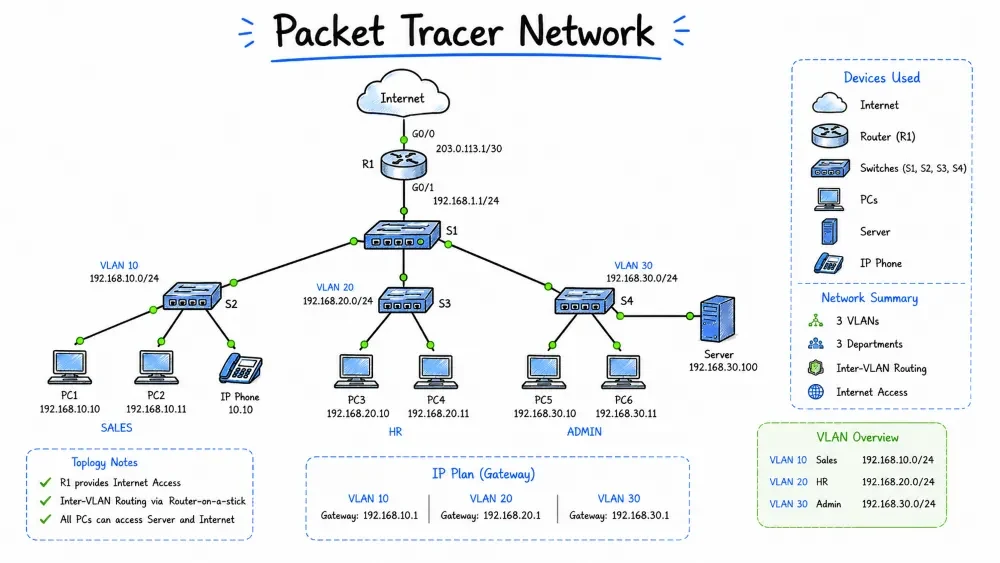
In this project, you will design and configure a complete network using Cisco Packet Tracer. You'll build a multi-department network with VLANs, inter-VLAN routing, DHCP, ACLs, and network services. This project simulates a real-world network implementation in a safe, virtual environment.
Design and implement a network for EduTech Academy, a small school with the following departments:
The network must support internet connectivity through an ISP simulation, internal services (DHCP, DNS, HTTP), and proper security controls between departments.
💡 100% Free Lab: This project is designed to be completely free:
- Cisco Packet Tracer — Free download (free Cisco NetAcad account required)
- No physical hardware needed — everything runs virtually
- Works on Windows, macOS, and Linux
- All configurations included — just copy and paste!
- Minimum: 4GB RAM, 2GB free disk space
📋 Your Step-by-Step Task:
- Download and install Cisco Packet Tracer (free — netacad.com)
- Build the network topology: 2 routers, 5 switches, 6 PCs, 1 server
- Cable all devices according to the connection table
- Configure R1 (Core Router): interfaces, sub-interfaces, DHCP, ACLs
- Configure SW-Dist (Distribution Switch): VLANs, trunks, routing
- Configure access switches: VLANs, port security, SSH
- Configure the ISP router and static routes
- Set up server services: DNS, HTTP, Email
- Test connectivity: pings, ACL verification, DNS resolution
- Save your .pkt file, complete checklist, and take the quiz
After completing this project, you will be able to:
Cisco Packet Tracer is a network simulation tool that allows you to design, configure, and troubleshoot networks without physical hardware. It's widely used for CCNA certification training and networking education.
| Feature | What You Can Do |
|---|---|
| Routing | Static, RIP, OSPF, EIGRP, BGP |
| Switching | VLANs, STP, EtherChannel, VTP |
| Security | ACLs, Port Security, SSH, VPN |
| Services | DHCP, DNS, HTTP, TFTP, Email, FTP |
| Wireless | WLANs, WPA2/WPA3, Wireless routers |
| IoT | Smart devices, sensors, actuators |
| Visualization | Real-time and simulation modes |
| Multi-user | Collaborative network building |
  Minimum:
  - 4GB RAM
  - 2GB free disk space
  - 1280x1024 display resolution
  - Windows, macOS, or Linux

  Download from: https://www.netacad.com (free Cisco account required)
  Version: 8.2+ (latest recommended)
┌─────────────────────────────────────────────────────────┐
│ Menu Bar  │ File │ Edit │ Options │ Extensions │ Help    │
├─────────────────────────────────────────────────────────┤
│                                                         │
│ Toolbar:  Select  Move  Place Note  Delete  Inspect     │
│           Copy/Paste  Zoom  Palette  Draw                │
├──────────────────────┬──────────────────────────────────┤
│                                                         │
│   Device Types:      │       WORKSPACE                   │
│   ┌────────────────┐ │                                  │
│   │  Network Devices│ │       [Router]───[Switch]        │
│   │  End Devices   │ │           │          │            │
│   │  Connections   │ │       [Switch]───[PC]            │
│   │  IoT           │ │           │                       │
│   │  Security      │ │       [Server]                    │
│   │  WAN Emulation │ │                                  │
│   └────────────────┘ │                                  │
├──────────────────────┴──────────────────────────────────┤
│ Status Bar: Point/Click  |  Simulation/Realtime         │
└─────────────────────────────────────────────────────────┘
| Action | Shortcut |
|---|---|
| Select tool | Ctrl + 1 |
| Move tool | Ctrl + 2 |
| Place note | Ctrl + 3 |
| Delete | Delete key |
| Zoom in | Scroll up |
| Zoom out | Scroll down |
| Inspect device | Alt + Click |
| Open CLI | Click device → CLI tab |
| Open Desktop | Click PC → Desktop tab |
To add devices:
  1. Click device type (bottom-left)
  2. Click specific device from list
  3. Click workspace to place it
  4. Use connection tool to cable devices

Device Types:
  ┌──────────────┬──────────────────────────────────────┐
  │ Category     │ Examples                             │
  ├──────────────┼──────────────────────────────────────┤
  │ Routers      │ 1941, 2811, 2911, 4321               │
  │ Switches     │ 2960, 3560, 3650, 3850               │
  │ Hubs         │ Hub-PT, Hub-PT-100                   │
  │ End Devices  │ PC, Laptop, Server, Printer          │
  │ Connections  │ Copper, Fiber, Serial, Console       │
  │ Wireless     │ WAP, Wireless Router                 │
  │ WAN          │ Cable Modem, DSL Modem, Cloud        │
  └──────────────┴──────────────────────────────────────┘
NETWORK REQUIREMENTS:

Topology:
  - 1 Core Router (connects to ISP and internal network)
  - 1 Layer 3 Switch (Distribution layer, inter-VLAN routing)
  - 3 Access Switches (one per department)
  - 1 Server Switch
  - 4 VLANs (Admin, Faculty, Students, Servers)
  - 1 Router for ISP simulation
  - 1 Server for network services

VLANs:
  ┌──────────────┬────────┬──────────┬──────────────┐
  │ Department   │ VLAN   │ Subnet   │ Gateway      │
  ├──────────────┼────────┼──────────┼──────────────┤
  │ Admin        │ 10     │ 10.0.10.0/24 │ 10.0.10.1    │
  │ Faculty      │ 20     │ 10.0.20.0/24 │ 10.0.20.1    │
  │ Students     │ 30     │ 10.0.30.0/24 │ 10.0.30.1    │
  │ Servers      │ 40     │ 10.0.40.0/24 │ 10.0.40.1    │
  │ Management   │ 99     │ 10.0.99.0/24 │ 10.0.99.1    │
  └──────────────┴────────┴──────────┴──────────────┘

Services:
  - DHCP: Router or Server (assign addresses to each VLAN)
  - DNS: Server (edutech.local domain)
  - HTTP: Server (internal website)
  - Email: Server (SMTP/POP3 for internal mail)

Security:
  - Students cannot access Admin or Faculty VLANs
  - All VLANs can access Servers (limited)
  - SSH enabled on routers and switches
  - Port security on access ports
                    [ISP Cloud / Internet]
                           │
                      [ISP Router]
                     192.168.1.0/30
                           │
                    [Core Router (R1)]
                    G0/0: 192.168.1.2/30
                    G0/1: 10.0.99.1/24 (Management)
                           │
                    [L3 Switch (SW-Dist)]
                    VLAN 99: 10.0.99.2/24
                           │
          ┌───────────────┼───────────────┐
          │               │               │
    [SW-Admin]      [SW-Faculty]    [SW-Labs]
    VLAN 10         VLAN 20         VLAN 30
          │               │               │
    [Admin PCs]    [Faculty PCs]    [Student PCs]
          │
     [SW-Servers]
     VLAN 40
          │
     [Server: DNS, HTTP, Email]
Step-by-Step:

1. Open Packet Tracer → New Project → "EduTech Academy"

2. Place Devices:
   - 1x Router 2911 (Core Router — R1)
   - 1x Router 2911 (ISP Router — ISP)
   - 1x Switch 3560-24PS (Distribution — SW-Dist)
   - 4x Switch 2960-24TT (Access — SW-Admin, SW-Faculty, SW-Lab, SW-Servers)
   - 2x PC (Admin, Faculty, Students — 6 total)
   - 1x Server (Server-PT)
   - 1x Cloud-PT (ISP Cloud)

3. Cable Connections:
   - ISP → Cloud: Copper Straight-Through
   - ISP → R1: Serial DCE/DTE (or Copper Cross-over)
   - R1 → SW-Dist: Copper Straight-Through (G0/1 to G0/1)
   - SW-Dist → SW-Admin: Copper Straight-Through (G0/1 to G0/1)
   - SW-Dist → SW-Faculty: Copper Straight-Through (G0/1 to G0/1)
   - SW-Dist → SW-Lab: Copper Straight-Through (G0/1 to G0/1)
   - SW-Dist → SW-Servers: Copper Straight-Through (G0/1 to G0/1)
   - SW-Admin → PCs: Copper Straight-Through (FastEthernet)
   - SW-Faculty → PCs: Copper Straight-Through
   - SW-Lab → PCs: Copper Straight-Through
   - SW-Servers → Server: Copper Straight-Through (FastEthernet)

4. Power on all devices (they're on by default)
Device naming:
  R1          — Core Router
  ISP         — ISP Router
  SW-Dist     — Distribution Switch (L3)
  SW-Admin    — Admin Access Switch
  SW-Faculty  — Faculty Access Switch
  SW-Lab      — Student Lab Access Switch
  SW-Servers  — Server Access Switch
  Server1     — Main Server
  PC-Admin-1  — Admin workstation
  PC-Faculty-1 — Faculty workstation
  PC-Student-1 — Student workstation
! Enter global configuration mode
enable
configure terminal

! Set hostname
hostname R1

! Create local users for SSH
username admin privilege 15 secret Password123
username netadmin privilege 15 secret SecurePass456

! Configure domain name (required for SSH)
ip domain-name edutech.local

! Generate RSA keys (1024 bits minimum)
crypto key generate rsa modulus 1024

! Configure SSH
ip ssh version 2
line vty 0 4
 login local
 transport input ssh
 exit

! Configure console security
line console 0
 password ConsPassword
 login
 logging synchronous
 exit

! Enable secret password
enable secret EnableSecret789

! Save configuration
copy running-config startup-config
! Configure G0/0 (WAN to ISP)
interface gigabitethernet0/0
 description Connection to ISP
 ip address 192.168.1.2 255.255.255.252
 no shutdown
 exit

! Configure G0/1 (to Distribution Switch)
interface gigabitethernet0/1
 description Trunk to Distribution Switch
 no ip address
 no shutdown
 exit

! Configure sub-interfaces for inter-VLAN routing (Router-on-a-stick)
interface gigabitethernet0/1.10
 description Admin VLAN
 encapsulation dot1q 10
 ip address 10.0.10.1 255.255.255.0
 exit

interface gigabitethernet0/1.20
 description Faculty VLAN
 encapsulation dot1q 20
 ip address 10.0.20.1 255.255.255.0
 exit

interface gigabitethernet0/1.30
 description Student VLAN
 encapsulation dot1q 30
 ip address 10.0.30.1 255.255.255.0
 exit

interface gigabitethernet0/1.40
 description Server VLAN
 encapsulation dot1q 40
 ip address 10.0.40.1 255.255.255.0
 exit

interface gigabitethernet0/1.99
 description Management VLAN
 encapsulation dot1q 99
 ip address 10.0.99.1 255.255.255.0
 exit
! Default route towards ISP
ip route 0.0.0.0 0.0.0.0 192.168.1.1

! Verify routing table
do show ip route
enable
configure terminal
hostname ISP

! Configure interfaces
interface gigabitethernet0/0
 description Connection to Cloud
 ip address 209.165.200.1 255.255.255.252
 no shutdown
 exit

interface gigabitethernet0/1
 description Connection to R1
 ip address 192.168.1.1 255.255.255.252
 no shutdown
 exit

! Create loopback for internet simulation
interface loopback 0
 ip address 8.8.8.1 255.255.255.0
 description Simulated Internet
 exit

! Route back to internal network
ip route 10.0.0.0 255.255.0.0 192.168.1.2

! Save
copy running-config startup-config
! Basic setup
enable
configure terminal
hostname SW-Dist

! Security
username admin privilege 15 secret Password123
ip domain-name edutech.local
crypto key generate rsa modulus 1024
ip ssh version 2
line vty 0 15
 login local
 transport input ssh
 exit
enable secret EnableSecret789

! Create VLANs
vlan 10
 name Admin
vlan 20
 name Faculty
vlan 30
 name Students
vlan 40
 name Servers
vlan 99
 name Management
exit

! Configure trunk to Core Router
interface gigabitethernet0/1
 description Trunk to R1
 switchport trunk encapsulation dot1q
 switchport mode trunk
 switchport trunk allowed vlan 10,20,30,40,99
 no shutdown
 exit

! Configure trunks to Access Switches
interface gigabitethernet0/2
 description Trunk to SW-Admin
 switchport trunk encapsulation dot1q
 switchport mode trunk
 switchport trunk allowed vlan 10,99
 no shutdown
 exit

interface gigabitethernet0/3
 description Trunk to SW-Faculty
 switchport trunk encapsulation dot1q
 switchport mode trunk
 switchport trunk allowed vlan 20,99
 no shutdown
 exit

interface gigabitethernet0/4
 description Trunk to SW-Lab
 switchport trunk encapsulation dot1q
 switchport mode trunk
 switchport trunk allowed vlan 30,99
 no shutdown
 exit

interface gigabitethernet0/5
 description Trunk to SW-Servers
 switchport trunk encapsulation dot1q
 switchport mode trunk
 switchport trunk allowed vlan 40,99
 no shutdown
 exit

! Management Interface
interface vlan 99
 ip address 10.0.99.2 255.255.255.0
 no shutdown
 exit

! IP Routing (if doing inter-VLAN on switch instead of router-on-a-stick)
ip routing

! Default route to Core Router
ip route 0.0.0.0 0.0.0.0 10.0.99.1

! Save
copy running-config startup-config
enable
configure terminal
hostname SW-Admin

! VLAN configuration
vlan 10
 name Admin
vlan 99
 name Management
exit

! Trunk to Distribution
interface gigabitethernet0/1
 description Uplink to SW-Dist
 switchport mode trunk
 switchport trunk allowed vlan 10,99
 no shutdown
 exit

! Access ports for Admin PCs
interface range fastethernet0/1-24
 description Admin Workstations
 switchport mode access
 switchport access vlan 10
 switchport port-security
 switchport port-security maximum 2
 switchport port-security violation shutdown
 switchport port-security mac-address sticky
 spanning-tree portfast
 no shutdown
 exit

! Management
interface vlan 99
 ip address 10.0.99.10 255.255.255.0
 no shutdown
 exit

ip default-gateway 10.0.99.1

! SSH
username admin privilege 15 secret Password123
ip domain-name edutech.local
crypto key generate rsa modulus 1024
ip ssh version 2
line vty 0 15
 login local
 transport input ssh
 exit

copy running-config startup-config
! Similar to SW-Admin but with VLAN 20
enable
configure terminal
hostname SW-Faculty

vlan 20
 name Faculty
vlan 99
 name Management
exit

interface gigabitethernet0/1
 description Uplink to SW-Dist
 switchport mode trunk
 switchport trunk allowed vlan 20,99
 no shutdown
 exit

interface range fastethernet0/1-24
 description Faculty Workstations
 switchport mode access
 switchport access vlan 20
 switchport port-security
 switchport port-security maximum 2
 switchport port-security violation shutdown
 switchport port-security mac-address sticky
 spanning-tree portfast
 no shutdown
 exit

interface vlan 99
 ip address 10.0.99.20 255.255.255.0
 no shutdown
 exit

ip default-gateway 10.0.99.1

! SSH config (same as SW-Admin)
copy running-config startup-config
! Students VLAN (30) — most restrictive
enable
configure terminal
hostname SW-Lab

vlan 30
 name Students
vlan 99
 name Management
exit

interface gigabitethernet0/1
 description Uplink to SW-Dist
 switchport mode trunk
 switchport trunk allowed vlan 30,99
 no shutdown
 exit

interface range fastethernet0/1-24
 description Student PCs
 switchport mode access
 switchport access vlan 30
 switchport port-security
 switchport port-security maximum 1  ! Only 1 device per port for students
 switchport port-security violation shutdown
 switchport port-security mac-address sticky
 spanning-tree portfast
 no shutdown
 exit

interface vlan 99
 ip address 10.0.99.30 255.255.255.0
 no shutdown
 exit

ip default-gateway 10.0.99.1

! SSH config
copy running-config startup-config
! Similar to access switches but for servers
enable
configure terminal
hostname SW-Servers

vlan 40
 name Servers
vlan 99
 name Management
exit

interface gigabitethernet0/1
 description Uplink to SW-Dist
 switchport mode trunk
 switchport trunk allowed vlan 40,99
 no shutdown
 exit

interface fastethernet0/1
 description Server1 Connection
 switchport mode access
 switchport access vlan 40
 no shutdown
 exit

interface vlan 99
 ip address 10.0.99.40 255.255.255.0
 no shutdown
 exit

ip default-gateway 10.0.99.1

copy running-config startup-config
| Switch | VLANs Present | Port Mode | Allowed VLANs on Trunk |
|---|---|---|---|
| SW-Dist | 10, 20, 30, 40, 99 | Trunk (dot1q) | All VLANs |
| SW-Admin | 10, 99 | Access/Trunk | 10, 99 |
| SW-Faculty | 20, 99 | Access/Trunk | 20, 99 |
| SW-Lab | 30, 99 | Access/Trunk | 30, 99 |
| SW-Servers | 40, 99 | Access/Trunk | 40, 99 |
# On any switch, verify VLAN configuration
show vlan brief
show interfaces trunk
show interfaces status

# Expected output example:
VLAN Name                             Status    Ports
---- -------------------------------- --------- -------------------------------
1    default                          active    Fa0/1, Fa0/2, ...
10   Admin                            active    Fa0/1, Fa0/2, ...
20   Faculty                          active    Fa0/1, Fa0/2, ...
30   Students                         active    Fa0/1, Fa0/2, ...
40   Servers                          active    Fa0/1
99   Management                       active    Gi0/1
1002 fddi-default                     active
1003 token-ring-default               active
1004 fddinet-default                  active
1005 trnet-default                    active
! R1 already has sub-interfaces configured:
! G0/1.10 — VLAN 10 (10.0.10.1/24)
! G0/1.20 — VLAN 20 (10.0.20.1/24)
! G0/1.30 — VLAN 30 (10.0.30.1/24)
! G0/1.40 — VLAN 40 (10.0.40.1/24)
! G0/1.99 — VLAN 99 (10.0.99.1/24)

! Verify routing
show ip route
show ip interface brief
! Uncomment ip routing on SW-Dist and add SVIs if not using router-on-a-stick
! interface vlan 10
!  ip address 10.0.10.254 255.255.255.0
!  no shutdown
!
! interface vlan 20
!  ip address 10.0.20.254 255.255.255.0
!  no shutdown
!
! etc.

! Then on R1, just have one interface to SW-Dist with IP 10.0.99.1
! SW-Dist becomes the gateway for all VLANs
! Configure DHCP pools for each VLAN
ip dhcp excluded-address 10.0.10.1 10.0.10.10
ip dhcp excluded-address 10.0.20.1 10.0.20.10
ip dhcp excluded-address 10.0.30.1 10.0.30.10
ip dhcp excluded-address 10.0.40.1 10.0.40.10

ip dhcp pool ADMIN_POOL
 network 10.0.10.0 255.255.255.0
 default-router 10.0.10.1
 dns-server 10.0.40.10
 domain-name edutech.local
 lease 7

ip dhcp pool FACULTY_POOL
 network 10.0.20.0 255.255.255.0
 default-router 10.0.20.1
 dns-server 10.0.40.10
 domain-name edutech.local
 lease 7

ip dhcp pool STUDENT_POOL
 network 10.0.30.0 255.255.255.0
 default-router 10.0.30.1
 dns-server 10.0.40.10
 domain-name edutech.local
 lease 1

ip dhcp pool SERVER_POOL
 network 10.0.40.0 255.255.255.0
 default-router 10.0.40.1
 dns-server 10.0.40.10
 domain-name edutech.local
 lease 30

! Enable DHCP on interfaces (ip helper-address if using L3 switch SVIs)
! For router-on-a-stick, sub-interfaces automatically forward DHCP broadcasts
! On R1
show ip dhcp binding
show ip dhcp pool

! On a PC
! Go to Desktop → IP Configuration → DHCP
! Verify it gets: IP, Subnet, Gateway, DNS
! R1 — default route to ISP (already configured)
ip route 0.0.0.0 0.0.0.0 192.168.1.1

! ISP — route back to internal network (already configured)
ip route 10.0.0.0 255.255.0.0 192.168.1.2

! SW-Dist — default route to R1 (already configured)
ip route 0.0.0.0 0.0.0.0 10.0.99.1
! On R1:
router ospf 1
 router-id 1.1.1.1
 network 10.0.0.0 0.0.255.255 area 0
 network 192.168.1.0 0.0.0.3 area 0
 default-information originate
 exit

! On SW-Dist (if L3 routing):
router ospf 1
 router-id 2.2.2.2
 network 10.0.0.0 0.0.255.255 area 0
 exit

! Verify OSPF neighbors
show ip ospf neighbor
show ip route ospf
ACL OBJECTIVES:
  1. Students cannot access Admin (VLAN 10) or Faculty (VLAN 20)
  2. All users can access Servers (VLAN 40) — HTTP, DNS, Email only
  3. Admin can access everything
  4. Faculty can access Servers and Internet
  5. Internet access for all VLANs
  6. Students can only access Servers and Internet (not Admin/Faculty)
! ACL 101 — Restrict Student Access
! Apply to VLAN 30 inbound
access-list 101 deny ip 10.0.30.0 0.0.0.255 10.0.10.0 0.0.0.255
access-list 101 deny ip 10.0.30.0 0.0.0.255 10.0.20.0 0.0.0.255
access-list 101 permit ip 10.0.30.0 0.0.0.255 any

! ACL 102 — Restrict Faculty Internet (example: block social media)
! Apply to VLAN 20 inbound
access-list 102 permit ip 10.0.20.0 0.0.0.255 10.0.40.0 0.0.0.255
access-list 102 permit tcp 10.0.20.0 0.0.0.255 any eq 80
access-list 102 permit tcp 10.0.20.0 0.0.0.255 any eq 443
access-list 102 permit udp 10.0.20.0 0.0.0.255 any eq 53
access-list 102 deny ip 10.0.20.0 0.0.0.255 any

! ACL 103 — Restrict Server Access (only specific services)
! Apply to VLAN 40 inbound
access-list 103 permit tcp 10.0.0.0 0.0.255.255 host 10.0.40.10 eq 80
access-list 103 permit tcp 10.0.0.0 0.0.255.255 host 10.0.40.10 eq 443
access-list 103 permit udp 10.0.0.0 0.0.255.255 host 10.0.40.10 eq 53
access-list 103 permit tcp 10.0.0.0 0.0.255.255 host 10.0.40.10 eq 25
access-list 103 permit tcp 10.0.0.0 0.0.255.255 host 10.0.40.10 eq 110
access-list 103 permit icmp 10.0.0.0 0.0.255.255 host 10.0.40.10
access-list 103 deny ip any any log

! Apply ACLs to interfaces
interface gigabitethernet0/1.30
 ip access-group 101 in
 exit

interface gigabitethernet0/1.20
 ip access-group 102 in
 exit

interface gigabitethernet0/1.40
 ip access-group 103 in
 exit
! Check ACLs
show access-lists
show ip interface gigabitethernet0/1.30
show access-list 101

! Test ACL from Student PC:
! ping 10.0.10.1 should FAIL (blocked by ACL 101)
! ping 10.0.40.10 should SUCCEED
! HTTP to 10.0.40.10 should SUCCEED
! Open Server1 → Desktop → IP Configuration
IP Address: 10.0.40.10
Subnet Mask: 255.255.255.0
Default Gateway: 10.0.40.1
DNS Server: 10.0.40.10 (self)
! Server1 → Services → DNS
! Enable DNS Service
! Add DNS Records:

Name: www.edutech.local     Type: A     Address: 10.0.40.10
Name: mail.edutech.local    Type: A     Address: 10.0.40.10
Name: dns.edutech.local     Type: A     Address: 10.0.40.10
Name: ftp.edutech.local     Type: A     Address: 10.0.40.10

! Test from PC:
! Desktop → Command Prompt → nslookup www.edutech.local
! Should return 10.0.40.10
! Server1 → Services → HTTP
! Enable HTTP
! Enable HTTPS (optional)

! Create a simple web page:
! Edit the index.html file:
<html>
<head><title>EduTech Academy</title></head>
<body>
<h1>Welcome to EduTech Academy</h1>
<p>Internal Network Portal</p>
</body>
</html>

! Test from PC:
! Desktop → Web Browser → http://www.edutech.local
! Should display the welcome page
! Server1 → Services → Email
! Enable SMTP Service
! Enable POP3 Service

! Create Email Accounts:
Domain: edutech.local
User 1: admin@edutech.local    Password: AdminPass123
User 2: faculty@edutech.local  Password: FacultyPass123

! Test from PC (using Email client in Desktop → Email):
! Account: admin@edutech.local
! Incoming Mail Server: 10.0.40.10 (POP3)
! Outgoing Mail Server: 10.0.40.10 (SMTP)
! Send test email to faculty@edutech.local
! Check receipt on Faculty PC
! Verify SSH configuration on all routers and switches:
show ssh
show ip ssh

! Test SSH from Admin PC:
! Desktop → Command Prompt
ssh -l admin 10.0.99.1   (R1)
ssh -l admin 10.0.99.2   (SW-Dist)
! On access switches (SW-Admin, SW-Faculty, SW-Lab):
interface range fastethernet0/1-24
 switchport port-security
 switchport port-security maximum 2  (1 for student lab)
 switchport port-security violation shutdown
 switchport port-security mac-address sticky
 switchport port-security aging time 5
!

! Verify:
show port-security
show port-security interface fastethernet0/1
show mac-address-table
! 1. Disable unused ports
interface range fastethernet0/10-24
 shutdown
 exit

! 2. BPDU Guard (prevents STP manipulation)
interface range fastethernet0/1-24
 spanning-tree bpduguard enable
 exit

! 3. Root Guard (prevents switch becoming root bridge)
interface gigabitethernet0/2-5
 spanning-tree guard root
 exit

! 4. Disable CDP on access ports (information disclosure)
interface range fastethernet0/1-24
 no cdp enable
 exit

! 5. Enable logging
logging host 10.0.40.10
logging trap debugging
service timestamps log datetime msec
| Test | From | To | Expected | Command |
|---|---|---|---|---|
| 1 | Admin PC | Gateway (10.0.10.1) | Success | ping |
| 2 | Faculty PC | Gateway (10.0.20.1) | Success | ping |
| 3 | Student PC | Gateway (10.0.30.1) | Success | ping |
| 4 | Admin PC | Server (10.0.40.10) | Success | ping |
| 5 | Faculty PC | Server (10.0.40.10) | Success | ping |
| 6 | Student PC | Server (10.0.40.10) | Success | ping |
| 7 | Student PC | Admin (10.0.10.x) | FAIL | ping |
| 8 | Student PC | Faculty (10.0.20.x) | FAIL | ping |
| 9 | All PCs | Internet (8.8.8.1) | Success | ping |
| 10 | All PCs | DNS resolution | Success | nslookup |
! On any PC (Desktop → Command Prompt):
ping 10.0.10.1              ! Test gateway
tracert 8.8.8.1             ! Test path to internet
nslookup www.edutech.local  ! Test DNS
ping 10.0.40.10             ! Test server connectivity

! On routers/switches (CLI):
show ip interface brief      ! Verify interfaces
show ip route               ! Verify routing table
show vlan brief             ! Verify VLANs
show interfaces trunk       ! Verify trunking
show access-lists           ! Verify ACLs
ping 10.0.40.10 source 10.0.10.1  ! Extended ping
telnet 10.0.99.2            ! Test connectivity
Successful ping from Admin PC to Server:
C:\> ping 10.0.40.10
Reply from 10.0.40.10: bytes=32 time<1ms TTL=128

Blocked ping from Student PC to Admin:
C:\> ping 10.0.10.1
Request timed out.
Request timed out.

Successful DNS resolution:
C:\> nslookup www.edutech.local
Server: 10.0.40.10
Name: www.edutech.local
Address: 10.0.40.10

Successful HTTP access:
C:\> curl http://www.edutech.local
(Should display webpage)
Symptom: PC in VLAN 10 cannot ping PC in VLAN 20
Causes:
  - No inter-VLAN routing configured
  - Trunk port missing allowed VLANs
  - ACL blocking traffic
  - Sub-interface not matching encapsulation

Check:
  show running-config | section interface
  show interfaces trunk
  show access-lists
  debug ip routing
Symptom: PCs get 169.254.x.x (APIPA) address
Causes:
  - DHCP service not configured
  - ip helper-address not set (on L3 switch SVIs)
  - VLAN interface not up
  - DHCP pool full

Check:
  show ip dhcp binding
  show ip dhcp pool
  show interfaces vlan 10
  debug ip dhcp server events
Symptom: ACL applied but traffic still passes
Causes:
  - ACL applied in wrong direction
  - ACL applied to wrong interface
  - Implicit "permit any" before deny statements
  - ACL not matching desired traffic

Check:
  show access-lists
  show ip interface [interface]
  Check ACL line order (remember: first match wins)

Fix:
  - Move ACL to correct interface/direction
  - Add explicit "deny ip any any" at end
  - Use "access-list [num] deny ip any any log" for testing
| Problem | Diagnostic Command |
|---|---|
| Interface down | show ip interface brief |
| No route | show ip route |
| VLAN missing | show vlan brief |
| Trunk not working | show interfaces trunk |
| ACL not working | show access-lists |
| DHCP not assigning | show ip dhcp binding |
| DNS not resolving | nslookup [hostname] |
| Port security violation | show port-security |
| MAC address unknown | show mac-address-table |
| STP blocking port | show spanning-tree |
hostname R1
!
username admin privilege 15 secret Password123
ip domain-name edutech.local
crypto key generate rsa modulus 1024
ip ssh version 2
!
interface GigabitEthernet0/0
 ip address 192.168.1.2 255.255.255.252
 no shutdown
!
interface GigabitEthernet0/1
 no ip address
 no shutdown
!
interface GigabitEthernet0/1.10
 encapsulation dot1Q 10
 ip address 10.0.10.1 255.255.255.0
!
interface GigabitEthernet0/1.20
 encapsulation dot1Q 20
 ip address 10.0.20.1 255.255.255.0
!
interface GigabitEthernet0/1.30
 encapsulation dot1Q 30
 ip address 10.0.30.1 255.255.255.0
 ip access-group 101 in
!
interface GigabitEthernet0/1.40
 encapsulation dot1Q 40
 ip address 10.0.40.1 255.255.255.0
 ip access-group 103 in
!
interface GigabitEthernet0/1.99
 encapsulation dot1Q 99
 ip address 10.0.99.1 255.255.255.0
!
ip dhcp excluded-address 10.0.10.1 10.0.10.10
ip dhcp excluded-address 10.0.20.1 10.0.20.10
ip dhcp excluded-address 10.0.30.1 10.0.30.10
ip dhcp excluded-address 10.0.40.1 10.0.40.10
!
ip dhcp pool ADMIN_POOL
 network 10.0.10.0 255.255.255.0
 default-router 10.0.10.1
 dns-server 10.0.40.10
!
ip dhcp pool FACULTY_POOL
 network 10.0.20.0 255.255.255.0
 default-router 10.0.20.1
 dns-server 10.0.40.10
!
ip dhcp pool STUDENT_POOL
 network 10.0.30.0 255.255.255.0
 default-router 10.0.30.1
 dns-server 10.0.40.10
 lease 1
!
ip dhcp pool SERVER_POOL
 network 10.0.40.0 255.255.255.0
 default-router 10.0.40.1
 dns-server 10.0.40.10
!
access-list 101 deny ip 10.0.30.0 0.0.0.255 10.0.10.0 0.0.0.255
access-list 101 deny ip 10.0.30.0 0.0.0.255 10.0.20.0 0.0.0.255
access-list 101 permit ip 10.0.30.0 0.0.0.255 any
!
access-list 103 permit tcp 10.0.0.0 0.0.255.255 host 10.0.40.10 eq 80
access-list 103 permit tcp 10.0.0.0 0.0.255.255 host 10.0.40.10 eq 443
access-list 103 permit udp 10.0.0.0 0.0.255.255 host 10.0.40.10 eq 53
access-list 103 permit tcp 10.0.0.0 0.0.255.255 host 10.0.40.10 eq 25
access-list 103 permit tcp 10.0.0.0 0.0.255.255 host 10.0.40.10 eq 110
access-list 103 deny ip any any log
!
ip route 0.0.0.0 0.0.0.0 192.168.1.1
!
line vty 0 4
 login local
 transport input ssh
!
enable secret EnableSecret789
!
end
| Extension | Description | Difficulty |
|---|---|---|
| Wireless Network | Add a wireless LAN controller (WLC) and AP for faculty | Medium |
| VoIP | Add IP phones in Admin and Faculty VLANs | Medium |
| VPN | Configure site-to-site VPN between R1 and a remote router | Hard |
| VLAN Trunking Protocol | Configure VTP server/client | Medium |
| EtherChannel | Bundle two trunk links between SW-Dist and access switches | Medium |
| SNMP | Configure SNMP v3 for network monitoring | Medium |
| RADIUS | Configure RADIUS authentication for switch management | Hard |
| IPv6 | Implement dual-stack IPv6 alongside IPv4 | Medium |
| HSTP/RSTP | Enable Rapid Spanning Tree Protocol | Medium |
| QoS | Configure QoS for VoIP traffic priority | Medium |
EXTENSION: Add a Branch Office

Branch network:
  - Branch Router (R2)
  - Connected via Serial link to R1
  - OSPF routing between sites
  - Subnet: 172.16.0.0/16 space

Configuration needed:
  - Serial interfaces on both routers
  - OSPF area 0 across both sites
  - Inter-site routing and security
Before marking this project complete:
Save your progress and earn XP for completing tutorials.
2 questions · Pass with 70%+
1What command creates a VLAN 20 named "Faculty" on a Cisco switch?
2What is the purpose of `switchport trunk allowed vlan 10,99`?
Technology
Cyber Security & Networking
Lesson group
Projects
Progress
100% complete

