Preparing your learning space...
50% through Setting Up AI tutorials
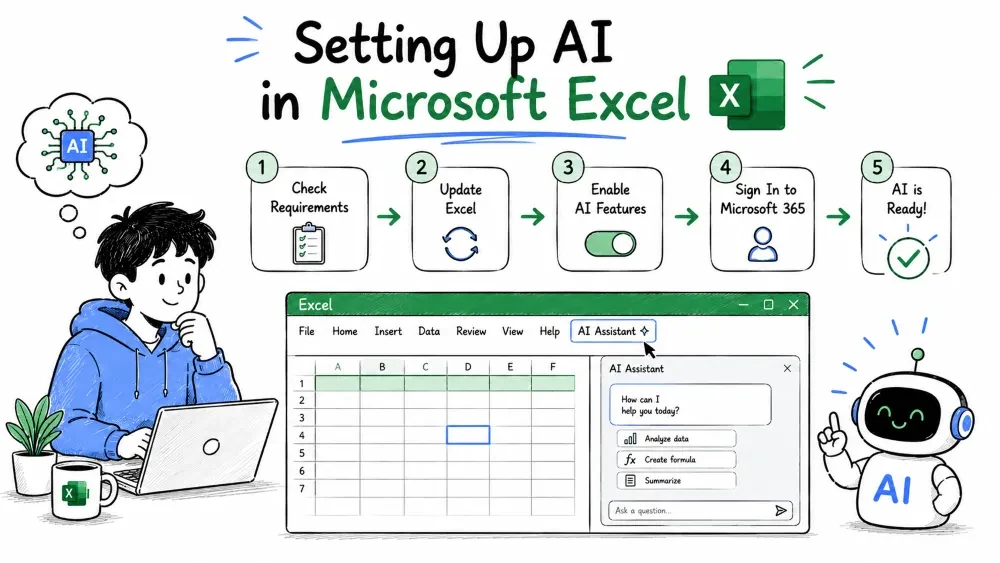
Getting AI into Excel means understanding one system, not seven. Every topic you gave me lives in the same chapter: turning on Microsoft 365 Copilot and using it safely inside a workbook. So this is one tutorial — you learn the full setup from first click to saving the finished file.
"Excel AI" isn't one button. It's a family of features — Copilot, suggested formulas, pattern recognition, and natural-language answers — that analyze your data and do work for you. Instead of you clicking through menus, you describe what you want and the tool figures out the steps.
Why it's useful: it turns repetitive jobs (writing formulas, spotting trends, building charts) into a conversation.
A quick map of what those features can do at a glance:
Ask in plain English   →  "What was the best-selling product last quarter?"
Get a suggested formula →  Copilot writes the SUMIFS for you
Spot a pattern          →  highlights outliers in a large table
Build a chart           →  one sentence creates a visual in a new sheet
The moment you understand all of these share one setup path, the rest of this tutorial is just that path.
Copilot is the AI assistant that powers Excel's smart features. It runs through Microsoft 365, not as a separate download. It reads the data in your current workbook and responds with text, formulas, and insights right where your cursor is.
Why it's useful: it's the difference between "I know Excel can do this" and "Excel does it for me." When Copilot is on, the AI features above are on.
Keep in mind Copilot needs three things working together:
Check these before you try to switch anything on, because a missing license is the number-one reason the toggle looks grayed out.
Enabling Copilot is a one-time switch, but where you flip it depends on whether you control your own app or your company does. Here's the typical path.
For most people (you have the license, just not the toggle):
The simplest verification that it's on:
Look for "Copilot" in the ribbon → on / off
Sign-in status                   → work or school account shown
License assigned                 → yes / no
Copilot pane opens on click      → yes / no
If clicking Copilot does nothing or shows an error, it's almost always the license or the account, not a broken install — re-check the three requirements above.
Common mistake: enabling Copilot in Word or PowerPoint and expecting it to appear in Excel automatically. Copilot is per-app; you flip it in each one.
Once enabled, Copilot lives in a sidebar (also called the Copilot pane) on the right side of your Excel window. This is where you type requests and read the AI's answers — it never replaces your spreadsheet itself.
What you see in the sidebar:
A practical exchange:
You:   "Highlight the rows where sales dropped from last month."
Copilot: "I found 14 rows where sales declined. Insert a highlight for these?"
You:   "Yes," → Copilot applies the conditional formatting to those rows.
The sidebar turns Excel into a two-way conversation. When it offers to insert a formula or formatting, accepting the offer is usually safer than typing the result yourself — Copilot inserts exactly what it just described.
Common mistake: typing requests into a worksheet cell instead of the sidebar. Cells hold data; the sidebar holds the conversation. Paste into the wrong place and you end up with your prompt as text in the table.
Permissions decide who is allowed to use Copilot and what it's allowed to touch. This is admin territory — if you're an everyday user, your IT team set these before you arrived.
The main settings live in the Microsoft 365 admin center, under Settings → Microsoft 365 Copilot.
Key choices:
| Setting | What it controls |
|---|---|
| Copilot availability | Turns the feature on or off for everyone, or for specific groups |
| Data access | Whether the AI can read all workbook data or only certain columns/ranges |
| Connectivity | Which AI features work when offline (most need the cloud) |
| Sharing | Whether AI-generated results are shared with others as-is |
For a business, the important one is data access. Because Copilot reads your workbook to answer, you decide how much of it the AI is allowed to process. If a sheet holds sensitive numbers, you can restrict Copilot away from it.
Best practice: start with the narrowest data access, then widen it only after you've seen it behave well on non-sensitive files.
Common mistake: assuming the AI you see is the only AI. Copilot shares the same permission rules across Excel, Word, and PowerPoint — lock it down in one place and it applies everywhere.
AI workbooks save like any other Excel file — there's no special "AI format." Your data, the formulas Copilot wrote, and any formatting are all stored normally in a standard .xlsx file.
The thing that does not save is the conversation in the sidebar.
File → Save As (or the shortcut), choose .xlsx, done.Why it's useful: you never have to worry about choosing a special file type or losing your workbook — it behaves like an ordinary Excel file on other people's machines.
Best practice: if you're meeting a Copilot-produced result again, don't rely on the sidebar history. Either note the formula the AI generated, or use File → Save As to archive a copy. The file keeps the result; the chat doesn't.
Save your progress and earn XP for completing tutorials.
3 questions · Pass with 70%+
1Which of these is required to use Copilot in Excel?
2Where do you enable Copilot in Excel?
3What is the best way to keep a Copilot-generated formula for later?
Technology
Excel with AI
Lesson group
Setting Up AI
Progress
50% complete

