Preparing your learning space...
100% through Debugging tutorials
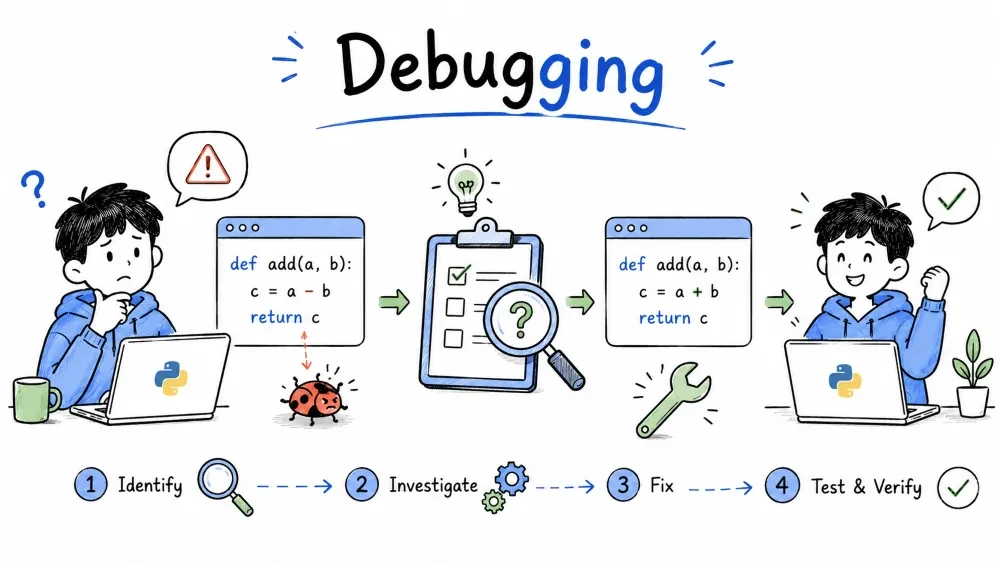
Every program you write will have bugs. Debugging is the skill of finding and fixing them. This tutorial covers the essential techniques Python developers use daily.
Debugging is the process of identifying, isolating, and fixing errors in code. It's not just about removing bugs — it's about understanding why your program behaves the way it does.
Most debugging time is spent locating the problem, not fixing it. Finding the exact line where things go wrong is 90% of the work.
Python errors fall into three categories.
The interpreter can't understand your code. The program won't run at all.
# Missing colon — SyntaxError
if x > 5
    print("x is big")
The syntax is fine, but something goes wrong during execution.
# Dividing by zero — ZeroDivisionError
result = 10 / 0

# Accessing a list index that doesn't exist — IndexError
items = [1, 2, 3]
print(items[10])
The program runs without errors but gives the wrong result. These are the hardest to find because you get no error message.
def average(a, b):
    return a + b / 2   # Wrong operator precedence

print(average(10, 20))  # Prints 20.0, not 15.0
Fix: (a + b) / 2
Error messages tell you exactly what went wrong and where. Learn to read them instead of panicking.
Traceback (most recent call last):
  File "example.py", line 5, in <module>
    result = divide(10, 0)
  File "example.py", line 2, in divide
    return a / b
ZeroDivisionError: division by zero
Read a traceback from bottom to top:
| Part | What it tells you |
|---|---|
ZeroDivisionError | What went wrong |
division by zero | Details about the error |
line 2, in divide | Where it happened |
The arrow → above | The exact line that failed |
The bottom is the error itself. The lines above show the call stack — the path your program took to reach that error.
The simplest debugging technique: insert print() statements to check what's happening.
def process_user_data(users):
    print(f"DEBUG: received {len(users)} users")   # Check input

    for user in users:
        print(f"DEBUG: processing user {user['id']}")

        # Check intermediate values
        score = calculate_score(user)
        print(f"DEBUG: score = {score}")

        if score > 100:
            print(f"DEBUG: score exceeds 100, adjusting...")
            score = 100

    return users
When to use it: Quick checks, simple scripts, one-off debugging.
When to avoid: Production code, multithreaded programs, complex systems. It's noisy and easy to forget to remove.
Assertions are self-checking conditions. If the condition is False, Python raises an AssertionError.
def withdraw(balance, amount):
    assert amount > 0, "Amount must be positive"
    assert balance >= amount, "Insufficient funds"
    return balance - amount
Use assertions for:
None here")Assertions can be disabled globally with python -O. Don't rely on them for security or production data validation.
When print() isn't enough, use the logging module. It gives you control over message levels, output format, and destination.
import logging

logging.basicConfig(
    level=logging.DEBUG,
    format='%(asctime)s - %(levelname)s - %(message)s'
)

def fetch_data(url):
    logging.info(f"Fetching data from {url}")
    try:
        response = requests.get(url, timeout=5)
        response.raise_for_status()
        logging.debug(f"Response status: {response.status_code}")
        return response.json()
    except requests.exceptions.Timeout:
        logging.error(f"Request timed out: {url}")
        raise
Log levels (least to most severe):
| Level | When to use |
|---|---|
DEBUG | Detailed info for diagnosis |
INFO | Confirmation things work |
WARNING | Something unexpected but not breaking |
ERROR | A serious problem, but the program continues |
CRITICAL | The program can't continue |
Unlike print(), logs can be filtered at runtime. Set level=logging.WARNING and all DEBUG/INFO messages disappear — no need to delete them from the code.
The debugger is more powerful than print statements. It can pause execution, inspect variables, and step through code line by line.
.vscode/launch.json configuration file.A basic Python config looks like this:
{
    "version": "0.2.0",
    "configurations": [
        {
            "name": "Python: Current File",
            "type": "debugpy",
            "request": "launch",
            "program": "${file}",
            "console": "integratedTerminal"
        }
    ]
}
For most projects, this default config is all you need.
A breakpoint tells the debugger to pause execution at a specific line.
How to set one: Click in the gutter (left of the line numbers). A red dot appears.
When the program reaches that line, execution pauses. You can inspect all variables, the call stack, and even change variable values before continuing.
Once paused at a breakpoint, use these buttons:
| Control | Shortcut | What it does |
|---|---|---|
| Continue | F5 | Run until the next breakpoint |
| Step Over | F10 | Execute current line, stay in current function |
| Step Into | F11 | Enter the function on the current line |
| Step Out | Shift+F11 | Finish the current function and return |
| Restart | Ctrl+Shift+F5 | Start debugging from the beginning |
| Stop | Shift+F5 | End the debugging session |
A typical debugging session:
1. Set a breakpoint where you suspect the problem is
2. Run the debugger (F5)
3. Program pauses — look at variables in the left panel
4. Step over (F10) line by line, watching values change
5. When you reach a function call, decide:
   - Step Into (F11) if you need to see inside it
   - Step Over (F10) if you trust it
6. Spot the bug, stop the debugger, fix the code
When paused at a breakpoint, two panels show you everything:
Use the Watch panel for:
len(data) — see how many items are in a listuser.get("name", "unknown") — inspect dictionary keys safelyisinstance(obj, str) — check typesRight-click a breakpoint → Edit breakpoint → enter a condition. The debugger only pauses when that condition is true.
Condition: x > 100
This is invaluable for loops. Instead of pressing Continue 500 times, the debugger only pauses when x exceeds 100.
For more control, create different configurations:
{
    "configurations": [
        {
            "name": "Run with Arguments",
            "type": "debugpy",
            "request": "launch",
            "program": "${file}",
            "args": ["--input", "data.csv", "--verbose"]
        },
        {
            "name": "Attach to Running Process",
            "type": "debugpy",
            "request": "attach",
            "connect": {
                "host": "localhost",
                "port": 5678
            }
        }
    ]
}
Key fields:
program — which file to runargs — command-line argumentsenv — environment variablescwd — working directoryconsole — where output goes (integratedTerminal, internalConsole, externalTerminal)You used a variable or function that Python doesn't know about.
# Wrong
print(result)

# Fix: define it first
result = calculate()
print(result)
Common causes: typo in variable name, forgot to import a module, variable defined after use.
A function returned None when you expected a list, dict, or similar.
# Wrong
def get_user(id):
    if id in database:
        return database[id]
    # Missing: else clause

user = get_user(42)
print(user["name"])      # TypeError

# Fix
def get_user(id):
    return database.get(id)  # Returns None, caller should check
Fix: Check what functions actually return. Add a fallback return or handle None at the call site.
You accessed a list index that doesn't exist.
# Wrong
items = [10, 20, 30]
print(items[3])          # Only indices 0, 1, 2 exist

# Fix
if len(items) > 3:
    print(items[3])
Fix: Always check len() before accessing by index, or use a loop that stays in bounds.
You tried to access a dictionary key that doesn't exist.
user = {"name": "Alice", "age": 30}

# Wrong
print(user["email"])     # KeyError

# Fix options
print(user.get("email", "not provided"))          # Safe access
print(user.get("name", "not provided"))           # Provides default
Fix: Use .get(key, default) for dictionary access where the key might be missing.
Python can't find the module you're trying to import.
# Wrong
import requests           # Not installed

# Fix
# pip install requests
import requests
Fix: Install the package with pip install <name>. If it's a local file, check that it's in the same directory (or adjust sys.path).
You called a method that doesn't exist for that type.
# Wrong
name = "Alice"
name.append(" Smith")      # str has no .append()

# Fix
name = name + " Smith"     # Use + or f-strings
Fix: Check the type of your object and use methods that belong to it.
You tried to convert a string that doesn't look like a number.
# Wrong
age = int("twenty")        # "twenty" is not a number string

# Fix
try:
    age = int(user_input)
except ValueError:
    age = 0
    print("Invalid number, using default")
Fix: Validate input before converting, or wrap it in a try/except block.
Python is strict about indentation. Mixing spaces and tabs causes this.
# Wrong
def greet():
    print("Hello")      # Uses spaces
	print("World")      # Uses tab — IndentationError

# Fix — use 4 spaces everywhere
def greet():
    print("Hello")
    print("World")
Fix: Set VS Code to always convert tabs to spaces ("editor.insertSpaces": true, "editor.tabSize": 4).
Save your progress and earn XP for completing tutorials.
Technology
Python
Lesson group
Debugging
Progress
100% complete

