Preparing your learning space...
33% through Mobile Security tutorials
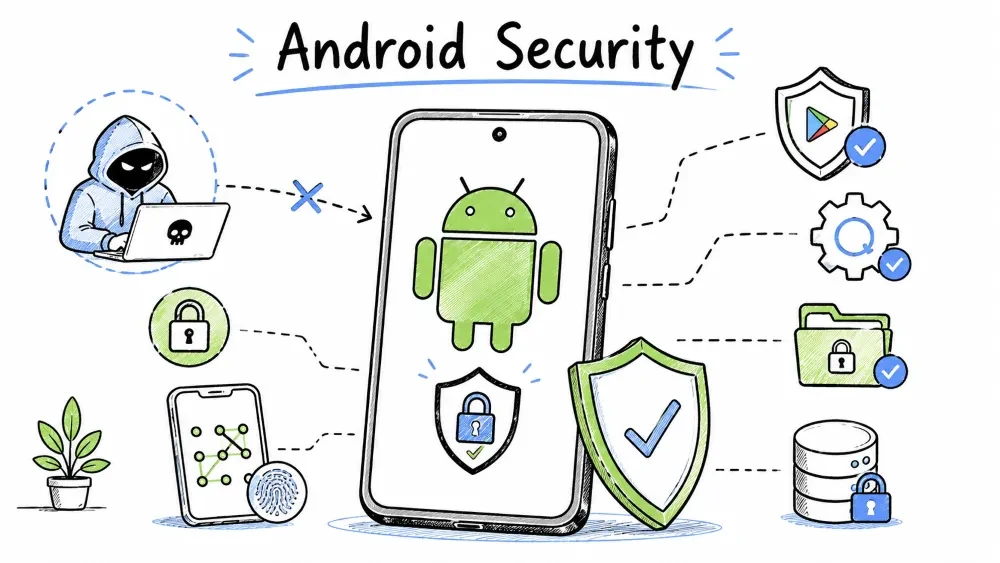
Android is an open-source operating system developed by Google. With over 70% of the global smartphone market share, Android is the most widely used mobile OS. Its security model relies on sandboxing, mandatory permissions, and regular security updates through Google Play Services. However, its openness also creates unique security challenges.
A complete look at how Android's security layers work — from the kernel up to the app level.
Every Android app runs in its own sandbox with a unique Linux user ID (UID). This is the foundation of Android security.
┌──────────────────────────────────────────────────┐
│                  Android System                   │
├─────────────┬─────────────┬──────────────────────┤
│  App A      │  App B      │  System Apps         │
│  UID: 10001 │  UID: 10002 │  UID: System (1000)  │
│  Process: A │  Process: B │  Multiple Processes  │
│  Sandbox    │  Sandbox    │  System Sandbox      │
├─────────────┴─────────────┴──────────────────────┤
│         Linux Kernel + SELinux (Mandatory)        │
│  Security-Enhanced Linux — enforces access control │
├──────────────────────────────────────────────────┤
│     Hardware Abstraction Layer (HAL)              │
│     Camera / GPS / Sensors / Bluetooth / NFC      │
└──────────────────────────────────────────────────┘
Key points:
How Android's permission model has evolved from all-or-nothing install-time to granular runtime controls.
| Android Version | Permission Model | Key Change |
|---|---|---|
| Pre-6.0 (Marshmallow) | Install-time only | Accept all permissions at install or don't install |
| 6.0 (API 23) | Runtime permissions | Grant/deny when app requests (huge improvement) |
| 8.0 (Oreo) | Permission groups | Related permissions grouped together |
| 10 (Q) | Scoped Storage | Apps can't access full file system without user picking files |
| 11 (R) | Auto-reset | Unused apps lose permissions automatically |
| 11 (R) | One-time permissions | Location, camera, mic — grant once only |
| 12 (S) | Approximate location | Apps can get coarse location instead of precise |
| 12 (S) | Camera/Mic toggles | Quick settings to block all app camera/mic access |
| 13 (T) | Notification permission | Apps must ask before sending notifications |
| 13 (T) | Photo Picker | Share specific photos, not entire library |
| 14 (U) | Photo Picker updates | More granular media selection |
Google's built-in malware scanner that checks every app at install time and re-scans periodically.
What it does:
How to verify it's active:
Play Store → Profile icon → Play Protect → Verify "Scan apps with Play Protect" is ON
Also: Settings → Google → All Services → Play Protect
Limitations:
Ensures the device's system software hasn't been tampered with by checking signatures at every boot.
Android checks system integrity every time the device boots:
Power ON → Bootloader checks signature → Boot partition verified
    → System partition verified → If all good: device boots
    → If tampered: warning displayed, device may not boot
Status indicators:
How Android protects data at rest — from Full Disk Encryption to File-Based Encryption.
| Version | Encryption Type | Boot Performance | Notes |
|---|---|---|---|
| 5.0 - 6.0 | Full Disk Encryption (FDE) | Slow (decrypt entire disk) | Single key for all data |
| 7.0+ | File-Based Encryption (FBE) | Fast (direct boot) | Different keys per file |
| 10+ | FBE + Metadata Encryption | Fast | Required on all new devices |
Direct Boot Mode (FBE benefit):
Why Android updates are delayed for many devices and what's being done to fix it.
Android security updates are managed by a complex chain:
Google releases patch ──► Chipset vendor (Qualcomm/MediaTek) ──► OEM (Samsung/Xiaomi)
    ──► Carrier testing ──► OTA push to your phone
Average update delays by OEM:
| OEM | Security Patch Speed | Years of Updates |
|---|---|---|
| Google Pixel | Same month (day 1) | 5-7 years |
| Samsung (flagship) | Within 30 days | 4-5 years |
| OnePlus | 1-3 months | 3-4 years |
| Xiaomi | 2-4 months | 2-3 years |
| Motorola | 3-6 months | 1-2 years |
| Realme/Oppo | 2-5 months | 2-3 years |
| Budget/no-name | Rarely updated | 0-1 years |
Project Treble (Android 8+) — What it fixed: Before Treble: OEMs had to update entire OS code. After Treble: Vendor layer is separate — Google can push OS updates without waiting for chipset vendors.
Google Play System Updates (Android 10+):
At-a-glance reference for the most important security features available on Android.
| Feature | Description | How to Enable |
|---|---|---|
| Google Play Protect | Built-in malware scanner | Settings → Google → Play Protect |
| Play Integrity API | Verifies device & app authenticity | Automatic (for apps that use it) |
| Find My Device | Remote locate/lock/wipe | Settings → Google → Find My Device |
| Private DNS | DNS-over-TLS (encrypted DNS) | Settings → Network → Private DNS |
| Scoped Storage | Apps can't see all files | Android 10+ — automatic |
| One-time Permissions | Grant location/camera/mic once | Android 11+ — automatic |
| Approximate Location | Share coarse location | Android 12+ — option when granting |
| Camera/Mic Toggles | Quick setting blockers | Android 12+ — quick settings |
| Permission Auto-Reset | Old unused apps lose permissions | Android 11+ — automatic |
| Emergency SOS | Quick emergency actions | Settings → Safety & emergency |
Threats that are unique to the Android ecosystem — understanding them is key to staying safe.
Thousands of device models and versions mean many Android phones are left unpatched.
The problem: Thousands of Android device models from hundreds of OEMs. Many never receive updates.
Real-world impact:
Solution:
Installing apps from outside the Play Store is the single biggest source of Android malware infections.
70%+ of Android malware infections come from sideloaded apps (apps installed outside Play Store).
Common scenarios:
Source risk levels:
| Source | Risk Level |
|---|---|
| Google Play Store | ✅ Low (Play Protect + review) |
| Official developer website | ✅ Low (if URL verified) |
| Amazon Appstore | ✅ Low (moderate review process) |
| F-Droid | ⚠️ Medium (open source, audited but not Google-signed) |
| APKMirror (verified dev badge) | ⚠️ Medium (manually verified developer signatures) |
| Random APK websites | ❌ Very High |
| Cracked/modded APK forums | ❌ Extremely High |
| Unknown links from SMS/WhatsApp | ❌ Extremely High |
Gaining full system access sounds powerful but completely breaks Android's security model.
What rooting does: Gives the user (and any malicious app) full system access.
Security impact of rooting:
If you must root:
Pre-installed apps from manufacturers can have excessive permissions and security vulnerabilities.
The issue: Manufacturers pre-install apps that:
Notable incidents:
What to do:
A quick reference to the most common types of Android malware and how to spot them.
| Malware Type | What It Does | Example | Detection Tips |
|---|---|---|---|
| Trojan | Disguised as legitimate app | BankBot, Faketoken | Check permissions vs app purpose |
| Spyware | Monitors user activity | Pegasus (rare), SpyNote | Battery drain, data spikes |
| Ransomware | Encrypts files/locks device | Android/LockerPin | Ransom note on screen |
| Adware | Intrusive advertisements | HiddenAds, MobiDash | Frequent pop-ups, notification spam |
| Banking Trojan | Steals financial credentials | Cerberus, Anubis, TeaBot | Fake login screens overlay |
| Cryptominer | Uses device for mining | CoinMiner | Overheating, lag, battery drain |
| Dropper | Installs more malware after initial app | Hqwar | App with no obvious function |
Concrete steps organized by urgency — start with Level 1 today, work up from there.
The most critical actions — complete these right now for immediate security improvement.
Check your security patch level:
Settings → About Phone → Android version → Android security update
If more than 3 months old: update immediately
Enable Find My Device:
Settings → Google → Find My Device → Turn ON
Even better: enable offline finding (Android 13+)
Review permissions weekly:
Settings → Privacy → Permission Manager
Check: Which apps have "Always" location access?
Enable "Install from Unknown Apps" — keep it OFF:
Settings → Security → Install unknown apps
Should show: No apps allowed. If an app is listed, tap and "Disallow installs"
Important steps to strengthen your security posture — schedule time this week.
Set up Private DNS:
Settings → Network & Internet → Private DNS → Private DNS provider hostname
Enter: dns.google  or  one.one.one.one  or  security.cloudflare-dns.com
This encrypts your DNS queries — prevents ISPs from seeing which websites you visit.
Check apps with Admin/Accessibility access:
Settings → Security → Device admin apps
Settings → Accessibility → Installed apps
Malware frequently hides here. Only trusted apps should have this access.
Uninstall unused apps:
Advanced techniques for users who want maximum security — requires some technical comfort.
Use Work Profile to isolate sensitive apps:
Monitor app behavior:
Consider a custom ROM (advanced users only):
A handy reference for common Android security issues and their solutions.
| Issue | What to Check | Solution |
|---|---|---|
| Can't install apps from Play Store | Play Integrity broken (rooted/custom ROM) | Use Magisk Hide or restore stock |
| "Device is not certified" in Play Store | Custom ROM or uncertified device | Flash certified ROM, or use Play Integrity Fix |
| Suspicious app behavior | Check Accessibility access | Remove unknown apps from Accessibility |
| Battery draining fast | Check app battery usage | Uninstall rogue app |
| Notification spam from an app | Recent app installed? | Uninstall the app, check notification permissions |
| Find My Device can't locate phone | Location off, no internet | Turn on location, check Find My Device settings |
The latest security enhancements in recent Android versions — check if your device supports them.
| Feature | What It Does |
|---|---|
| Photo Picker updates | Even more granular media access control |
| Credential Manager | Unified sign-in experience with passkey support |
| Partial screen sharing | Record/share one app, not the whole screen |
| Notification runtime permission | Apps must ask for notification permission (from Android 13) |
| Safer Intent handling | Reduces malicious intent interception |
| Runtime receivers | Broadcast receivers require runtime registration |
Bottom Line: Android security is strong when kept updated and used with caution. The main risks come from three sources:
- Old/unpatched devices — no security updates = easy target.
- Sideloading — 70%+ of infections come from outside Play Store.
- Excessive permissions — unchecked app access to data.
Control these three things and you're more secure than 90% of Android users.
Objective: Perform a comprehensive security audit on an Android device.
Checklist — Fill in each:

[ ] Security Patch Level: _________________
    (Settings → About Phone → Android security update)
    If more than 3 months old — this is a risk.

[ ] Google Play Protect: ON / OFF
    (Play Store → Profile → Play Protect)

[ ] Unknown App Installation:
    (Settings → Security → Install unknown apps)
    Which apps have permission to install unknown apps? List: ______
    Ideally: NONE listed. If any listed — disable them.

[ ] Device Admin Apps:
    (Settings → Security → Device admin apps)
    How many device admin apps? ____
    Only trusted MDM or antivirus should be here.

[ ] Accessibility Services:
    (Settings → Accessibility → Installed services)
    How many services are enabled? ____
    If you don't know what they are — turn them off.
    Malware FREQUENTLY hides here.

[ ] Find My Device: ON / OFF
    (Settings → Google → Find My Device)

[ ] Developer Options: ON / OFF
    (Settings → System → Developer options)
    Should be OFF for regular use.

[ ] Private DNS: ON / OFF (hostname: ________)
    (Settings → Network → Private DNS)

Total security score: ___ / 8 checks passed
Verify that your device passes Google's integrity checks — important for banking apps and Google Pay.
Step 1: Install "YASNAC" (Yet Another SafetyNet Attestation Checker)
         from the Play Store.

Step 2: Run the app. Tap "Run Test."

Step 3: Read the results:
         ctsProfileMatch: true/false
         basicIntegrity: true/false
         evaluationType: BASIC, HARDWARE_BACKED

Step 4: Interpret:
         Both true = ✅ Device is secure
         ctsProfileMatch false = ⚠️ Device is rooted or custom ROM
         basicIntegrity false = ❌ Device may be tampered with
Objective: Audit all apps with sensitive permissions.
Open: Settings → Privacy → Permission Manager

For EACH permission type, note:
  Location:       ____ apps with "Allow all the time"
  Camera:         ____ apps
  Microphone:     ____ apps
  SMS:            ____ apps (should be 0-3 max)
  Contacts:       ____ apps
  Phone:          ____ apps
  Storage/Photos: ____ apps

Action:
→ Tap each permission → Review each app
→ If an app doesn't need the permission → Tap → Deny
→ Especially look for:
  • Games with Location access? → Revoke
  • Calculator with Contacts? → Revoke
Scenario: Your friend's Android phone is behaving strangely — battery drains fast, popup ads appear constantly, and data usage is very high. Write a step-by-step troubleshooting plan.
My Troubleshooting Plan:
1. ___________________________________
2. ___________________________________
3. ___________________________________
4. ___________________________________
5. ___________________________________
💡 Hint: Start with Safe Mode! If the problem stops in Safe Mode, a third-party app is the cause.
Save your progress and earn XP for completing tutorials.
Technology
Cyber Security & Networking
Lesson group
Mobile Security
Progress
33% complete

