Preparing your learning space...
100% through Mobile Security tutorials
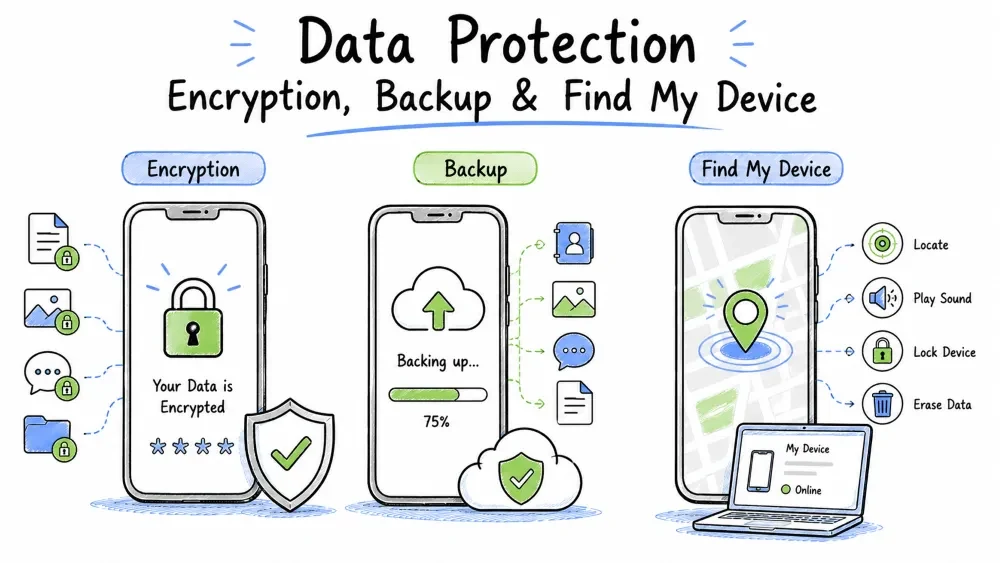
This is the recovery & protection layer of mobile security. If your device is lost, stolen, or broken:
Security Timeline When Device is Lost/Stolen:

┌─────── Loss/Thief ───────┐
      │
      ▼
  1. Encryption prevents data access ──── [You have time]
      │
      ▼
  2. Find My Device locates the device ── [Recovery attempt]
      │
      ├── Found? Great! Remove lock message.
      │
      └── Not found? Last resort steps:
           │
           ▼
        3. Remote wipe the device ────── [Data destroyed]
           │
           ▼
        4. Restore from backup ───────── [Data restored to a new device]
How encryption protects your data from unauthorized access — even if your device is lost or stolen.
Encryption converts data into an unreadable format (ciphertext) using cryptographic keys. Only someone with the correct key (your passcode) can decrypt and read it. Without the key, the data is completely meaningless — even to governments and forensic labs.
Think of encryption like a safe — without the key (your passcode), the contents are unreadable.
Without Encryption:                  With Encryption:
┌──────────────────────┐            ┌──────────────────────┐
│  Open book on table  │            │  Safe with documents │
│  Anyone can read it  │            │  Needs key (passcode)│
│  ─────────────       │            │  ─────────────       │
│  Phone unlocked      │            │  Phone locked        │
│  Data freely visible │            │  Data is ciphertext  │
└──────────────────────┘            └──────────────────────┘
Concrete examples of how encryption (or lack of it) impacts real-world situations.
| Scenario | Without Encryption | With Encryption |
|---|---|---|
| Phone stolen from pocket | Thief accesses all data: emails, photos, banking | Data is unreadable — meaningless binary |
| Forensic tools via USB | Cellebrite, GrayKey extract everything | Forced to brute-force — takes years for strong passcodes |
| Storage chip removed and read | Data read directly from flash memory | Keys are on Secure Enclave/Titan, not storage chip |
| Device recycled without reset | Next owner finds all your data | Keys wiped at factory reset — encrypted data is permanently locked |
| Phone seized at border | Complete data access | 6th Amendment protection (US) — can't be compelled to provide passcode |
| Broken screen — phone still on | Anyone can use the touchable area | Lock screen prevents all access |
The technical details of how encryption is implemented on each platform.
Full Disk Encryption (FDE) — Android 5.0-6.0:
User enters passcode → System decrypts entire user data partition
→ Data accessible until device is rebooted
→ Single key for ALL data
→ Slow boot (must decrypt everything before use)
File-Based Encryption (FBE) — Android 7.0+:
Different encryption keys for different files/directories:
├── Device Encrypted (DE) directory:
│   → Decrypted at boot (before first unlock)
│   → Contains: alarm, accessibility, Wi-Fi (for emergency calls)
│
└── Credential Encrypted (CE) directory:
    → Decrypted only after user enters passcode
    → Contains: app data, user documents, photos, messages
    → Re-encrypted when device locks again
Direct Boot Mode benefit:
To check encryption status on Android:
Settings → Security → Encryption & credentials
If it says "Encrypted" → You're good.
If it says "Encrypt phone" → Tap it to start encryption.
(Note: Encryption is mandatory on Android 10+ devices)
How the Secure Enclave and key hierarchy protect iOS data.
Device UID (unique ID burned into Secure Enclave — never readable by iOS)
    └── Wraps the passcode-derived key
            └── Wraps each file's unique key
                    └── File is encrypted with its own key
The key hierarchy:
1. Each file gets a randomly-generated AES-256 key.
2. That file key is encrypted with the "class key" (protection class).
3. The class key is encrypted with the device UID.
4. The device UID is in the Secure Enclave and cannot be read — period.
5. Entering the correct passcode unlocks the class keys in the SE.
This means:
To check if data protection is active (iOS):
Settings → Face ID & Passcode → Enter passcode → Scroll to bottom
Search for: "Data protection is enabled"
(Enabled by default on all iPhones with passcodes)
A clear breakdown of what encryption secures and what it doesn't.
| ✅ Protected | ❌ NOT Protected |
|---|---|
| All files stored on the device | Data transmitted over network (needs TLS/HTTPS) |
| App data (messages, emails, documents) | Metadata — file names, sizes, timestamps (partially) |
| Photos, videos stored locally | Cloud data — iCloud/Google Drive have separate encryption |
| Saved passwords (in keychain) | Data displayed on screen (screenshots, screen recording) |
| Messages (SMS, iMessage, WhatsApp) | Data shared via AirDrop, Share Sheet |
| Browser data (History, cache, cookies) | Data on SIM card (contacts stored on SIM are separate) |
| Offline files (Downloaded content) | Screen recordings / cameras pointed at screen |
Why a strong passcode is critical — encryption is only as strong as the key protecting it. Encryption is a fortress: Fortress walls = AES-256 encryption (unbreakable) Front gate = Your passcode ───────────────────────────────── If passcode is "1234": Fortress walls are strong but gate has a flimsy lock. If passcode is "Tr0ub4dor&3": Fortress walls are strong AND gate is strong. If NO passcode: Fortress doors are WIDE OPEN.
**The Encryption + Passcode truth:**
- Strong encryption + weak passcode = It takes some time to brute-force, but it WILL be cracked.
- Strong encryption + no passcode = Useless (device auto-decrypts on boot).
- Strong encryption + strong passcode = Practically uncrackable (would take centuries to brute-force).

### Comparison: Android vs iOS Encryption
*A head-to-head comparison of how the two platforms implement device encryption.*
|---|---|---|
| **Encryption Type** | FBE (File-Based Encryption) | Data Protection API (Hardware-backed) |
| **Algorithm** | AES-128/256 | AES-256 |
| **Key Storage** | Trusted Execution Environment (TEE) | Secure Enclave (dedicated HW) |
| **Default?** | Yes (Android 10+ mandatory) | Yes (from first setup with passcode) |
| **Brute-Force Protection** | Varies by OEM | Secure Enclave (escalating delays, up to permanent lock) |
| **User Control** | Clearable encryption key | Cannot remove key without device |
| **Forensic Vulnerability** | Some bypasses exist (OEM-specific) | Very limited (GrayKey partial success with 4-digit only) |

One significant difference: **iOS's Secure Enclave** provides stronger brute-force protection because it's a separate chip with its own counter, while Android's TrustZone-based implementation may have more OEM-specific vulnerabilities.

---

## Part 2: Phone Backup
*Why backups matter, the 3-2-1 rule, and how to configure backups on both platforms.*

### Why Backup Matters — The Harsh Truth

> "There are two types of people: those who back up, and those who haven't lost everything yet."

**What can happen without a backup:**

| Event | Data Lost |
|---|---|
| **Device stolen** | All photos, messages, contacts, app data |
| **Screen broken beyond repair** | Everything on the device (if screen is unresponsive and data isn't synced) |
| **Ransomware attack** | All files encrypted — ransom or lose them |
| **Factory reset for malware removal** | Everything gone (ironic: malware removal causes data loss) |
| **Water damage** | Device dead — data gone with it |
| **Forgot passcode / auto-wipe** | Data gone (security feature works against you) |

### The 3-2-1 Backup Rule
*The industry-standard backup strategy — three copies, two different media types, one offsite.*
3 ─── Total copies of your data │ (1 working copy + 2 backups) 2 ─── Different storage types │ (e.g., cloud + local hard drive) 1 ─── Copy stored offsite │ (e.g., cloud storage, friend's house, safety deposit box)
### Backup Methods — Full Comparison
*Every backup method available on both platforms — cloud and local, free and paid.*

#### Android Backup Options

##### 1. Google One Backup (Recommended for most users)
*Google's cloud backup solution — automatic, encrypted, and deeply integrated into Android.*
|---|---|
| **What's included** | App data, call history, contacts, SMS, photos/videos, device settings, Wi-Fi passwords |
| **What's NOT included** | App binaries (re-downloaded from Play Store), temporary files, some app-specific data |
| **Storage limit** | 15GB free (shared with Gmail, Google Drive, Google Photos) |
| **Cost** | 15GB free; 100GB = $1.99/mo; 200GB = $2.99/mo |
| **Encryption** | Encrypted in transit (TLS) and at rest |
| **Platform** | Any Android phone with Google services |

**How to enable:**
Settings → Google → Backup → Turn on "Backup by Google One" → Back up now To restore: Set up a new Android device → Sign in with same Google account → Restore from backup
##### 2. Samsung Cloud (Samsung Devices)
*Samsung's built-in backup for Galaxy device users.*
|---|---|
| **What's included** | Samsung settings, home screen layout, contacts (Samsung account), calendar, Samsung apps |
| **Storage limit** | 5GB free (varies by device and region) |
| **Works with** | Samsung Galaxy devices only |
| **Extra** | Samsung Smart Switch for local PC backup |

**How to enable:**
Settings → Accounts and backup → Samsung Cloud → Back up data
##### 3. Google Photos Backup
*Automatic photo and video backup — the easiest way to never lose your memories.*
|---|---|
| **Free storage** | 15GB (shared with Google account) — original quality |
| **Compressed option** | "Storage Saver" — unlimited free backup (16MP photos, 1080p videos) |
| **Auto-backup** | Yes — instant backup when connected to Wi-Fi |

**How to enable:**
Google Photos → Profile icon → Photos settings → Backup → Turn on Select quality: Original (uses storage) or Storage Saver (unlimited free)
##### 4. Manual ADB Backup (Advanced)
*A full device backup to your computer using Android Debug Bridge — requires technical knowledge.*
# Full backup via ADB (Android Debug Bridge)
adb backup -apk -shared -all -system -f backup.ab

# Restore
adb restore backup.ab
| Aspect | Details |
|---|---|
| What's included | Everything (apps, data, system settings) |
| Storage | Your computer's hard drive (unlimited) |
| Encryption | Optional (use -nosystem for unencrypted) |
| Difficulty | Requires USB debugging enabled + ADB knowledge |
Apple's cloud backup — automatic, encrypted, and seamless across Apple devices. |---|---| | What's included | App data, device settings, messages (iMessage, SMS, MMS), photos/videos, ringtones, home screen layout, Health data | | What's NOT included | App binaries (re-downloaded from App Store), music (re-downloaded from Apple Music), Face ID/Touch ID settings, Apple Pay data, iCloud data (already synced), Mail app data | | Storage limit | 5GB free | | Cost | 50GB = $0.99/mo; 200GB = $2.99/mo; 2TB = $9.99/mo | | Encryption | Encrypted in transit and at rest (Apple has keys) | | End-to-end encryption | Available via Advanced Data Protection (iOS 16.2+) |
How to enable:
Settings → [Your Name] → iCloud → iCloud Backup → Turn On → Back Up Now
To restore: Set up new iOS device → "Restore from iCloud Backup" → Select most recent backup
iCloud Backup space management:
Settings → [Your Name] → iCloud → Manage Account Storage → Backups
→ Tap a device → See what takes space
→ Delete old backups you no longer need
→ Turn off backup for apps that don't need it (Photos? Already in iCloud Photos separately)
A full device backup to your computer — encrypted option saves passwords and health data. |---|---| | What's included (encrypted) | Everything + saved passwords, Wi-Fi settings, Health data, call history, website history | | What's included (standard) | Same as iCloud but WITHOUT: passwords, health data, Wi-Fi settings, Apple Pay, Touch ID/Face ID config | | Storage | Your computer's hard drive (unlimited) | | Encryption | Optional (but RECOMMENDED) — if not encrypted, many sensitive items are excluded | | Restore | Connect to computer → Finder/iTunes → Restore Backup |
How to create encrypted backup:
1. Connect iPhone to computer (USB or Wi-Fi).
2. Mac (Catalina+): Open Finder → Select iPhone in sidebar.
   PC or older Mac: Open iTunes → Click iPhone icon.
3. Under "Backups": Select "Back up all of the data on your iPhone to this Mac/PC."
4. ✅ CHECK "Encrypt local backup" → Set a strong password (DO NOT forget this).
5. Click "Back Up Now."
⚠️ IMPORTANT: The encrypted backup password is NOT stored anywhere on Apple's servers. If you forget it, the backup is permanently unrecoverable. Write it down and store it somewhere safe (password manager).
A quick guide to choosing the right backup method for your needs.
| Backup Type | Best For | Encryption Level | Recovery Speed |
|---|---|---|---|
| Google One (Android) | Most Android users | Google-managed keys | Fast — during new device setup |
| iCloud (iOS) | Most iPhone users | Apple-managed keys (E2E optional) | Fast — during new device setup |
| Local encrypted (iTunes/ADB) | Privacy-conscious users | YOUR encryption key (strongest) | Medium — need computer access |
| Google Photos (Android) | Photos/videos only | Google-managed keys | Very fast — just sign in |
| Samsung Cloud | Samsung device owners | Samsung-managed keys | Fast |
Exactly what's included (and excluded) in each backup method.
| ✅ Included | ❌ Not Included |
|---|---|
| App data (config, progress, settings) | App APKs/binaries |
| Call history | Temporary files |
| Contacts (Google Contacts) | Downloaded files (unless manually in Drive) |
| SMS text messages | MMS (may be partially included) |
| Device settings (Wi-Fi, ringtones) | Some app-specific data (games, offline files) |
| Home screen layout | Launcher settings (OEM-specific) |
| Google account sync (Calendar, Drive) | Data in apps that opt out of backup |
What's included in the most comprehensive backup option available.
| ✅ Included (encrypted) | ❌ Not Included |
|---|---|
| App data (messages, conversations, notes) | App binaries (re-downloaded) |
| Device settings (mail, Wi-Fi, keyboard) | Music and movies purchased (re-downloadable) |
| Messages (iMessage, SMS, MMS) | Touch ID / Face ID configuration (recreated on new device) |
| Photos & videos (in Camera Roll) | Apple Pay cards (must be re-added) |
| Health data (complete) | iCloud data that's already synced |
| Saved passwords and Wi-Fi passwords | Mail accounts (re-entered on restore) |
| Call history | Backgrounds (wallpapers) |
| Website history and bookmarks | |
| Safari reading list |
How often you should back up different types of data.
| Data Type | Minimum Frequency | Recommendation |
|---|---|---|
| Photos & videos | Daily | Auto-backup via Google Photos / iCloud Photos |
| Contacts & calendar | Daily | Auto-sync with Google/ iCloud |
| Messages | Weekly | iCloud (iOS) or SMS Backup+ (Android) |
| App data & settings | Weekly | Google One / iCloud auto-backup |
| Full local backup | Monthly | Encrypted iTunes/ADB backup |
| Before OS update | Always | Full backup — updates sometimes fail |
Step-by-step instructions to verify your backup actually works — don't skip this.
"A backup you've never tested is not a backup — it's a wish."
Testing your Android backup:
On an old/borrowed Android device:
1. Factory reset the device.
2. During setup, sign in with your Google account.
3. Select "Restore from backup" → Choose the most recent.
4. Check: Are contacts there? Photos? Wi-Fi passwords? App data?
5. Note: SMS and call logs should auto-restore too.
Testing your iOS backup:
Method 1 — New device test:
1. On a spare iPad/iPhone, factory reset it.
2. During setup, select "Restore from iCloud Backup."
3. Choose your phone's most recent backup.
4. Verify data integrity.

Method 2 — Encrypted local backup test (no restore needed):
1. Open Finder/iTunes → Backup section.
2. The backup list shows the date and size.
3. A recent, non-trivial size usually means it worked.
What to verify after testing:
Troubleshooting guide for the most common backup issues.
| Problem | Cause | Solution |
|---|---|---|
| Storage full — can't back up | Free storage exhausted | Free up space, buy more storage, or use local backup |
| iCloud backup takes too long | Slow internet + large data | Use iTunes backup (USB), or turn off backup for large apps |
| "Backup failed" error | Unstable Wi-Fi, not enough free space | Retry on stable Wi-Fi, free up space |
| Not all app data restored | App uses iCloud/Google Drive separately | Sign into the app — data syncs from cloud |
| Can't restore encrypted backup | Forgot the password | ⚠️ Unless you remember, the backup is lost |
| Old backup only available | Recent backup failed | Check backup settings and retry |
How to locate, lock, or wipe your device if it's lost or stolen — and prevent thieves from using it.
A free service (available on both platforms) that helps you locate, lock, or wipe your phone if it's lost or stolen.
Full walkthrough of Android's Find My Device features and how to configure them.
How to enable:
Settings → Google → Find My Device → Use Find My Device → ON
Also enable:
✅ "Find My Device offline" (Android 13+) — uses Bluetooth crowdsourcing.
✅ "Send Last Location" — when battery critically low, sends final location.
Features in detail:
| Feature | What It Does | Best Use Case |
|---|---|---|
| Locate | Shows device on Google Maps (real-time) | Checking where your phone might be |
| Play Sound | Rings at full volume for 5 minutes (even on silent) | Lost it under the couch cushions |
| Secure Device | Locks phone + displays custom message and contact number | Lost but not stolen — honest person can return it |
| Erase Device | Factory reset — deletes all data | You've given up hope of recovery |
How to access:
Offline Finding (Android 13+):
How it works:
Your Android phone sends Bluetooth beacons.
Nearby Android phones (in a crowdsourced network) pick up the beacon.
The location is sent to Google — you can see it on the Find My Device map.
Key detail: The network is opt-in, end-to-end encrypted, and anonymous.
Android Find My Device for smartwatches:
If you wear a Wear OS smartwatch:
→ Swipe up on the watch → Find My Phone
→ Your phone rings (even on silent)
→ Works in reverse too: phone can find the watch
Full walkthrough of Apple's Find My iPhone features and Activation Lock.
How to enable:
Settings → [Your Name] → Find My → Find My iPhone → ON
Also enable:
✅ "Find My network" — crowdsourced location even when offline.
✅ "Send Last Location" — sends location when battery critically low.
Features in detail:
| Feature | What It Does | Notes |
|---|---|---|
| Find Location | Shows on a map with GPS accuracy | Real-time tracking with Precision Finding (U1 chip) |
| Play Sound | Loud sound even on silent/mute | AirPods play a chirping sound too |
| Lost Mode | Locks device, tracks location history, displays message | ⭐ MOST USEFUL FEATURE |
| Erase iPhone | Remote wipe | Irreversible — last resort only |
| Notify When Found | Get email when device is located offline | Works with Find My network |
Precision Finding (iPhone 11 and newer with U1 chip):
Uses Ultra Wideband technology:
→ Shows distance in feet/meters.
→ Shows direction arrows guiding you to the device.
→ Works for close-range (~30 feet).
→ Great for finding iPhone under a couch or in a car.
Find My network:
Leverages BILLIONS of Apple devices worldwide:
→ Your lost iPhone sends a Bluetooth beacon.
→ Any passing iPhone, iPad, or Mac picks it up (anonymously).
→ The location is relayed to iCloud.
→ You see the location on icloud.com/find.
→ All communication is end-to-end encrypted — even Apple can't see it.
How to use (from anywhere):
How Activation Lock makes stolen iPhones unusable — and what Android's equivalent does. When you enable Find My iPhone, the device is permanently linked to your Apple ID. Even if someone:
They still cannot:
Without Activation Lock:                  With Activation Lock:

┌────────────────────────┐               ┌────────────────────────┐
│ Phone stolen           │               │ Phone stolen           │
│ Thief factory resets   │               │ Thief factory resets   │
│ Phone works fine       │               │ "Activation Locked"    │
│ Thief sells it for $500│               │ Device is a brick      │
│ You never see it again │               │ Thief sells for parts  │
└────────────────────────┘               └────────────────────────┘
Real-world impact: A 2022 study found that iPhone theft decreased by 80% in major US cities after Activation Lock's effectiveness became widely known. Thieves often don't bother stealing iPhones because they can't resell them as working devices.
Android Equivalent — Factory Reset Protection (FRP):
Apple's latest defense against passcode theft — requires biometrics for sensitive changes. Thieves were observing people's passcodes in public (coffee shops, bars, subway) and then stealing their iPhones. With the passcode, they could change the Apple ID password and permanently lock out the owner.
What it changes:
| Action Before iOS 17.3 | With Stolen Device Protection |
|---|---|
| Passcode could change Apple ID password | Biometric (Face ID) required — no passcode fallback |
| Passcode could turn off Lost Mode | Biometric required |
| Passcode could erase device | Biometric required |
| Passcode could change Apple ID password settings | Biometric + 1-hour security delay |
| Passcode could remove Face ID/Touch ID | Biometric + 1-hour security delay |
| Passcode could add/remove trusted devices | Biometric + 1-hour security delay |
The "security delay" means:
Why this is important: If a thief steals your iPhone and your passcode is compromised, they still can't:
How to enable:
Settings → Face ID & Passcode → Enter passcode → Stolen Device Protection → ON
Everything you should do BEFORE and AFTER your phone is lost or stolen.
[ ] Find My Device / Find My iPhone enabled
[ ] Offline finding enabled
[ ] "Send Last Location" enabled
[ ] Strong passcode set (6+ digit or alphanumeric)
[ ] Stolen Device Protection enabled (iOS 17.3+)
[ ] IMEI number noted (dial *#06# — save it somewhere safe)
[ ] Activation Lock/FRP confirmed active
[ ] Backup configured and tested
[ ] Lost Mode contact message pre-written
To find your IMEI:
Method 1: Dial *#06# on the phone app — IMEI displays immediately.
Method 2: Settings → About Phone → IMEI.
Method 3: Check the original phone box (IMEI printed on label).
Save IMEI:
Minute-by-minute response plan for when your phone is stolen.
1. Call your phone from another number.
   → Someone honest might answer and return it.

2. Access Find My (use another device or icloud.com/google.com/android/find).
   → See if the device is still nearby.
   → Zoom in on the map — is it at home (just misplaced)?

3. If nearby: Play Sound.
   → Phone rings loudly even on silent.
   → Find it under the couch.
Minute 5-15 (If truly stolen):
4. Enable Lost Mode (iOS) / Secure Device (Android).
   → Device locks immediately.
   → Displays custom message + your contact number.
   → Tracks location history (iOS — shows movement over time).
   → Disables Apple Pay / Google Pay on the device.

5. Change critical passwords (use a different device):
   → Apple ID / Google Account — IMMEDIATELY.
   → Banking apps.
   → Email account (if accessed from phone).
   → Social media accounts.
   ⚠️ Do this on another computer or family member's phone.

6. Notify your bank:
   → Report stolen phone.
   → Block mobile payment cards.
   → Monitor for unusual transactions.
Minute 15-60 (Official reporting):
7. Report to local police.
   → Provide IMEI number.
   → Provide last known location (take a screenshot from Find My).
   → Provide time and circumstances of theft.
   → Get a police report number (needed for insurance claim).
   → Do NOT attempt to recover the device yourself — let police handle it.

8. Contact your mobile carrier.
   → Report phone as stolen.
   → Block the SIM card immediately (stops premium SMS fraud).
   → Report IMEI as stolen for blacklisting.

   What IMEI blacklisting does:
   → IMEI added to global GSMA blacklist database.
   → All carriers in participating countries will refuse service.
   → Phone cannot connect to ANY cellular network.
   → Makes the device effectively useless.
After 24 hours (Acceptance phase):
9. If you're sure you won't recover the device:
   → Remote wipe (Erase Device).
   ⚠️ WARNING: After wipe:
      - Android: Find My Device stops working.
      - iOS: Find My network still works (Activation Lock persists).
   → Only erase when you've given up hope of recovery.

10. Remove device from trusted devices:
    → Apple ID: appleid.apple.com → Devices → [Device] → Remove from account.
    → Google Account: myaccount.google.com → Security → Your devices → [Device] → Remove.
    ⚠️ Only do this after remote wipe (if you want).
Common mistakes that can make a bad situation worse. |---|---| | ❌ Confront the thief | Your safety > a phone. Let police handle it. | | ❌ Remove device from account immediately | Disables Activation Lock/FRP — now the thief CAN resell it. | | ❌ Click "Find My" phishing links | Thieves send fake "Your iPhone was found" messages to steal your Apple ID. Legitimate Find My NEVER asks you to sign in via a link. | | ❌ Erase device immediately | You lose the ability to track its location. Location tracking stops. | | ❌ Don't change passwords for hours | Thief with passcode can access banking, email, social media. Every minute counts. | | ❌ Post on social media "My phone was stolen 😭" | You're telling thieves that no one is tracking the device. | | ❌ Assume SMS 2FA is safe | Thief can swap SIM with another device and intercept your 2FA codes. |
Realistic assessment of what a thief can accomplish with a stolen device. Android (with FRP) | |---|---|---| | Use the phone | ❌ Cannot activate without Apple ID | ❌ Hard to bypass FRP (OEM-dependent) | | Sell as working phone | ❌ Cannot — Activation Lock blocks activation | ⚠️ Some FRP bypasses exist | | Sell for parts | ✅ Yes — screen, battery, camera, housing all valuable | ✅ Yes | | Access your data (with strong passcode) | ❌ Data is encrypted | ❌ Data is encrypted (FBE) | | Reset Apple ID / Google password | ❌ Stolen Device Protection blocks with biometric requirement | ⚠️ Depends on access to recovery options | | Access iCloud/Google Photos | ❌ Account-level 2FA required | ❌ Account-level 2FA required | | Read messages | ❌ Encrypted + locked | ❌ Encrypted + locked |
Visual summary of how all protection layers work together — from screen locks to Activation Lock.
┌─────────────────────────────────────────────────────────────┐
│                     PROTECTION PYRAMID                       │
│                                                             │
│                    ┌───────────────┐                        │
│                    │  Find My      │  Device Recovery        │
│                    │  Device       │  + Remote Wipe          │
│                    ├───────────────┤                        │
│                    │   Backup      │  Data Recovery          │
│                    │   (Cloud+     │  (3-2-1 Rule)           │
│                    │    Local)     │                         │
│                    ├───────────────┤                        │
│                    │  Encryption   │  Data Protection        │
│                    │  (AES-256)    │  (At Rest)              │
│                    ├───────────────┤                        │
│                    │  Screen Lock  │  First Line of Defense  │
│                    │  (Passcode +  │  (Physical Access)      │
│                    │   Biometrics) │                         │
│                    └───────────────┘                        │
│                                                             │
│  Each layer builds on the one below.                        │
│  If all layers are active:                                  │
│  Lost phone → Encrypted (data safe)                         │
│             → Backed up (data not lost)                     │
│             → Find My enabled (can locate, lock, or wipe)   │
│             → Activation Lock active (thief can't resell)   │
└─────────────────────────────────────────────────────────────┘
| Security Layer | Check If Done |
|---|---|
| Strong passcode (6+ digit or alphanumeric) | [ ] |
| Device encryption active (verify in settings) | [ ] |
| Find My Device / Find My iPhone enabled | [ ] |
| Offline finding enabled | [ ] |
| Activation Lock / FRP confirmed working | [ ] |
| Automatic cloud backup running | [ ] |
| Encrypted local backup done this month | [ ] |
| Backup has been TESTED (restored successfully) | [ ] |
| IMEI number noted and saved | [ ] |
| Stolen Device Protection enabled (iOS 17.3+) | [ ] |
| 2FA enabled on Apple ID / Google Account | [ ] |
| SMS 2FA replaced with authenticator app (where possible) | [ ] |
Bottom Line:
- Encryption makes your data useless to thieves — it's your safety net.
- Backup makes device loss a minor inconvenience instead of a disaster — it's your time machine.
- Find My Device turns your phone into a trackable, brickable asset — it's your recovery tool.
- Activation Lock/Stolen Device Protection makes theft pointless — it's your deterrent.
- Enable ALL of them before you need them. You won't be able to enable them AFTER the device is lost.
Objective: Verify encryption status on your device.
ANDROID USERS:
  └─ Go to: Settings → Security → Encryption & credentials
  └─ Is your device encrypted? Yes / No
  └─ If not encrypted → Tap "Encrypt phone" (charger required)

iOS USERS:
  └─ Go to: Settings → Face ID & Passcode → Enter passcode → Scroll to bottom
  └─ Does it say "Data protection is enabled"? Yes / No
  └─ Also check: Settings → [Name] → iCloud → Advanced Data Protection

BOTH:
  └─ What passcode strength are you using? 4-digit / 6-digit / Alphanumeric
  └─ Is your passcode strong enough for your encryption?
  └─ Challenge: Create a passphrase that's strong AND easy to remember.
     Example: "Purple!Horse#2024$"
     Your passphrase idea: _________________
Objective: Set up, verify, and test your backup system.
Part A — Configure automatic backup:

ANDROID (Google One):
  └─ Settings → Google → Backup
  └─ Is backup ON? Yes / No
  └─ If No → Turn ON → Back up now
  └─ Last successful backup: _________________

iOS (iCloud):
  └─ Settings → [Name] → iCloud → iCloud Backup
  └─ Is backup ON? Yes / No
  └─ If No → Turn ON → Back Up Now
  └─ Last successful backup: _________________
  └─ iCloud storage used: ____ / ____ GB

BOTH — Local backup:
  └─ When was your last local (computer) backup? ______ days/months ago
  └─ If >1 month → Plan a local backup this week.

Part B — Backup Testing:
  └─ When was the last time you TESTED a restore? _______
  └─ Action: "I will test my backup by: ________________________________"
  └─ Target date: _________________
Objective: Practice using Find My Device features with a friend.
Set up this simulation:

Step 1 — Prerequisites:
  └─ Find My Device/iPhone: ON / OFF
  └─ Location services: ON / OFF

Step 2 — Give your phone to a friend in another room.

Step 3 — Access Find My from another device:
  Android: google.com/android/find
  iOS: icloud.com/find

Step 4 — Locate:
  └─ Can you see the device's location? Yes / No
  └─ How accurate is it? ______________

Step 5 — Play Sound:
  └─ Did your friend hear it? Yes / No
  └─ Does it play even on silent? Yes / No

Step 6 — Mark as Lost / Secure Device:
  └─ Tap "Lost Mode" (iOS) or "Secure Device" (Android)
  └─ Display message: "This phone is lost. Please call [Your Number]"
  └─ Does the lock screen show this message? Yes / No

Step 7 — Turn off Lost Mode:
  └─ Did it restore normal lock screen? Yes / No

Reflection:
  └─ What worked well? _________________
  └─ What surprised you? _________________
Objective: Create a personalized, step-by-step anti-theft response plan.
╔══════════════════════════════════════════════════════════╗
║              MY PHONE THEFT RESPONSE PLAN                 ║
╚══════════════════════════════════════════════════════════╝

PRE-THEFT — Fill out NOW:
My IMEI number (*#06#): _________________
My phone model: _________________
Carrier hotline: _________________
Google Account / Apple ID: _________________
Police non-emergency number: _________________

MINUTE 1: Call my phone from: (number) _________________

MINUTE 2-3: Access Find My from: (device/location) _________________

MINUTE 4-5: Enable Lost Mode / Secure Device?
  └─ Message to display: _____________________________________
  └─ Contact number: _______________

MINUTE 5-15 — Change passwords (order):
  [ ] Apple ID / Google Account ← FIRST
  [ ] Primary email
  [ ] Banking apps
  [ ] Social media

MINUTE 15-30 — Notify:
  [ ] Police (IMEI + last known location)
  [ ] Carrier (block SIM, report IMEI stolen)
  [ ] Bank (block payment cards)

RECOVERY DECISION (1-24 hrs):
  └─ Wait ___ hours before deciding to wipe.
  └─ Erase device? Yes / No (tracking stops after erase)

Keep this plan somewhere accessible — NOT just on your phone!
Objective: Visually understand what encryption does.
Thought experiment:

Without encryption: Anyone can read your data.
With encryption: Your data looks like gibberish without the key.

1. Write a message: "Hello, this is my private data."

2. "Encrypt" it (base64 — just for demonstration):
   SGVsbG8sIHRoaXMgaXMgbXkgcHJpdmF0ZSBkYXRhLg==

3. Imagine your phone has AES-256 encryption (real encryption):
   → Without passcode: Data looks like meaningless binary.
   → With strong passcode: Practically uncrackable.
   → AES-256 has never been broken. Ever.

4. Your passcode is the key. Make it strong.
Save your progress and earn XP for completing tutorials.
Technology
Cyber Security & Networking
Lesson group
Mobile Security
Progress
100% complete

