Preparing your learning space...
83% through Mobile Security tutorials
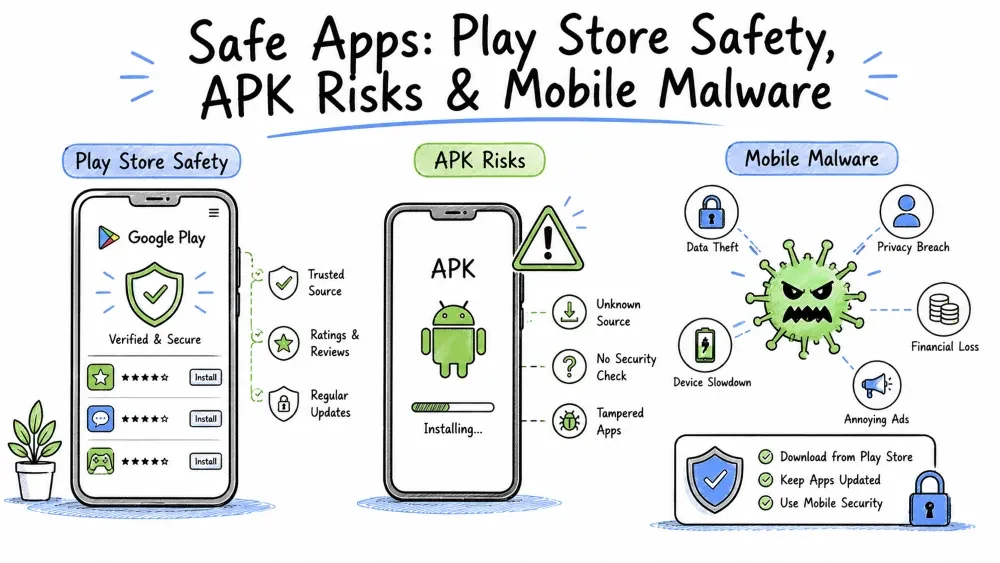
Most mobile threats come through apps — whether from official stores, sideloaded APKs, or malicious software. This tutorial covers the complete app security lifecycle: staying safe on the Play Store, understanding APK risks, and recognizing/defending against mobile malware.
App Security Lifecycle
┌────────────────────────────────────────────────────────────────┐
│                                                                │
│  Safe ✅                                                     │
│  Install ──→ Verify Developer ──→ Check Permissions           │
│    │                                                          │
│    └──→ Read Privacy Labels ──→ Install ──→ Monitor Behavior  │
│                                                                │
│  Risky ⚠️                                                     │
│  Sideload APK ──→ Verify Integrity ──→ Scan on VirusTotal     │
│    │                                                          │
│    └──→ Install in Work Profile ──→ Monitor Closely           │
│                                                                │
└────────────────────────────────────────────────────────────────┘
How Google keeps the Play Store clean and what you should check before installing any app.
The security layers Google uses to scan apps and verify developers on the Play Store.
| Protection Layer | What It Does | Effectiveness |
|---|---|---|
| Google Play Protect | Scans every app at install (+ periodic re-scans). 100B+ daily scans. | Good — catches known malware, struggles with new variants |
| Automated App Review | Checks code for malware, policy violations, malicious behavior | Moderate — automated, can be bypassed |
| Target API Level Requirements | New apps must target recent API (currently API 33+). Prevents outdated/insecure apps. | Good — pushes developers to update |
| Play Integrity API | Verifies device and app environment. Used by banking apps. | Very good — detects rooted devices |
| Data Safety Section | Apps declare what data they collect | Relies on developer honesty (but Google audits) |
| Developer Verification | Requires verified phone number, email, and DUNS for organization accounts | Moderate — basic verification |
A 5-point checklist to evaluate any app before installation.
Before installing any app, check these 5 things:
1️⃣ Developer Name
   └─ Is it the official company?
   └─ "WhatsApp Inc." ✅ vs "WhatsApp Free" ❌
   └─ Tap developer name → Check other apps, website

2️⃣ Downloads & Popularity
   └─ Millions of downloads? ✅ Usually safer
   └─ Hundreds of downloads? ⚠️ Investigate further
   └─ Brand new app with no history? ⚠️

3️⃣ User Reviews (Sort by "Most Recent" + lowest rating)
   └─ Read 1-3 star reviews for REAL issues
   └─ 5,000 five-star reviews in 2 days? ❌ Fake
   └─ "This app stole my data" ⚠️⚠️⚠️

4️⃣ Permissions Requested
   └─ Play Store → App → "Permissions" section
   └─ Does the app need what it asks for?

5️⃣ Data Safety Section
   └─ Play Store → App → "Data Safety"
   └─ What data is collected? Shared with third parties?
   └─ Is encryption in transit mentioned?
Warning signs that an app is likely unsafe — skip these even if they look tempting.
| Red Flag | Example | Why It's Suspicious |
|---|---|---|
| Misspelled developer name | "Facebok", "Whatsaap", "Instagraam" | Deliberately mimicking legitimate apps |
| Generic app name | "Photo Editor", "Music Player", "Battery Saver" | Often data collectors (but not always) |
| No developer website | No website, no email, no privacy policy | Can't verify the developer |
| Too many permissions | Simple game wants SMS, Contacts, Location | Collecting data they don't need |
| Fake reviews | All 5-star, no detail, same language | Rating manipulation |
| Recent policy violation history | Developer had apps removed before | Repeat offender |
| Bad grammar in description | "We making your phone best speed" | Unprofessional development |
Key statistics that show the scale of Play Store security efforts and remaining risks.
| Statistic | Value | Source |
|---|---|---|
| Total apps on Play Store | ~2.5 million | Statista 2024 |
| Apps removed for violations | ~1.5 million annually | |
| Percentage of apps with "High Risk" behavior | ~1-2% | Google Play Protect |
| Daily app scans | 100+ billion | |
| Malware found in Play Store | 0.1-0.5% of apps | Independent estimates |
The Play Store is generally safe — but "safe" doesn't mean "risk-free." Malware does make it onto the Play Store. Google removes it, but it can be available for weeks before detection.
Real-world examples of malware that made it past Google's defenses — proof that even official stores have risks.
| Year | Malware | Impact | How It Worked |
|---|---|---|---|
| 2017 | Judy | 36.5 million infected | Ad fraud — generating fake ad clicks |
| 2019 | CamScanner (trojanized update) | 100M+ installs | Legitimate app got malicious update |
| 2020 | Joker | 100+ apps | Subscribed users to premium SMS |
| 2021 | Sharkbot | Banking trojan | Stole banking credentials via overlay |
| 2022 | SpinOk | Spyware in SDK | Embedded in legitimate apps via compromised SDK |
| 2023 | Necro | 9 million+ | Trojan dropper in modded Spotify and WhatsApp apps |
Key takeaway: Even apps on the Play Store can be dangerous. Trust, but verify.
What APKs are, why people sideload them, and the massive security risks involved.
The Android installation file format — equivalent to .exe on Windows.
APK (Android Package Kit) is the installation file format for Android apps — equivalent to .exe on Windows or .dmg on macOS. Installing APKs from outside the Play Store is called sideloading.
What's inside an APK file and where malware commonly hides.
An APK file contains:
app.apk
├── AndroidManifest.xml        ← Permissions, components declared here
├── classes.dex                ← Compiled app code (Dalvik bytecode)
├── resources.arsc             ← Resources (strings, layouts)
├── res/                       ← Images, media, XML files
├── lib/                       ← Native code (.so files) — common malware hiding spot
├── META-INF/                  ← Signature files — verify app author
└── assets/                    ← App assets — can contain hidden files
Malicious modifications to APKs:
| Modification | How It's Done | Detectability |
|---|---|---|
| Repackaging | Original app decompiled, malware injected, recompiled | Hard to detect without signature verification |
| Extra permissions added | AndroidManifest.xml modified | Easy — compare with original manifest |
| Payload in native libs | Malicious .so files in lib/ | Hard — requires reverse engineering |
| Payload in assets | .dex files or executables hidden in assets | Moderate — file scanning detects this |
| SDK compromise | Legitimate SDK has malware | Very hard — injected at source |
Common reasons for sideloading ranked by how dangerous each one is.
| Reason | Risk Level | Safer Alternative |
|---|---|---|
| Early access to new app | Low (if official source) | Wait for Play Store release |
| Region-restricted content | Medium | Use VPN + official store |
| Cracked/modded paid apps | ⚠️ HIGH — #1 malware vector | Don't do this |
| Ad-free versions of apps | ⚠️ HIGH | Pay for premium instead |
| Apps not on Play Store | Medium | Verify source, scan file |
| Custom ROMs/root tools | Medium-High | Use trusted developer communities only |
Hard numbers on how sideloading contributes to Android malware infections.
| Finding | Percentage |
|---|---|
| Android malware infections from sideloading | 70-80% |
| Sideloaded apps that are benign | ~20-30% |
| Repackaged legitimate apps containing malware | ~30% of all Android malware |
| Users who sideload at least once | ~30-40% of Android users |
A 5-step process for minimizing risk if you absolutely must sideload an APK.
✅ Trusted sources:
   - Official developer website (linked from GitHub, official social media)
   - F-Droid (open-source apps, community-audited)
   - APKMirror (verified developer signatures manually)
   - APKPure (better than random, but not perfect)

❌ Never use:
   - Random blogs ("Download WhatsApp MOD here")
   - File-sharing sites (MediaFire, Mega, Zippyshare)
   - YouTube video descriptions
   - Forums with cracked/modded apps
   - Telegram channels offering free premium apps
Check the cryptographic hash:
# Compare against developer-published checksum
# Linux/Mac:
sha256sum app.apk

# Windows (PowerShell):
Get-FileHash app.apk -Algorithm SHA256

# If the hash matches → APK has not been tampered with
# If no hash available → Higher risk — proceed with caution
Check the app signature:
# Use apksigner (Android SDK tool):
apksigner verify --verbose app.apk
# Shows: Signer certificate details, signature algorithm
# If the signer matches the original developer → Authentic
VirusTotal (virustotal.com):
Alternative scanners:
Option A: Android Work Profile
Settings → Accounts → Work profile → Set up
Install sideloaded apps inside work profile
→ If they are malicious, your personal data is isolated
Option B: Use a Secondary Device
Option C: Use an Android Emulator
After installing a sideloaded app:
Immediately check permissions:
Check accessibility access:
Check device admin apps:
Monitor for 24-48 hours:
A visual guide to deciding whether it's safe to sideload a specific APK.
Do you NEED to sideload this APK?
├── NO  → Download from Play Store instead. ✅
│
└── YES → Is it from an official source?
          ├── YES → Does it have a published hash?
          │         ├── YES → Verify hash. Match? ✅ Safe
          │         │                    No match? ❌ Do not install
          │         └── NO  → Upload to VirusTotal
          │                    ├── 0 detections → ⚠️ Probably OK, install isolated
          │                    └── 1+ detections → ❌ Do not install
          │
          └── NO  → Is it a well-known, trusted APK source (APKMirror, F-Droid)?
                    ├── YES → Proceed with scanning
                    └── NO  → ❌ Do not install - high risk
A complete guide to the types of mobile malware, how to detect them, and how to remove them.
Malicious software designed to damage, disrupt, or gain unauthorized access to a mobile device. Malicious software designed to damage, disrupt, or gain unauthorized access to a mobile device without the user's knowledge or consent.
A complete breakdown of every major type of mobile malware — from trojans to banking malware.
Apps that appear legitimate but contain hidden malicious functionality.
| Trojan Variant | What It Does | Example |
|---|---|---|
| Banking Trojan | Overlays fake login screens on banking apps | Cerberus, Anubis |
| SMS Trojan | Sends premium SMS without consent | Joker, GriftHorse |
| Spy Trojan | Steals contacts, photos, messages | SpyNote, TheTruthSpy |
| RAT (Remote Access Trojan) | Full control of device from attacker's computer | VNC-based trojans |
Real-world example — Joker Malware:
Software that secretly monitors user activity — calls, messages, location, and more.
Capabilities:
Signs of spyware infection:
Battery: Drains much faster than before
         (spyware transmits data constantly)

Data: Usage spikes without reason
      (check in Settings → Network → Data Usage)

Calls: Strange noises — clicking, echoing, static
       (microphone hijacking)

Performance: Slower than usual
             (spyware runs in background)

Heat: Device warm even when not in use
      (CPU/RF staying active)

Shutdown: Takes unusually long to power off
          (spyware writing final data before shutdown)
Malware that encrypts data or locks the device and demands payment to restore access.
How it works:
Device infected → Ransomware activates →
Changes device PIN (Android/LockerPin) →
User can't unlock device →
Ransom demand displayed on lock screen →
"I'll give you the PIN after you pay $200"
What happens if you pay:
What to do instead:
The most common mobile malware type — displays intrusive, unwanted advertisements. Not as dangerous as others, but extremely annoying:
Symptoms:
Adware is often bundled with:
Sophisticated malware that specifically targets financial apps to steal credentials and money.
Sophisticated capabilities:
Targeted Banking Malware Features:
├── Overlay attacks: Fake login screen appears on top of real banking app
├── Keylogging: Record every keystroke
├── SMS interception: Steals 2FA codes and OTPs
├── Accessibility abuse: Reads screen content, automates taps
├── Call forwarding: Redirects bank verification calls
└── Account takeover: Automated money transfers
Notable banking malware families:
Use device resources to mine cryptocurrency without user consent — causes overheating and battery drain.
Why they're declining: Cryptocurrency values dropped, mining on phones isn't profitable enough.
Signs:
Innocent-looking apps that download and install real malware after passing app store review.
How they work:
User installs "dropper app" from Play Store
    → App appears innocent (calculator, game, QR scanner)
    → A few days later, app downloads second-stage payload
    → Payload could be: spyware, banking trojan, ransomware, adware
    → App requests "install from unknown sources" permission
    → Second-stage malware installed
Droppers are dangerous because:
The main ways malware enters your device — ranked from most to least common. Infection Vectors (sorted by frequency):
████████████████████████████████████████ 70% Sideloaded APKs █████████ 15% Phishing links (SMS/email/WhatsApp) ████ 8% Fake app stores ██ 4% Drive-by downloads (malicious websites) █ 2% Bluetooth attacks (BlueBorne-style) █ 1% Supply chain / compromised SDK Less than 1% Zero-click exploits (state-level)
### Mobile Malware Detection Methods
*How to detect malware — both manual checks and automated tools.*

#### Manual Detection Checklist
*Signs to look for that might indicate an infection.*
|---|---|
| **Battery drain** | Settings → Battery → App battery usage |
| **Data spikes** | Settings → Network → Data usage per app |
| **Unknown apps** | Go through app drawer — any app you don't remember installing? |
| **Popup ads** | Check recently installed apps + browser extensions |
| **Overheating** | Settings → Battery → Which app uses the most CPU? |
| **Strange SMS sent** | SMS app → Sent folder — messages you didn't send? |
| **Browser redirects** | Clear browser data + check for unknown browser extensions |

#### Automated Detection
*Tools that can automatically scan and detect malware on your device.***
1. **Google Play Protect** — Settings → Google → Play Protect → Scan.
2. **Malwarebytes** — Free scan checks for malware + suspicious behavior.
3. **Bitdefender Mobile Security** — On-access scanning + VPN.
4. **Kaspersky Mobile Antivirus** — Good detection rates.

**iOS:**
- Traditional antivirus doesn't work (sandboxing prevents it).
- **Check with:** Lookout (focused on phishing protection).
- **Monitor:** Settings → Privacy → App Privacy Report for unusual behavior.

### How to Remove Mobile Malware — Complete Guide
*Step-by-step removal instructions for both Android and iOS.*

#### Android Removal Guide
*Complete removal process — from Safe Mode to factory reset.*
What it does: Disables all third-party apps temporarily. How to enter:
In safe mode: → If the problem disappears → A third-party app is causing it. → If the problem persists → Potential system-level infection (rare).
**Step 2: Identify & Remove the Offending App**
While in safe mode:
If you can't uninstall (malware with Device Admin privilege): → Settings → Security → Device admin apps → Find the app → Deactivate admin → Uninstall
**Step 3: Run Malware Scans**
**Step 4: Clean Up**
**Step 5: Factory Reset (Last Resort)**
Only do this if: → Malware persists after removal steps. → You suspect system-level infection. → Ransomware has locked your device.
Process:
⚠️ Warning: Factory reset + restore from infected backup = malware returns.
#### iOS Removal Guide
*iOS malware is rare — but here's what to do if you suspect an infection.*
Step 1: Delete any recently installed suspicious apps.
Step 2: Clear Safari data: Settings → Safari → Clear History and Website Data.
Step 3: Check for configuration profiles: Settings → General → VPN & Device Management → If you see unknown profiles → Remove them (could be spyware).
Step 4: Restart the device.
Step 5: Update iOS: Settings → General → Software Update → Install any available update.
Step 6: Factory reset (if issues persist): Settings → General → Transfer or Reset iPhone → Erase All Content and Settings → Restore from a backup that PREDATES the issue (not a recent one)
### Comparison: Antivirus Apps for Android
*A comparison of popular mobile antivirus options — detection rates, features, and pricing.*
|---|---|---|---|
| **Malwarebytes** | 99.7% | Malware scan, privacy audit, ransomware protection | ✅ Good |
| **Bitdefender** | 100% (AV-Test) | Auto-scan, web protection, VPN | ✅ Good (VPN paid) |
| **Kaspersky** | 99.9% | App lock, anti-theft, privacy check | ✅ Good |
| **Norton** | 100% | Wi-Fi security, app advisor, web protection | ⚠️ Limited free |
| **Avast** | 99.5% | Photo vault, Wi-Fi scanner, junk cleaner | ✅ Good (ads) |
| **McAfee** | 99.8% | Wi-Fi scan, theft protection | ✅ Basic free |

**Note for iOS:** Antivirus on iOS is largely unnecessary. iOS sandboxing prevents traditional virus scanning. iOS "antivirus" apps mainly provide:
- Safari content blocking.
- Wi-Fi network security checks.
- Phishing link protection.
- Password breach monitoring.

### Prevention — The Best Defense
*Practical steps to avoid malware entirely — organized by urgency.*

#### Do This Now (Today)
✅ Turn on Google Play Protect (Android only): Play Store → Profile → Play Protect → Verify it's ON.
✅ Disable "Install from Unknown Apps" (Android): Settings → Security → Install unknown apps → It should show: "No apps allowed."
✅ Keep OS updated: Settings → System → System update → Check for update.
✅ Backup your data: If ransomware hits, you can wipe and restore without losing anything.
#### Do This This Week
*Important preventative measures to complete within the next few days.*

#### Do This This Month
*Longer-term security habits to build for ongoing protection.*

### Quick Reference: Infection Response Plan
*A rapid response checklist for when you suspect malware — print this or save it.*
Suspected Malware? Follow This:

1. Safe Mode (Android) / Delete recent apps (iOS)
2. Identify last installed apps before symptoms
3. Uninstall suspicious apps
4. Run malware scan (Play Protect + Malwarebytes)
5. Clear browser data
6. Change passwords on a different device
7. If locked by ransomware → Factory reset
8. If issues persist → Factory reset as new device
9. After resolution → Re-enable 2FA on all accounts
10. After resolution → Monitor accounts for 30 days
Bottom Line: Most mobile malware is avoidable.
- 70%+ of infections come from sideloaded/cracked apps — don't install them.
- Play Store is generally safe but not immune — always check permissions, developer, and privacy labels.
- Malware removal is possible but prevention is far better.
- iOS is more resilient to malware due to sandboxing — but phishing still works.
- Backup regularly — it's your best defense against ransomware.
Objective: Evaluate real apps on the Play Store for safety.
Pick 2-3 apps from the Play Store. Analyze each:

APP 1: __________

Developer name: _________________
Is it the official developer? Yes / No / Not sure
Downloads: _________________
Rating: ⭐____
1-3 star reviews say: _________________________
Permissions: _________________________
Any suspicious permissions? _________________________
Data collected (per Data Safety section): _________________________

VERDICT: ✅ Safe / ⚠️ Caution / ❌ Red flags

APP 2: __________
[Same analysis]

Which was safer? Why? _________________________________________
Objective: Learn to analyze APK files for malware indicators.
Step 1: Download a safe, known APK from F-Droid or APKMirror.

Step 2: Check file details:
         File name: _________________
         File size: _________________
         SHA-256 hash: _________________

Step 3: Upload to VirusTotal (virustotal.com):
         Detection rate: ___ / 60+ engines
         Any detections? Yes / No

Step 4: Check requested permissions (without installing):
         Use an APK analyzer app or website
         List permissions: _________________
         Any suspicious ones? _________________

VERDICT: Clean APK? Yes / No — How can you tell? _________________
Scenario: "My Android phone is acting weird for 3 days. Battery drains fast, popup ads everywhere, friends got weird messages from my number. I installed 'Free Spotify Premium' APK last week."
Write a complete response plan:

Step 1 — Immediate actions (first 10 min):
  a) ___________________________________________
  b) ___________________________________________

Step 2 — Malware removal:
  a) ___________________________________________
  b) ___________________________________________
  c) ___________________________________________

Step 3 — Post-removal security:
  a) ___________________________________________
  b) ___________________________________________

Step 4 — Prevention (so it doesn't happen again):
  a) ___________________________________________
  b) ___________________________________________
Objective: Practice the complete malware removal process mentally.
Walk through these steps (you don't need an infected phone):

1. How do you enter Safe Mode on Android?
   └─ Press & hold Power → Long press "Power off" → Safe mode

2. If Uninstall is grayed out (Device Admin):
   └─ Settings → Security → Device admin apps → Deactivate → Uninstall

3. After removal:
   └─ Run Play Protect scan
   └─ Clear browser data
   └─ Change passwords (banking, email, social)
   └─ Check sent messages for spam
Go to virustotal.com and search for known malware hashes online.
Or: Upload a real APK you downloaded from a trusted source.
    See that it gets 0 detections → Now you know what a clean file looks like!
Save your progress and earn XP for completing tutorials.
Technology
Cyber Security & Networking
Lesson group
Mobile Security
Progress
83% complete

