Preparing your learning space...
67% through Mobile Security tutorials
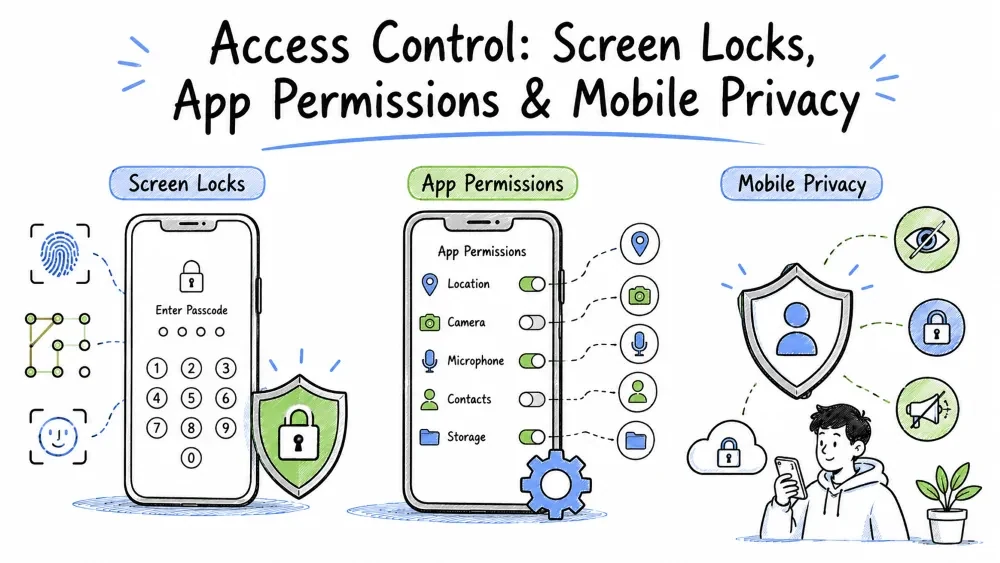
Access control is the core of mobile security — it determines who can access your device (screen locks) and what apps can access on your device (permissions and privacy). This tutorial covers these three interlocking layers:
Screen Locks ──► Controls physical device access
      │
      ▼
App Permissions ──► Controls app access to data/hardware
      │
      ▼
Mobile Privacy ──► Controls how collected data is used/shared
How to control physical access to your device — the most basic and important security layer.
A screen lock prevents unauthorized access if your device is lost, stolen, or temporarily unattended. No lock screen = anyone who picks up your phone has access to everything.
| Aspect | Details |
|---|---|
| Format | Numeric only (usually 4-6 digits) |
| Security | Moderate |
| Combinations (4-digit) | 10,000 possible (but many are predictable) |
| Combinations (6-digit) | 1,000,000 possible |
| Attack vector | Shoulder surfing, smudge attacks, guessing common patterns |
Commonly used (and easily guessed) PINs:
1234   (most common)
0000   1111   2222   3333
2580   (straight vertical)
1212   1122   4321
The user's birth year (e.g., 1995)
Over 25% of 4-digit PINs can be guessed in 20 attempts using the most common combinations.
Best practices:
A combination of letters, numbers, and symbols — the strongest lock screen option.
| Aspect | Details |
|---|---|
| Format | Letters + numbers + symbols |
| Security | High (much larger key space) |
| Key space (8 chars) | ~6 quadrillion (95^8) even with lowercase + digits |
| Attack vector | Social engineering, keylogging |
Recommended format:
Use a passphrase: "Blue@SkY$2024!Mob"
(Random words + numbers + symbols — easy to remember, hard to crack)
A 3x3 dot grid pattern — convenient but the least secure lock option.
| Aspect | Details |
|---|---|
| Format | 3x3 dot grid — connect 4-9 dots |
| Security | Low-Moderate |
| Maximum patterns | 389,112 (9 dots) — sounds high, but... |
| Attack vector | Smudge attacks, shoulder surfing, limited complexity |
Why pattern locks are weak:
Real-world example: In a 2017 study, researchers could guess over 50% of pattern locks within 5 attempts using common patterns.
Uses your unique fingerprint to unlock — fast and convenient with some legal caveats.
| Aspect | Details |
|---|---|
| Technology | Capacitive (older) / Ultrasonic (newer) |
| False acceptance rate | 1 in 50,000 (Apple) |
| Speed | Very fast (~0.5 seconds) |
| Attack vector | Can be duplicated from high-res photos, court-compelled unlock |
Security considerations:
Best practices:
Uses your face to unlock — security varies dramatically between Face ID and 2D camera-based systems.
| Aspect | Details |
|---|---|
| Technology | TrueDepth camera — projects 30,000+ infrared dots |
| False acceptance rate | 1 in 1,000,000 |
| False rejection rate | ~1 in 100,000 |
| Works in dark? | Yes (infrared, doesn't need visible light) |
| Attack vector | Very difficult — requires 3D mask, twins (rare - 1 in millions) |
Face ID is highly secure because:
Android Face Unlock (2D camera-based):
| Aspect | Details |
|---|---|
| Technology | Standard front camera |
| Security | LOW — can be fooled by a photo |
| Attack vector | Photo of the user, video of the user |
| Best practice | DO NOT use 2D face unlock on Android for sensitive apps |
Important: Some Android phones (Google Pixel 4, Samsung S22+/S23+) have secure face unlock with depth sensors similar to Face ID. Check your specific device capabilities.
Scans your iris pattern using infrared — very secure but less common in newer devices.
| Aspect | Details |
|---|---|
| Technology | Infrared iris recognition |
| Security | Very High |
| Attack vector | Photograph with infrared camera (difficult) |
Note: Iris scanners are becoming less common. Samsung removed them from the S10 series onward in favor of ultrasonic fingerprint + face unlock.
A ranked comparison of all lock types from best to avoid.
Tier 1 (Best):
  ├── Alphanumeric Password (8+ chars, mixed case + symbols)
  ├── Face ID (Apple)
  ├── Iris Scanner
  └── 6+ digit PIN

Tier 2 (Good):
  ├── 6-digit PIN
  └── Fingerprint (as secondary)

Tier 3 (Adequate — but upgrade):
  └── 4-digit PIN

Tier 4 (Avoid):
  ├── Pattern Lock
  ├── 2D Face Unlock (Android)
  └── No lock screen (!!)
Where to find and configure lock screen settings on Android and iOS.
| Setting | Navigation |
|---|---|
| Lock screen type | Settings → Security → Screen lock |
| Auto-lock timer | Settings → Display → Screen timeout |
| Lock screen notifications | Settings → Notifications → Notifications on lock screen |
| Wipe after failed attempts | Settings → Security → Auto factory reset (enable with caution) |
| Smart Lock | Settings → Security → Smart Lock |
| Power button instantly locks | Settings → Security → Power button instantly locks |
Where to find and configure key lock screen settings on iOS.
| Setting | Navigation |
|---|---|
| Passcode / Face ID | Settings → Face ID & Passcode (or Touch ID & Passcode) |
| Auto-Lock timer | Settings → Display & Brightness → Auto-Lock (recommend: 30 sec) |
| Lock screen access | Settings → Face ID & Passcode → Allow Access When Locked |
| Erase Data after attempts | Settings → Face ID & Passcode → Erase Data |
| USB Accessories | Settings → Face ID & Passcode → USB Accessories → OFF |
How to stop sensitive information from being visible on your locked screen. Even with a lock screen, notifications can show sensitive content.
Risks:
Recommended settings:
Android: Settings → Notifications → Lock screen
  → "Show sensitive content only when unlocked" (or "Hide")

iOS: Settings → Face ID & Passcode → Allow Access When Locked
  → Disable: Notification Center, Today View
  → Or: Settings → Notifications → Preview → "When Unlocked" or "Never"
Auto-wipe and Smart Lock — useful features with important security trade-offs.
| Smart Lock Type | How It Works | Security Impact |
|---|---|---|
| Trusted places | GPS-based — stays unlocked at home/work | Medium — GPS spoofing possible |
| Trusted devices | Bluetooth connection — e.g., smartwatch | Low-Medium — needs Bluetooth proximity |
| On-body detection | Accelerometer — stays unlocked while carried | Medium — can be tricked |
| Trusted face | Camera-based face detection | LOW — vulnerable to photos |
⚠️ Smart Lock trades security for convenience. Use only the specific contexts you need.
How apps request and use access to your data and device features — and how to control them.
Permissions control which data (location, camera, contacts, etc.) an app can access. Permissions control which data and hardware features an app can use — location, camera, microphone, contacts, photos, SMS, calendar, health data, and more.
Only grant an app the minimum permissions it actually needs — nothing more.
✅ A Maps app needs:
   • Location (While Using App)
   • Storage (to cache maps offline)

❌ A Maps app does NOT need:
   • Contacts
   • SMS
   • Microphone
   • Camera (unless it's also navigating with AR)
The golden rule: Every permission request should have a clear, justifiable reason. If you can't figure out why an app needs a permission, deny it.
A complete reference of every permission type, what goes wrong if abused, and when it's actually needed.
| Permission | Risk if Abused | Why Would a Legitimate App Need It? |
|---|---|---|
| Location (Precise) | Stalking, profiling, targeted ads, burglary (knowing you're away) | Maps, ride-sharing, weather, fitness tracking |
| Location (Approximate) | Less risky — city-level tracking | News (local weather), restaurant finders |
| Camera | Spying, blackmail, recording you | Photo/video apps, QR scanner, video calls |
| Microphone | Eavesdropping, recording conversations | Voice calls, voice recording, video recording |
| Contacts | Phishing your network, spam your contacts | Messaging apps (WhatsApp, Telegram) — contact discovery |
| Photos/Media (Full) | Data theft, privacy exposure, sextortion | Photo editors, gallery apps |
| Photos (Selected) | Minimal — only selected files | Most apps should use this instead of full access |
| SMS | Intercepting OTPs, premium SMS fraud | Banking apps (for 2FA), SMS backup apps |
| Call Log | Call history tracking, social graph building | Dialer apps, call recording (where legal) |
| Calendar | Schedule tracking, spam calendar invites | Calendar apps, scheduling apps |
| Health Data | Insurance discrimination, profiling | Fitness apps, health trackers |
| Bluetooth | Device tracking, proximity profiling | Bluetooth headphones, fitness trackers |
| Notifications | Spam, phishing messages | All apps (legitimate use) — but can be abused for spam |
| Nearby Devices (Wi-Fi/Bluetooth scan) | Tracking device proximity | Casting apps, smart home apps |
How Android and iOS handle permissions differently — from install-time to granular runtime controls.
Android's permission system has improved dramatically over versions:
| Android Version | Key Permission Change | User Benefit |
|---|---|---|
| 1.0 - 5.1 | Install-time permissions | Little — accept all or don't install |
| 6.0 (2015) | Runtime permissions | Grant/deny when app asks (HUGE improvement) |
| 10 (2019) | Scoped Storage, Background location | Apps can't see all files |
| 11 (2020) | One-time permissions, Auto-reset | Grant once; unused apps lose access |
| 12 (2021) | Approximate location, Camera/Mic toggles | Share coarse location; quick block all |
| 13 (2022) | Notification permission | Apps must ask for notification access |
| 13 (2022) | Photo Picker | Share specific files, not entire gallery |
| 14 (2023) | Safer media access | Even more granular photo/video selection |
How Android permissions work now:
App needs location → System dialog appears
  ┌─────────────────────────────────┐
  │ Allow "Maps" to access this     │
  │ device's location?              │
  │                                 │
  │ ○ Precise    ○ Approximate     │
  │                                 │
  │ [Allow]  [While Using] [Deny]  │
  │                    [Only This   │
  │                     Time]       │
  └─────────────────────────────────┘

Your options:
• Allow all the time (avoid unless necessary)
• Allow only while using the app (recommended for most cases)
• Ask every time (most restrictive — grant once only)
• Deny (app may or may not work without it)
iOS has always had a strong permission model. Key aspects:
Types of permission prompts:
App wants to access your Location:
  [Allow Once]  [Allow While Using App]  [Deny]

App wants to access your Photos:
  [Allow Full Access]  [Select Photos...]  [Deny]

App wants to Track You:
  [Ask App Not to Track]  [Allow]
Unique iOS permission features:
| Feature | How It Works | Available Since |
|---|---|---|
| App Tracking Transparency | Apps must ask before tracking you across other apps | iOS 14.5 |
| Photo Picker | Share only selected photos, not the full library | iOS 14 |
| Clipboard notification | Alert when apps read your clipboard | iOS 14 |
| App Privacy Report | Record of how apps use permissions | iOS 15.2 |
| Mic indicator | Orange dot when microphone is active | iOS 14 |
| Camera indicator | Green dot when camera is active | iOS 14 |
| Approximate location | Share city-level, not precise | iOS 14 |
| One-time location | Grant once, ask again next time | iOS 14 |
Step-by-step guide to auditing permissions on both platforms.
Settings → Privacy → Permission Manager
This shows you ALL apps with each permission type.

For each permission (Location, Camera, etc.):
→ See exactly which apps have access
→ Revoke inappropriate access
→ Look for "Always" — this should be rare
Monthly audit checklist:
Settings → Privacy → [Permission Type]
Shows all apps with that permission.

Better approach: Settings → Privacy → App Privacy Report
→ Turn ON "App Privacy Report"
→ Wait a few days of normal use
→ Check which apps accessed what, when, and how often
What to look for in Privacy Report:
Quick reference for spotting permission combinations that should raise red flags.
| App Type | RED FLAG Permissions |
|---|---|
| Calculator app | Contacts, Location, SMS, Camera |
| Flashlight app | Contacts, Location, SMS, Camera |
| Wallpaper app | SMS, Call Log, Location |
| Simple game | Contacts, Microphone, SMS |
| Battery saver app | Accessibility Service, Device Admin, SMS |
| QR scanner | Camera ONLY — not Contacts, SMS, Location |
| Bible/religious app | SMS, Location, Contacts (common data-collection trojan vector) |
Real-world example: In 2023, Google removed dozens of battery saver and cleaner apps that were secretly extracting contacts and SMS data and sending them to ad networks.
A practical guide to which permissions make sense for different types of apps.
| App Category | Reasonable Permissions | Suspicious Permissions |
|---|---|---|
| Maps/Navigation | Location, Storage (offline maps) | Contacts, SMS |
| Social Media | Camera, Photos, Mic, Location (while using), Contacts | SMS, Call Log |
| Banking | Location (while using — fraud detection), SMS (2FA), Camera (check deposit) | Contacts, Photos (full) |
| Messaging | Contacts, Camera, Mic, Photos, Storage | SMS (unless SMS app), Call Log |
| Weather | Location (approximate), Network | Camera, Mic, Contacts |
| Photo Editor | Photos (selected), Camera | Location, SMS |
| Fitness | Location (while using), Health, Bluetooth | Contacts, SMS |
| News | Location (approximate for local news), Network | Camera, Mic, SMS |
| Ride-Sharing | Location (while using), SMS (driver contact) | Contacts (full access), Photos |
Note: Some legitimate apps need permissions that seem suspicious. Banking apps need camera for check deposit. Messaging apps need contacts for friend discovery. The key is: can the app justify the permission request with a clear explanation?
How your data is collected, what you can do about it, and how to make informed privacy decisions.
The full range of data that apps can collect — from contact info to device diagnostics.
Categories of data collection (per Apple/Google privacy labels):
| Category | Examples |
|---|---|
| Contact Info | Name, email, phone number, address |
| Financial Info | Payment info, credit score, salary |
| Health & Fitness | Medical data, workout data, sleep data |
| Location | Precise location, approximate location |
| Sensitive Info | Race, religion, sexual orientation, political views |
| Contacts | Phonebook entries |
| User Content | Photos, videos, audio, messages |
| Browsing History | Websites visited |
| Search History | What you searched for |
| Usage Data | App opens, time spent, features used |
| Device ID | Advertising ID, device model, OS version |
| Diagnostics | Crash logs, performance data |
How to read iOS App Store privacy labels and Google Play Data Safety sections before installing.
App Store → Tap App → Scroll to "App Privacy"
Shows:
┌────────────────────────────────────────┐
│ App Privacy                            │
│                                        │
│ Data Used to Track You:                │
│   • Identifiers                        │
│   • Usage Data                         │
│                                        │
│ Data Linked to You:                    │
│   • Contact Info                       │
│   • Location                           │
│   • User Content                       │
│                                        │
│ Data Not Linked to You:                │
│   • Diagnostics                        │
└────────────────────────────────────────┘
Google Play → Tap App → Scroll to "Data Safety"
Shows:
┌────────────────────────────────────────┐
│ Data Safety                            │
│                                        │
│ Data collected:                        │
│  ✅ Personal info (name, email)        │
│  ✅ Location                           │
│  ✅ Photos & videos                    │
│  ❌ SMS messages                       │
│                                        │
│ Data shared with third parties:        │
│  ✅ Location (for ads)                 │
│                                        │
│ Security practices:                    │
│  ✅ Data encrypted in transit          │
│  ✅ You can request data deletion      │
└────────────────────────────────────────┘
Always check privacy labels BEFORE installing, not after.
Step-by-step configuration guides for the most important privacy settings on both platforms.
| Setting | Path | Recommended |
|---|---|---|
| Ad Personalization | Settings → Google → Ads → Opt out of Ads Personalization | ON (opt out) |
| Usage & Diagnostics | Settings → Privacy → Usage & Diagnostics | OFF (don't send) |
| Google Location History | Settings → Google → Location History | OFF (clear existing data) |
| Web & App Activity | myaccount.google.com → Data & Privacy | Review & limit |
| YouTube History | myaccount.google.com → Data & Privacy → YouTube History | Auto-delete after 18 months |
| Google Ad ID | Settings → Google → Ads → Reset advertising ID | Reset monthly |
| Private DNS | Settings → Network & Internet → Private DNS | ON (dns.google or one.one.one.one) |
| Setting | Path | Recommended |
|---|---|---|
| Tracking | Settings → Privacy → Tracking | OFF "Allow Apps to Request to Track" |
| Advertising | Settings → Privacy → Apple Advertising → Personalized Ads | OFF |
| Location Services | Settings → Privacy → Location Services → System Services | Review each |
| Significant Locations | Settings → Privacy → Location Services → System Services → Significant Locations | OFF (clear history) |
| Analytics & Improvements | Settings → Privacy → Analytics & Improvements | OFF "Share iPhone Analytics" |
| App Store Reviews | Settings → App Store → In-App Ratings & Reviews | OFF (reduce prompts) |
| Safari Privacy | Settings → Safari → Prevent Cross-Site Tracking, Fraud Warning, Ad tracking | ON all |
| iPhone Analytics | Settings → Privacy → Analytics & Improvements → Share iPhone Analytics | OFF |
| iCloud Analytics | Settings → Privacy → Analytics & Improvements → Share iCloud Analytics | OFF |
Privacy best practices for specific app types — social media, banking, messaging, and health.
Facebook specific:
At-a-glance privacy ratings for popular apps — from Signal (best) to TikTok (worst).
| App | Privacy Score | Notes |
|---|---|---|
| Signal | ⭐⭐⭐⭐⭐ | E2E, minimal data collection, open source |
| ⭐⭐⭐⭐ | E2E but Meta collects metadata | |
| Telegram | ⭐⭐⭐ | Not E2E by default, Meta/Facebook connection |
| ⭐ | Maximal data collection for ads | |
| ⭐⭐ | Extremely invasive data collection | |
| TikTok | ⭐ | Known data sharing concerns |
| Google Maps | ⭐⭐⭐ | Excellent features but extensive data collection |
| Apple Maps | ⭐⭐⭐⭐⭐ | Minimal data collection, no account needed |
| Chrome | ⭐⭐ | Maximal browsing data collection |
| Safari | ⭐⭐⭐⭐ | Strong privacy defaults |
| DuckDuckGo | ⭐⭐⭐⭐⭐ | No tracking, no search history |
| Mozilla Firefox | ⭐⭐⭐⭐ | Good privacy, open source |
Go beyond the basics — use App Privacy Reports, Google Takeout, and third-party audits.
Settings → Privacy → App Privacy Report → Turn ON
After a week: Review which apps access what
→ Surprising finding: Many apps access data you didn't expect
→ Action: Revoke unnecessary permissions
takeout.google.com
You can download everything Google knows about you:
→ Search history, location history, YouTube activity
→ Emails, contacts, calendar
→ It's often SHOCKING how much data is collected
→ Clear what you don't need
appleid.apple.com → Data & Privacy
→ Request a copy of your data
→ Manage data stored in iCloud
Google Account → Security → Third-party apps with account access
Apple ID → Sign in with Apple → Apps Using Your Apple ID
→ Remove apps you no longer use
→ This is often a huge amount of apps people forget about
A comprehensive checklist organized by daily, weekly, monthly, quarterly, and annual tasks.
Bottom Line: Access control is the foundation of mobile security.
- Screen locks control WHO gets into your device.
- App permissions control WHAT apps can access.
- Privacy settings control HOW your data is used.
Master these three layers and review them regularly. The biggest mistake users make is "set it and forget it" — permissions and privacy need ongoing attention.
Objective: Design the optimal lock screen configuration for different user profiles.
Scenario A — Busy Professional:
User profile: Always on the go, sensitive work emails, mobile banking daily.
Design their lock screen:
  Lock type: _________________
  Auto-lock timer: ____ seconds
  Notifications on lock screen: Show / Hide / Don't Show
  Smart Lock: Enabled? ______ Trusted devices? ______
  Biometrics: Enable? ______
  Wipe after 10 attempts: Enable? ______
Justify your choices: _______________________________________________
Scenario B — Elderly Parent:
User profile: Not tech-savvy, forgets passwords, uses phone for calls only.
Design their lock screen:
  Lock type: _________________ (balance security + simplicity)
  Auto-lock timer: ____ seconds/minutes
  Biometrics: _________________
  Emergency contacts on lock screen: _________________
  Find My Device: Enable for them? _________________
Scenario C — Teenager:
Heavy social media, downloads many apps, shares phone with friends.
Design their lock screen:
  Lock type: _________________
  Parental controls needed? _________________
  Most important security advice: __________________________________
Objective: Perform a complete permission audit on your own phone.
PERMISSION AUDIT WORKSHEET

LOCATION ACCESS:
├── "Allow all the time": _________________________
├── "Allow while using": _________________________
├── "Ask every time": _________________________
└── Suspicious findings: _________________________

CAMERA ACCESS:
├── Apps that have it: _________________________
├── Should NOT have it: _________________________
└── Actions taken: _________________________

MICROPHONE ACCESS:
├── Apps that have it: _________________________
├── Should NOT have it: _________________________
└── Actions taken: _________________________

CONTACTS ACCESS:
├── Apps that have it: _________________________
├── Should NOT have it: _________________________
└── Actions taken: _________________________

SMS ACCESS:
├── Apps that have it: _________________________
├── Justifiable: _________________________
└── Actions taken: _________________________

SUMMARY:
├── Total permissions revoked this session: ____
├── Apps uninstalled: ____
└── New security score (estimate): ____/100
Objective: Compare privacy labels of similar apps before installing.
Pick 3 apps from the SAME category (e.g., Messaging, Weather, VPN):

APP 1: __________
  ─ Data Used to Track You: ________________
  ─ Data Linked to You: ________________
  ─ Data Not Linked to You: ________________

APP 2: __________
  ─ Data Used to Track You: ________________
  ─ Data Linked to You: ________________
  ─ Data Not Linked to You: ________________

APP 3: __________
  ─ Data Used to Track You: ________________
  ─ Data Linked to You: ________________
  ─ Data Not Linked to You: ________________

VERDICT: Which is most privacy-friendly? ________________
Save your progress and earn XP for completing tutorials.
Technology
Cyber Security & Networking
Lesson group
Mobile Security
Progress
67% complete

