Preparing your learning space...
33% through Social Media Security tutorials
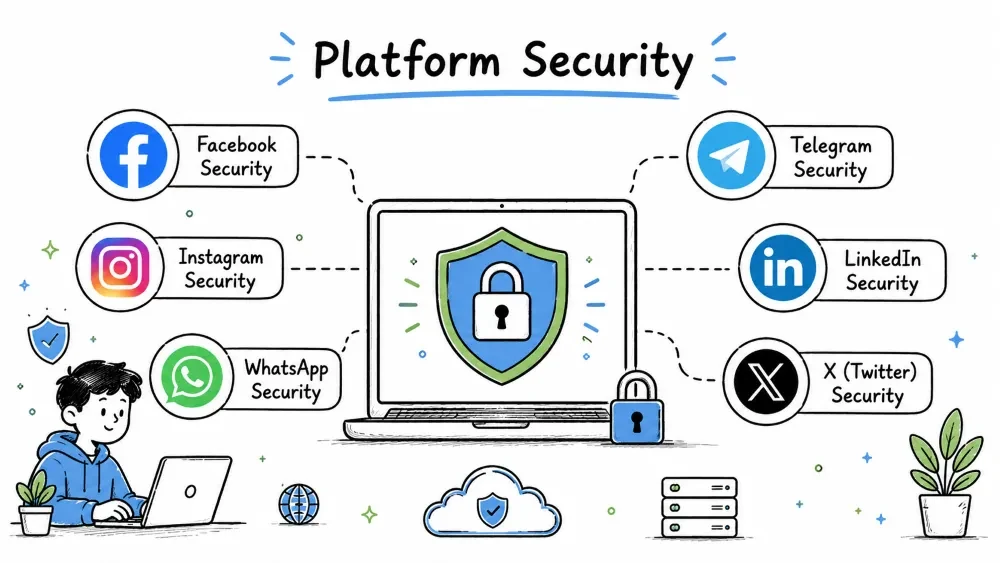
This tutorial covers security settings and best practices for all 6 major social media platforms. Whether it's a Meta platform (Facebook, Instagram), a messaging app (WhatsApp, Telegram), or a professional/public network (LinkedIn, X/Twitter) — the core security principles remain the same: strong passwords, 2FA, privacy controls, and regular monitoring.
In this tutorial, you will learn:
Create a unique and complex password to protect your Facebook account from unauthorized access.
MyN@me!sRahul2024#SafeAdd an extra layer of security to your Facebook account beyond just a password.
Settings & Privacy → Settings → Security and Login → Two-Factor Authentication → Edit
2FA options:
| Method | Security | Convenience |
|---|---|---|
| Authentication App | ⭐⭐⭐⭐⭐ | ⭐⭐⭐⭐ |
| Text Message (SMS) | ⭐⭐⭐ | ⭐⭐⭐⭐⭐ |
| Security Key (USB) | ⭐⭐⭐⭐⭐ | ⭐⭐⭐ |
💡 Recommendation: Use an Authentication App (more secure than SMS).
Receive instant notifications when someone logs into your Facebook account from a new device.
Settings → Security and Login → Get alerts about unrecognized logins → Edit
You will receive an alert whenever someone logs into your account from a new device or browser.
Review and manage all devices currently logged into your Facebook account.
Settings → Security and Login → Where You're Logged In
Control who can see your posts and activity on your Facebook profile.
Settings → Privacy → Your Activity
Control how people can find and connect with you on Facebook.
Settings → Privacy → How People Find and Contact You
| Setting | Recommendation |
|---|---|
| Friend Requests | Everyone |
| Friends List Visibility | Only Me |
| Email Lookup | Friends |
| Phone Lookup | Friends |
Control who can post on your timeline and tag you on Facebook.
Settings → Timeline and Tagging
Lock your Facebook profile to restrict what non-friends can see on your account.
Profile → ... (Three dots) → Lock Profile
After locking:
Set up recovery options to regain access to your Facebook account if locked out.
Settings → Security and Login → Ways We Can Reach You
Use a strong password and enable two-factor authentication for your Instagram account.
Settings → Security → Password
Settings → Security → Two-Factor Authentication
2FA Setup:
Settings → Security → Two-Factor Authentication → Get Started
→ Choose: Authentication App / Text Message / WhatsApp
Review all devices and locations where your Instagram account is currently logged in.
Settings → Security → Login Activity
Here you can see:
Switch to a private Instagram account so only approved followers can see your content.
Settings → Privacy → Account Privacy → Private Account → Toggle ON
Benefits:
Configure who can view and interact with your Instagram stories.
Settings → Privacy → Story
| Setting | Recommendation |
|---|---|
| Hide Story From | Specific people (if needed) |
| Allow Sharing | OFF |
| Allow Reply To | Following (or Off) |
Control who can comment on, tag, and mention you in Instagram posts.
Settings → Privacy → Posts
Control who can send you direct messages on Instagram.
Settings → Privacy → Messages
Create a private list of trusted people to share Instagram stories with selectively.
Profile → Close Friends → Create List
Only add trusted people to this list for sharing private stories.
Control unwanted interactions by blocking or restricting other Instagram users.
Block:
Restrict (Soft Block):
Profile → Three dots → Block / Restrict
Follow these steps to regain access to your Instagram account if locked out.
Login Screen → "Forgot password?" → Enter username/email/phone
→ Recovery link sent to email → Reset password
If locked out:
Login → "Need more help?" → "I can't reset my password"
→ Enter email and full name → Instagram sends recovery steps
Selfie Verification (last resort):
WhatsApp uses End-to-End Encryption (E2EE) by default for all chats:
Sender → 📱 Encrypted → 📡 → Encrypted → 📱 Receiver
         (Only sender & receiver can read messages)
Key Features:
Configure who can see your personal information and activity on WhatsApp.
Settings → Account → Privacy
| Setting | Recommendation | Description |
|---|---|---|
| Last Seen & Online | My Contacts | Who can see your last online time |
| Profile Photo | My Contacts | Who can see your profile picture |
| About | My Contacts | Who can see your about section |
| Status | My Contacts | Who can see your status updates |
| Read Receipts | ON (or OFF) | Blue ticks |
| Groups | My Contacts | Who can add you to groups |
| Live Location | None | Default location sharing off |
Add a PIN and recovery email to protect your WhatsApp account from unauthorized access.
Settings → Account → Two-Step Verification → Enable
→ Set 6-digit PIN
→ Add recovery email
💡 Don't skip the recovery email — without it, you will have to wait 7 days to reset your PIN!
Get notified when your WhatsApp account is registered on a new device.
Settings → Account → Security Notifications → ON
You will be notified if someone registers your WhatsApp on a new device.
Verify that your WhatsApp chats are end-to-end encrypted with the right person.
Open Chat → Contact Name → Encryption → Verify Security Code
Methods:
Set messages to automatically delete after a chosen time period in WhatsApp.
Open Chat → Disappearing Messages → 24 hours / 7 days / 90 days
Benefits:
Block and report unwanted contacts to prevent further communication on WhatsApp.
To block: Open Chat → Contact Name → Block → Block Contact
To report: Open Chat → Contact Name → Report Contact → Report & Block
View and manage all devices connected to your WhatsApp account.
Settings → Linked Devices
Learn to recognize and avoid common scams targeting WhatsApp users.
| Scam Type | Description | Protection |
|---|---|---|
| Fake WhatsApp | "Update WhatsApp" fake messages | Only update from official stores |
| Verification Code Scam | Someone asks for your 6-digit code | Never share your code |
| Emergency Scam | "I'm a friend, send money urgently" | Call to confirm first |
| Job Offer Scam | Fake job offers with payment | Verify company details |
| Lottery Scam | "You won a lottery!" | You haven't won anything |
Follow these steps to recover your WhatsApp account after losing access.
Re-registration (same number):
WhatsApp → Enter phone number → Verify via SMS/call
→ Enter OTP → Account restored (if backup exists)
Lost SIM Recovery:
Step 1: Get new SIM from operator (same number)
Step 2: Install WhatsApp → Verify via SMS
Step 3: Enter Two-Step Verification PIN
→ If PIN forgotten: Wait 7 days to reset
Telegram offers two types of chats:
| Chat Type | Encryption | Storage |
|---|---|---|
| Cloud Chats | Client-Server (encrypted) | On Telegram servers |
| Secret Chats | End-to-End Encrypted | Only on devices |
Important: Default chats are NOT Secret Chats — you must manually start a Secret Chat for E2EE!
Start an end-to-end encrypted chat on Telegram with additional privacy features.
User Profile → Three Dots → Start Secret Chat
Secret Chat Features:
Configure who can see your personal information and contact you on Telegram.
Settings → Privacy and Security
| Setting | Recommendation |
|---|---|
| Phone Number | Nobody / My Contacts |
| Last Seen & Online | My Contacts / Nobody |
| Profile Photo | My Contacts |
| Bio | My Contacts |
| Forwarded Messages | Nobody (or My Contacts) |
| Groups & Channels | My Contacts |
| Voice Calls | My Contacts |
Add a passcode or biometric lock to secure the Telegram app on your device.
Settings → Privacy and Security → Passcode Lock
Add a cloud password and recovery email for extra Telegram account security.
Settings → Privacy and Security → Two-Step Verification → Set Password
Setup:
View and manage all devices currently logged into your Telegram account.
Settings → Privacy and Security → Active Sessions
Follow safe practices when interacting with bots on Telegram to protect your data.
Safe Bot Practices:
Apply security measures to protect your Telegram channel from unauthorized access.
Follow these steps to recover your Telegram account if you lose access.
Standard Recovery:
Telegram → "Start Messaging" → Enter phone number
→ Enter OTP from SMS → Account restored
Cloud Password Recovery:
Enter password → "Forgot password?"
→ Reset via recovery email
→ OR wait 7 days (if no email set)
Account Self-Destruct:
Settings → Privacy & Security →
Delete my account if away for → 1 / 3 / 6 / 12 months
If you don't log in for the set period, your account auto-deletes.
LinkedIn protects your professional identity — connections, job history, and professional details.
Me → Settings & Privacy → Sign in & Security
Use a strong password and enable two-step verification for your LinkedIn account.
Settings & Privacy → Sign in & Security → Two-Step Verification → Turn On
2FA Options:
💡 Recommendation: Use an Authentication App for better security.
Check all active LinkedIn sessions and log out of unrecognized devices.
Settings & Privacy → Sign in & Security → Where you're signed in
Control who can see your LinkedIn profile and contact information.
Settings & Privacy → Visibility
| Setting | Recommendation |
|---|---|
| Profile Visibility Off LinkedIn | Off (no Google search indexing) |
| Profile Photo Visibility | All LinkedIn Members |
| Connections Visibility | Only You |
| Email Address Visibility | Only You |
| Phone Number Visibility | Only You |
Choose how your name appears when you view other LinkedIn profiles.
Settings & Privacy → Visibility → Profile viewing options
| Option | Description |
|---|---|
| Your name and headline | Public — everyone sees you viewed their profile |
| Private profile characteristics | Semi-private — shows "Someone in [Industry]" |
| Private mode | Completely anonymous |
💡 Tip: Job searching? Use "Private mode." Networking? Keep it "Public."
Control whether recruiters and your network can see your job-seeking status on LinkedIn.
Settings & Privacy → Visibility → Change your job seeking preferences
Configure how LinkedIn uses your data for messaging, mentions, and platform improvement.
Settings & Privacy → Data Privacy
| Setting | Recommendation |
|---|---|
| Messaging experience | OFF |
| Mentions by others | Review before showing |
| Data for improvement | OFF |
Block and report unwanted users to maintain a safe professional network on LinkedIn.
To block: Profile → Three dots → Block
To report: Profile → Three dots → Report/Block → Select reason
Follow safe practices when accepting connection requests on LinkedIn.
Safe Connection Practices:
Fake Profile Signs on LinkedIn:
Follow these steps to regain access to your LinkedIn account if locked out.
Standard Recovery:
LinkedIn Login → "Forgot password?" → Enter email/phone
→ Send verification code → Enter code → Reset password
No Access to Email/Phone:
Forgot Password → "I don't have access to these"
→ Enter old email → Follow verification process
→ May need ID verification
Hacked Account:
linkedin.com/help → "Account compromised"
→ Report and follow recovery steps
→ LinkedIn support team assists
Access the main security settings panel for your X (Twitter) account.
Settings & Privacy → Security and account access
Use a strong password and enable two-factor authentication for your X account.
Settings & Privacy → Security and account access → Two-Factor Authentication
| Method | Security Level | Convenience |
|---|---|---|
| Text Message | ⭐⭐ | ⭐⭐⭐⭐⭐ |
| Authentication App | ⭐⭐⭐⭐⭐ | ⭐⭐⭐⭐ |
| Security Key | ⭐⭐⭐⭐⭐ | ⭐⭐⭐ |
| Passkey (biometric) | ⭐⭐⭐⭐⭐ | ⭐⭐⭐⭐⭐ |
💡 Recommendation: Use an Authentication App or Passkey. SMS is vulnerable to SIM swap attacks.
Control who can see your tweets and interact with them on X.
Settings & Privacy → Privacy and safety → Audience and tagging
| Setting | Recommendation |
|---|---|
| Protect your Tweets | ON (Personal) / OFF (Public figure) |
| Photo tagging | Only people you follow |
| Reply settings | Everyone (or as per need) |
Benefits of Protected Tweets:
Control how people can find you on X using your email or phone number.
Settings & Privacy → Privacy and safety → Discoverability and contacts
| Setting | Recommendation |
|---|---|
| Find you by email | OFF |
| Find you by phone | OFF |
| Suggest you to others | OFF |
Configure who can send you direct messages on X.
Settings & Privacy → Privacy and safety → Direct Messages
| Setting | Recommendation |
|---|---|
| Message requests from everyone | OFF |
| Read receipts | OFF |
| Filter low-quality messages | ON |
Control whether location data is attached to your posts on X.
Settings & Privacy → Privacy and safety → Location information
| Setting | Recommendation |
|---|---|
| Attach location to your posts | OFF |
| Remove location from previous posts | ✅ Do it now |
Control unwanted interactions by muting or blocking other users on X.
Mute: Profile → Three dots → Mute @username
Block: Profile → Three dots → Block @username
Advanced Filters: Settings → Privacy and safety → Mute and block
Follow these steps to regain access to your X account if locked out.
Standard Recovery:
X Login → "Forgot password?" → Enter email/phone/username
→ Send reset link → Click link → Reset password
Locked Account:
Email receives unlock instructions
→ Verify email/phone → Reset password
→ Review recent activity
No Access to Email/Phone:
"Forgot password?" → "Use alternative method"
→ Answer security questions (if set up)
→ OR provide account details for verification
→ X support reviews
| Platform | Auth App | SMS | Security Key | Passkey |
|---|---|---|---|---|
| ✅ | ✅ | ✅ | ❌ | |
| ✅ | ✅ | ❌ | ❌ | |
| ❌ (PIN only) | ✅ (SMS OTP) | ❌ | ❌ | |
| Telegram | ✅ (cloud pwd) | ✅ (SMS OTP) | ❌ | ❌ |
| ✅ | ✅ | ❌ | ❌ | |
| X (Twitter) | ✅ | ✅ | ✅ | ✅ |
| Platform | E2EE by Default | Notes |
|---|---|---|
| ❌ | Messenger has "Secret Conversations" (opt-in) | |
| ❌ | DMs are not end-to-end encrypted by default | |
| ✅ | All chats, calls, media encrypted | |
| Telegram | ❌ | Only Secret Chats are E2EE |
| ❌ | InMail is not encrypted | |
| X (Twitter) | ❌ | DMs are not encrypted |
| Feature | FB | IG | WA | TG | LI | X |
|---|---|---|---|---|---|---|
| Private Account | ✅ Lock Profile | ✅ Private | ✅ Privacy settings | ✅ Privacy settings | ⚠️ Limited | ✅ Protected |
| Profile Photo Privacy | ✅ Friends/Public | ✅ Followers/Public | ✅ My Contacts/Nobody | ✅ My Contacts/Nobody | ✅ Members/Public | ✅ Followers/Public |
| Last Seen Control | ❌ | ❌ | ✅ My Contacts/Nobody | ✅ My Contacts/Nobody | ✅ Active Status | ✅ Active Status |
| Block User | ✅ | ✅ | ✅ | ✅ | ✅ | ✅ |
| Report Content | ✅ | ✅ | ✅ | ✅ | ✅ | ✅ |
| Data Download | ✅ | ✅ | ✅ | ✅ | ✅ | ✅ |
| Account Recovery | ✅ Email/Phone/ID | ✅ Email/Phone/Selfie | ✅ SMS Only | ✅ SMS + Cloud Pwd | ✅ Email/Phone | ✅ Email/Phone |
| Scam Type | FB | IG | WA | TG | LI | X |
|---|---|---|---|---|---|---|
| Phishing | ✅ | ✅ | ✅ | ✅ | ✅ | ✅ |
| Fake Profiles | ✅ | ✅ | ✅ | ✅ | ✅ | ✅ |
| Impersonation | ✅ | ✅ | ✅ | ✅ | ✅ | ✅ |
| Job Scams | ❌ | ❌ | ✅ | ✅ | ✅ | ❌ |
| Crypto Scams | ❌ | ❌ | ✅ | ✅ | ❌ | ✅ |
| Investment Scams | ✅ | ✅ | ✅ | ✅ | ✅ | ✅ |
| Romance Scams | ✅ | ✅ | ✅ | ✅ | ❌ | ❌ |
Follow these essential security rules that apply to every social media platform.
✅ RULE 1: Strong, unique password for each platform (12+ characters)
✅ RULE 2: Two-Factor Authentication enabled wherever possible
✅ RULE 3: Privacy settings reviewed monthly
✅ RULE 4: Login activity checked regularly
✅ RULE 5: Unknown sessions terminated immediately
✅ RULE 6: Recovery email and phone always up to date
✅ RULE 7: Backup codes saved offline (printed)
✅ RULE 8: Third-party app permissions reviewed quarterly
✅ RULE 9: Suspicious activity reported immediately
✅ RULE 10: App always updated to latest version
Use these best practices to manage your passwords securely across all platforms.
| Practice | Description |
|---|---|
| Unique passwords | Different password for each platform |
| Password Manager | Use Bitwarden, LastPass, or 1Password |
| Regular change | Change password every 3-6 months |
| No sharing | Never share your password with anyone |
Follow these tips to keep your device and social media accounts secure.
Follow this schedule to regularly audit your social media account security.
| Frequency | Actions |
|---|---|
| Daily | Be alert for suspicious messages/requests |
| Weekly | Check login activity on all platforms |
| Monthly | Review privacy settings, update if needed |
| Quarterly | Review third-party app permissions |
| Yearly | Download data archive, clean old posts |
Take these steps immediately if you notice suspicious activity on any account.
1. ⛔ Do NOT click any links or reply
2. 📸 Take screenshots (evidence)
3. 🔑 Change your password immediately
4. 🔐 Check and remove unknown sessions
5. 🚫 Block the suspicious account
6. 🚨 Report to the platform
7. 📧 Check recovery email for unauthorized changes
8. 👥 Inform friends/family if account is compromised
| Feature | Telegram | X (Twitter) | ||||
|---|---|---|---|---|---|---|
| Owner | Meta | Meta | Meta (Meta) | Telegram | Microsoft | X Corp |
| 2FA (App) | ✅ | ✅ | ❌ (PIN) | ✅ | ✅ | ✅ |
| E2EE Default | ❌ | ❌ | ✅ | ❌ (Secret only) | ❌ | ❌ |
| Private Mode | Lock Profile | Private Acc | Privacy Settings | Privacy Settings | Limited | Protected Tweets |
| Data Download | ✅ | ✅ | ✅ | ✅ | ✅ | ✅ |
| Recovery Options | Email/Phone/ID/Trusted | Email/Phone/Selfie | SMS/2FA PIN | SMS/Cloud Pwd | Email/Phone | Email/Phone |
| Best For | Social networking | Visual sharing | Daily messaging | Cloud messaging | Professional | Public conversations |
| Scam Risk | High | High | High | Medium | High | Medium |
"Security is not a product, but a process. It's not a one-time setup, it's a daily practice."
Save your progress and earn XP for completing tutorials.
Technology
Cyber Security & Networking
Lesson group
Social Media Security
Progress
33% complete

