Preparing your learning space...
67% through AI Automation tutorials
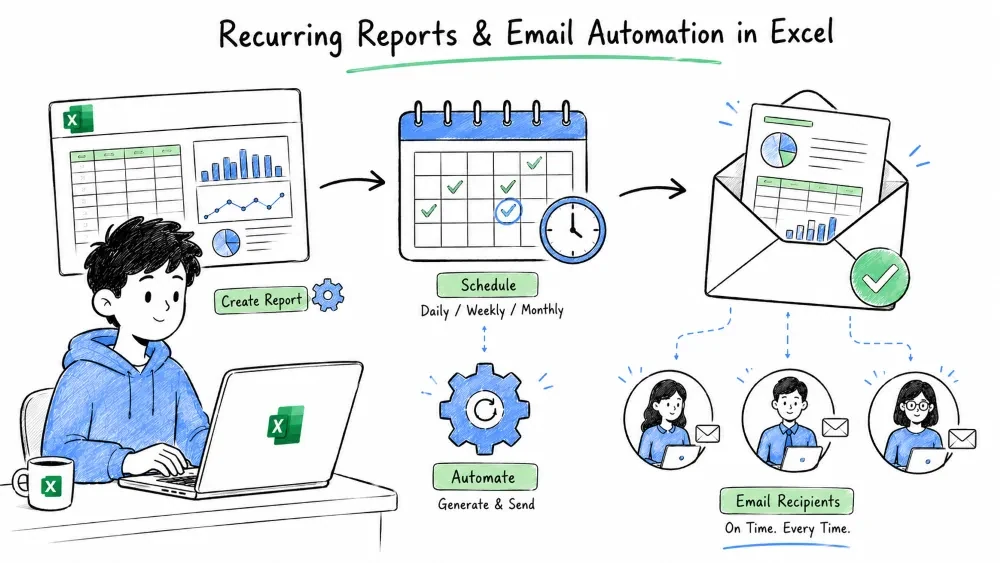
Learn how to build time-based reporting workflows in Excel — automatically generating weekly and monthly reports and delivering them via email using AI assistance from Copilot and ChatGPT.
A weekly report pulls the last 7 days of data, calculates key metrics, and presents them in a standard format.
Why it matters: Doing this manually every Monday is repetitive and error-prone. Automation ensures your weekly report is ready before you even open Excel.
Step 1 — Filter data for the current week
Assume your data table SalesData has a Date column. Use this formula to get this week's records:
=FILTER(SalesData, SalesData[Date] >= TODAY() - 7)
This returns only rows from the last 7 days. Put it in a dedicated sheet named WeeklyReport.
Step 2 — Calculate weekly KPIs
| KPI | Formula |
|---|---|
| Weekly Revenue | =SUM(FILTER(SalesData[Revenue], SalesData[Date] >= TODAY()-7)) |
| Weekly Orders | =COUNTIF(SalesData[Date], ">="&TODAY()-7) |
| Avg Order Value | =WeeklyRevenue / WeeklyOrders |
Name cells (e.g., WeeklyRevenue) so formulas are readable.
Step 3 — Use Copilot to format and visualize
Open Copilot and type:
"Format the WeeklyReport sheet as a professional summary with bold headers and currency formatting."
Or:
"Create a line chart showing daily revenue for the past 7 days."
If you're unsure how to filter by week, ask ChatGPT:
"I have dates in column A and revenue in column B. Write an Excel formula to sum revenue for the current calendar week (Monday to Sunday)."
ChatGPT might respond with:
=SUMIFS(B:B, A:A, ">="&TODAY()-WEEKDAY(TODAY(),2)+1, A:A, "<="&TODAY()-WEEKDAY(TODAY(),2)+7)
Paste it directly into your weekly report cell.
Monthly reports aggregate an entire month's data for broader trend analysis and stakeholder presentations.
Why it matters: Monthly reports are the backbone of business reviews. Automating them saves hours and ensures consistency across every month.
Step 1 — Create a month selector
In a cell (e.g., J1), create a dropdown:
=TEXT(TODAY(),"MMMM") for the current month.Step 2 — Filter data for the selected month
Use SUMIFS with date ranges:
=SUMIFS(SalesData[Revenue], SalesData[Date], ">="&DATE(YEAR(TODAY()), MONTH(TODAY()), 1), SalesData[Date], "<="&EOMONTH(TODAY(), 0))
This sums revenue for the current month.
Step 3 — Compare to previous month
=SUMIFS(SalesData[Revenue], SalesData[Date], ">="&EOMONTH(TODAY(),-2)+1, SalesData[Date], "<="&EOMONTH(TODAY(),-1))
Calculate month-over-month growth:
=(CurrentMonth - PreviousMonth) / PreviousMonth
Format as percentage.
Step 4 — Use Copilot for trend analysis
"Compare this month's revenue to last month and highlight any categories with significant changes."
Copilot analyzes your data and returns insights you can paste into an executive summary section.
Ask ChatGPT to design a complete monthly report layout:
"Create an outline for a monthly sales report in Excel. Include sections for executive summary, revenue breakdown, top products, regional performance, and month-over-month comparisons."
Use the outline to structure your Excel workbook with dedicated sheets for each section.
Email automation sends your Excel reports to stakeholders without you attaching files manually.
Why it matters: The best report is useless if it never reaches the right people. Automating delivery closes the loop.
This is semi-automated — Excel prepares the email, but you still hit send.
Add a button to your report that sends it instantly.
Sub SendWeeklyReport()
    Dim outlookApp As Object
    Dim outlookMail As Object

    Set outlookApp = CreateObject("Outlook.Application")
    Set outlookMail = outlookApp.CreateItem(0)

    With outlookMail
        .To = "manager@company.com"
        .Subject = "Weekly Sales Report - " & Format(Date, "yyyy-mm-dd")
        .Body = "Hi, please find the weekly report attached."
        .Attachments.Add ActiveWorkbook.FullName
        .Send
    End With

    MsgBox "Report sent successfully!"
End Sub
SendWeeklyReport macro to the button.For zero-touch delivery, use Microsoft Power Automate (free with most business accounts).
Flow setup:
WeeklyReport table.Weekly Report - Week of [date].Now your weekly report emails itself every Monday morning.
Stuck on a specific email automation step? Ask ChatGPT:
"Write a VBA macro that saves the current Excel sheet as a PDF and emails it via Outlook with today's date in the subject line."
Or:
"How do I set up a Power Automate flow that reads an Excel table and sends it as an email every week?"
ChatGPT provides step-by-step instructions or complete code you can use immediately.
Save your progress and earn XP for completing tutorials.
3 questions · Pass with 70%+
1Which formula filters SalesData to only rows from the last 7 days?
2To sum revenue for the current calendar month, which function pair is essential?
3For fully hands-free weekly report delivery without opening Excel, which tool is used?
Technology
Excel with AI
Lesson group
AI Automation
Progress
67% complete

