Preparing your learning space...
20% through AI Data Cleaning tutorials
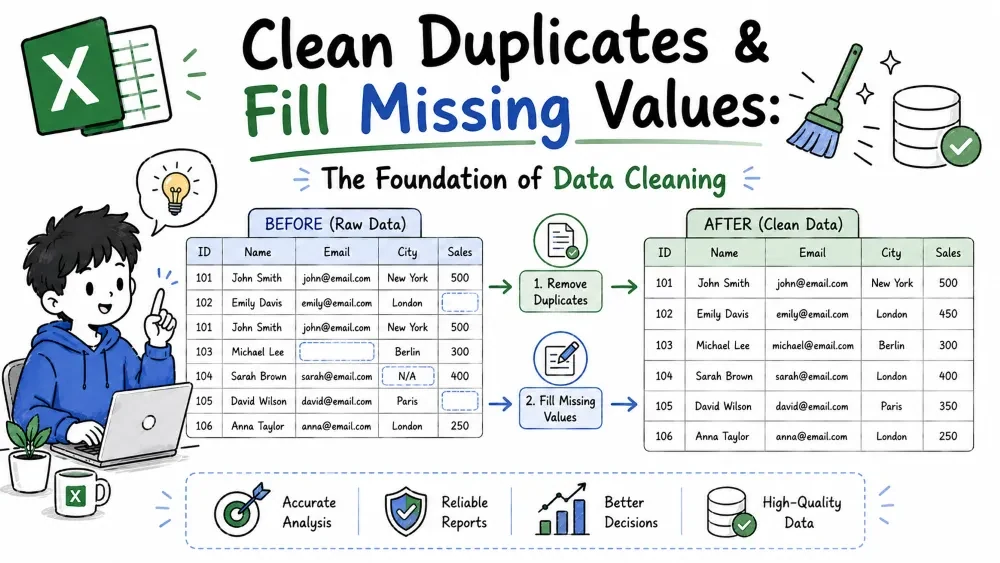
Dirty data usually means two things: the same record appears more than once, and important cells are empty. This tutorial fixes both — either the quick AI way with a prompt to Copilot, or the manual way with Excel's own tools. Both reach the same clean result.
What it is. Removing rows that appear more than once — either fully identical rows or rows that match on the columns you choose — while keeping one copy.
Why it is useful. A customer who appears twice looks like two customers and inflates your totals, pivot tables, and reports.
The prompt.
"Remove duplicate customers, keeping the most recent order."
| Order ID | Customer | City |
|---|---|---|
| 101 | John | Austin |
| 102 | Sara | Dallas |
| 103 | John | Austin |
Copilot flags row 103 and removes it. The AI also tells you how many rows it deleted.
Excel reports how many duplicate rows it removed and how many were kept. For a clean list without the originals, use =UNIQUE(A2:A100).
Ask Copilot "How many rows did you remove?" — or compare the row count before and after. Spot-check that no unique row disappeared.
Common mistakes.
Best practice. Tell the AI what to keep ("keep the latest order"), and pick the fewest duplicate columns that really define "same."
What it is. Replacing empty cells with sensible values.
Why it is useful. Blank cells break totals and confuse analysis — but filling them blindly is just as bad, so pick the rule based on why the data is missing.
The prompts.
Select the column, open Copilot, type the prompt, review the preview, then Apply.
=IF(A2="", AVERAGE(A:A), A2) — AVERAGE skips the blanks automatically.= → press Up arrow → Ctrl + Enter.Ask Copilot "Which cells did you fill and from what data?" — AI fills are guesses. Or manually cross-check a sample of filled cells against records you know.
Common mistakes.
Best practice. Decide why the value is missing before filling — blank, average, 0, and fill-down are four different answers.
Save your progress and earn XP for completing tutorials.
3 questions · Pass with 70%+
1A table has two "John" rows that differ only in Order ID. You want to remove the duplicate customer. What do you do?
2A column has blanks that should repeat the value directly above. The fastest correct move:
3You find blanks in a "Sales" column. Before filling, the safest first step is:
Technology
Excel with AI
Lesson group
AI Data Cleaning
Progress
20% complete

