Preparing your learning space...
40% through AI Data Cleaning tutorials
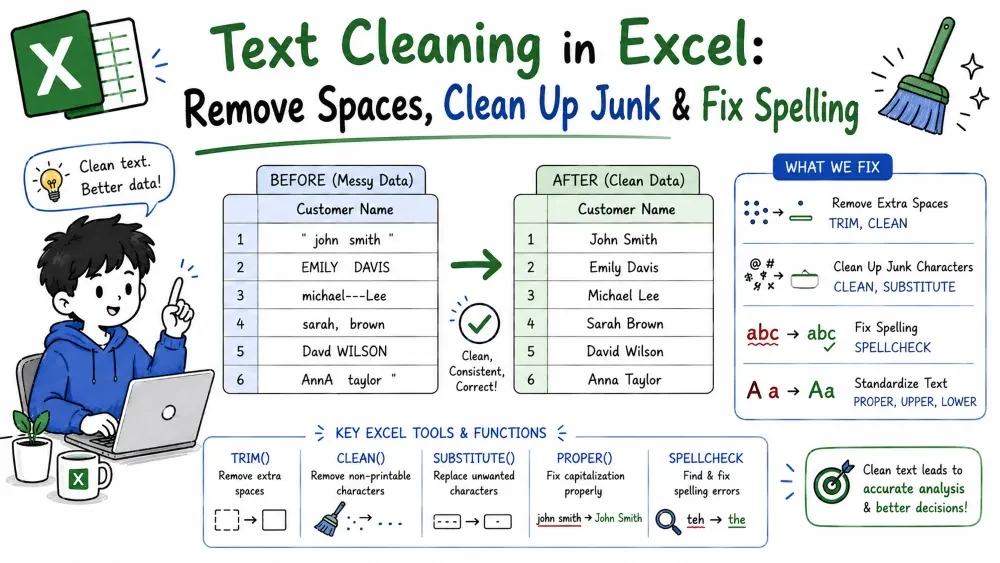
Text is where datasets get messy: stray spaces, hidden characters, and typos. You can fix them with an AI prompt, or with Excel's own functions — this tutorial shows both routes for each job.
What it is. Removing unwanted spaces — leading, trailing, and double spaces inside text.
Why it is useful. To Excel, "John Smith", " John Smith", and "John Smith" are three different names. Matching and lookups silently break over spaces.
The prompt.
"Trim all text columns — remove extra spaces."
Select the column or table, open Copilot, type the prompt, review, then Apply.
| Name |
|---|
| " John Smith " |
The result is "John Smith" in every row.
=TRIM(A2) removes leading/trailing spaces and collapses double spaces to one.=TRIM(CLEAN(A2)). (a double space), replace with (a single space), Repeat until no changes — quick for small sheets.Ask Copilot "list every column you changed" — a broad prompt can touch columns you didn't mean to. Or scan the row count and a few cells after TRIM.
Common mistake. Trimming one column while others still have the same problem. Clean all text columns at once.
Best practice. Trim before any matching, lookup, or dedupe — on arrival, not in the middle of other work.
What it is. Removing stray characters, line breaks, symbols, and hidden junk that arrive with pasted data.
Why it is useful. Copied text from websites or PDFs carries tabs, newlines, and curly quotes you can't see — and they break formulas and matching.
The prompts.
| A |
|---|
| North↵Sales |
Prompt: "Remove hidden line breaks and extra spaces from column A." → "North Sales"
=TRIM(CLEAN(A2)) — CLEAN strips the invisible line-break character, TRIM tidies the spacing.Ask Copilot "Show me what you removed" — cleaning can be over-aggressive. Or eyeball a few cells carefully after cleaning.
Common mistake. Cleaning only visible characters — invisible junk survives. Use CLEAN (or ask for a full cleanup) so hidden characters go too.
Best practice. Paste imported text as Values (Ctrl+Alt+V) so junk never arrives in the first place.
What it is. Fixing misspelled words so every variant of a word becomes one correct version.
Why it is useful. "Recieved" and "Received" split one category into two, and typos defeat duplicate detection.
The prompt.
"Fix spelling mistakes in the Status column and show me what you changed."
| Status |
|---|
| Complet |
| Compleet |
| Complete |
Every row becomes "Complete," and the AI reports the corrections it made.
Complet, replace with Complete.Ask Copilot "Show me what you changed" and review the list — it can "correct" brand names or codes. Or run F7 after a bulk replace as a safety net.
Common mistake. Replacing "Complet" with "Complete" without Match entire cell contents — "Complete" also contains "Complet", so it becomes "Completee".
Best practice. For columns that must not change (codes, proper names), exclude them from the prompt or review every replacement.
Save your progress and earn XP for completing tutorials.
3 questions · Pass with 70%+
1A2 = " John Smith ". Which formula returns John Smith?
2Text pasted from a website has hidden line breaks. Which function removes them?
3You run Find & Replace "Complet" → "Complete" without "Match entire cell contents" on a status column. What happens?
Technology
Excel with AI
Lesson group
AI Data Cleaning
Progress
40% complete

