Preparing your learning space...
100% through AI Data Cleaning tutorials
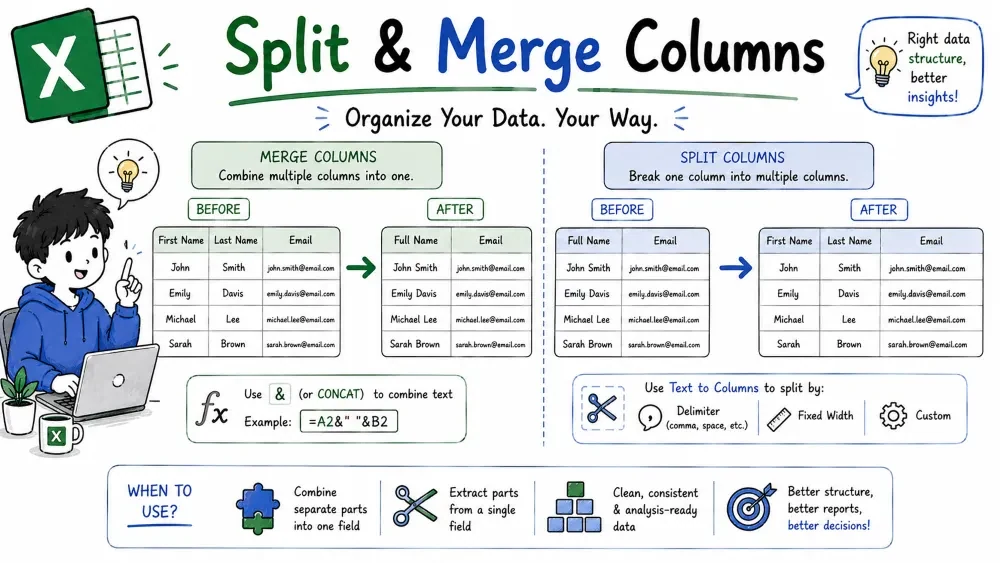
Sometimes one column hides several pieces of information, and sometimes several columns belong together. This tutorial splits and merges columns both ways — with an AI prompt or with Excel's own tools.
What it is. Breaking one column into two or more — full name into first & last, address into street, city and zip.
Why it is useful. A "Full Name" column can't be sorted by last name, and a stuffed address cell can't be used for a mail merge.
The prompt.
"Split the Full Name column into First Name and Last Name."
| Full Name |
|---|
| John Smith |
Becomes two columns: John | Smith.
=LEFT(A2, FIND(" ",A2)-1) for first name, =RIGHT(A2, LEN(A2)-FIND(" ",A2)) for last name — these update automatically if the source changes.Ask Copilot "Show me all the rows you split" — the AI can mis-split "Mary Jane Watson" or "John Smith Jr.". Manually, leave a blank column to the right first so Text to Columns doesn't overwrite existing data.
Common mistake. Running Text to Columns without a blank column next to the data — it overwrites whatever sits to the right.
Best practice. For simple, regular splits, Text to Columns is fast and predictable. For messy mixed patterns, use the AI or Flash Fill.
What it is. Combining two or more columns into one — first + last into a full name, street + city into an address.
Why it is useful. Some tools and reports expect a single field, and merged columns create unique keys for matching.
The prompts.
| First Name | Last Name |
|---|---|
| John | Smith |
Becomes one column: John Smith.
=A2 & " " & B2 — glues text together.=TEXTJOIN(", ", TRUE, A2:C2) — joins a whole range with a separator and skips empty cells.=CONCATENATE(A2, " ", B2) — the older equivalent.Ask Copilot "Show me the merged column" before committing — check for missing separators or swallowed blanks. Manually, scan for double separators or lost values.
Common mistake. Letting the AI pick the separator — it may choose a comma that's already inside the data, producing ambiguous results.
Best practice. For unique keys, state a separator that can't appear in the data (like "|") so "John"+"Smith" and "John S"+"mith" never collide.
Save your progress and earn XP for completing tutorials.
3 questions · Pass with 70%+
1A2 = "John Smith". Which formula gives the first name John?
2Join John, Smith, Austin into one cell with commas and skip the empty one:
3After running Text to Columns you lost data that was sitting next door. Why?
Technology
Excel with AI
Lesson group
AI Data Cleaning
Progress
100% complete

