Preparing your learning space...
80% through AI Data Cleaning tutorials
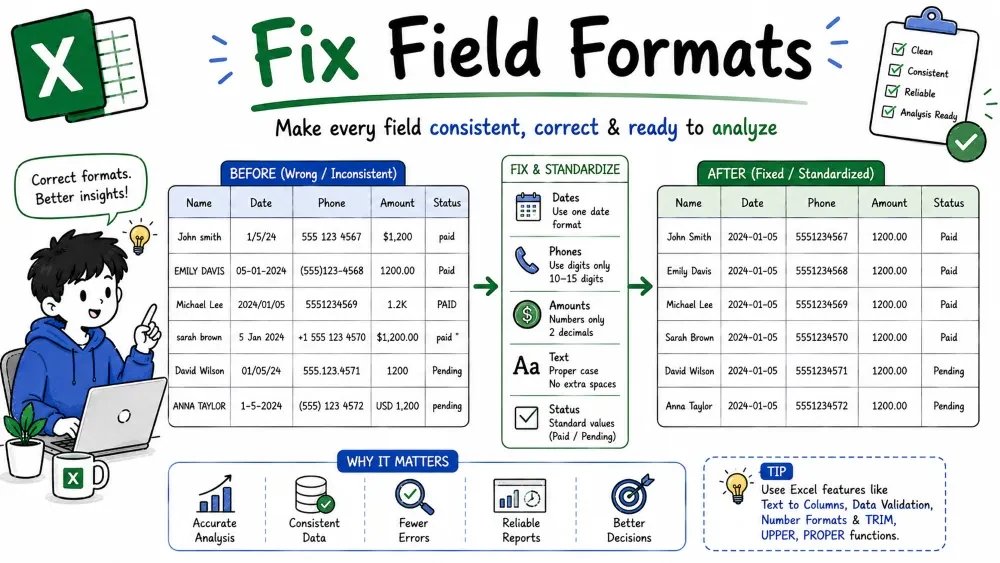
Phone numbers, email addresses, and dates are the most format-sensitive fields in any dataset. "(555) 123-4567", "555-123-4567", and "5551234567" are the same number written three ways. This tutorial makes each field one consistent format — with an AI prompt or Excel's own tools.
What it is. Converting every phone number to one consistent format, no matter how it was typed.
Why it is useful. Mixed formats never match each other — the same number appears three different ways.
The prompts.
| Phone |
|---|
| (555)123-4567 |
| 555-123-4567 |
| 555 123 4567 |
Every row becomes "(555) 123-4567".
=SUBSTITUTE(SUBSTITUTE(SUBSTITUTE(SUBSTITUTE(SUBSTITUTE(A2,"-","")," ",""),"(",""),")",""),"+","") → 5551234567.Ask Copilot "Which numbers did you change?" — numbers with country codes or extensions can get mangled. Manually, spot-check the first and last rows.
Common mistake. Not saying whether you want digits-only or a formatted look — the AI guesses and you get mixed output. Decide first, then state it.
Best practice. Keep phone numbers as text — numeric storage drops leading zeros and shows scientific notation on long numbers.
What it is. Removing spaces, stray characters, and casing noise so every email is valid and matchable.
Why it is useful. "john @ gmail.com" with a space, or "John@Gmail.com" vs "john@gmail.com", breaks sending and deduplication.
The prompt.
"Clean the email column — remove spaces, lowercase, and flag invalid addresses."
| " John.Smith @ Gmail.com " |
| user@@mail.com |
The first becomes "john.smith@gmail.com"; the broken one gets flagged as invalid.
=LOWER(TRIM(SUBSTITUTE(A2," ",""))) — SUBSTITUTE removes spaces, TRIM clears the edges, LOWER unifies the case.=ISNUMBER(SEARCH("@",A2)) — reject bad addresses before they land.Ask Copilot "List the emails you think are invalid" and confirm before editing. Manually, scan for any address with a space or uppercase letters left behind.
Common mistake. Deduplicating emails before lowercasing them — "John@x.com" and "john@x.com" count as two people.
Best practice. Lowercase emails before any dedupe, and let the AI flag invalid ones rather than auto-delete them.
What it is. Turning text dates into real dates and displaying them in one chosen format.
Why it is useful. "05/03/2025" means March 5 in Europe and May 3 in the US. Text dates can't be sorted or used in math.
The prompt.
"Convert this column to real dates in yyyy-mm-dd format. The data is day/month/year."
| Date |
|---|
| 05-03-2025 |
It becomes a real date displaying 05/03/2025 (March 5 in DD/MM).
=DATEVALUE("2025-03-05") converts a text date to a real one.yyyy-mm-dd or mmmm d, yyyy.Ask Copilot "Show me 5 converted dates" and check them against dates you know — this is the #1 place AI goes wrong. Manually, confirm the order matched your source.
Common mistake. Assuming the AI knows the date order — it will guess, and a wrong guess flips day and month in every row.
Best practice. Always state the source order (DD/MM or MM/DD) in the prompt, and confirm the order before converting manually.
Save your progress and earn XP for completing tutorials.
3 questions · Pass with 70%+
1Why store phone numbers as text, not numbers?
2John@Gmail.com and john@gmail.com are clearly the same person. The cleaning step that makes them match is:
3You see 05/03/2025 in text. Before converting, the one thing you must confirm:
Technology
Excel with AI
Lesson group
AI Data Cleaning
Progress
80% complete

