Preparing your learning space...
25% through AI + Excel Projects tutorials
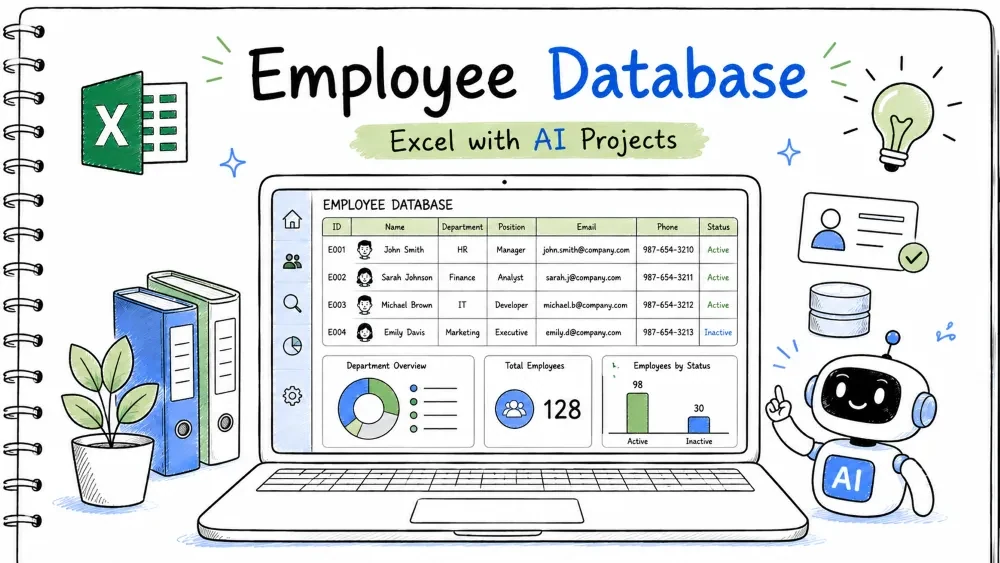
An employee database stores staff details in one searchable place. You build it in Excel with lookups and a small VBA form, and use Copilot and ChatGPT to write the search and add-record code.
employee-database.xlsx
│
├── Sheet: Employees   (EmpID, Name, Department, Salary)
├── Sheet: Search     (lookup box + result cells)
├── Sheet: Summary    (department counts)
└── Module: EmpMacros (VBA form code)
A table named Emp with EmpID, Name, Department, Salary.
All lookups read from this single source.
Type the headers, add rows, press Ctrl + T, name it Emp.
=COUNTA(Emp[EmpID])
Ask ChatGPT:
"Show me how to make an Excel table and count rows with COUNTA on one column."
A search box that returns the employee's name and department.
Finding a person by ID should take one keystroke.
On the Search sheet, cell B1 holds the ID.
=XLOOKUP(B1, Emp[EmpID], Emp[Name], "Not found")
=XLOOKUP(B1, Emp[EmpID], Emp[Department], "Not found")
"Not found" is the result when the ID is missing.Ask Copilot:
"Write an XLOOKUP that finds a name from EmpID and shows Not found if missing."
A count of employees per department.
Managers want to know team sizes.
=COUNTIF(Emp[Department], A2)
Ask ChatGPT:
"Write a COUNTIF that counts employees in a department listed in A2."
A button that opens a form and appends a new employee.
Typing into the table is slow and error-prone.
Open the Developer tab, Visual Basic, insert a UserForm with boxes for the four fields and a button. Code the button:
Private Sub cmdAdd_Click()
    Dim ws As Worksheet
    Set ws = Sheets("Employees")
    Dim lastRow As Long
    lastRow = ws.Cells(ws.Rows.Count, 1).End(xlUp).Row + 1
    ws.Cells(lastRow, 1).Value = txtID.Value
    ws.Cells(lastRow, 2).Value = txtName.Value
    ws.Cells(lastRow, 3).Value = txtDept.Value
    ws.Cells(lastRow, 4).Value = txtSalary.Value
    MsgBox "Employee added"
End Sub
End(xlUp).Row + 1 locates the first blank row; txtID.Value reads each text box.Ask ChatGPT:
"Write VBA that adds a new row to an Excel table named Employees from a user form with ID, Name, Department, Salary."
Paste the returned code into the form's button, then adjust the text box names to match yours.
=XLOOKUP(B1, Emp[EmpID], Emp[Name], "Not found")
=XLOOKUP(B1, Emp[EmpID], Emp[Department], "Not found")
=COUNTIF(Emp[Department], A2)
Private Sub cmdAdd_Click()
    Dim ws As Worksheet
    Set ws = Sheets("Employees")
    Dim lastRow As Long
    lastRow = ws.Cells(ws.Rows.Count, 1).End(xlUp).Row + 1
    ws.Cells(lastRow, 1).Value = txtID.Value
    ws.Cells(lastRow, 2).Value = txtName.Value
    ws.Cells(lastRow, 3).Value = txtDept.Value
    ws.Cells(lastRow, 4).Value = txtSalary.Value
    MsgBox "Employee added"
End Sub
ChatGPT: "Make an Excel table and COUNTA one column."
Copilot: "XLOOKUP name from EmpID, Not found if missing."
ChatGPT: "COUNTIF count employees in department A2."
ChatGPT: "VBA add row to Employees from user form."
employee-database.xlsx.Input: EmpID E003 exists with Name "Ana". Expected Output: Search shows "Ana" and her department. Explanation: XLOOKUP matches the ID and returns the row.
Input: EmpID Z999 (does not exist). Expected Output: "Not found". Explanation: The fourth XLOOKUP argument handles missing IDs.
Input: Add employee E010 via the form. Expected Output: New row E010 at the bottom; COUNTA increases by 1. Explanation: VBA appends to the next blank row.
Problem: Lookup fails even for a real ID. Reason: The ID has trailing spaces or wrong type. Solution: Trim the search cell and make sure both ID columns are the same format.
Problem: The button does nothing. Reason: Macros are disabled. Solution: File > Info > Enable Content, and save as .xlsm.
Problem: Data lands in the wrong place. Reason: lastRow counted a hidden blank. Solution: Ensure the table has no empty rows in the middle.
Save your progress and earn XP for completing tutorials.
4 questions · Pass with 70%+
1Best function to find a name from an ID?
2COUNTIF(Emp[Department], A2) returns?
3VBA End(xlUp).Row + 1 finds?
4 What can ChatGPT do?
Technology
Excel with AI
Lesson group
AI + Excel Projects
Progress
25% complete

