Preparing your learning space...
40% through AI Formatting tutorials
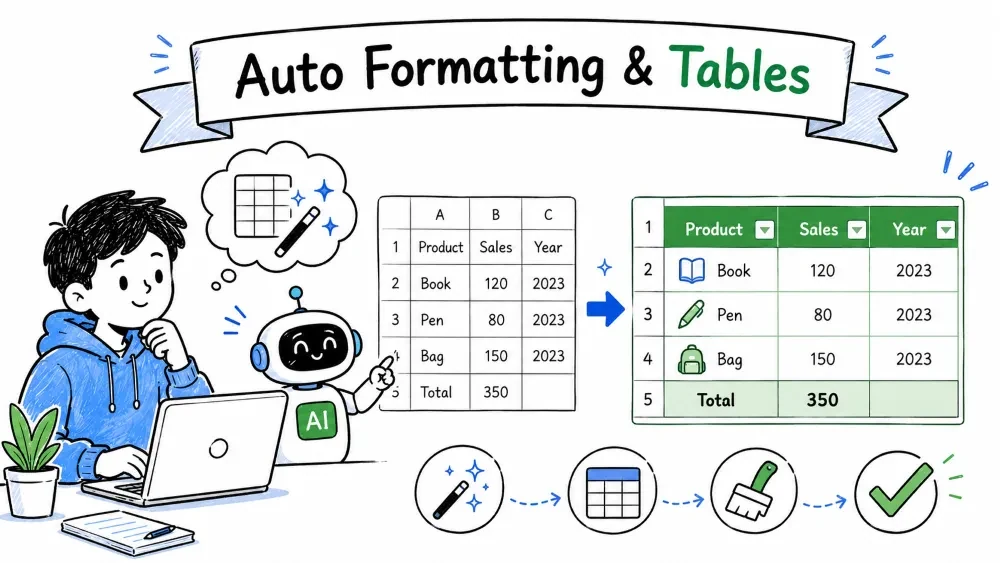
Turn a plain, messy worksheet into a clean, readable table in one click — or ask AI to do it. Auto formatting uses Excel's built-in table styles so you don't paint borders, fonts, or fills by hand.
Auto formatting means letting Excel style your data instead of painting cells by hand. The fastest route is the shortcut Ctrl + T (or the Format as Table button on the Home tab).
Ctrl + T.Step Action 1 Click a cell inside the data range 2 Press Ctrl + T 3 Confirm the header checkbox 4 Click OK
In one step, Excel adds banded rows, bold headers, and a default color scheme.
A table isn't a picture — it's a live Excel object that brings along benefits:
=Table1[Sales] instead of =A1:A50.This is auto formatting from the moment of creation.
The default color isn't final — change it in one click:
The gallery is your fastest styling tool for the entire sheet.
The banded and emphasis toggles live in the Table Design Table Style Options:
| Option | What it does |
|---|---|
| Banded Rows | Alternating row fills — best default for readability |
| Banded Columns | Alternating column fills, useful for wide data |
| First Column | Bold the identity column |
| Last Column | Emphasize a totals column |
Long report blurs into a wall of white? Turn on Banded Rows.
If you want plain cells but want to keep the neat look and the data:
The data stays; the table behavior (auto-expansion, filters) is removed.
You don't have to build the table by hand — use Microsoft 365 Copilot or ChatGPT.
With Copilot (inside Excel):
"Turn the range A1:E50 into a formatted table." "Format this data as a professional table with a light style."
Copilot applies the table for you. Follow up with plain requests like "Use a different style" or "Make the header bold" to refine it without touching the ribbon.
With ChatGPT (outside Excel):
"Give me the exact Excel steps to turn A1:E50 into a formatted table with banded rows, using Ctrl + T."
ChatGPT returns the step-by-step recipe (including the Ctrl + T shortcut and the header checkbox), which you then apply in Excel. It's the fastest route to the professional-table look this tutorial covers — Copilot does it for you, ChatGPT tells you how.
Save your progress and earn XP for completing tutorials.
2 questions · Pass with 70%+
1Which shortcut converts your data into a formatted table?
2What does "Banded Rows" do in a table?
Technology
Excel with AI
Lesson group
AI Formatting
Progress
40% complete

