Preparing your learning space...
60% through AI Formatting tutorials
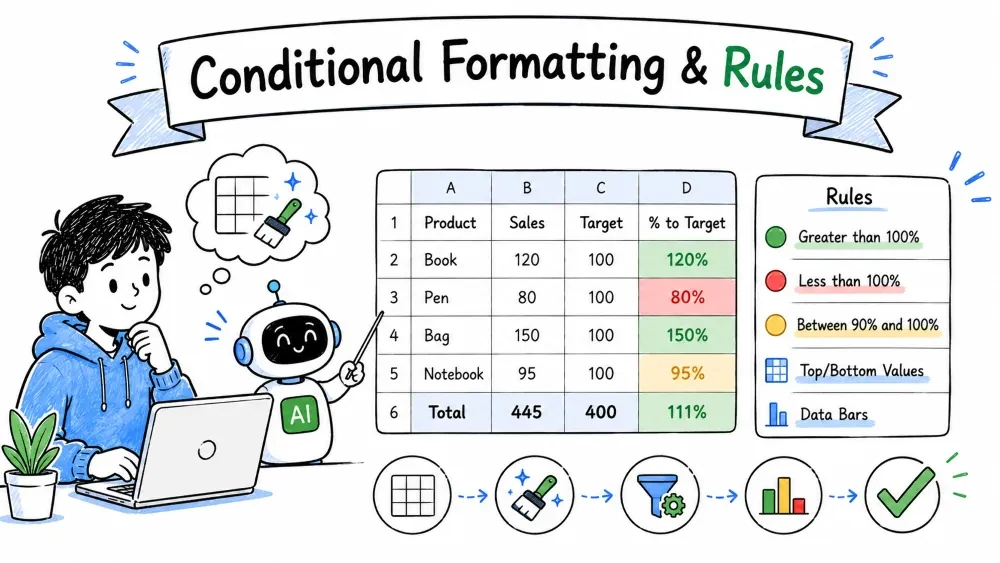
Conditional formatting is Excel's "if this, then format that" engine — or you can ask AI to build the rules for you. Rules change a cell's appearance automatically based on its value, and update live as your data changes.
A conditional rule is a condition with a format. If a cell's value meets the condition — for example, it's above 100 — the format applies. If not, the cell stays plain. When the value changes, the format updates instantly.
The rules live under Home → Conditional Formatting, grouped into:
The difference from manual formatting: conditional formatting is live. Change a number and the format re-evaluates on its own.
Highlight cells above average — the simplest starting point:
Every cell above the average gets colored instantly. That's a working conditional rule.
For more control than presets, build your own rule:
You've now defined "if a cell is over 100, tint it." The rule applies to whatever range was selected.
Once a range has several rules, the Formatting Rules Manager becomes the command center.
The manager shows every rule — its order, its friendly name, the range it targets:
| Column | What it shows |
|---|---|
| Priority (order) | The order rules run in |
| Rule description | What the rule does |
| Applies To | The range the rule targets |
| Stop If True | Whether to stop evaluating further rules |
For cells covered by several rules, tick Stop If True on the rule that should take effect — once it matches, all lower-priority rules on that cell are skipped.
To wipe out conditional formatting without touching your data:
Only the formatting is removed — the data stays untouched.
Rule creation is a natural-language task, so Copilot or ChatGPT both work.
With Copilot (inside Excel):
"Highlight cells in the Sales column that are above 100 in red." "Highlight the top 10 values in column D."
Copilot builds the rule for you, and it still appears in the Rules Manager, where you can edit, reorder, or delete it exactly as described above. Ask follow-ups like "make the top values orange instead" and it updates the rule.
With ChatGPT (outside Excel):
"Write the Excel conditional formatting rule to highlight values above 100 in the Sales column."
ChatGPT returns the menu path and the exact condition/fill to set. You apply it in Excel, and the rule still shows up in the Rules Manager — Copilot does it for you, ChatGPT tells you how.
Save your progress and earn XP for completing tutorials.
1 questions · Pass with 70%+
1In the Rules Manager, what does "Stop If True" do?
Technology
Excel with AI
Lesson group
AI Formatting
Progress
60% complete

