Preparing your learning space...
80% through AI Formatting tutorials
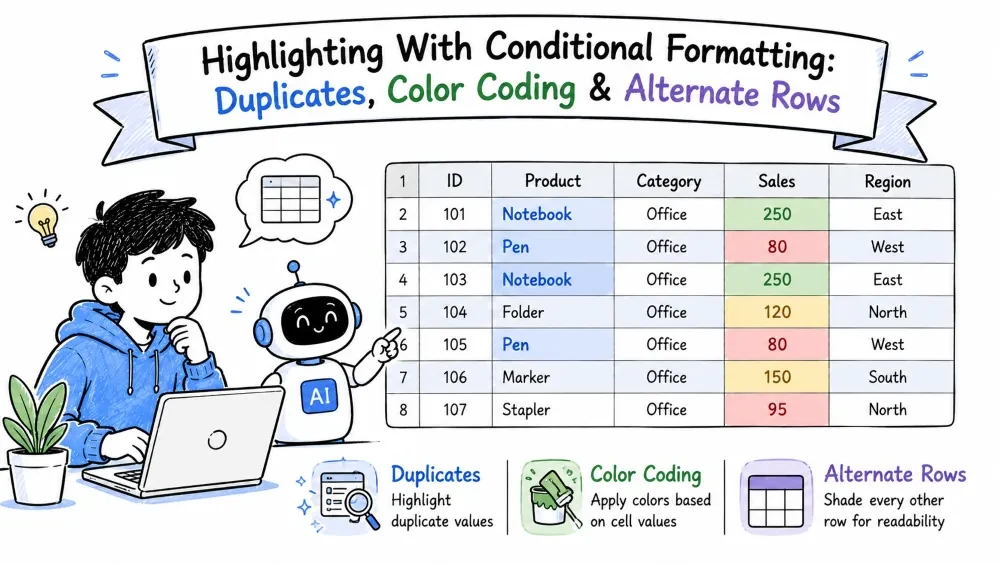
The highlight group of conditional rules: spotlight duplicates, color-code categories, and shade alternate rows. You can build all three by hand — or ask AI to do it in one pass. Everything updates live as your data changes.
This is the classic duplicate finder:
Every value that appears more than once gets colored instantly. To highlight the opposite — the values that appear only once — open the same dialog and change the dropdown to Unique.
To compare across two columns, select both columns' ranges before opening the rule — the duplicate check runs across them.
Color coding uses a text rule per category, so each value gets its own color:
urgent, and pick a fill color.The result is a quick visual legend: red for urgent, green for approved, and so on.
For color by a number instead of text, use a formula rule:
=B2>100 (the formula refers to the top-left cell of your selection).A formula rule lets you decide exactly which cells qualify.
Shade every other row for scanability using a simple formula rule:
=MOD(ROW(),2)=0.MOD(ROW(),2) returns the remainder when the row number is divided by 2 — so even rows match and get shaded, odd rows stay plain. Unlike a manual paint job, the rule stays correct if the data moves. Keep in mind the rule only covers the Applies To range — to shade rows you add later, widen that range in the Rules Manager.
All three highlights are natural to describe, so Copilot or ChatGPT both work.
With Copilot (inside Excel):
"Highlight duplicate IDs in column A." "Color-code the Status column — green for Done, yellow for Pending." "Shade alternate rows in this range."
Copilot turns each sentence into a rule. You can still inspect and tweak the results in the Rules Manager, or ask "also highlight unique IDs" to adjust the existing rule.
With ChatGPT (outside Excel):
"Give me the Excel steps and the formula to shade alternate rows and to highlight duplicates in column A."
ChatGPT returns the =MOD(ROW(),2)=0 rule plus the Duplicate Values menu path. You apply them in Excel — Copilot does it for you, ChatGPT tells you how.
Save your progress and earn XP for completing tutorials.
2 questions · Pass with 70%+
1Which formula shades every other row?
2To highlight values that appear only once, change the Duplicate Values rule to:
Technology
Excel with AI
Lesson group
AI Formatting
Progress
80% complete

