Preparing your learning space...
100% through AI Formula Generator tutorials
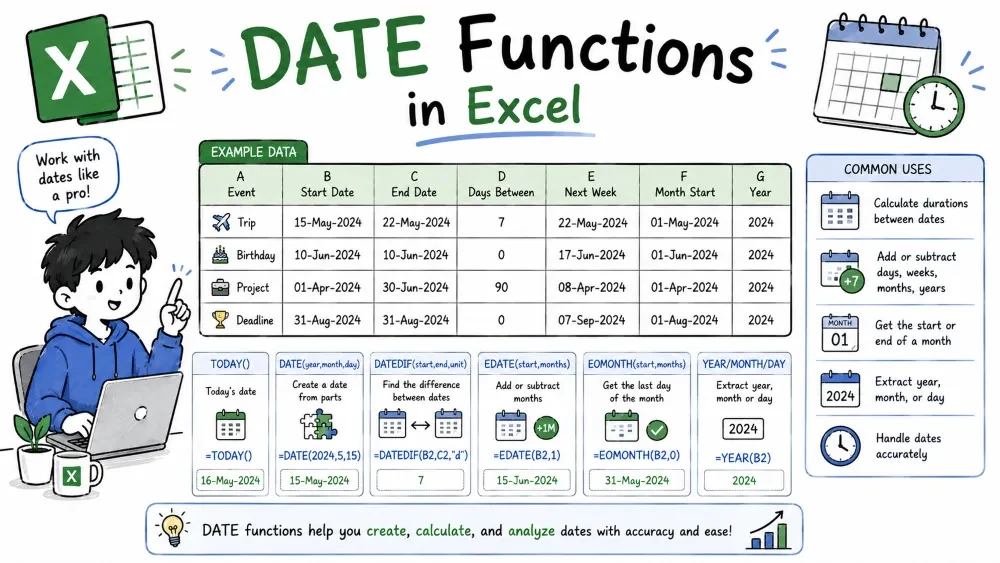
Dates in Excel are just numbers in disguise — every date is a serial count of days. That hidden trick is why date math works with simple + and -. DATE functions build dates, split them apart, and calculate differences, so you never have to handle those serial numbers by hand.
Excel stores every date as a serial number: the count of days since 1 January 1900. The date formatting is just a display layer on top of that number. This is the key that unlocks everything else — it's why =B2-A2 works, because subtracting two dates is just subtracting two numbers.
=B2-A2
If B2 is 20 Aug 2026 and A2 is 1 Aug 2026, the result is 19 — the days between them. Change a cell's number format and the same cell flips from a long raw number (the serial) to "05/08/2026". Same value, different face.
TODAY returns the current date; NOW returns the current date and time. Both update when the workbook recalculates, so they always show "now".
=TODAY()
=NOW()
TODAY() is great for age, days-until-deadline, and overdue calculations. NOW() adds the time of day on top — more than you want for most date math. These are called volatile functions: they recalculate on every change, so don't scatter them across a huge sheet for no reason.
DATE builds a date from year, month, and day pieces. It's the fix for that spreadsheet where someone split dates into three separate columns.
Syntax: =DATE(year, month, day)
=DATE(2026, 8, 5)
=DATE(2026, 8, 0)
=DATE(2026, 13, 1)
DATE(2026, 8, 5) is 5 August 2026. But DATE also rolls over out-of-range numbers: day 0 means "the day before the 1st", so DATE(2026, 8, 0) gives 31 July 2026 — a classic trick for "last day of the month". Month 13 rolls into the next year, so DATE(2026, 13, 1) is 1 January 2027.
These split a date into its parts — the reverse of DATE. Useful for grouping, reporting by month, or pulling a year out of a date column.
=DAY(A2)
=MONTH(A2)
=YEAR(A2)
DAY(A2) → the day number, MONTH(A2) → the month number, YEAR(A2) → the year. From one date cell you can generate a "Month" column for a pivot or count how many entries fall in each month.
DATEDIF calculates the gap between two dates in the unit you choose — years, months, or days. It's the classic age and tenure formula.
Syntax: =DATEDIF(start_date, end_date, unit)
=DATEDIF(A2, B2, "D")
=DATEDIF(A2, B2, "Y")
=DATEDIF(A2, B2, "YM")
"D" gives total days, "Y" gives whole years. The less obvious units: "YM" counts months ignoring years (so a gap of 1 year 4 months returns 4), and "MD" counts days ignoring months. That's how you build "25 years, 4 months, 3 days" style outputs.
Note: DATEDIF doesn't appear in Excel's function list and has no autocomplete hint, but it works fine — just type it. Also, it needs end_date after start_date, or it errors.
EOMONTH gives the last day of a month, a set number of months away. EDATE gives the same calendar day, a set number of months later.
Syntax: =EOMONTH(start_date, months) — =EDATE(start_date, months)
=EOMONTH(A2, 0)
=EOMONTH(A2, 1)
=EDATE(A2, 3)
EOMONTH(A2, 0) is the last day of A2's own month — the end-of-month report date. EOMONTH(A2, 1) is the end of next month. EDATE(A2, 3) lands 3 months later on the same day — perfect for quarterly renewals or payment schedules.
WORKDAY returns a date a given number of working days ahead, skipping weekends and — if you give it a list — holidays. Built for due dates and delivery schedules.
Syntax: =WORKDAY(start_date, days, [holidays])
=WORKDAY(A2, 10)
=WORKDAY(A2, 10, $E$2:$E$10)
The first gives the date 10 working days after A2 — weekends don't count. The second also excludes the dates listed in E2:E10 as holidays. Give it a negative number of days to go backwards in time. (There's a separate WORKDAY.INTL if your weekends aren't Saturday–Sunday.)
Date serial numbers trip up even experienced users, which makes them ideal for AI help. Both Microsoft Copilot (in Excel 365) and ChatGPT can build the formula once you name the cells.
In Excel with Microsoft Copilot — open the Copilot chat pane and state the calculation:
With ChatGPT — describe the columns and the gap you need:
Tip: Mention whether you want calendar days or working days. Asking for "10 days later" vs "10 business days later" gives you completely different formulas (EDATE vs WORKDAY).
Save your progress and earn XP for completing tutorials.
Technology
Excel with AI
Lesson group
AI Formula Generator
Progress
100% complete

