Preparing your learning space...
17% through AI Formula Generator tutorials
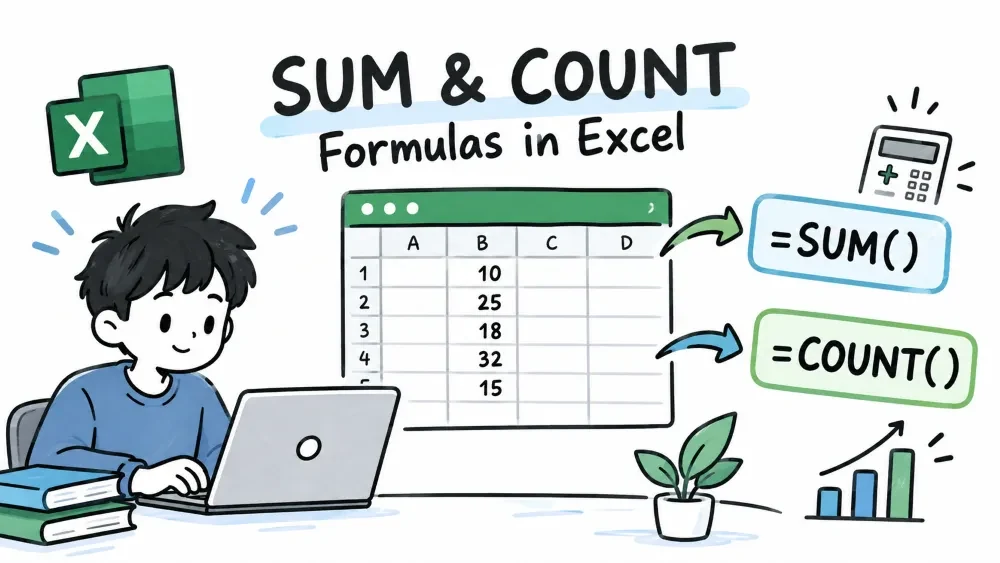
Summing and counting is where almost every Excel workflow starts. SUM adds numbers, COUNT tells you how many cells hold numbers, and their conditional versions add rules to both. Once you master these, the rest of the formula family clicks into place.
A formula is an instruction you type in a cell, always starting with an equals sign =. It can reference other cells, call functions, and calculate a result that updates when the source data changes. You don't compute anything yourself — you describe the calculation and Excel does it.
=A2 + A3
This adds the contents of A2 and A3. Change either cell and the result updates automatically. That live-update behavior is the whole point of formulas.
SUM adds up all the numbers you give it. It's the most used function in Excel, and it replaces the old habit of typing =A2+A3+A4... by hand.
Syntax: =SUM(number1, [number2], ...)
=SUM(A2:A6)
=SUM(B2:B6, D2:D6)
=SUM(A2:A6) / 12
The first line sums every number from A2 to A6. The second adds two separate ranges in one go. The third shows SUM combined with other math — here, an annual total divided by 12.
Note: SUM quietly ignores text and empty cells inside a range, so SUM(A2:A6) never throws an error even if someone typed a word into A4.
Best practice: Prefer ranges (A2:A6) over listing cells (A2,A3,A4,A5,A6). Ranges stay correct when you add rows in between.
COUNT counts how many cells in a range contain a number. If your goal is "how many rows actually have data," this is the function — but only when that data is numeric.
Syntax: =COUNT(value1, [value2], ...)
=COUNT(A2:A10)
The result is a plain number: how many cells in A2:A10 hold numbers. Blanks and text cells are skipped entirely. A column of names would return 0, which surprises beginners — see COUNTA below for that case.
Common mistake: COUNT ignores text. If you count a list of product names with COUNT, you get 0, not the number of products. Use COUNTA when the values are text.
COUNTA counts every cell that isn't empty — numbers, text, dates, anything. COUNTBLANK is the opposite: it counts only the empty cells.
=COUNTA(A2:A10)
=COUNTBLANK(A2:A10)
COUNTA(A2:A10) tells you how many cells have something in them. COUNTBLANK(A2:A10) tells you how many are waiting to be filled. The two should add up to the total range size — a handy sanity check.
These are the conditional versions. COUNTIF counts cells that meet one rule; SUMIF adds the numbers that meet one rule. They're the natural step up when "count everything" isn't specific enough.
Syntax: =COUNTIF(range, criteria) — =SUMIF(range, criteria, [sum_range])
=COUNTIF(B2:B10, ">100")
=SUMIF(B2:B10, ">100")
=SUMIF(C2:C10, "West", D2:D10)
The first line counts how many sales were above 100. The second adds up only those sales. The third checks the region in column C and sums the matching amounts from column D — the criteria and the values being summed live in different columns.
Note: Text criteria go in quotes ("West"), and number comparisons too (">100"). A bare 100 would only match cells exactly equal to 100.
You don't have to memorize every argument. Both Microsoft Copilot (built into Excel 365) and ChatGPT can turn a plain sentence into a working formula — just describe your data and your goal clearly.
In Excel with Microsoft Copilot — open the Copilot chat pane and state the result you want:
Copilot writes the formula and can drop it right into the sheet.
With ChatGPT — paste a small sample of your data (or describe the columns) and ask:
Tip: Always hand the AI your exact cell references. "The ID is in B2 and the table is in A2:D50" beats "look up the price" every time.
Save your progress and earn XP for completing tutorials.
3 questions · Pass with 70%+
1Which function counts only the cells that contain numbers?
2=SUMIF(C2:C10, "West", D2:D10) does what?
3=COUNT(A2:A10) returns 0 when the range…?
Technology
Excel with AI
Lesson group
AI Formula Generator
Progress
17% complete

