Preparing your learning space...
33% through AI Formula Generator tutorials
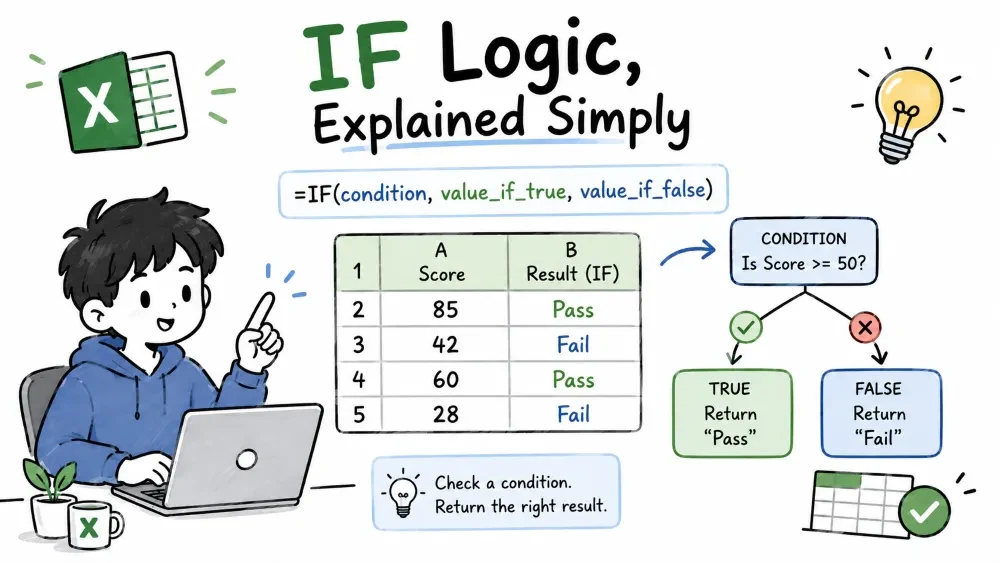
IF asks a question and returns one answer when it's true and another when it's false — the brain behind Pass/Fail, status, and warning columns. Logical functions (AND, OR, NOT) combine conditions into richer questions, IFS handles many rules cleanly, and nested IF covers the few cases IFS can't.
IF tests a condition. If it's true, you get one value; if false, another. This turns raw data into labels, flags, and decisions.
Syntax: =IF(logical_test, value_if_true, [value_if_false])
=IF(B2>=60, "Pass", "Fail")
=IF(C2="", "No data yet", C2*1.1)
The first line marks a score of 60 or more as "Pass" and everything else as "Fail". The second shows IF doing something practical: if the cell is blank it says so, otherwise it calculates 10% on top of the value. IF isn't limited to text answers — it can return numbers, other formulas, or even whole formulas.
These don't answer anything on their own; they build the conditions IF tests. AND returns TRUE only when every condition is true, OR returns TRUE when at least one is true, and NOT flips a true to false and vice versa.
=IF(AND(A2>100, B2="Yes"), "Approve", "Review")
=IF(OR(A2="", B2=""), "Missing info", "Complete")
=IF(NOT(A2=0), "Allowed", "Blocked")
The first grants approval only when the amount is above 100 and the flag is "Yes". The second flags the row when either cell is blank. The third blocks a zero. Combine AND or OR with multiple conditions and wrap the whole thing inside IF — that's the standard pattern.
Best practice: Use AND to build one compound condition instead of nesting IF after IF. =IF(AND(...), ...) is far easier to read than two IFs stacked.
IFS checks several conditions in order and returns the value from the first one that's true. It replaces long chains of nested IF with a single, readable formula.
Syntax: =IFS(condition1, value1, condition2, value2, ...)
=IFS(B2>=90, "A", B2>=80, "B", B2>=70, "C", TRUE, "Fail")
Grade 92 → "A", 85 → "B", 75 → "C", anything else → "Fail". The TRUE at the end is the classic trick: it's always true, so it acts as the else — the catch-all for every case the earlier conditions missed.
Common mistake: Forgetting the catch-all. If no condition matches and there's no TRUE at the end, IFS returns a #N/A error.
Nested IF means putting an IF inside another IF's value slots. Each level handles one more branch. It works everywhere, but it gets hard to read past two or three levels.
=IF(B2>1000, "High", IF(B2>500, "Medium", "Low"))
If the order is over 1000, it's "High". If not, the inner IF checks whether it's over 500 — "Medium" — and everything else becomes "Low". Notice the second IF sits exactly where the outer IF's false value goes.
Best practice: Keep nesting to two or three levels. Beyond that, switch to IFS — it says the same thing without piling up closing parentheses.
Stuck on the logic or the parentheses? Both Microsoft Copilot (inside Excel 365) and ChatGPT can draft these formulas from plain English — just spell out the rules.
In Excel with Microsoft Copilot — open the Copilot chat pane and describe the decision:
With ChatGPT — describe the conditions and ask for the exact function:
Tip: For AND/OR logic, tell the AI explicitly. "Approve only when amount > 100 AND status is Yes" produces a correct IF(AND(...)) instead of a wrong nested chain.
Save your progress and earn XP for completing tutorials.
3 questions · Pass with 70%+
1With B2 = 58, =IF(B2>=60, "Pass", "Fail") returns?
2With B2 = 58, =IF(B2>=60, "Pass", "Fail") returns?
3Which function returns TRUE only when every condition is met?
Technology
Excel with AI
Lesson group
AI Formula Generator
Progress
33% complete

