Preparing your learning space...
100% through Prompt Engineering for Excel tutorials
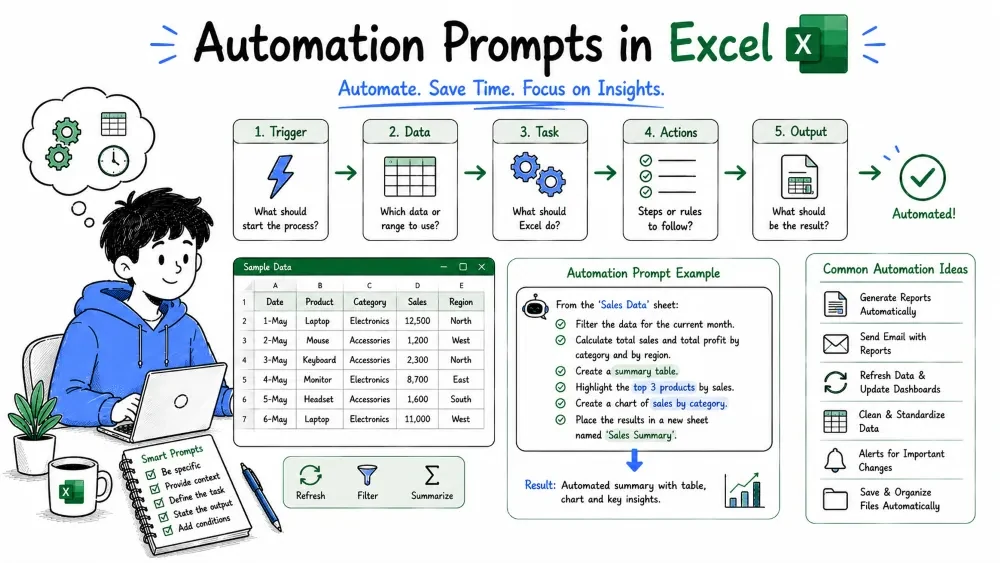
An automation prompt asks the AI to build a macro or a script that does a repetitive Excel task for you. This tutorial covers how to describe a task well enough for the AI to generate working automation, and how to run it safely.
This tutorial is written for Excel with AI — the example prompts below are things you type into an AI assistant such as Microsoft 365 Copilot in Excel or ChatGPT.
Two ways to send these prompts:
The prompting skills are the same either way — only the automation language the AI produces differs.
An automation prompt asks the AI to produce code — usually a VBA macro — that performs a task automatically. Instead of doing a job over and over (formatting every report, cleaning every file), you describe the job once and the AI writes the code to repeat it.
Two mapping facts matter here: macros = VBA in Excel, and Power Automate handles the newer no-code workflows outside a single workbook. A good prompt states which one you want.
Example:
Write a VBA macro that formats the current sheet as a report:
bold the header row, autofit all columns, and set a page
landscape before printing.
Explanation: this is a small, well-defined automation. The AI can generate the VBA and you run it once to apply to any sheet.
Automation only works if the AI understands the full sequence. Break the job into ordered steps — the same order you would do them by hand.
What a good automation description includes:
Example:
Write a macro that, for every sheet in the active workbook:
1. deletes any empty columns,
2. freezes row 1,
3. applies a filter to the header row.
Explanation: the prompt lists numbered steps and a clear starting point ("every sheet"). Numbered steps are the clearest way to describe a script, because the AI maps each line of code to one step.
The core automation prompt is "write a macro that..." followed by a clear description of the job.
Common automation requests:
Write a VBA macro to split a large table into separate sheets,
one per unique value in column B (Region), copying the header
row to each new sheet.
Explanation: the prompt names the trigger (unique values in column B), the action (create a sheet per value), and the detail (copy the header). That is enough detail for the AI to structure the loop correctly.
Best Practice: ask the AI to add a comment to each code block and explain in one line how to run the macro. That makes the code usable even if you never touched VBA before.
A very common automation need is repeating one job over many sheets or workbooks. You only need to describe the job once and tell the AI to loop it.
For every worksheet in the workbook, center the headers, set
column widths to fit content, and fill blank cells in column
C with "0".
Explanation: "for every worksheet" tells the AI to wrap the actions in a loop. You write the description once and let the macro repeat it — the entire point of automation.
Code that runs automatically can also change things you did not intend. Automation is powerful, so run it safely.
Safety rules for any macro:
Best Practice: start with test data. Run the macro on a sample file, confirm the output, then apply it to the real workbook.
Automation rarely works perfectly on the first run. Treat the error or wrong output as feedback and refine — the same way you iterate on a formula.
Example:
You: "I ran your macro and got an error: 'Out of range' on
the line that references worksheet 2. The macro should only
work on the active sheet."

AI: "That error means the loop is pointing at a sheet that
does not exist. Here is the fixed version that uses
ActiveSheet instead of Sheets(2)..."
Explanation: you reported the error and the constraint (work on the active sheet). The AI corrected the reference. Describing the symptom and the intended behavior is what makes iteration productive.
Save your progress and earn XP for completing tutorials.
3 questions · Pass with 70%+
1Excel macros are written in which language?
2Before running a new macro on your real file, the safest step is to:
3A reliable automation prompt describes the task as:
Technology
Excel with AI
Lesson group
Prompt Engineering for Excel
Progress
100% complete

