Preparing your learning space...
80% through Prompt Engineering for Excel tutorials
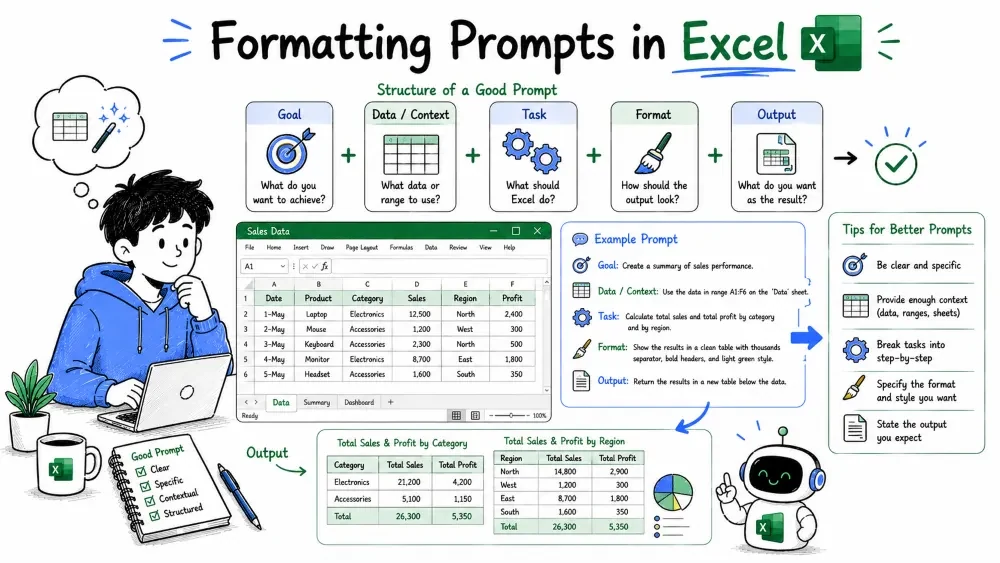
A formatting prompt asks the AI to control how your data looks — number formats, colors, borders, conditional highlighting, and layout. This tutorial covers the formatting requests you can make and how to describe the look you want without leaving it to guesswork.
This tutorial is written for Excel with AI — the example prompts below are things you type into an AI assistant such as Microsoft 365 Copilot in Excel or ChatGPT.
Two ways to send these prompts:
The prompting skills are the same either way — only how the AI reaches your data changes.
A formatting prompt is a request that changes how cells are displayed without changing their underlying values. You are styling the presentation of the data, not the data itself.
Formatting matters because it drives readability and attention. A number formatted as a currency and a negative value shown in red tells a story at a glance that raw digits cannot.
Note: how much formatting an AI can apply depends on the tool. Some apply formatting directly; others return the exact steps. Either way, the prompt determines the outcome.
The simplest formatting requests control how a value is displayed — currency, percentages, decimals, and dates.
Examples:
Format column E (Revenue) as currency with 2 decimal places.
Show column D as a percentage with no decimal places.
Display column B (dates) as "15 Mar 2025" instead of a number.
Explanation: each prompt names the column and the exact display style. The result is a consistent, professional format applied across the range, so every value reads the same way.
Why it is useful: a spreadsheet with mixed formats (some $12.5, some 12.500) is confusing and looks unprofessional. Consistent formats prevent misreading.
Conditional formatting highlights cells based on a rule. It is one of the most powerful formatting features, and a clean description of the rule is all the AI needs.
Common conditional-formatting prompts:
Highlight any cell in column E (Revenue) that is greater than
10,000 in light green, and anything below 500 in light red.
Explanation: the prompt gives a range, a condition, and a color for each case. The AI returns the Conditional Formatting rule (or applies it) so the sheet flags outliers automatically as data changes.
Best Practice: be specific about the rule. "Highlight the good numbers" is useless to the AI; "greater than 10,000" is a rule it can build.
Ask directly for the visual treatment you want. Formatting prompts for colors and borders are mostly about naming the target range and the specific style.
Examples:
Make the header row bold, white text on a dark blue fill,
with a thin border under it.
Give column A a light gray fill and put a thick border
around the whole data range A1:E50.
Change the font of all cells to Calibri, size 11.
Explanation: each prompt names a range and a concrete style — bold, fill color, border thickness, font, size. The AI translates that into the right Ribbon clicks or settings.
Formatting also covers how cells and content are arranged — widths, alignment, wrapping, and merging.
Examples:
Set column B to a width of 20 so long product names are fully
visible, and wrap the text in column C.
Center the headers in row 1 and align the numbers in column D
to the right.
Merge cells A1:G1 and put the title "Q3 Report" in the center.
Explanation: these requests set column widths, text wrapping, alignment, and merged title cells. They make the sheet readable and give it a deliberate, finished structure.
For a whole report, you can ask for an overall look in one request. Keep it short, but still name the elements you care about.
Style the whole sheet as a clean manager report: a bold
title in a merged top row, a colored header row, filtered
columns with a theme color, and consistent number formatting
on all money columns.
Explanation: the prompt describes the desired outcome ("clean manager report") and lists the concrete elements — title, header, theme color, money formatting. The AI fills in the details while staying within those choices.
Save your progress and earn XP for completing tutorials.
3 questions · Pass with 70%+
1A conditional-formatting prompt ("cells over 10,000 in green") needs the AI to be told:
2What does formatting actually do to a cell's value?
3"Make my sheet look nice" fails as a formatting prompt because it:
Technology
Excel with AI
Lesson group
Prompt Engineering for Excel
Progress
80% complete

