Preparing your learning space...
20% through Prompt Engineering for Excel tutorials
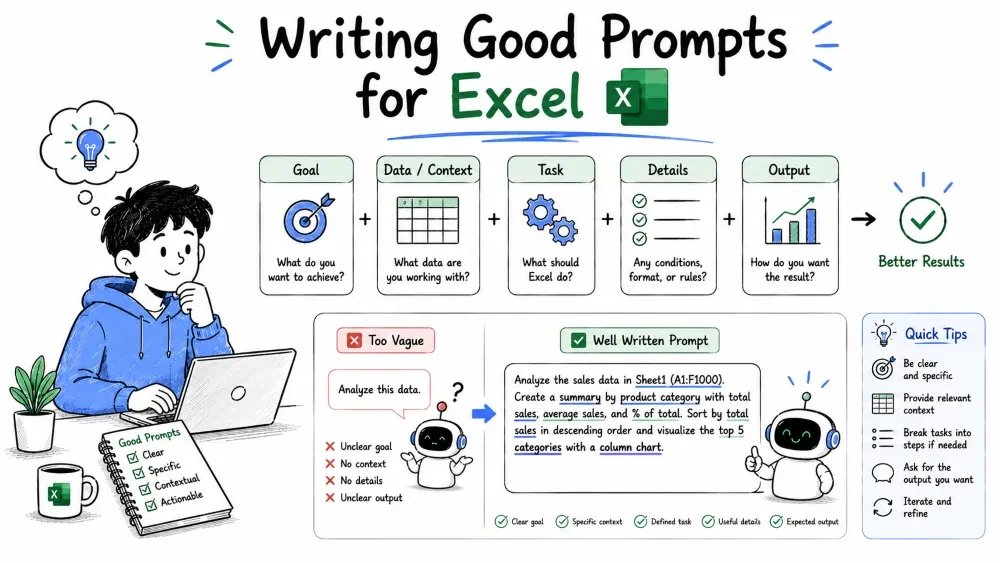
A good prompt is a clear, complete instruction that gets a useful answer on the first try. This tutorial covers what makes a prompt work for Excel, how to tell a clear prompt from a bad one, and how to fix a prompt when the AI gets it wrong.
This tutorial is written for Excel with AI — the example prompts below are things you type into an AI assistant such as Microsoft 365 Copilot in Excel or ChatGPT.
Two ways to send these prompts:
The prompting skills are the same either way — only how the AI reaches your data changes.
A prompt is the instruction you send the AI. A good one tells the AI exactly three things: what you have, what you want, and how it should be delivered.
The AI has not opened your workbook. It cannot see your columns, your numbers, or your layout. Everything it knows comes through your words, so a good prompt is a complete briefing — like handing the task to a smart colleague who has never seen your file.
Why it matters: a vague prompt returns a vague answer that wastes your time. A specific prompt often returns a ready-to-paste formula or chart on the first try.
Example — the same request, two ways:
| Vague prompt | Clear prompt |
|---|---|
| "Help me with my sales data." | "I have a sheet named Sales with columns Date, Region, Product, Units, Revenue. Write a formula to total Revenue for the East region." |
Explanation: the clear prompt names the sheet, the columns, and the exact task. The AI can answer immediately; the vague one would need several follow-up questions.
Most good prompts contain four parts. You do not need all four every time, but each one improves the answer:
Example — a complete prompt using all four:
Act as an Excel expert.

I have a sales table with columns Date, Region, Product,
Units Sold, Revenue. Column A contains dates.

Write a formula that totals Revenue for the West region
in the last 90 days.

Give me the formula first, then a one-line plain-English
explanation of what it does.
Explanation: the role sets the tone, the context supplies your data, the task says exactly what to do, and the format tells the AI how to deliver it so you can paste it straight into a cell.
Note: when the task is mechanical (formulas, cleanup), the context part is the most important. Without your layout, the AI can only guess at column letters and ranges.
The fastest way to learn good prompting is to see both sides. A bad prompt is usually bad for one of four reasons: no data, no task, no format, or too many requests at once.
| Bad prompt | Clear prompt | What the clear one fixed |
|---|---|---|
| "Make me a chart." | "Make a column chart of Revenue (column E) by Region (column B) for all rows." | Named the chart type and the exact columns. |
| "Average this column." | "Average the values in column C, rows 2 to 100, and ignore blank cells." | Gave the range and handled blanks. |
| "What should I sell more of?" | "Using columns Product and Revenue, which 3 products earn the most, and what share of total revenue do they make up?" | Defined the metric and the output size. |
| "Fix my sheet." | "Column D shows #N/A on rows 40–45. What causes this and how do I fix it?" | Named the error and its location. |
Explanation: every clear prompt gives the AI a concrete job with a concrete shape. Notice what the bad versions lack: they describe a feeling ("help me", "make it better") instead of an action.
Best Practice: before sending a prompt, ask yourself — could a stranger complete this task with only my words and a copy of the spreadsheet? If not, add detail.
The most common reason an Excel prompt fails is that the AI never saw the data. Name your columns, tell it where the headers are, and mention anything unusual.
What to include:
Example:
My sheet "Orders" has 1,200 rows. Columns:
A = Order ID, B = Date (text format, like "03/12/2025"),
C = Customer, D = Amount.
Row 1 is headers.

Write a formula to count orders from the customer "Acme".
Explanation: the note that dates are text matters. Without it, the AI might suggest date functions that return errors. A single line about your messy data prevents a whole round of debugging.
Best Practice: paste 2–3 real sample rows into the prompt. Real examples tell the AI more than a paragraph of description, especially when data is inconsistent.
Tell the AI how you want the answer. Without this, you might get a paragraph when you wanted a formula, or a formula when you wanted steps.
Common output requests:
Example:
Give me a VLOOKUP to find the Price (column E) of a Product
(column B) in the sheet "Products" by name.
Return the formula, and then 3 one-line notes on when
this formula breaks.
Explanation: the AI matches whatever structure you name. If you say "formula only," you get clean copy-paste text. If you say "table," you get a table. Formatting instructions are cheap to add and save you from reformatting the response yourself.
The first answer is rarely the best one. Treat a bad answer as information, not failure — then adjust and ask again.
How to fix a bad answer:
Example:
You: "The formula you gave me returns #VALUE!."
AI: "That usually happens when a range contains text.
Try wrapping the range with =SUM(VALUE(...)) or using
SUMPRODUCT. Here is the fixed version..."

You: "That works. Now explain why it works in one line."
Explanation: each exchange adds information the model did not have. Iterating turns one failed answer into a short conversation that ends with the exact result you need.
Save your progress and earn XP for completing tutorials.
3 questions · Pass with 70%+
1In the four-part prompt formula (Role, Context, Task, Format), which part matters most for Excel tasks?
2Why does "Make me a chart" usually fail?
3The AI returns a formula that shows #VALUE!. The best first step is to:
Technology
Excel with AI
Lesson group
Prompt Engineering for Excel
Progress
20% complete

