Preparing your learning space...
60% through Digital Safety tutorials
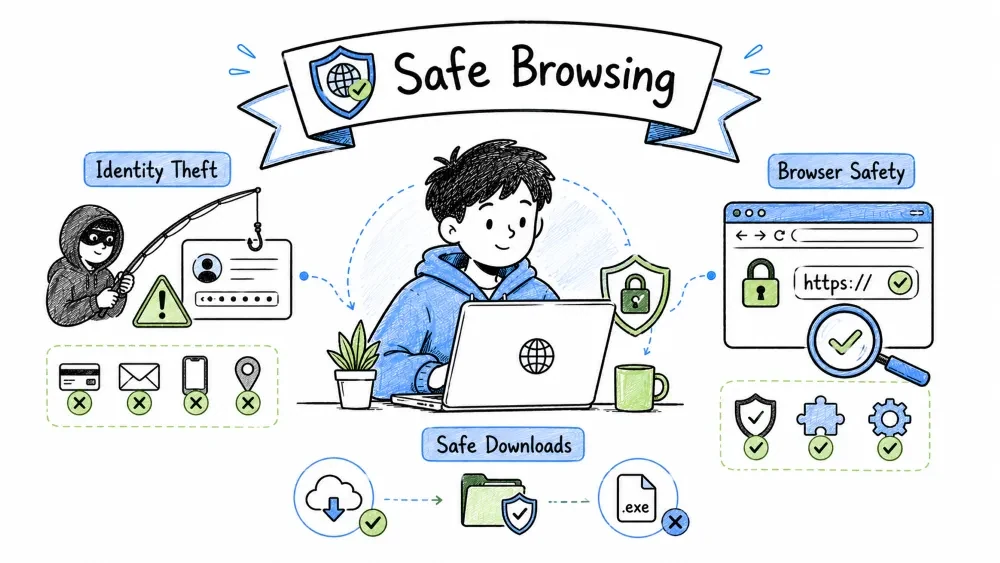
By the end of this tutorial, you will be able to:
Identity Theft: The fraudulent acquisition and use of someone's personal identifying information (PII) — name, SSN, financial accounts, credentials — typically for financial gain, committed through various vectors from data breaches to social engineering.
| Vector | Method | Prevention |
|---|---|---|
| Data Breaches | Credentials leaked from service breaches | Unique passwords, 2FA, breach monitoring |
| Phishing/Smishing/Vishing | Fake login pages, SMS, voice calls | Verify independently, 2FA, password manager |
| Social Engineering | Pretexting, impersonation, manipulation | Verify identity independently, limit info sharing |
| Physical Theft | Stolen wallet, mail, documents | Shred documents, lock mailbox, digital wallet |
| Skimming/Shimming | Card readers on ATMs, POS | Tap-to-pay, inspect readers, mobile wallet |
| SIM Swapping | Attacker ports your number to their SIM | SIM PIN, carrier PIN, avoid SMS 2FA |
| Mail Theft | Stolen statements, pre-approved offers | Paperless billing, locking mailbox, Informed Delivery |
| Public Records | Property, court, business filings | LLC/registered agent, opt-out where possible |
Prevention Checklist: A layered defense strategy covering credentials (unique passwords, 2FA, passkeys), monitoring (credit freeze, breach alerts), documents (shredding, encryption), and digital hygiene (aliases, VoIP numbers, data broker opt-outs).
## Credentials & Authentication
- Unique 16+ char password per service (password manager)
- 2FA on ALL accounts — Prefer: Passkey > Authenticator > Hardware Key > SMS
- Passkeys enabled where available (Google, Apple, Microsoft, GitHub, etc.)
- Password manager: Bitwarden / 1Password / KeePassXC / Proton Pass
- Breach monitoring: Have I Been Pwned alerts + password manager watchtower

## Identity Monitoring
 - Credit freeze at all 3 bureaus (Equifax, Experian, TransUnion) — FREE
 - Credit monitoring (free: Credit Karma, Experian; paid: IdentityForce, Aura)
 - IRS Identity Protection PIN (IRS.gov/ipp)
 - Social Security "my Social Security" account — claim yours first
 - USPS Informed Delivery — preview mail, detect theft

## Document Security
 - Shredder: Cross-cut, use for all PII documents
 - Digital copies: Encrypted storage (VeraCrypt, Cryptomator, BitLocker)
 - Physical documents: Fireproof safe, not carrying SSN card
 - Wallet audit: Carry only essential cards, no SSN card

## Digital Hygiene
 - Email aliases for each service (SimpleLogin, AnonAddy, Firefox Relay)
 - Phone number: VoIP/VoLTE for 2FA (Google Voice, MySudo, JMP.chat)
 - Social media: Minimal PII, friends-only, no birthdate/location public
 - Data broker opt-out (Incogni, DeleteMe, or manual)
Response Plan: A time-phased incident response — Immediate (credit freeze, FTC report, police, passwords), Short-term (disputes, SSA/IRS/medical checks, recovery services), Ongoing (monitoring, early tax filing, documentation) — to limit damage and restore identity.
## IMMEDIATE (Hours 0-24)
 - 1. Freeze credit at all 3 bureaus (online, free, instant)
    - Equifax: 800-349-9960 / equifax.com/freeze
    - Experian: 888-397-3742 / experian.com/freeze
    - TransUnion: 888-909-8872 / transunion.com/credit-freeze
 - 2. File Identity Theft Report: IdentityTheft.gov (FTC) — get recovery plan
 - 3. File police report — get copy for creditors
 - 4. Contact affected companies — fraud departments, close accounts
 - 5. Place fraud alert on credit reports (1 year, free)
 - 6. Change ALL passwords — start with email, banking, password manager
 - 7. Enable 2FA everywhere — prefer authenticator/hardware key

## SHORT-TERM (Days 1-30)
 - 8. Review credit reports (annualcreditreport.com — free weekly)
 - 9. Dispute fraudulent accounts/inquiries with bureaus
 - 10. Contact SSA if SSN misused (ssa.gov/fraud)
 - 11. Notify IRS if tax fraud suspected (Form 14039)
 - 12. Check medical records for fraud (HIPAA right to access)
 - 13. Update account recovery options (email, phone, security questions)
 - 14. Consider identity theft protection service (monitoring + restoration)

## ONGOING
 - 15. Monitor credit monthly
 - 16. File taxes early (prevents fraudulent returns)
 - 17. Keep detailed log: dates, contacts, case numbers, time spent
 - 18. Consider extended fraud alert (7 years) or credit lock services
Safe Download Protocol: A systematic process — verify source reputation, check hashes/signatures, scan with VirusTotal, test in sandbox, run with least privilege — to ensure downloaded files are legitimate and malware-free before execution.
Download Threat Landscape: Common malware delivery methods — trojanized installers (fake software sites), supply chain attacks (compromised legitimate software), drive-by downloads (malvertising), fake updates, cracked software, and malicious documents (PDF/Office macros). | Threat | Delivery | Impact | |--------|----------|--------| | Trojanized Installers | Fake software sites, SEO poisoning | RAT, ransomware, infostealer | | Supply Chain Attacks | Compromised legitimate software (SolarWinds, 3CX) | Trusted signed malware | | Drive-by Downloads | Malicious ads, compromised sites | Silent exploit kit execution | | Fake Updates | "Flash Player Update", "Browser Update" | Malware installer | | Cracked/Keygen Software | Torrent sites, warez forums | High malware prevalence | | Document Malware | PDF, Office docs with macros/exploits | Initial access, credential theft |
Download Verification Steps: Before executing any file — 1) Verify official source, 2) Check reputation (VirusTotal, community), 3) Prefer package managers, 4) Download to dedicated folder, 5) Verify SHA256 hash, 6) Scan on VirusTotal, 7) Check digital signature, 8) Test in sandbox (Windows Sandbox/VM), 9) Run with least privilege.
## BEFORE DOWNLOADING
 - 1. Verify source — Official website? Verify URL (HTTPS, correct domain)
 - 2. Check reputation — VirusTotal URL scan, URLVoid, community forums
 - 3. Search "[software name] malware" "supply chain attack" — recent news?
 - 4. Prefer package managers: winget, Chocolatey, Scoop, Homebrew, apt, Flatpak
 - 5. Avoid: "Free download" sites (Softonic, CNET, FileHippo), cracked software

## DURING DOWNLOAD
 - 6. Download to dedicated folder (not Desktop/Downloads)
 - 7. Note: File name, size, source URL, expected hash (if provided)

## BEFORE EXECUTING
 - 8. Verify hash (SHA256) — Compare with official site/GitHub releases
   - Windows: `certutil -hashfile file.exe SHA256`
   - Mac/Linux: `shasum -a 256 file` or `sha256sum file`
 - 9. VirusTotal scan — Upload file (free, 65+ engines)
 - 10. Check digital signature — Right-click → Properties → Digital Signatures
    - Valid? Trusted publisher? Matches developer?
 - 11. Sandbox test (optional but recommended):
    - Windows Sandbox (Win 10/11 Pro)
    - VirtualBox VM with snapshot
    - ANY.RUN / Hybrid Analysis (online sandboxes)
 - 12. Check file extension — .exe.pdf.exe, .scr, .jar, .bat, .ps1, .msi can be malicious

## EXECUTION
 - 13. Run with least privilege — Not as Admin unless required
 - 14. Monitor behavior — Process Monitor, ProcMon, GlassWire, Little Snitch
 - 15. First run in sandbox if uncertain
Hash Verification: Cryptographic checksum (SHA256) comparison —
certutil -hashfile file.exe SHA256(Windows) orsha256sum file(Linux/macOS) — to confirm the downloaded file exactly matches the publisher's released version, detecting tampering or corruption.
# Windows PowerShell
Get-FileHash -Algorithm SHA256 .\file.exe
# Compare with official: (Get-FileHash file.exe).Hash -eq "EXPECTED_HASH"

# Linux/macOS
sha256sum file.exe
# Or: shasum -a 256 file.exe

# Verify GPG signature (for Linux packages, GitHub releases)
gpg --verify file.sig file
# Import key first: gpg --keyserver keyserver.ubuntu.com --recv-keys KEYID
Trusted Sources: Curated, verified distribution channels — package managers (winget, Homebrew, apt), official stores (Microsoft Store, Mac App Store), vendor sites, GitHub Releases (verified) — that provide integrity guarantees vs. risky third-party download sites. | Category | Preferred Sources | |----------|-------------------| | Windows Apps | winget, Microsoft Store, Chocolatey, Scoop, Official site | | macOS Apps | Homebrew, Mac App Store, Official site, MacUpdater | | Linux Apps | Distro repo, Flatpak (Flathub), Snap, AppImage (verified) | | Development Tools | Official site, GitHub Releases (verified), Package managers | | Drivers | Manufacturer site ONLY (NVIDIA, AMD, Intel, Realtek) | | Firmware/BIOS | Manufacturer support site ONLY |
Browser Hardening: Configuring browser settings, installing privacy/security extensions, and adopting safe browsing practices to reduce the attack surface (network, storage, extensions, renderer, APIs, input) against exploits, tracking, and malware delivery.
Browser Attack Surface: The seven categories of browser components attackers target — Network (MITM, DNS), Storage (cookies, localStorage), Extensions (malicious updates), Renderer (engine exploits), Plugins (legacy), APIs (WebRTC leaks), Input (clickjacking) — each requiring specific mitigations.
┌─────────────────────────────────────────────────────────────┐
│                    ATTACK SURFACE                           │
├─────────────────────────────────────────────────────────────┤
│  Network: MITM, DNS hijack, malicious WiFi              │
│  Storage: Cookies, localStorage, IndexedDB, Cache       │
│  Extensions: Malicious updates, excessive permissions   │
│  Renderer: Engine exploits (V8, SpiderMonkey, WebKit)   │
│  Plugins: PDF, Flash (dead), Java (dead) — legacy risk  │
│  APIs: WebRTC (IP leak), Geolocation, Battery, Bluetooth│
│  Input: Clickjacking, UI redress, clipboard access      │
└─────────────────────────────────────────────────────────────┘
Firefox Hardening: Applying strict privacy settings (ETP Strict, HTTPS-Only, no telemetry), disabling dangerous features (prefetch, pings, beacon), and optionally using
about:configprefs (resistFingerprinting, disable WebRTC) or the Arkenfox user.js for maximum protection.
## about:preferences
 - General → Homepage: Blank page
 - General → Firefox Updates → Check automatically, install automatically
 - Search → Default: DuckDuckGo / Startpage / Brave Search
 - Search → Search Suggestions → OFF
 - Privacy & Security → Enhanced Tracking Protection → Strict
 - Privacy & Security → Cookies → Delete cookies when Firefox closes
 - Privacy & Security → Tracking Protection → Always (Strict)
 - Privacy & Security → Cryptominers/Fingerprinters → Block
 - Privacy & Security → Do Not Track → Always
 - Privacy & Security → Permissions → Block all (Location, Camera, Mic, Notifications)
 - Privacy & Security → Firefox Data Collection → ALL OFF
 - Privacy & Security → HTTPS-Only Mode → Enable in all windows
 - Sync → Don't sync (or use Firefox Sync with strong passphrase)

## about:config (Advanced — backup profile first!)
privacy.resistFingerprinting = true
privacy.trackingprotection.fingerprinting.enabled = true
privacy.trackingprotection.cryptomining.enabled = true
network.dns.disablePrefetch = true
network.prefetch-next = false
browser.send_pings = false
beacon.enabled = false
dom.event.clipboardevents.enabled = false
media.peerconnection.enabled = false          # Disables WebRTC (breaks some calls)
media.navigator.enabled = false
permissions.default.camera = 1
permissions.default.microphone = 1
permissions.default.desktop-notification = 1
Arkenfox user.js: A maintained, automated configuration file applying 200+ privacy/security prefs to Firefox — includes updater script, extensive documentation, and community support — the gold standard for Firefox hardening without manual
about:configediting.
# Automated, maintained, well-documented
# https://github.com/arkenfox/user.js
# Run: ./updater.sh (Linux/macOS) or updater.ps1 (Windows)
# Applies 200+ privacy/security prefs, includes updater
Chromium Hardening: Blocking 3rd-party cookies, enabling Enhanced Safe Browsing, disabling preload/prefetch, restricting permissions (clipboard, USB, serial), using secure DNS (Cloudflare/NextDNS/Quad9), and Brave-specific Shields (scripts, fingerprinting, bounce tracking, HTTPS upgrades).
## Settings → Privacy and Security
 - Third-party cookies → Block
 - Send "Do Not Track" → ON
 - Preload pages → OFF
 - Safe Browsing → Enhanced Protection
 - Site Settings → Permissions → Block all by default
 - Site Settings → Additional permissions →
    - Clipboard → Block
    - Payment handlers → Block
    - USB devices → Block
    - Serial ports → Block
 - Security → Use secure DNS → Cloudflare (1.1.1.1) / NextDNS / Quad9
 - Security → Manage certificates → Remove untrusted CAs (advanced)

## Brave-Specific (brave://settings/shields)
 - Shields UP for all sites
 - Block scripts → ON (break some sites, toggle per-site)
 - Block fingerprinting → Strict
 - Block bounce tracking → ON
 - Upgrade connections to HTTPS → Strict
 - Debounce → ON
Essential Extensions: The minimal, high-trust extension set — uBlock Origin (ad/tracker/malware blocking), HTTPS Everywhere (legacy, now built-in), Cookie AutoDelete (auto-clean storage), Decentraleyes (local CDN), ClearURLs (strip tracking params), password manager — each open-source, audited, and privacy-respecting. | Extension | Browser | Purpose | Config | |-----------|---------|---------|--------| | uBlock Origin | All | Ad/tracker/malware blocker | Medium mode (3rd-party scripts/frames blocked) | | HTTPS Everywhere | All (deprecated in modern browsers) | Force HTTPS | Built into Firefox/Chrome/Brave now | | Cookie AutoDelete | Firefox/Chrome | Auto-clean cookies on tab close | Keep only allowlisted | | Decentraleyes | Firefox/Chrome | Local CDN emulation | Default settings | | ClearURLs | Firefox/Chrome | Strip tracking params from URLs | Default | | Bitwarden / 1Password | All | Password manager | Browser integration ON | | Privacy Badger | Firefox/Chrome | Learning-based tracker block | Optional with uBO | | NoScript | Firefox | Script blocker (advanced) | Default deny, per-site allow | | uMatrix | Firefox/Chrome (legacy) | Matrix firewall | Advanced users only |
uBlock Origin Medium Mode: Default-deny 3rd-party scripts/frames (block), allow 1st-party scripts/frames (noop), with per-site overrides via the matrix UI — balances security and usability by preventing cross-site tracking/exploits while keeping trusted sites functional.
## Dashboard → Settings → "I am an advanced user" → ON

## Default Rules (My Rules tab)
* * 3p-script block
* * 3p-frame block
* * 3p block
* * inline-script noop
* * 1p-script noop
* * 1p-frame noop

## Per-Site Overrides (click uBO icon → matrix)
# Green = Allow, Red = Block, Gray = Inherit
# Trusted sites (banking, email): Allow 1p-script, 1p-frame
# Untrusted: Keep 3p blocked
# Click lock icon to make permanent
Browser Isolation: Running browsing activities in separate, contained environments (containers, profiles, VMs, sandboxed OS) to prevent compromise spread — if one context is breached, others (banking, work, personal) remain protected.
Container/Profile Isolation: Using Firefox Multi-Account Containers or Chrome/Brave Profiles to create color-coded, cookie-separated contexts (Banking, Shopping, Social, Personal, Admin) — lightweight isolation for daily use without VM overhead.
## Firefox: Multi-Account Containers (Built-in)
Containers:
Banking — No extensions, strict cookies, HTTPS-only
Shopping — uBO, cookie autodelete, alias email
Social — Container tabs, isolated cookies
Personal — Main profile, password manager
Admin/Work — Separate profile entirely

## Chrome/Edge/Brave: Profiles
Profile 1: Personal (sync ON)
Profile 2: Banking/Finance (no sync, strict extensions)
Profile 3: Work (managed by org if applicable)
Profile 4: Testing/Untrusted (no sync, disposable)

## Shortcuts for Quick Access
# Windows: Right-click taskbar icon → New window in Profile/Container
# Mac: Right-click dock icon → New Window in Profile
# Linux: Command line flags
firefox -P "Banking" -no-remote
chrome --profile-directory="Profile 2"
High-Security Browsers: Specialized browsers for threat models requiring maximum protection — Tor Browser (anonymity via onion routing), Mullvad Browser (fingerprint resistance without Tor), Windows Sandbox (disposable Windows), VMs (full OS isolation), Qubes OS (hardware-level compartmentalization). | Method | Use Case | Pros | Cons | |--------|----------|------|------| | Tor Browser | Maximum anonymity | Onion routing, fingerprint resistance | Slow, breaks sites, conspicuous | | Mullvad Browser | Anti-fingerprinting | No Tor, hardened Firefox, Mullvad VPN integration | No Tor, some breakage | | Windows Sandbox | Disposable Windows | Full OS isolation, reset on close | Win 10/11 Pro only, no persistence | | VirtualBox/VMware | Full isolation | Snapshots, any OS, network control | Resource heavy, setup time | | Qubes OS | Maximum compartmentalization | Xen-based, security by isolation | Steep learning, hardware needs |
Browser Compromise Response: A step-by-step incident response — disconnect network, kill browser, backup credentials, malware scan, reset browser (Refresh/Reset), delete profiles, reinstall, reinstall only essential extensions, reconfigure hardening, rotate passwords, enable 2FA, monitor 30 days.
Compromise Indicators: Unexpected homepage/search changes, unknown extensions, pop-ups on clean sites, redirects, high CPU (cryptominer), cert warnings, unknown root CAs, suspicious network connections, unknown password manager entries, unsolicited 2FA prompts.
 - Unexpected homepage/search engine changes
 - New extensions you didn't install
 - Pop-ups/ads on clean sites
 - Redirects to unknown sites
 - Slow performance, high CPU (cryptominer)
 - Certificate warnings on known sites
 - Unknown certificates in Trusted Root CA
 - Suspicious network connections (GlassWire, Little Snitch)
 - Password manager shows unknown logins
 - 2FA prompts you didn't initiate
Cleanup Procedure: The ordered recovery steps — IMMEDIATE (disconnect, kill, backup, scan), RESET (Firefox Refresh, Chrome/Edge/Brave Reset, delete profiles, reinstall), POST-RESET (essential extensions only, re-harden, password rotation, 2FA enable, 30-day monitoring).
## IMMEDIATE
 - 1. Disconnect network (WiFi/Ethernet)
 - 2. Close browser completely (Task Manager → End Task)
 - 3. Backup bookmarks/passwords (export from password manager)
 - 4. Run malware scan: Malwarebytes Free / Windows Defender Offline

## BROWSER RESET
 - 5. Firefox: about:support → Refresh Firefox
 - 6. Chrome/Edge: Settings → Reset settings → Restore to defaults
 - 7. Brave: Settings → Reset settings
 - 8. Delete profiles: %APPDATA%\Mozilla\Firefox\Profiles\ (backup first)
 - 9. Reinstall browser from official source

## POST-RESET
 - 10. Reinstall ONLY essential extensions (uBO, password manager)
 - 11. Reconfigure hardening settings (Part 3)
 - 12. Change passwords for all sites accessed during compromise
 - 13. Check account recovery options (email, phone, backup codes)
 - 14. Enable 2FA where missing
 - 15. Monitor accounts for 30 days
Scenario: You download "Free PDF Editor Pro" from a Google ad result. The installer asks for Admin rights. After install, your browser homepage changes to "SearchBar Pro" and you see a new "PDF Tools" extension.
Analyze:
Failures:
Correct Process:
Cleanup:
Save your progress and earn XP for completing tutorials.
Technology
Cyber Security & Networking
Lesson group
Digital Safety
Progress
60% complete

