Preparing your learning space...
75% through Getting Started tutorials
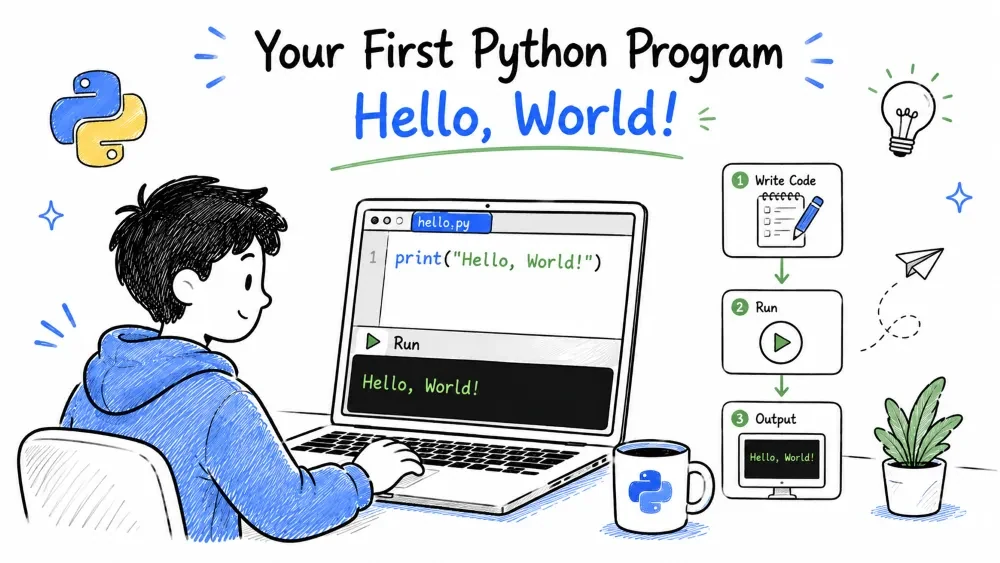
Now that everything's installed, let's actually write some Python. And to be honest with you — this is where the real fun begins.
We're going to do two things in this tutorial:
Table of Contents
The Python interactive shell (also called REPL — Read, Evaluate, Print, Loop) is like having a conversation with Python. You type something, and Python replies immediately. No saving files, no running scripts. Just you and Python, talking back and forth.
Open your terminal (Command Prompt, Terminal, or PowerShell) and just type:
python
If that doesn't work, try:
py
Or on some systems:
python3
You should see something like this:
Python 3.13.2 (tags/v3.13.2:...)
Type "help", "copyright", "credits" or "license" for more information.
>>>
Those three arrows >>> are Python's way of saying "I'm ready. What do you want?"
Go ahead and type this, then press Enter:
>>> print("Hello, World!")
And just like that, Python responds:
Hello, World!
Now try some math — Python doubles as a calculator:
>>> 2 + 2
4

>>> 10 * 5
50

>>> 7 ** 2
49

>>> (10 + 5) * 2
30
Feels instant, right? That's the beauty of the REPL. Every line you type is executed immediately.
You can also store values and use them later:
>>> name = "Alice"
>>> print(name)
Alice

>>> age = 25
>>> age + 5
30
_ VariableHere's something most beginners don't know: in the interactive shell, the underscore _ stores the last result.
>>> 15 + 7
22
>>> _ * 2
44
When you're done playing, type:
>>> exit()
Or press Ctrl+Z then Enter on Windows, or Ctrl+D on Mac/Linux.
Alright, the interactive shell is fun for quick experiments. But real programs live in files.
Open VS Code and create a new file:
Ctrl+N to create a new fileCtrl+S to save itThe .py extension tells everyone (and every program) that this is a Python file.
Type this into the file:
print("Hello, World!")
That's it. One line. You've just written a complete Python program.
You have a few ways to run this:
Method 1 — VS Code Run Button Look at the top-right corner of the editor. See that little triangle "Run" button? Click it. Your program runs, and the output appears in a terminal panel at the bottom.
Method 2 — Right-Click (My Favorite) Right-click anywhere in the code and select "Run Python File in Terminal". Quick and easy.
Method 3 — Terminal
Open the terminal in VS Code (Ctrl+`` ) and type:
python hello.py
Hello, World!
That's it. You've written and run your first Python program. Take a moment — seriously. You just took the first step into programming.
One line is cool, but let's write something with a bit more personality:
# This is a comment — Python ignores this line
# It's for humans to read

name = input("What's your name? ")
print(f"Nice to meet you, {name}!")
age = input("How old are you? ")
print(f"Wow, {age} years old! You're young at heart.")
Save this as greet.py and run it. Here's what happens:
What's your name? Rohan
Nice to meet you, Rohan!
How old are you? 25
Wow, 25 years old! You're young at heart.
Notice a few things:
input() waits for you to type something and press Enterf"..." is an f-string — it lets you put variables inside your text# are comments (Python ignores them)input() always gives you a string, even if you type a number. So age is text like "25", not the number 25. We'll talk more about this when we get to data types.Let's clear up the difference because it confuses a lot of beginners:
| Interactive Shell | Running a File |
|---|---|
| Type one line at a time | Write many lines at once |
| Results appear instantly | All results appear when the program ends |
| Nothing is saved | Saved as a .py file — you can run it again later |
| Good for testing ideas | Good for building real programs |
Type exit() to quit | Works until the file ends |
Think of it this way: The interactive shell is like a notepad where you scribble quick notes. A .py file is like a proper document you save and share.
print(Hello)  # Error!
print("Hello")  # Correct
Python thinks Hello is a variable name, not text. Always put text in quotes.
print("Hello') # Error!
You started with a double quote but ended with a single quote. Pick one and stick with it. Both "..." and '...' work, just don't mix them.
print "Hello"  # Error (in Python 3)
print("Hello")  # Correct
In Python 3, print is a function. Functions need parentheses.
print("Hello")
  print("World")  # Unexpected indent
Python is picky about spacing at the start of lines. Don't add random spaces or tabs.
Write a program that:
Here's a template to get you started:
movie = input("What's your favorite movie? ")
year = input("What year was it released? ")
print(f"...")  # You fill in the rest
When you run it, it should look like:
What's your favorite movie? The Matrix
What year was it released? 1999
The Matrix was released in 1999! Great choice.
Save your progress and earn XP for completing tutorials.
Technology
Python
Lesson group
Getting Started
Progress
75% complete

