Preparing your learning space...
50% through Getting Started tutorials
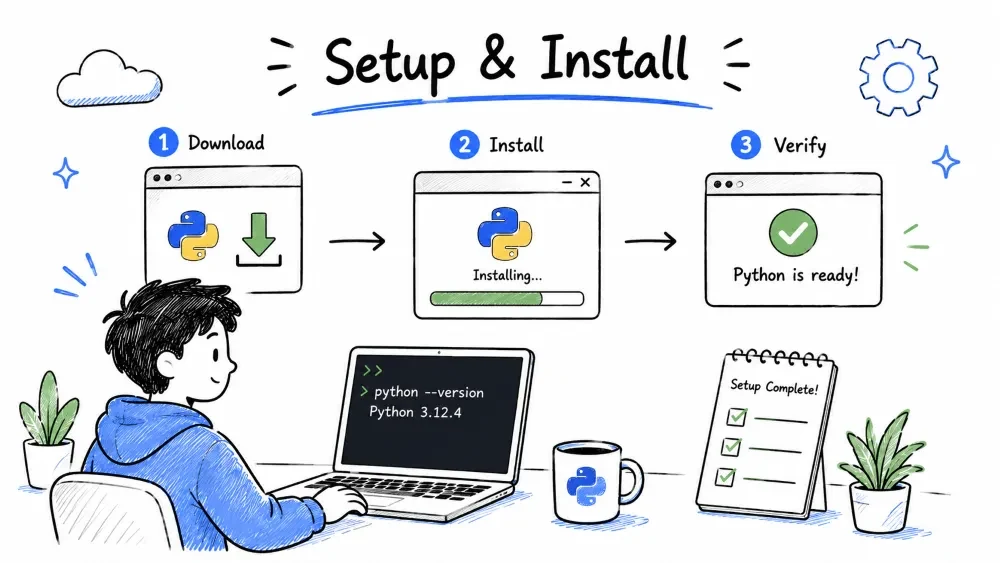
Okay, enough theory. Let's get our hands dirty.
Before you can write and run Python code, you need two things:
Let me walk you through both, step by step.
Table of Contents
Head over to the official Python website:
https://www.python.org/downloads/
The site will automatically suggest the latest version for your operating system. At the time of writing, that's Python 3.13 or newer. Don't download Python 2.x — that's ancient history.
Quick tip: If you're on Windows, look for the big yellow button that says "Download Python 3.x.x". You can't miss it.
Here's the most important part — check the box that says "Add Python to PATH".
I cannot stress this enough. I've seen so many beginners skip this step and then wonder why python doesn't work in their terminal. Check that box before clicking "Install Now". It's right there on the first screen of the installer — you can't miss it.
Open a terminal (Command Prompt on Windows, Terminal on Mac/Linux) and type:
python --version
You should see something like:
Python 3.13.2
If you see a version number, congratulations — Python is installed!
If you get an error like 'python' is not recognized, try:
py --version
On some Windows systems, py is the launcher command. If that works too, you're good to go.
pip is Python's package manager — you use it to install extra libraries. It usually comes bundled with Python, but let's make sure:
pip --version
You should see something like pip 24.x.x. If not, don't panic. We'll deal with it when we get there.
Python comes with a basic editor called IDLE, but trust me — you'll want something better. VS Code (Visual Studio Code) is the most popular code editor for Python, and it's free.
Go to:
https://code.visualstudio.com/download
Pick the version for your operating system (Windows, Mac, or Linux).
The default settings are fine for most people. But here's what I recommend during installation:
This is where VS Code really shines for Python development.
Ctrl+Shift+X)This extension gives you:
Create a folder somewhere on your computer where you'll keep all your Python files. Something like:
C:\PythonProjects (Windows)~/PythonProjects (Mac/Linux)Then in VS Code, go to File → Open Folder and pick that folder. This becomes your workspace.
Let's do a quick sanity check before we move on.
Create a new file in VS Code:
Ctrl+N (or Cmd+N on Mac) — creates a new fileprint("Python is ready!")
Ctrl+S to save — name it test.pyYou should see the output Python is ready! appear in a terminal panel at the bottom.
If that worked — everything is set up correctly! Give yourself a pat on the back.
You missed the "Add Python to PATH" checkbox. Fix it:
Make sure you installed the Python extension by Microsoft. Without it, VS Code treats .py files as plain text.
Press Ctrl+Shift+P, type Python: Select Interpreter, and pick the Python version you installed.
Save your progress and earn XP for completing tutorials.
Technology
Python
Lesson group
Getting Started
Progress
50% complete

