Preparing your learning space...
64% through Mini Projects tutorials
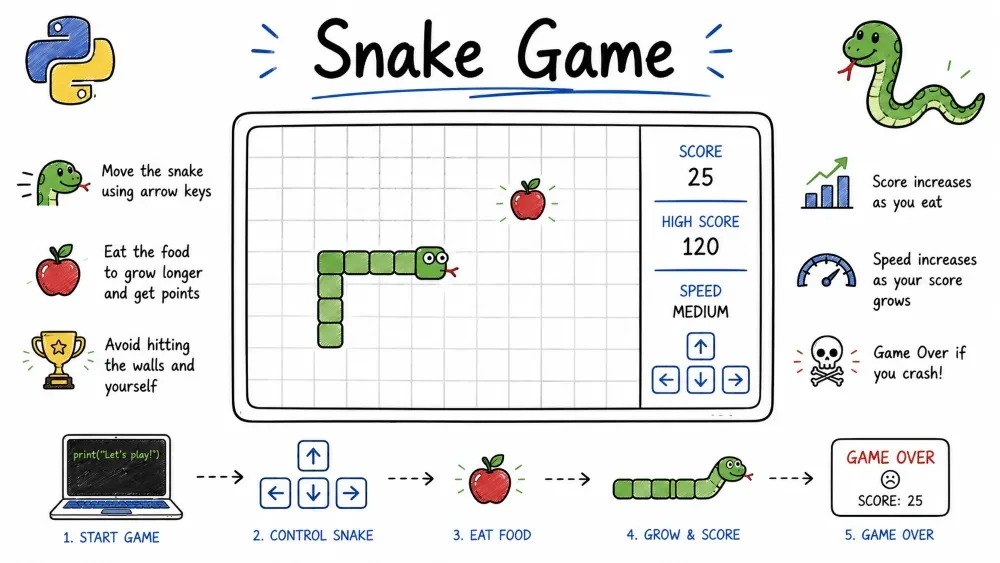
A classic Snake game built with Pygame. The player controls a snake that moves around the screen, eats food to grow longer, and dies if it hits the walls or its own body. You will learn how to handle game loops, keyboard events, collision detection, and simple sprite management using Pygame. This is the same type of game loop used in nearly every video game — from Pong to AAA titles.
The Snake game is a classic arcade game where the player guides a growing snake to eat food while avoiding obstacles. Each piece of food makes the snake longer and increases the score. The game ends when the snake hits the screen border or its own tail. Pygame handles the graphics, animation, and user input.
Where this is used in the real world: The game loop pattern used here — process input, update state, render — is the foundation of every video game. Pygame is also widely used in education to teach game development concepts before moving to engines like Unity or Unreal.
Knowledge needed
Software needed
pip install pygame)SnakeGame/ │ ├── main.py # The full game program └── README.md # This tutorial
mkdir SnakeGame
cd SnakeGame
Create main.py.
Pygame is a library that makes it easy to write games in Python. It handles graphics, sound, and input.
pip install pygame
What Pygame provides: A window to draw on (pygame.display), functions to draw shapes (pygame.draw), keyboard/mouse event handling (pygame.event, pygame.key), and a clock to control frame rate (pygame.time.Clock).
Every video game runs on a loop. The basic structure is:
┌──────────────────────────────────────────────┐
│            GAME LOOP                          │
│                                              │
│  1. PROCESS INPUT                            │
│     - Check for QUIT event (window close)    │
│     - Read arrow keys for direction change   │
│                                              │
│  2. UPDATE STATE                             │
│     - Move the snake head                    │
│     - Check collisions (food, wall, self)    │
│     - Update score if food eaten             │
│                                              │
│  3. RENDER                                   │
│     - Clear the screen (fill with black)     │
│     - Draw the snake                         │
│     - Draw the food                          │
│     - Draw the score text                    │
│     - Update the display                     │
│                                              │
│  4. CONTROL SPEED                            │
│     - clock.tick(10) → 10 frames per second  │
└──────────────────────────────────────────────┘
This loop runs about 10 times per second (controlled by FPS). Each iteration is called a "frame." The snake appears to move smoothly because the screen is redrawn each frame with the updated positions.
Write the basic setup that creates a game window and keeps it running.
import pygame
import random

pygame.init()

WINDOW_WIDTH = 600
WINDOW_HEIGHT = 400

screen = pygame.display.set_mode((WINDOW_WIDTH, WINDOW_HEIGHT))
pygame.display.set_caption("Snake Game")

clock = pygame.time.Clock()

running = True
while running:
    for event in pygame.event.get():
        if event.type == pygame.QUIT:
            running = False

    pygame.display.update()
    clock.tick(60)

pygame.quit()
pygame.init() — Initializes all Pygame modules. Without this, nothing works. It sets up the video system, the font system, the event queue, etc.
pygame.display.set_mode((600, 400)) — Creates the game window with width 600 and height 400 pixels. Returns a "surface" — the canvas we draw on.
pygame.event.get() — Returns a list of all events that happened since the last call. Events include key presses, mouse clicks, window movements, and the pygame.QUIT event (window close button).
pygame.display.update() — Refreshes the screen. Any drawing done since the last frame (screen.fill(), pygame.draw.rect(), screen.blit()) becomes visible only after this call.
clock.tick(60) — Limits the loop to 60 iterations per second. The argument is the maximum FPS (frames per second). For the snake game we use 10 FPS (snakes move slowly), not 60.
Pygame uses RGB tuples for colors. Define them at the top so they are easy to change later.
# Colors (R, G, B) — each value is 0-255
BLACK = (0, 0, 0)
WHITE = (200, 200, 200)
GREEN = (0, 255, 0)
RED = (255, 0, 0)

# Game settings
GRID_SIZE = 20   # each snake segment and food piece is 20x20 pixels
RGB color system: Each color is a mix of Red, Green, and Blue, each from 0 to 255. (0, 255, 0) is pure green. (255, 0, 0) is pure red. Lower values are dimmer: (0, 128, 0) is a darker green.
Why GRID_SIZE = 20: The game world is 600×400 pixels divided into a 30×20 grid of 20×20 cells. The snake can only be at positions that are multiples of 20: (0,0), (20,0), (40,0), ... This grid-aligned movement makes collision detection simple — we just compare coordinates.
The snake is a list of [x, y] coordinate pairs. Each entry is one body segment. The first entry is the head.
snake_x = WINDOW_WIDTH // 2      # 300  (center X)
snake_y = WINDOW_HEIGHT // 2     # 200  (center Y)
snake_body = [[snake_x, snake_y]]
snake_direction = "RIGHT"
snake_grow = False
snake_body = [[snake_x, snake_y]] — The snake starts as a single segment at the center of the screen. As the snake eats food, we add more [x, y] pairs to this list.
snake_direction = "RIGHT" — The snake starts moving right. This string determines which direction the head moves on each update.
snake_grow = False — A flag. When the snake eats food, this becomes True, and the next movement will extend the body instead of shrinking it (by not removing the tail).
Visual representation of the snake list:
Snake length 1:  [[300, 200]]                          (just head)
Snake length 3:  [[320, 200], [300, 200], [280, 200]]  (head → tail)
On each game tick, the snake moves one grid cell in its current direction. The key insight: we add a new head at the front, and if not growing, remove the tail from the back.
def move_snake():
    global snake_x, snake_y

    # Step 1: Calculate new head position
    if snake_direction == "UP":
        snake_y -= GRID_SIZE
    elif snake_direction == "DOWN":
        snake_y += GRID_SIZE
    elif snake_direction == "LEFT":
        snake_x -= GRID_SIZE
    elif snake_direction == "RIGHT":
        snake_x += GRID_SIZE

    # Step 2: Insert new head at front of body list
    new_head = [snake_x, snake_y]
    snake_body.insert(0, new_head)

    # Step 3: If not growing, remove the tail
    if not snake_grow:
        snake_body.pop()
    else:
        snake_grow = False  # reset the flag, growth already applied
How the snake "moves" without redrawing everything:
Frame 1:  snake_body = [[60, 200], [40, 200], [20, 200]]
                         ↑head                 tail↑

After move_snake() (direction RIGHT):
  New head = [80, 200]
  Insert at front: [[80, 200], [60, 200], [40, 200], [20, 200]]
  Pop tail:       [[80, 200], [60, 200], [40, 200]]
                         ↑head                 tail↑

Effect: Snake appears to slide right by 20 pixels.
When eating food (snake_grow = True):
Before: [[60, 200], [40, 200]]  (length 2)
After move_snake() with grow=True:
  Insert new head: [[80, 200], [60, 200], [40, 200]]
  Do NOT pop tail: [[80, 200], [60, 200], [40, 200]]  (length 3!)
Change snake_direction based on arrow keys. Crucially, prevent the snake from reversing into itself (which would be instant death).
def handle_keys():
    global snake_direction

    keys = pygame.key.get_pressed()

    if keys[pygame.K_UP] and snake_direction != "DOWN":
        snake_direction = "UP"
    elif keys[pygame.K_DOWN] and snake_direction != "UP":
        snake_direction = "DOWN"
    elif keys[pygame.K_LEFT] and snake_direction != "RIGHT":
        snake_direction = "LEFT"
    elif keys[pygame.K_RIGHT] and snake_direction != "LEFT":
        snake_direction = "RIGHT"
pygame.key.get_pressed() — Returns a dictionary-like object where each key is a constant like pygame.K_UP, and each value is True if that key is currently held down. This is different from pygame.event.get() — events fire once per press; get_pressed() returns the current state of every key.
The reverse-direction guard:
If snake is moving RIGHT and player presses LEFT:
  Without guard: direction changes to LEFT → head reverses into body → DEATH
  With guard:    "LEFT" != "RIGHT"? No → condition fails → direction stays RIGHT

    snake_direction  pressed key    guard check          result
    ───────────────  ────────────   ────────────────     ──────────
    RIGHT            LEFT           LEFT ≠ RIGHT? No ❌  rejected
    RIGHT            UP             UP ≠ DOWN? Yes ✅    accepted
    UP               DOWN           DOWN ≠ UP? No ❌     rejected
    UP               LEFT           LEFT ≠ RIGHT? Yes ✅  accepted
The guard always checks snake_direction != opposite_of_requested. If true, the direction change is allowed.
Food is a red square placed at a random grid-aligned position. Crucially, it must not spawn inside the snake's body.
def spawn_food(snake_body):
    while True:
        fx = random.randint(0, (WINDOW_WIDTH // GRID_SIZE) - 1) * GRID_SIZE
        fy = random.randint(0, (WINDOW_HEIGHT // GRID_SIZE) - 1) * GRID_SIZE
        if [fx, fy] not in snake_body:
            return fx, fy
Coordinate calculation:
WINDOW_WIDTH = 600, GRID_SIZE = 20
600 // 20 = 30 grid columns (indices 0 to 29)
random.randint(0, 29) → e.g., 14
14 * 20 = 280 → pixel coordinate for column 14

So food_x can be: 0, 20, 40, 60, ..., 580  (30 possible positions)
Same for food_y:  0, 20, 40, 60, ..., 380  (20 possible positions)
Why check [fx, fy] not in snake_body: Without this check, the food could appear on a cell currently occupied by the snake, which looks broken. The while True loop keeps generating new positions until it finds one that is free.
Three types of collision: food (good → grow), wall (bad → death), self (bad → death).
def check_collisions(snake_x, snake_y, snake_body, food_x, food_y):
    # Food collision
    if snake_x == food_x and snake_y == food_y:
        return "food"

    # Wall collision
    if (snake_x < 0 or snake_x >= WINDOW_WIDTH or
        snake_y < 0 or snake_y >= WINDOW_HEIGHT):
        return "wall"

    # Self collision
    for segment in snake_body[1:]:  # skip head (index 0)
        if snake_x == segment[0] and snake_y == segment[1]:
            return "self"

    return None
Why check food first: The food check is the only "good" collision. We want to process it before checking for death. If both food and wall happen on the same frame (impossible with grid-aligned movement), food takes priority.
Wall collision boundaries:
        ┌─── 0 ─────────────────── WINDOW_WIDTH (600) ───┐
        │                                                 │
        0 ┌─────────────────────────────────────────────┐ |
        │ │                                             │ │
        │ │             PLAY AREA                       │ │
        │ │         (snake lives here)                  │ │
        │ │                                             │ │
WINDOW  │ └─────────────────────────────────────────────┘ │
_HEIGHT │                                                 │
(400)   └─────────────────────────────────────────────────┘

snake_x < 0        → left wall
snake_x >= 600     → right wall
snake_y < 0        → top wall
snake_y >= 400     → bottom wall
Self collision iterates through snake_body[1:] (all segments except the head at index 0). If the head position matches any body segment, the snake has run into itself.
Use Pygame's font module to render text on the screen.
font = pygame.font.Font(None, 36)

def draw_score(score):
    score_text = font.render(f"Score: {score}", True, WHITE)
    screen.blit(score_text, (10, 10))
pygame.font.Font(None, 36) — Creates a font object. None uses Pygame's default font (usually a clean sans-serif). 36 is the font size in points.
font.render(text, antialias, color) — Converts a string into a Pygame "surface" (an image). antialias=True smoothes the edges. The returned surface can be positioned and drawn.
screen.blit(score_text, (10, 10)) — "Blit" means "block transfer" — copying pixels from one surface to another. This draws the text surface onto the screen at position (10, 10) from the top-left corner.
When a collision happens, stop the game loop and show a "Game Over" screen. The player can press SPACE to restart or close the window to quit.
def game_over_screen(score):
    screen.fill(BLACK)

    title = font.render("GAME OVER", True, RED)
    score_text = font.render(f"Final Score: {score}", True, WHITE)
    restart_text = font.render("Press SPACE to play again", True, WHITE)

    screen.blit(title, (WINDOW_WIDTH // 2 - 80, WINDOW_HEIGHT // 2 - 60))
    screen.blit(score_text, (WINDOW_WIDTH // 2 - 80, WINDOW_HEIGHT // 2 - 20))
    screen.blit(restart_text, (WINDOW_WIDTH // 2 - 140, WINDOW_HEIGHT // 2 + 20))

    pygame.display.update()

    waiting = True
    while waiting:
        for event in pygame.event.get():
            if event.type == pygame.QUIT:
                return False
            if event.type == pygame.KEYDOWN and event.key == pygame.K_SPACE:
                return True
    return False
The waiting loop — This is a second event loop nested inside the game-over screen. It does NOT call clock.tick() and does NOT update game state. It just waits for one of two events: QUIT (returns False → exit program) or SPACE (returns True → restart game loop).
Centering text: WINDOW_WIDTH // 2 gives the center X coordinate (300). Subtracting half the text width (estimated from font size) approximates centering. For "GAME OVER" (~160px wide), 300 - 80 = 220 puts it roughly centered.
Before the final game loop, here is how all the pieces connect:
import pygame
import random

pygame.init()

WINDOW_WIDTH = 600
WINDOW_HEIGHT = 400
GRID_SIZE = 20

BLACK = (0, 0, 0)
WHITE = (200, 200, 200)
GREEN = (0, 255, 0)
RED = (255, 0, 0)

screen = pygame.display.set_mode((WINDOW_WIDTH, WINDOW_HEIGHT))
pygame.display.set_caption("Snake Game")
clock = pygame.time.Clock()
font = pygame.font.Font(None, 36)

def spawn_food(snake_body):
    while True:
        fx = random.randint(0, (WINDOW_WIDTH // GRID_SIZE) - 1) * GRID_SIZE
        fy = random.randint(0, (WINDOW_HEIGHT // GRID_SIZE) - 1) * GRID_SIZE
        if [fx, fy] not in snake_body:
            return fx, fy

def draw_snake(snake_body):
    for segment in snake_body:
        pygame.draw.rect(screen, GREEN,
                        (segment[0], segment[1], GRID_SIZE, GRID_SIZE))
We now have all the building blocks: spawn_food(), draw_snake(), and game_over_screen(). The final piece is the game_loop() function that ties everything together in the classic game loop pattern: process input → update state → render.
The game_loop() function will:
clock.tick(10) to run at 10 frames per second.If the player closes the window during gameplay, game_loop() returns False. If the snake dies (wall or self collision), it returns the final score.
After game_loop() finishes, the main runner either shows the game over screen (and optionally restarts) or exits. This restart loop lets the player keep playing without relaunching the program.
import pygame
import random

pygame.init()

WINDOW_WIDTH = 600
WINDOW_HEIGHT = 400
GRID_SIZE = 20

BLACK = (0, 0, 0)
WHITE = (200, 200, 200)
GREEN = (0, 255, 0)
RED = (255, 0, 0)

screen = pygame.display.set_mode((WINDOW_WIDTH, WINDOW_HEIGHT))
pygame.display.set_caption("Snake Game")
clock = pygame.time.Clock()
font = pygame.font.Font(None, 36)

def spawn_food(snake_body):
    """Generate food at a random position not occupied by the snake."""
    while True:
        fx = random.randint(0, (WINDOW_WIDTH // GRID_SIZE) - 1) * GRID_SIZE
        fy = random.randint(0, (WINDOW_HEIGHT // GRID_SIZE) - 1) * GRID_SIZE
        if [fx, fy] not in snake_body:
            return fx, fy

def draw_snake(snake_body):
    """Draw each segment of the snake as a green rectangle."""
    for segment in snake_body:
        pygame.draw.rect(screen, GREEN,
                        (segment[0], segment[1], GRID_SIZE, GRID_SIZE))

def game_over_screen(score):
    """Show game over message. Return True to restart, False to quit."""
    screen.fill(BLACK)
    title = font.render("GAME OVER", True, RED)
    score_text = font.render(f"Final Score: {score}", True, WHITE)
    restart_text = font.render("Press SPACE to play again", True, WHITE)
    screen.blit(title, (WINDOW_WIDTH // 2 - 80, WINDOW_HEIGHT // 2 - 60))
    screen.blit(score_text, (WINDOW_WIDTH // 2 - 80, WINDOW_HEIGHT // 2 - 20))
    screen.blit(restart_text, (WINDOW_WIDTH // 2 - 140, WINDOW_HEIGHT // 2 + 20))
    pygame.display.update()

    waiting = True
    while waiting:
        for event in pygame.event.get():
            if event.type == pygame.QUIT:
                return False
            if event.type == pygame.KEYDOWN and event.key == pygame.K_SPACE:
                return True

def game_loop():
    """Run one full game session. Returns final score or False to quit."""
    snake_x = WINDOW_WIDTH // 2
    snake_y = WINDOW_HEIGHT // 2
    snake_body = [[snake_x, snake_y]]
    snake_direction = "RIGHT"
    snake_grow = False
    score = 0

    food_x, food_y = spawn_food(snake_body)

    running = True
    while running:
        # --- PROCESS INPUT ---
        for event in pygame.event.get():
            if event.type == pygame.QUIT:
                return False

        keys = pygame.key.get_pressed()
        if keys[pygame.K_UP] and snake_direction != "DOWN":
            snake_direction = "UP"
        elif keys[pygame.K_DOWN] and snake_direction != "UP":
            snake_direction = "DOWN"
        elif keys[pygame.K_LEFT] and snake_direction != "RIGHT":
            snake_direction = "LEFT"
        elif keys[pygame.K_RIGHT] and snake_direction != "LEFT":
            snake_direction = "RIGHT"

        # --- UPDATE STATE ---
        # Move head
        if snake_direction == "UP":
            snake_y -= GRID_SIZE
        elif snake_direction == "DOWN":
            snake_y += GRID_SIZE
        elif snake_direction == "LEFT":
            snake_x -= GRID_SIZE
        elif snake_direction == "RIGHT":
            snake_x += GRID_SIZE

        # Update body
        new_head = [snake_x, snake_y]
        snake_body.insert(0, new_head)
        if not snake_grow:
            snake_body.pop()
        else:
            snake_grow = False
            score += 1

        # Check wall collision
        if (snake_x < 0 or snake_x >= WINDOW_WIDTH or
            snake_y < 0 or snake_y >= WINDOW_HEIGHT):
            return score

        # Check self collision
        for segment in snake_body[1:]:
            if snake_x == segment[0] and snake_y == segment[1]:
                return score

        # Check food collision
        if snake_x == food_x and snake_y == food_y:
            snake_grow = True
            food_x, food_y = spawn_food(snake_body)

        # --- RENDER ---
        screen.fill(BLACK)
        draw_snake(snake_body)
        pygame.draw.rect(screen, RED, (food_x, food_y, GRID_SIZE, GRID_SIZE))

        score_text = font.render(f"Score: {score}", True, WHITE)
        screen.blit(score_text, (10, 10))

        pygame.display.update()
        clock.tick(10)  # 10 FPS — slow, deliberate snake movement

# Main game runner — infinite restart loop
while True:
    final_score = game_loop()
    if final_score is False:  # player closed the window
        break
    if not game_over_screen(final_score):  # player chose not to restart
        break

pygame.quit()
Screenshot Suggestion: The game window mid-play with a green snake of length 4-5 and one red food square, score showing 2.
Run the file:
python main.py
Test 1 – Basic movement
Press arrow keys.
Expected: Snake moves in the pressed direction. It should NOT reverse into itself.
Test 2 – Eat food
Guide the snake head over the red food square.
Expected: Snake grows by one segment. Score increases by 1. New food appears elsewhere.
Test 3 – Wall collision
Guide the snake into any edge of the window.
Expected: Game over screen appears with "Final Score: X".
Test 4 – Self collision
Grow the snake to at least 4 segments (eat 3 food items), then turn back 180° into its body.
Expected: Game over screen appears.
Test 5 – Restart
On game over screen, press SPACE.
Expected: New game starts at center, length 1, score 0.
Test 6 – Quit
On game over screen, close the window (click X).
Expected: Program exits cleanly.
ModuleNotFoundError: No module named 'pygame'
Trigger: Running `import pygame` without installing Pygame first.
Why: Pygame is a third-party library, not part of Python's standard library.
Fix: Run `pip install pygame` in the terminal.
Snake moves two cells at once or seems jerky
Trigger: Movement code runs every frame (clock.tick(60)) instead of every tick.
Why: At 60 FPS, the snake would move 60 times per second — too fast.
Fix: Set `clock.tick(10)` to limit updates to 10 per second. The snake moves once per tick.
Snake can reverse into itself and die instantly
Trigger: Missing the reverse-direction guard.
Why: Without `snake_direction != "DOWN"` check on UP key, pressing DOWN while moving UP reverses the snake into its own body.
Fix: Add `snake_direction != "OPPOSITE"` to every direction check.
Food spawns inside the snake body
Trigger: `spawn_food()` generates a random position without checking the snake body.
Why: Random can land on any cell, including those occupied by the snake.
Fix: The `while True` loop in `spawn_food()` checks `if [fx, fy] not in snake_body:` and regenerates until a free cell is found.
Window freezes when clicking X
Trigger: The game loop does not process `pygame.QUIT` event.
Why: Without `if event.type == pygame.QUIT: running = False`, the loop never exits.
Fix: Add the QUIT event check inside the `for event in pygame.event.get():` loop.
clock.tick() from 10 to 20)pygame.mixer.Sound) and dyinghighscore.txt)running with a flag)Speed Ramp – Increase clock.tick(N) by 1 every time the snake eats 3 food items. Start at 10, cap at 25. Makes the game progressively harder.
High Score File – Save the highest score to a text file. On game over, read the file, compare, write if new record, and display "New High Score!" on the game over screen.
Wrap-Around Walls – Instead of dying on wall collision, make the snake appear on the opposite side of the screen. If snake_x < 0, set snake_x = WINDOW_WIDTH - GRID_SIZE.
Teleporting Food – Make food move to a new random position every 5 seconds if the snake has not eaten it. Use pygame.time.get_ticks() to track elapsed milliseconds.
Two-Player Mode – Add a second snake controlled by WASD keys. Both snakes share the same food and can die by hitting each other's bodies or the walls.
Save your progress and earn XP for completing tutorials.
Technology
Python
Lesson group
Mini Projects
Progress
64% complete

